Whether it’s games or essential utilities, the iPhone App Store is your go-to destination for popular apps like Facebook, Pokémon Masters, Uber, WhatsApp, TikTok, Instagram, Netflix, Yolo, and more.
However, the experience quickly turns frustrating when you’re unable to download any app, free or paid, and are greeted with the message: “Unable to download the app.”
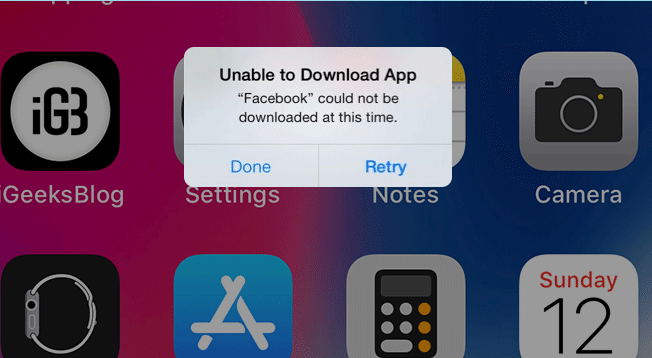
The situation gets annoying when you are unable to install apps on iPhone or update the existing ones. Fortunately, you can fix the issue using the methods mentioned in this blog. If your iPhone won’t download an app — whether it’s a new install or an update — the fix usually takes just a few minutes once you know where to look.
Here, we bring 12 ways to fix ‘apps won’t download on an iPhone’ problem. But first, let’s understand what causes this iPhone error.
Why can’t I download apps on my iPhone?
There can be many reasons why you can’t download apps on my iPhone, such as —
- Poor Internet connection
- Low storage space on your iOS device
- A bug in the App Store
- Faulty iPhone settings
- Even a restriction setting on your iPhone
12 Methods to fix ‘can’t download apps in iPhone.’
If your iPhone isn’t downloading apps, try these 12 easy methods to fix the problem:
1. Check your Wi-Fi connection
A good high-speed internet connection is essential for downloading any app from the App Store. By default, iPhone will ask for confirmation before downloading apps larger than 200 MB over cellular data — it isn’t a hard block. If you’d rather not see that prompt, go to Settings > App Store > Cellular Data > App Downloads and select Always Allow.
If you’re on a poor network, turn Airplane Mode on and off to refresh the connection, or switch to a strong Wi-Fi network.
2. Check storage space in your iPhone
Insufficient space on your iPhone will not let you download apps from the Apple Store. In addition, you won’t even be able to update the existing apps if there is insufficient enough storage space.
Check and free up some space on your iPhone. You can delete unwanted apps, documents, photos, videos, music, WhatsApp chats, etc., to make storage space for the new app you want to download.
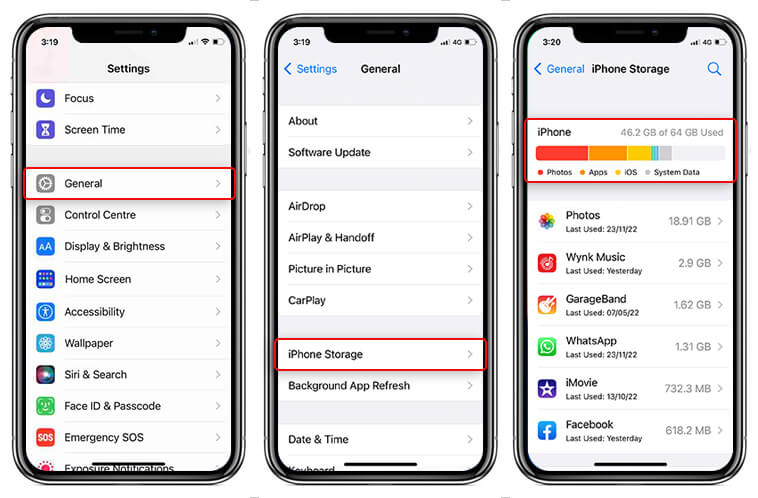
To check free space on iPhone:
- Follow Settings > General > click on iPhone Storage to see how much free space is available on your iPhone.
3. Restart App Store
Restarting the App Store helps clear cache, making space to download your app easily.
Steps to Restart App Store on iPhone:
- Launch the App Store on your iPhone
- Tap any of the icons at the bottom (Apps, Games, or Arcade) until you see the ‘Loading’ circle.
4. Restart iPhone
A simple Restart can fix most of the iPhone’s problems and even helps free up RAM, resulting in a fast-responding iOS. First, restart your iPhone and then try downloading the app from App Store.
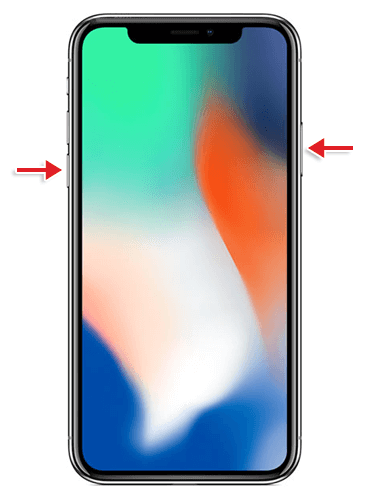
If you have an iPhone X or later version
- Press and hold the Volume and the side buttons until the power–off slider appears.
- Drag the slider and wait for 30 seconds for your iPhone to turn off.
- Press and hold the side button to turn on your iPhone.
5. Update iOS
Apple iOS updates usually fix bugs — some users have reported apps not downloading after a recent iOS update. The message “unable to install apps on iPhone” may appear because of a temporary bug, and updating to the latest iOS version often resolves it.
Steps to update iOS on iPhone:
- Turn on Wi-Fi on your iPhone
- Tap Settings > General > Software Update
- Tap Update Now if an update is available.
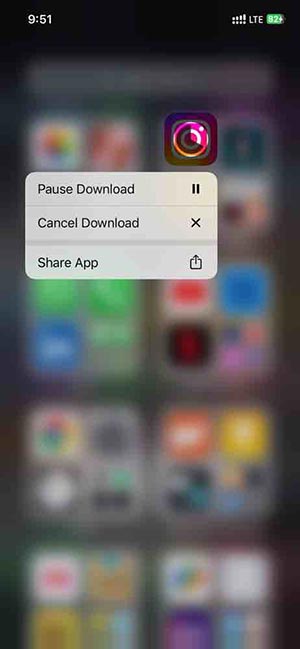
6. Pause and Restart the app download
Press and hold the app icon on your Home Screen while it’s downloading. You’ll see three options: Pause Download, Cancel Download, or Share App.
- Tap Cancel Download to stop the download entirely.
- If the download is stuck, tap Pause Download, then press the app again to resume it.
This works on any iPhone running a reasonably current version of iOS, not just newer models.
7. Sign out and Sign in to the App Store
Try signing out and then signing in to the App Store to see if the issue of ‘unable to install app iPhone’ is fixed. Here’s how to sign-out from App Store:
- On the App Store, tap on the profile icon in the top-right corner.
- Scroll down to the bottom and tap on the Sign Out option.
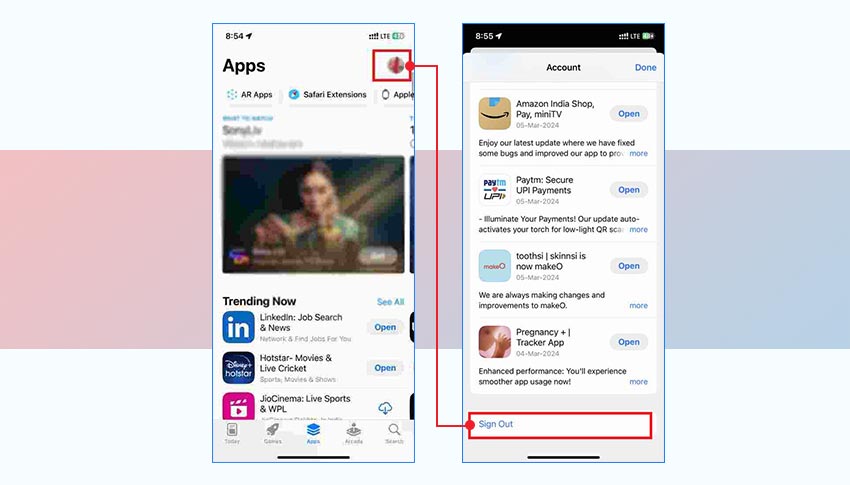
- Next, sign–in to your account.
Now try downloading the apps in App Store.
8. Check your Apple ID payment methods
Do you have a valid payment method on file in your Apple ID? If not, you won’t be able to download any app.
Moreover, if your card is expired, it will restrict you from downloading apps and show you a Verification Required pop-up message. Adding a valid payment method may solve the ‘apps not downloading on iPhone’ issue.
Manage your Apple ID payment in Settings on your iOS device, in iTunes on Mac/ PC, and even in the Apple Music app on your Android phone.
On iPhone, how to add the payment method:
- On iPhone, go to Settings > [your name] > Payment & Shipping.
- Tap on the Add Payment Method and follow the prompts to add card or banking details.
- Once added, tap Done.
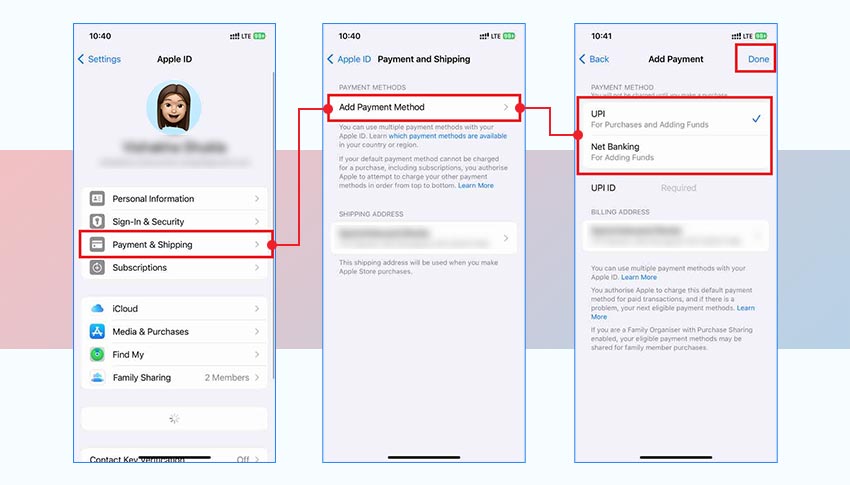
Once you get a valid payment method on file, you can try to download the apps again.
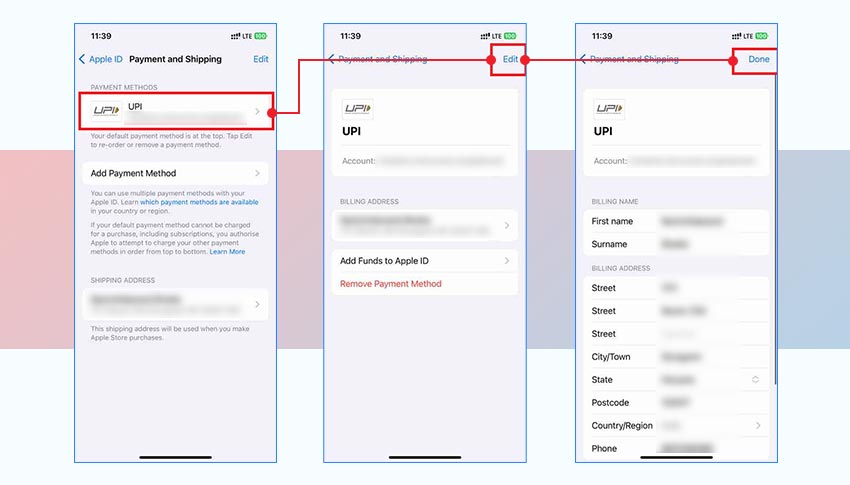
- To update your payment method: Tap on the payment method you want to change, then tap Edit. Next, edit the information and click Done.
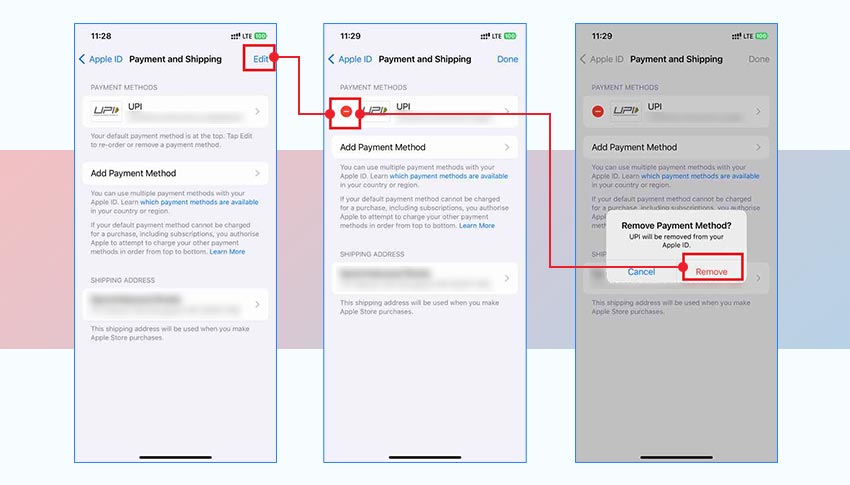
- To remove a payment method: Tap Edit, then tap on the Remove icon. Next, tap Remove to confirm your choice.
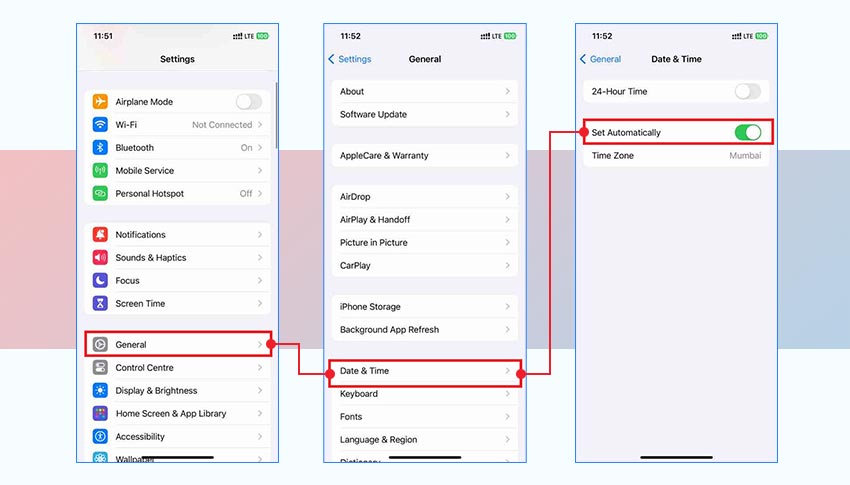
9. Set Date and Time
Wrong date and time settings on your iPhone can affect app download on App Store.
So set your date and time correctly to fix the issue of ‘apps not downloading on iPhone.’
Steps to set date and Time on iPhone:
- Go to Settings > General > Date & Time
- Toggle on Set Automatically.
10. Allow App Store purchases in Content & Privacy Restrictions
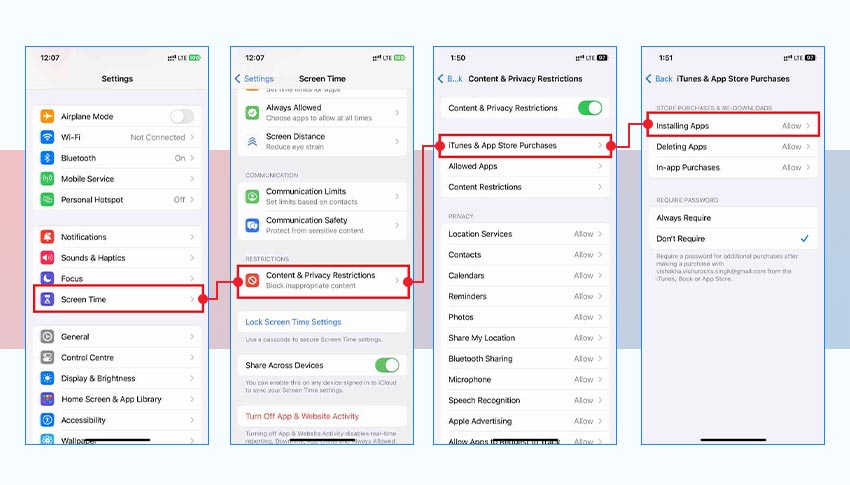
You might have disabled app purchases under Content & Privacy Restrictions on your iPhone, due to which apps won’t download on your iPhone. Allow the iTunes & App Store downloads and purchases to fix the problem of can’t download apps on iPhone.
Steps to enable App store purchases on iPhone:
- Go to Settings > Screen Time
- Tap Content & Privacy Restrictions
- Enter your passcode, if required
- Tap iTunes & App Store Purchases
- Set Installing Apps and In-app Purchases to Allow.
Once done, try downloading any app from the App Store see if the problem is fixed.
11. Reset iPhone device settings
If you accidentally changed your iPhone settings, it will restrict you from downloading apps from the App Store. So first, reset your iPhone’s settings. This may resolve the app download problem.
Note –Resetting will remove and set to default all the device settings, including network settings, location settings, keyboard dictionary, the Home screen layout and privacy settings. You won’t lose any data, documents, photos, videos, etc. from the device.
Steps to Reset All Settings on iPhone:
- On the iPhone, go to Settings > General.
- Tap on Transfer or Reset iPhone.
- Click on the Reset option.
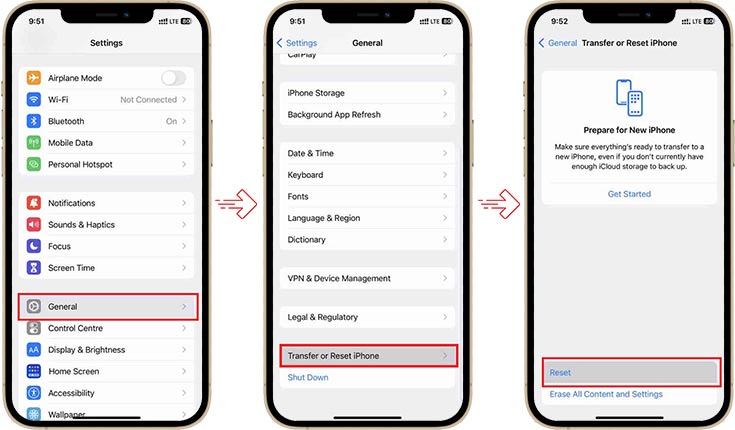
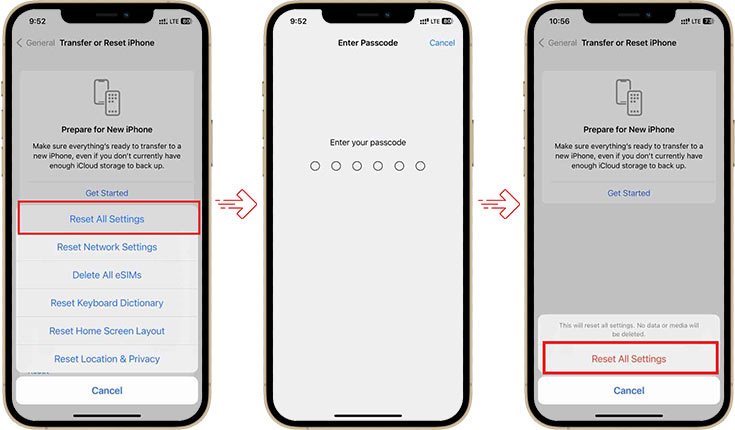
- Next, tap on the Reset All Settings option.
- Then, enter the iPhone passcode.
- Now, tap Reset All Settings. This process will take a couple of minutes to complete.
12. Restore iPhone to Factory Settings
When nothing works, a factory reset is the last resort. But this will erase all your iPhone’s data, photos, videos, contacts, call history, music voice memos, messages, etc. Thus, always take the backup in iCloud or iTunes before opting for a factory reset.
Steps to factory reset iPhone:
- On the iPhone, navigate to Settings > General.
- Tap on Transfer or Reset iPhone.
- Click the Erase All Content and Settings options.
- Next, click the Continue button and then enter the iPhone passcode.
- Now, click Erase iPhone. Your iPhone will reboot a few times, and the device will be fully wiped once it’s done.
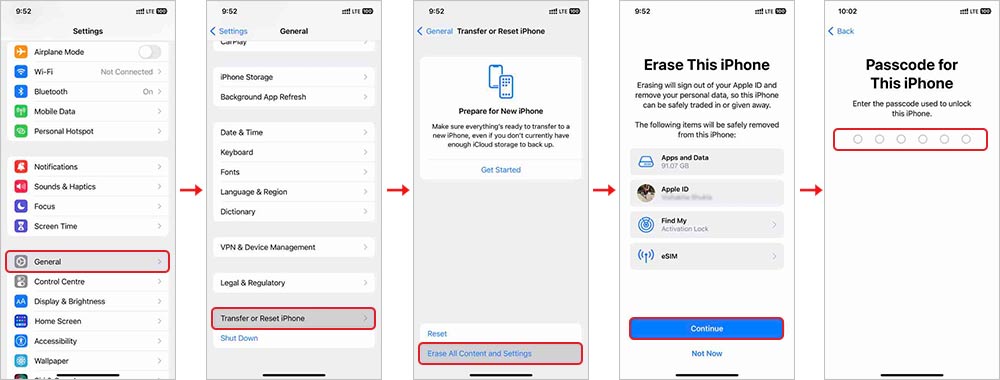
- Now set up your iPhone as new and restore your data from iCloud or iTunes backup.
Can’t Restore iPhone Data after Factory Reset
If you didn’t take a backup or are unable to restore iPhone data from iCloud and iTunes backup after a factory reset, use Stellar Data Recovery for iPhone to get back your lost Photos, Videos, Contacts, Messages, Camera Roll, Photo Stream, Calendar, Call History, Safari bookmarks, and other data. It is an easy-to-use DIY software to retrieve lost and deleted iPhone data.
This tool is compatible with the latest iPhone models, including the iPhone 17, 16, and 15 series, as well as older supported devices. It also works with the current iOS release.


Watch the video to recover lost data from iPhone with Stellar Data Recovery for iPhone:
Wrapping Up
I hope one of the above methods will help you to fix the issue ‘can’t download apps in iPhone’ from the Apple Store. You can try to – restart iPhone, update iOS, check network connection and storage space, verify account details, or reset the iPhone to fix ‘unable to install apps on iPhone’ issue.
Still, if you cannot download any app after applying the above troubleshooting methods, visit your nearest Apple Genius Bar for assistance.
