To perform a factory reset when your PC gets compromised by a virus or malware is often suggested as a potential fix. But is it enough to make your device safe again? Well… in majority of cases, it does, but not always. The purpose of this blog is to break it down for you—when a reset fixes the issue and when it ends up being a risky move.
What is Factory Reset?
A built-in recovery feature, Factory Reset reinstalls the OS & drivers to a default state, restores system settings, and removes any third-party app that wasn’t originally shipped with the machine.
While you can choose to keep your personal files, if the goal is to remove a virus or malware—perform a complete wipe. And of course… don’t forget to back up your important files before executing this nuclear option.
A built-in recovery feature, Factory Reset reinstalls the OS & drivers to a default state, restores system settings, and removes any third-party app that wasn’t originally shipped with the machine.
While you can choose to keep your personal files, if the goal is to remove a virus or malware—perform a complete wipe. And of course… don’t forget to if the virus attacks only specific files, like office docs or media files before executing this nuclear option.
Will Factory Reset Remove Virus on My Computer?
Barring some specific cases, performing a complete factory reset will remove the virus from your computer. For ex., if the virus attacks only specific files, like office docs or media files, a full reset will delete these compromised files and restore your system back to its default state.
Factory Reset will remove virus if:
- The infection only affects user-level files
- Malware is limited to docs, installed apps, or media
- The recovery partition is intact and uncompromised
But the situation flips when a malware compromises system-level components. You see – upon performing a reset, the computer installs a clean copy of the OS contained in the Windows recovery partition. But if an advanced malware (firmware or rootkits) compromises the recovery partition itself – you can’t rely on it to restore your system.
Factory Reset will not remove virus if:
- Malware has infected the recovery partition
- Infection has spread to firmware-level
- System-level components are compromised
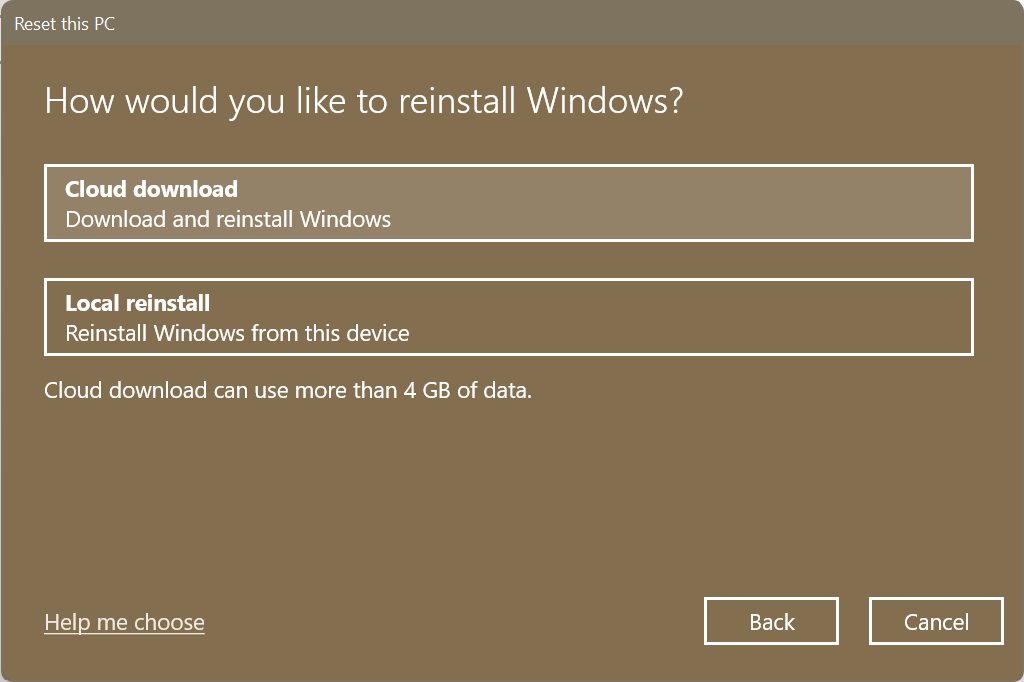
To mitigate such threats, Windows introduced the Cloud Download feature starting with version 20H1. When you select this option, the system sources fresh installation files directly via Microsoft’s servers instead of relying on local files.
How to Factory Reset Windows?
You can use a fresh computer and download an antivirus scanner on a USB drive and run the scan on the infected computer. Doing so can even help resolve the infection without performing a complete reset. If that doesn’t work, proceed with a backup by saving your essential files to an external drive or cloud storage.
But refrain from storing them blindly; instead, scan the backup using antivirus software on a separate computer. Skipping this step can lead to reinfection.
- Open the Settings app.
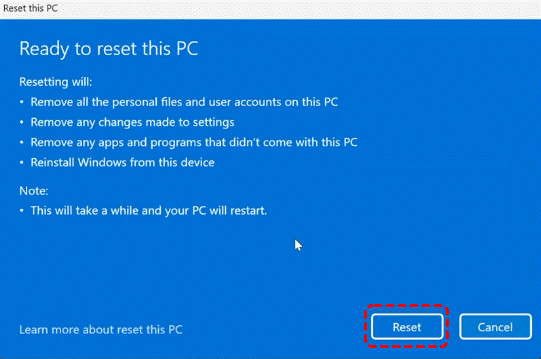
- Go to Update & Security > Recovery > Reset this PC.
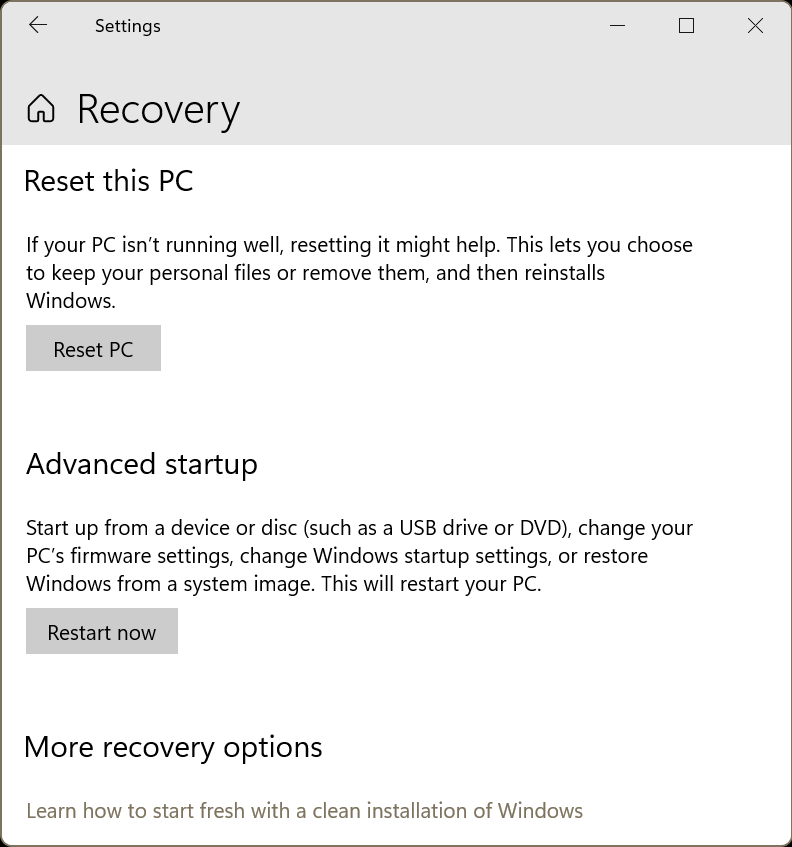
- Click Reset PC.
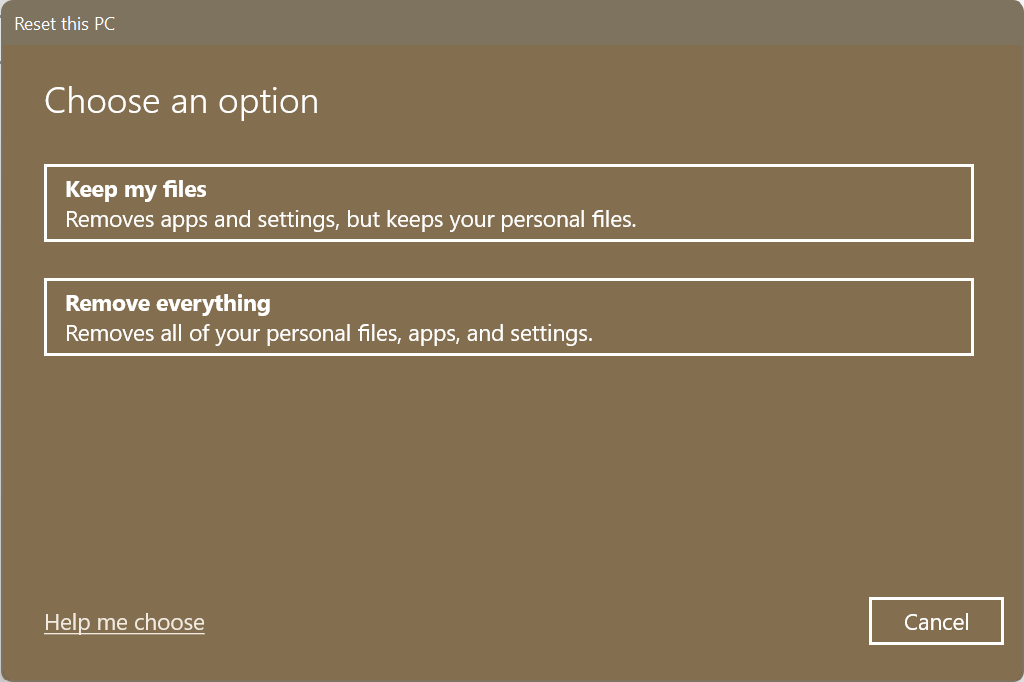
- Select Remove everything.
- Choose Cloud download for a more secure reinstall.
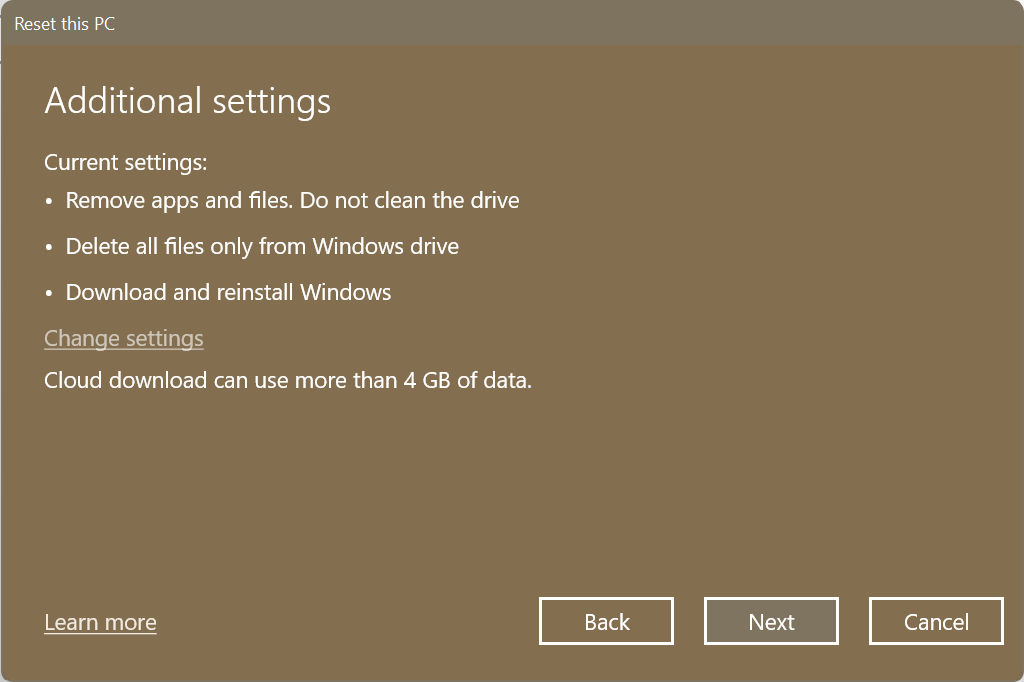
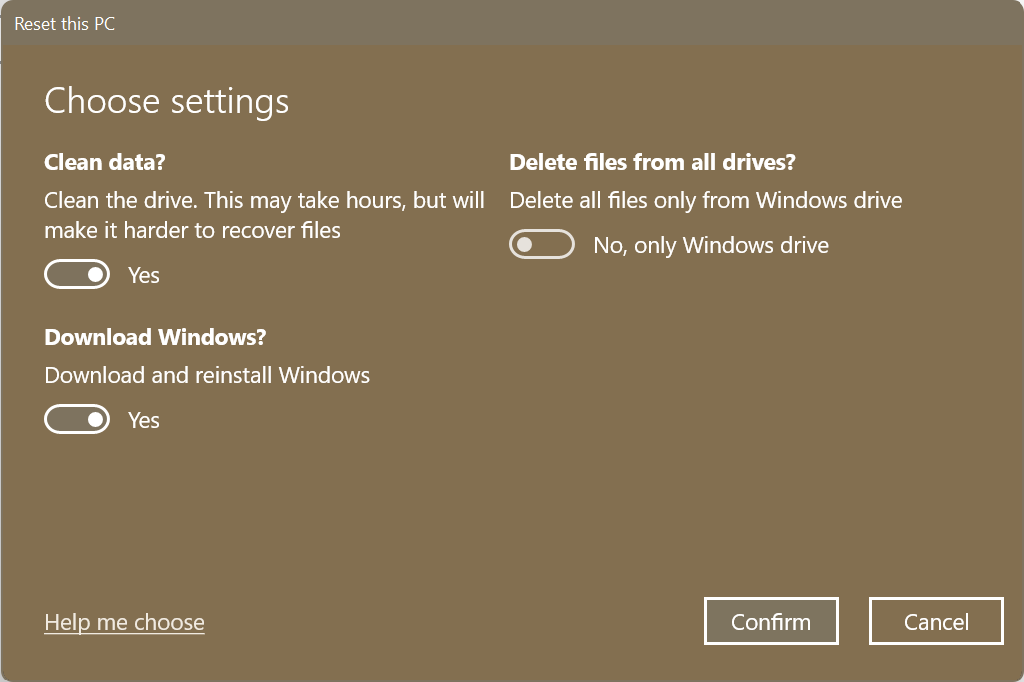
- Confirm and let the process complete.
How to Factory Reset a Non-Booting Windows PC?
To Factory Reset a non-booting Windows PC, enter the Windows Recovery Environment (WinRE) and perform a reset.
- Hold down the Shift key while selecting Power > Restart to enter WinRE.
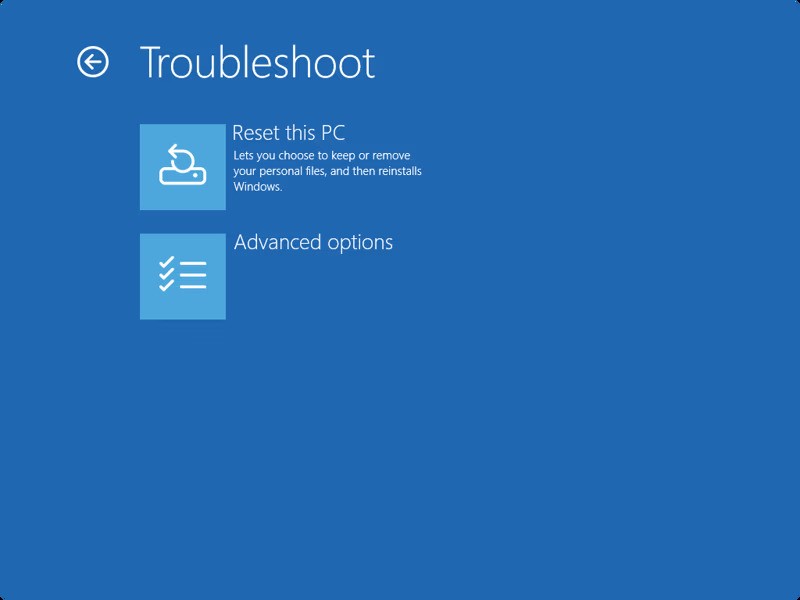
- Click Troubleshoot > Reset this PC.
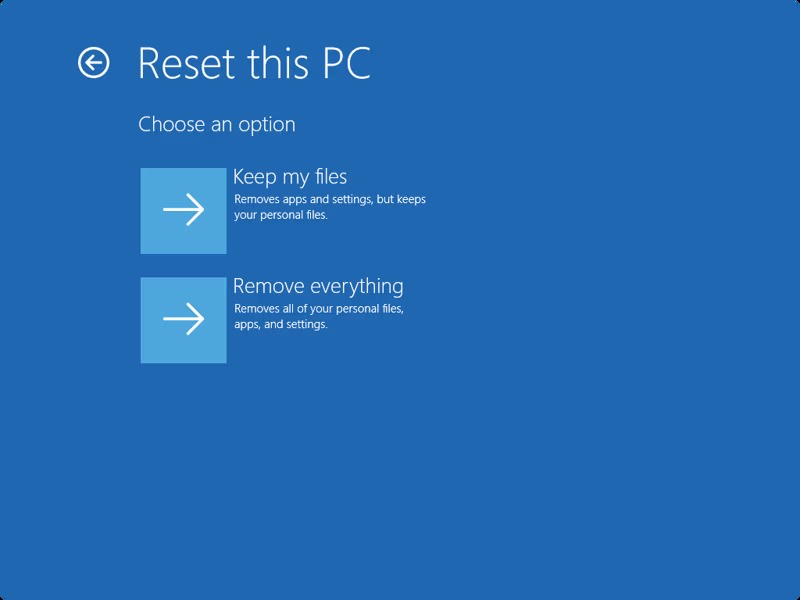
- Select Remove everything.
- Select Cloud download.
- You will be asked if you want to keep this PC set up. Click No.
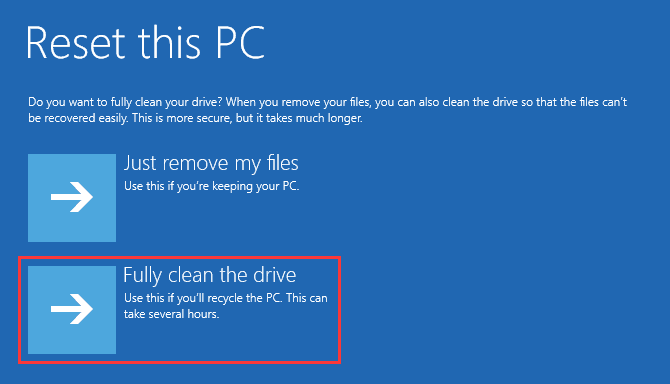
- Select Fully clean the drive.
How to Keep Your PC Secure?
You don’t need expensive software to keep your PC secure. Most virus infections can be prevented through smart habits and layered security best practices.
- Always keep your system updated. These often ship “zero-day” patches that fix security holes before hackers can exploit them.
- Do not download third-party apps from untrusted sources. If possible, use only Microsoft Store to download apps and keep them updated.
- Windows Defender is one of the best antivirus engines in the world, keep it active.
- Use an Ad-Blocker to prevent viruses delivered via “malvertising”.
- Avoid using “Cracked” or pirated software as they may contain hidden Trojans.
Summing Up
Once your PC is fully cleaned, it’s time to rebuild. Install a strong antivirus program first. Then scan your backup drive carefully before restoring any files — don’t skip this step. Reinstall your important programs directly from their official websites. Avoid using old setup files that might still carry hidden threats. Always back up your data using the 3-2-1 rule and if the files still go missing, you can recover them quickly using a dedicated Windows data recovery software—Stellar Data Recovery Standard.
