Are you facing an issue while playing YouTube videos on Chrome? You open Chrome, click a YouTube link, and the video never plays, it just sits there. No picture, no sound, only a blank screen to stare. In most instances, the internet or YouTube link is problematic, but there are various other “less talked about” reasons behind this error. Here in this blog, we’ll discuss all the different reasons and learn the potential solutions.
Why YouTube Videos May Not Play in Chrome?
Let’s check the reasons that can cause conflict with smooth YouTube video playback in Chrome tab.
Outdated Chrome – If your Chrome browser is on an old version, it may not support the latest YouTube formats. Updating Chrome often fixes playback bugs and errors. Regular browser updates are mandatory because they include fixes for video playback and codecs.
Corrupted browser cache or cookies – Over time, Chrome keeps temporary files that help pages load faster. If those files are broken or contradictory, video playback can hang or refuse to start. Clearing cached files forces Chrome to fetch fresh data.
Extensions or ad blockers interference – Extensions that block scripts or ads sometimes block video playback elements by mistake. Even extensions that look harmless can prevent YouTube from loading the video player or its controls.
Poor internet or DNS problems – If your internet is slow, your device has domain name system (DNS) server issue, it can stop the video from loading, or video keeps buffering. Smooth video streaming via YouTube needs a high-speed internet. Also, DNS problems can block the connection to YouTube’s servers.
Conflicts with antivirus or firewall – Security software can block parts of YouTube or Chrome from loading external content. Rules inside antivirus or firewall apps sometimes treat video streaming as risky and block it.
Hardware/graphics acceleration issues – Hardware or Graphics acceleration is a feature in chrome that uses your computer’s graphics hardware to play video files smoothly. Hence, if the Graphics acceleration feature is not functioning or is disabled in your device’s Chrome app settings, your YouTube video might not play or give errors.
Quick Troubleshooting Fixes for YouTube Not Playing on Chrome Error
Before diving into the solutions, you must do these quick checks to confirm which fix will work best.
- Check your internet connection speed. Go to speedtest and run a check for your network strength and speed. Playing videos via YouTube requires at least a few Mbps speed for standard video and more for HD. If your speed is low, try switching networks or pausing other activities and downloads.
- Open YouTube in Incognito mode. To avoid extensions from interfering into playback. Try opening the video in incognito mode to disable any extensions. If video plays in incognito, the issue is likely an extension or stored cache files.
- Make sure Chrome is updated. Go to Chrome menu > Help > About Google Chrome. Chrome will check for updates and install them automatically. Restart after updating. Similarly, for Android device or iOS devices, go to Google Play or App store and update the Chrome app.
- Disable VPN or proxy temporarily. Some VPNs and proxies change routing and slow connections or block playback. Turn them off to test.
- Turn off Antivirus. If you think your Antivirus software is interfering with the chrome app and blocking YouTube videos, you can turn it off for some time and check if this resolves the issue.
- Restart your PC. If you are facing this error in your PC, give it a quick restart. Often, a simple restart can clear temporary glitches and restart drivers, resolving this issue.
These quick check takes even less than five minutes, and sometimes they can also solve the issue that causes YouTube playback error on Chrome browser.
Working Fixes for YouTube Not Playing on Chrome
To resolve this issue, you can follow each fix in order and check playing YouTube videos after each of these fixes. This will help you analyze and detect the problem and the solutions that fixed it.
Clear Chrome Cache and Cookies
First step is to clear the cache. Outdated and old cache files or bad cookies often break page behavior.
- Go to Chrome browser and open Chrome settings, go to Privacy and security and choose Delete browsing data.
- Now from the list only select Cookies and other site data and cached images and files, and also change the time range as per preference, then click Clear data.
- After clearing, reopen YouTube and reload the video.
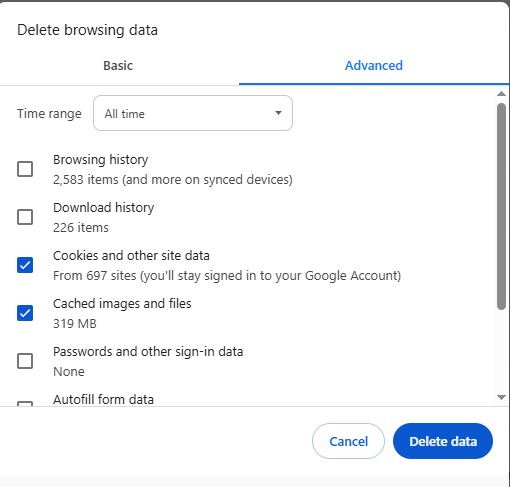
This method allows Chrome to load fresh scripts and video resources.
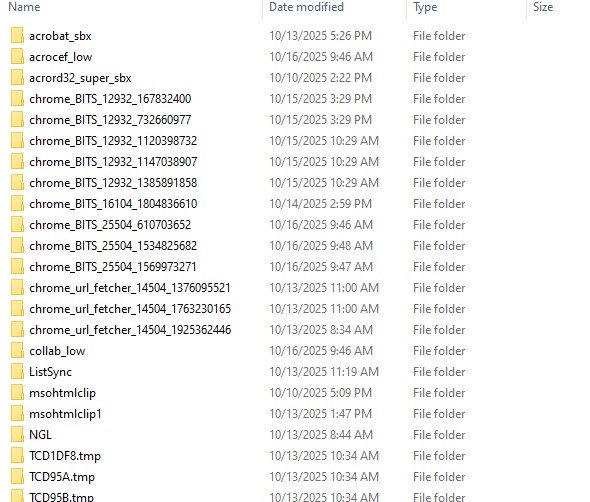
Another way to clear temporary cache files on your Windows desktop is – Press Windows + R, and then type %temp%, hit OK. This will take you to the temporary file location.
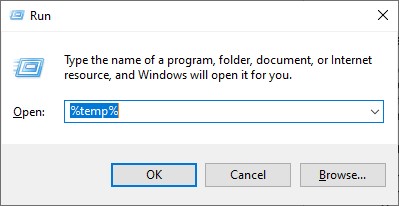
Now select all the temporary files by pressing – Ctrl+A and then hit the Delete button.
Reset Chrome Settings
Sometimes, Chrome settings can change Chrome behavior, resetting to defaults can help fix this. In Chrome settings, search for Reset settings, then click Restore settings to their original defaults.

This step does not delete bookmarks or saved passwords, but it resets search engine, startup pages, and extensions. After resetting, check YouTube again.
Disable Extensions or Ad Blockers
With a few clicks, you can disable extensions. Click the puzzle icon on your chrome tab, then click on any suspicious extension, such as Ad blocker and then click on Turn Off Blocking Everywhere.
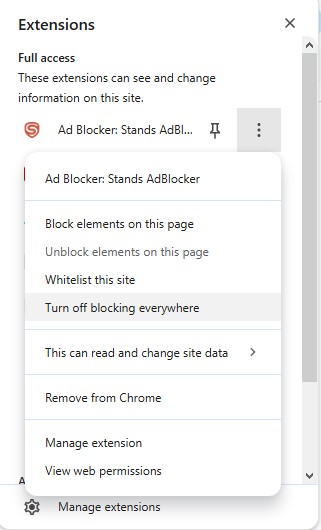
To completely disable any extension – click on the three dots, from the menu, click on Manage extensions, and toggle off extensions one by one.
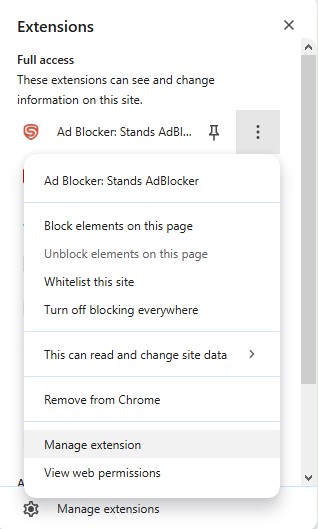
Test YouTube after each disable. If the video plays after turning off a particular extension, remove it or look for updated versions. Ad blockers and script blockers are common culprits.
Turn On/Off Graphics Acceleration
If Graphics acceleration is turned off or not functioning properly, it can cause rendering problems on some systems. To turn it on/off, open Chrome settings, go to System, and toggle on/off the button next to “Use graphics acceleration when available”.
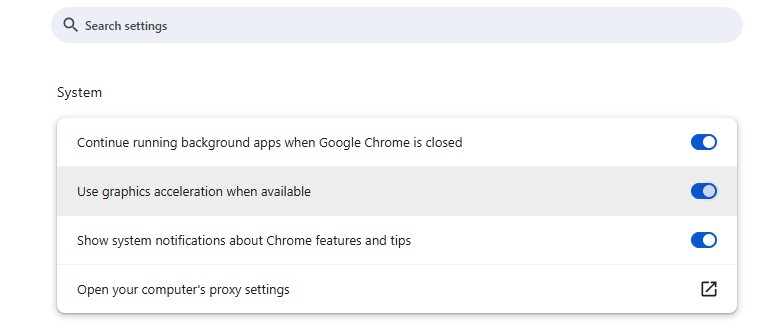
Restart your Chrome app and test YouTube video streaming. If turning it Off or On helps, you can keep it disabled or enabled. If none of these settings help, try to update your graphics drivers and try enabling it again later.
Flush DNS and Reset Network Stack
Sometimes, YouTube videos stop loading even if your internet seems fine. In many of those cases, the problem is with DNS cache or the network stack on your computer. DNS cache is a small cache file that stores records of website addresses you’ve recently visited.
This way it helps websites load faster. But when those stored records become outdated or corrupted, Chrome might send these requests to the wrong place, which can stop YouTube videos from loading.
The same goes for network stack, this handles how your computer talks to the internet. If that system layer gets cluttered or misconfigured, usually after a failed update, unstable Wi-Fi, or sudden shutdown, then your browser might lose access to streaming servers like YouTube.
You can fix this easily by refreshing these settings. Here’s what you need to do:
- Click on the Start menu, type Command Prompt, right-click on it and choose Run as administrator.
- Once the black window opens, type these commands and press Enter after each:
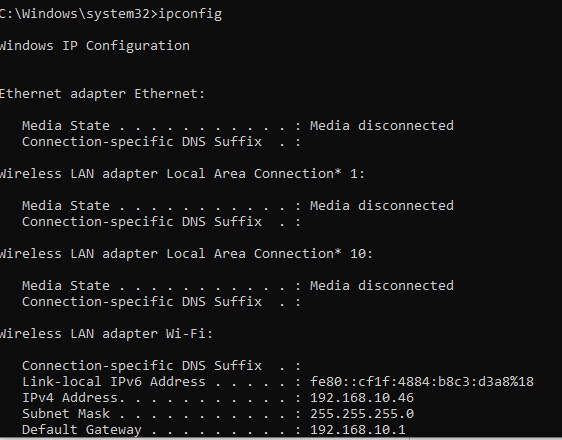
ipconfig
netsh winsock reset
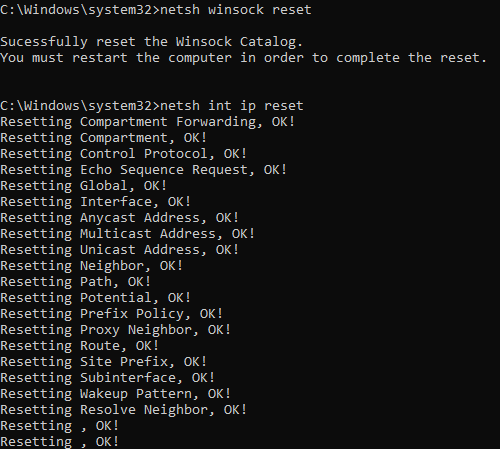
netsh int ip reset
Remember, after running these commands you need to restart your computer.
Know what this does?
- The first command clears all the saved DNS records, forcing your system to fetch fresh, correct data from the internet.
- The second and third commands reset your network configuration back to its default and removes any glitches.
Once your system restarts, open Chrome and try playing a YouTube video again.
Check System Sound and Video Drivers
Sometimes, outdated or corrupted drivers can also interfere with video and audio playback. On Windows, use Device Manager to update the display adapter and audio drivers. Look for manufacturer updates on the GPU or laptop maker site. Updating drivers can remove compatibility problems and improve playback stability.
Unable to Play Downloaded YouTube videos, here’s a cool trick!
Users also face playback issues with offline videos. Sometimes, a downloaded YouTube video file can be damaged itself. This usually happens when a download or transfer is interrupted, a recorded file is incomplete, or gets corrupted due to a malicious program. In those instances, using an online video repair tool can be a practical solution.
Stellar Online Video Repair service fixes video file corruption in MP4, MOV, AVI, and many other popular video formats. Repairing a corrupt video requires no special skill, visit the Stellar Online Video Repair website, then upload the corrupt or damaged video file through your browser, and add a sample file. Once the upload is complete, you can start the repair process. At last, preview and download the repaired video file. However, if you need, there’s a software version of a video repair tool available that can help you repair larger video files on your Windows or Mac PC.
Tips to Avoid “YouTube Video Not Playing on Chrome” Issue
Here are practical tips to reduce playback problems in the future.
- Keep Chrome and your system updated. Regular updates reduce compatibility problems.
- Limit the number of open tabs while streaming. Fewer tabs means fewer shared resources and better streaming.
- Use a wired connection for important streams. Ethernet gives steadier bandwidth than Wi-Fi.
- Avoid running heavy downloads during streaming. Downloads can hog bandwidth and cause buffering.
- Use recommended video formats for local files. MP4 with H.264 is broadly compatible.
- Back up important videos. If you record content, keep a copy so a single corruption does not cost you the whole file.
- Check GPU driver updates monthly. Graphics drivers affect decoding and rendering. Keeping them fresh helps.
Conclusion
YouTube playback issues on Chrome can arise due to various reasons, this can be slow internet speed, old cache, problematic settings or buggy extensions. To fix such issues, check the internet connection, try clearing cache and then move to more technical ones like DNS resets or site permissions. You can also try using a video repair tool like Stellar’s Online Video Repair to fix file corruption on the go.
