



How to Fix "Outlook couldn’t Start Last Time Error"?
October 22, 2026| 5 min read



Summary: You may encounter issues while synchronizing Google Workspace email account with Microsoft Outlook client. By following the solutions mentioned in this article, you can quickly resolve the synchronization-related problems with Google Workspace Sync for Microsoft Outlook. You will also find about an advanced Outlook repair tool that can recover mail items from corrupt PST files.
Free Download 100% SecureEmail users can leverage the flexibility of Google Workspace and comprehensive features of Microsoft Outlook by using Google Workspace Sync for Microsoft Outlook (GWSMO) provided by Google to synchronize the Google Workspace account with Outlook.
While Google Workspace with Outlook works well most of the time, sometimes users encounter challenges while setting up or maintaining the Google Workspace Sync for Microsoft Outlook (GWSMO). This guide provides a step-by-step instructions to troubleshoot and resolve the common issues associated with GWSMO and the synchronization issues between Outlook and Google Workspace.
Sync issues between Google Workspace and Microsoft Outlook can arise due to several reasons. These include:
Below are the solutions that can help you troubleshoot and resolve the Google Workspace Sync for Microsoft Outlook issues.
A stable and fast internet connection is crucial to avoid sync issues in Microsoft Outlook. Therefore, you must verify that your internet is working and ensure your connection is stable. If there’s issue with internet, you can try the following:
Also, check if there’s a problem with the mailbox server, i.e., Google Workspace. For this, login to Google Workspace using web browser. If login is successful without issues, continue to the next solutions.
To avoid issues related to compatibility between Microsoft Outlook and GWSMO, make sure both are updated to the latest version. To check and update Outlook, follow these steps:
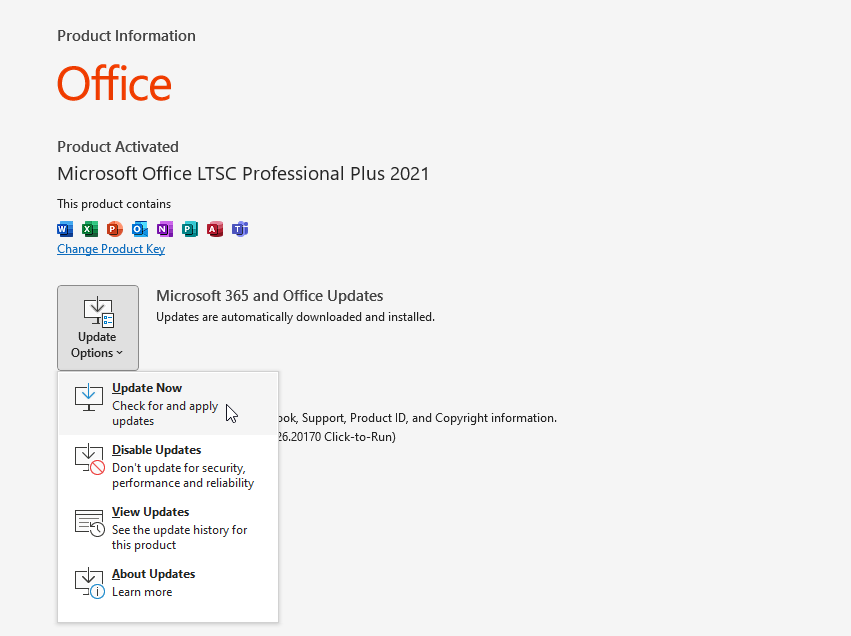
To check and update GWSMO, follow these steps:
Make sure that Outlook and Google Workspace Sync for Microsoft Outlook are not conflicting with any of the security apps installed on your system, such as antivirus software or firewall. You can disable the protection for some time to see if these apps are causing the issue.
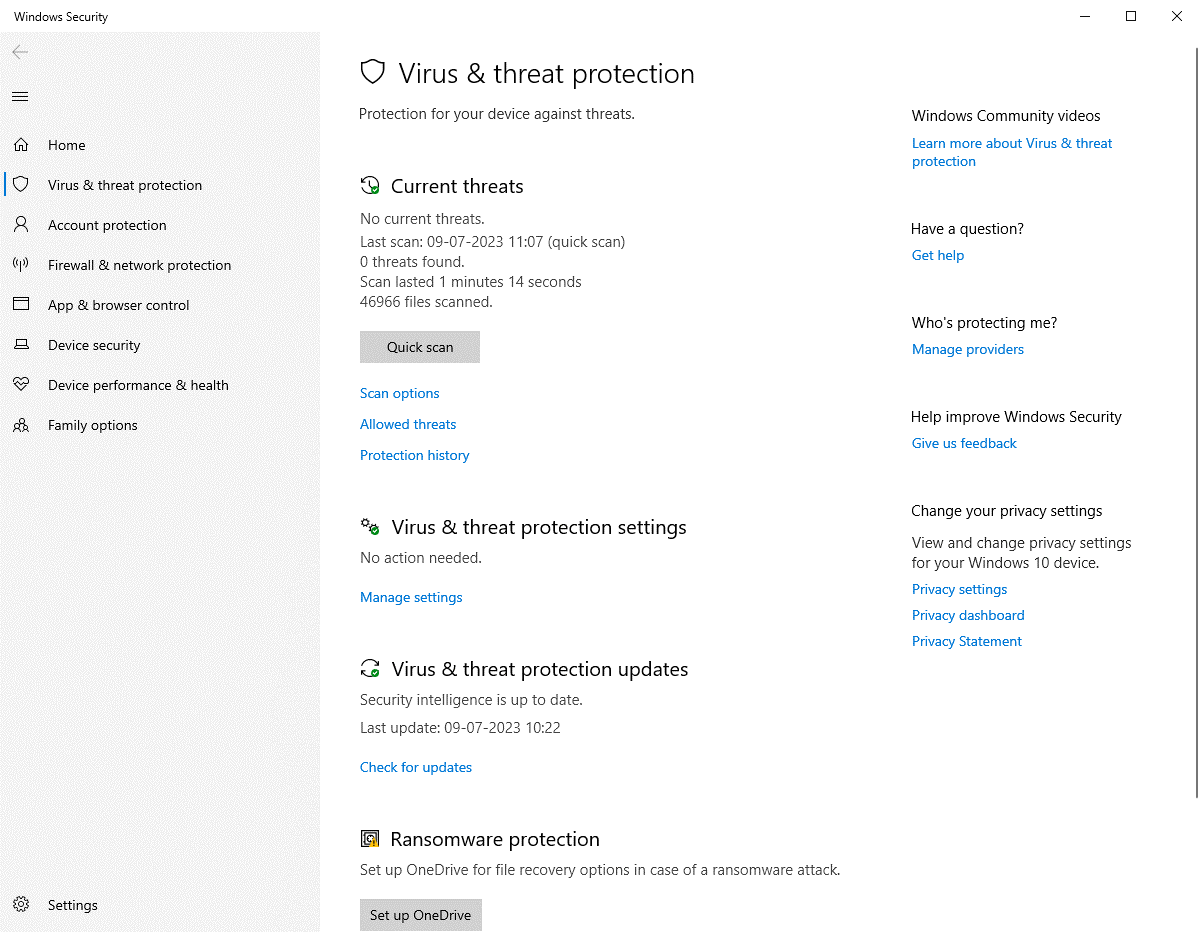
If the issue is resolved after disabling the antivirus or firewall, make sure to add Outlook and Google Workspace Sync for Microsoft Outlook to your antivirus and firewall settings to ensure they can communicate with the mailbox server without any interruption. Alternatively, you can also install or deploy Outlook-aware antivirus application.
Google offers a troubleshooting tool specifically for GWSMO. This tool can help diagnose and fix problems related to Google Workspace Sync for Microsoft Outlook automatically. To access this tool and resolve the sync issues, follow these steps:
Note: This requires admin access to the Google Workspace. If you don’t have that, reach out to your IT support or email administrator for help.
Incorrectly or wrongly configured Microsoft Outlook account settings can also lead to sync issues with the Google Workspace. To resolve this, follow these steps:
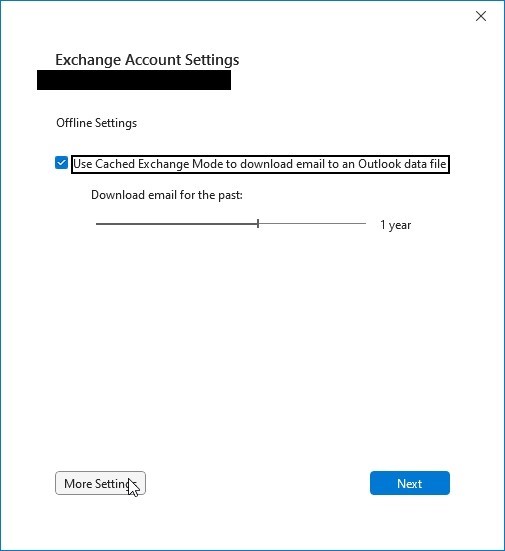
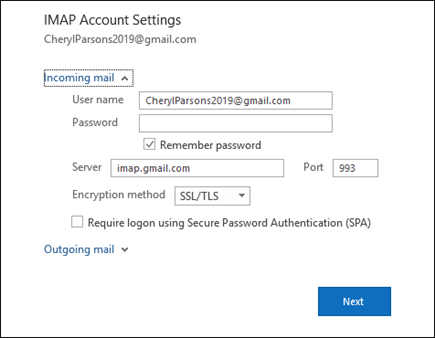
Make the necessary changes and save the settings. If you are not sure about what details to enter, contact your IT support for the specific details and then update them. Then, restart Outlook and try to sync using the Update Folder button under the Send/Receive tab.
Outlook in safe mode starts without any add-ins. This can help determine if add-ins are causing the issue. To start Outlook in safe mode,

If the sync issues between the Microsoft Outlook and Google Workspace are fixed in safe mode, you need to find and disable the faulty add-in which is causing the issue. For this, follow these steps:
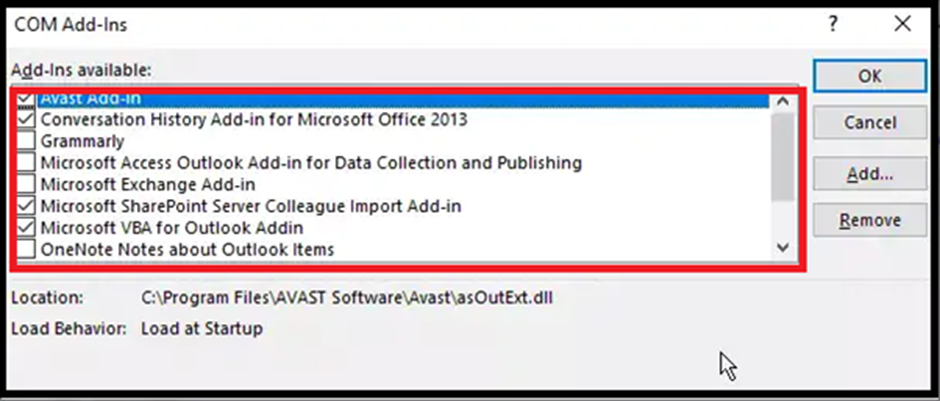
If the issue related to Google Workspace Sync for Microsoft Outlook has resolved, enable one add-in at a time and then restart Outlook. This helps you check whether the add-in you just activated is the culprit behind this error.
If you encounter the sync error just after activating a specific add-in(s), simply remove that add-in from Outlook to resolve the issue permanently.
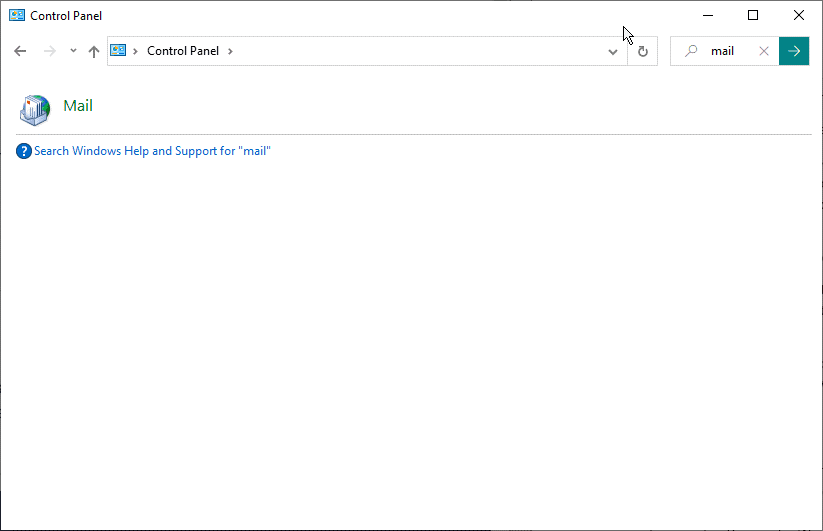
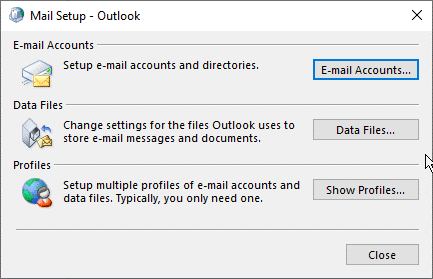
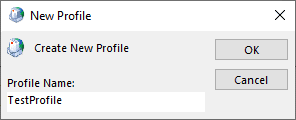
The sync issues might also occur due to corrupt or damaged Google Workspace profile. In such a case, you can create a new profile and then add your Google Workspace email account under this profile. The steps are as follows:
Sometimes, Outlook data file that stores all the mail items, including the emails, attachments, contacts and all the settings, gets damaged. However, you can repair the PST file using the Outlook SCANPST. The steps to repair PST file using SCANPST tool are as follows:
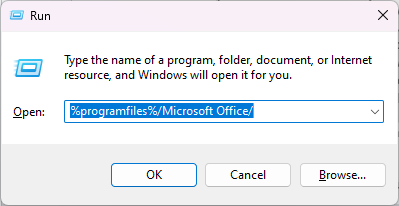
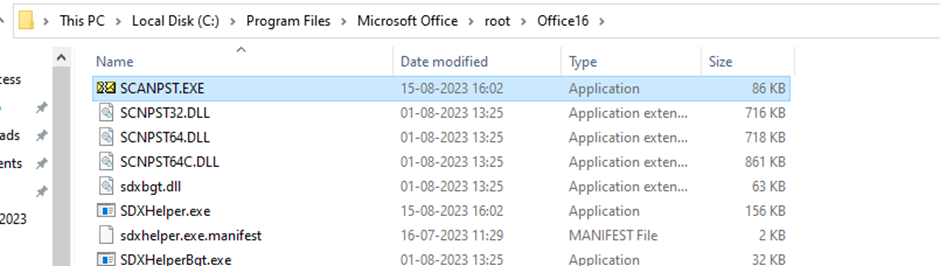
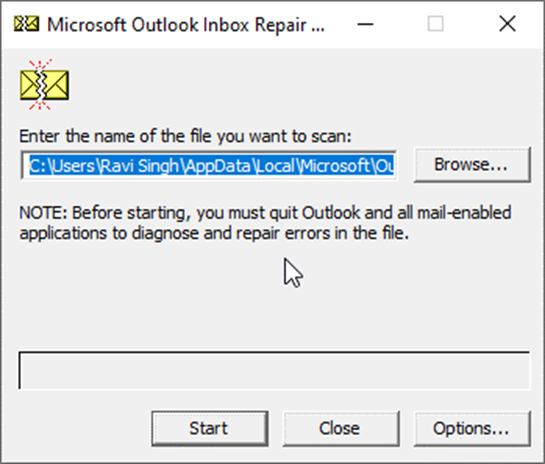
However, if the SCANPST.exe stops responding, fails, or crashes during the PST repair process, you can use an advanced Outlook repair software, such as Stellar Repair for Outlook to repair your PST file. This advanced tool can repair large PST files (up to 50 GB or larger) with severe corruption, and recover all mail items to a new PST file. The software also provides option to export all mail items from such corrupt or damaged PST files directly to Office 365 (Microsoft 365) or live Exchange Server with complete integrity and precision.
By following the solutions given in this article, you can resolve the synchronization issues between Google Workspace and Outlook. If you’re experiencing sync issues with Outlook and Google Workspace due to corruption in PST file, you need to repair the PST file. For this, you can use the Outlook Inbox Repair tool or SCANPST. In case this tool fails to repair the file, you can always rely on an advanced Outlook PST repair tool, such as Stellar Repair for Outlook. This can recover all your mail items from corrupt, inaccessible, or damaged PST files —irrespective of the file size.
Data Recovery Expert
This article was Reviewed by Kuljeet Singh, a Data Recovery Expert at Stellar Data Recovery.
Senior Content Writer
This article was written by Ravi Singh , a Senior Content Writer at Stellar Data Recovery.
October 22, 2026| 5 min read
July 24, 2026| 5 min read
January 5, 2026| 5 min read






 5 min read