You may encounter the QuickBooks Error -6000, -301 while opening your company file or after upgrading the application to a newer version. It occurs when the application cannot access the company file. The complete error message appears as follows:
“Warning: An error occurred when QuickBooks Desktop tried to access the company file. Please try again. If the problem persists, contact Intuit Technical Support and provide them with the following error codes: (-6000, -301).”
As indicated in the above message, you can try to open the file again after restarting the application. If the error still persists, you can follow the step-by-step methods mentioned in this guide to fix it.
There are different reasons that can lead to this QuickBooks Desktop application error. Some primary reasons include:
- Damaged/Corrupt QuickBooks Company file: Corruption in the QBW file can block the application from reading the data properly.
- Security Software Interference: QuickBooks requires uninterrupted access to the company file. If your company file is stored on the encrypted drive, it can block company file access.
- Corrupted QuickBooks Desktop Support Files: If QuickBooks support files, such as Transaction Log (TLG), Data Source Name (DSN), and Network Descriptor (ND) get corrupted or are incorrectly configured, it can lead to company file access issues.
- Outdated QuickBooks® Version: Running an unpatched or outdated QuickBooks application can cause compatibility issues, leading to the error.
- Incorrect Hosting Settings: QuickBooks won’t open the company file when the hosting option is turned on or enabled on users’ workstations. When multiple workstations act as server systems at the same time, it can cause conflicts, causing errors 6000 and 301.
- Incorrect Company File Folder Permissions: QuickBooks may fail to open the company file when users do not have the necessary permissions on the folder storing the company file.
- Insufficient Disk Space: According to Intuit documentation, QuickBooks requires at least 2.5 GB hard drive space to work smoothly. If there is not enough space on the system running the QuickBooks application, it can lead to a 6000 series error.
Following are some methods you can try to troubleshoot this error in QuickBooks Desktop.
Method 1: Check and Free Up Disk Space
The QuickBooks application requires space to write to the. TLG (Transaction Log file) during each session. If disk space on the drive containing the company file is not enough, it can cause various errors. To check and free up disk space on your system, follow these steps:
- On your system, open File Explorer and then click This PC.
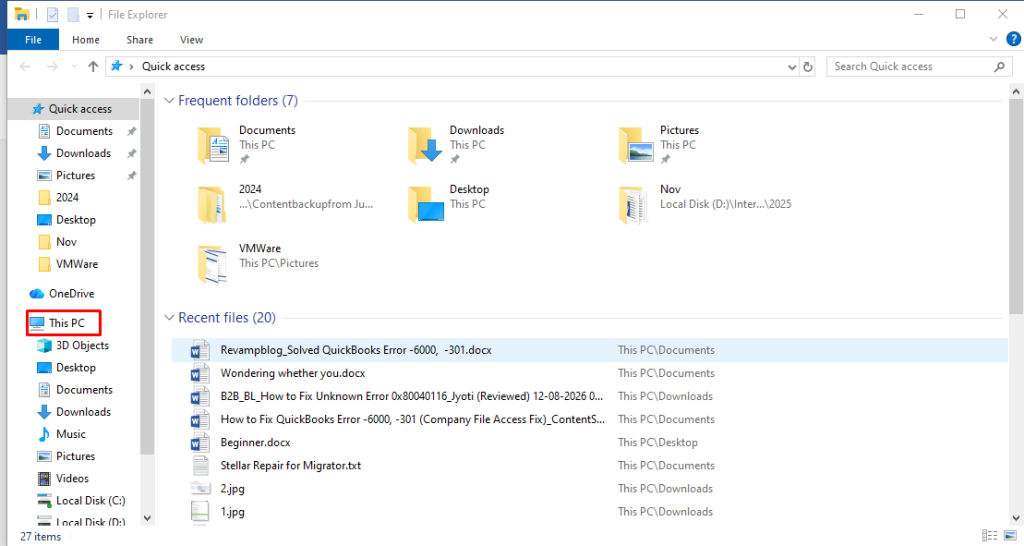
- Verify the drive where the company file is stored and check the available space listed below the drive.
- If the available space is less, you can fix there is not enough space on QuickBooks Desktop issue. You can also free up space on your system by removing temporary files, deleting unnecessary data, or emptying the Recycle Bin.
- After clearing the space, try to open the company file.
Method 2: Check and Update your QuickBooks® Desktop
The QuickBooks error -6000, -301 may also occur if your application lacks the latest updates. You can check and update it by following the steps below:
- Open your QuickBooks and press the F2 key from your keyboard to open the Product Information window.
- In the Release Notes, check your latest version and release.
- If your QuickBooks version is not up-to-date, navigate to the Help option and then click Update QuickBooks Desktop.
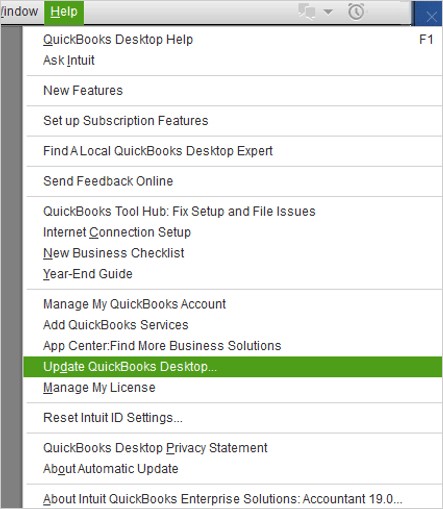
- Click Update Now and then click Get Updates.
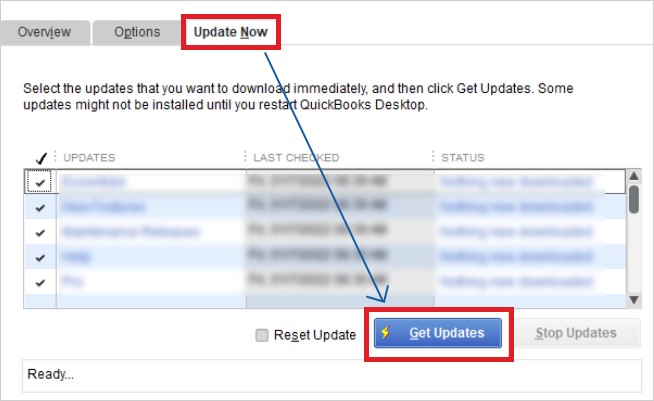
- Once the update process is complete, then close and reopen your QuickBooks®.
- You will get a prompt asking to install the update. Click Yes.
- After the installation completes, follow the on-screen instructions.
Method 3: Disable the Encryption Software
QuickBooks cannot read or connect to the company file if the file folder is stored on the encrypted drive. You can check if any encryption software is active on your system. Follow these steps:
Check for Folder-Level Encryption (Windows)
- Open File Explorer and locate your QuickBooks company file folder.
- Right-click the folder, select Properties, and click the Advanced button under the General tab.
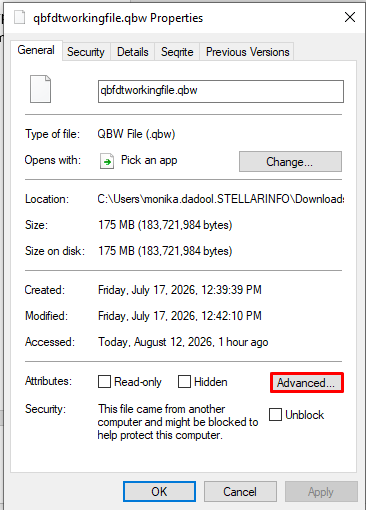
- Look for the “Encrypt contents to secure data” checkbox. If it is checked, encryption is active.
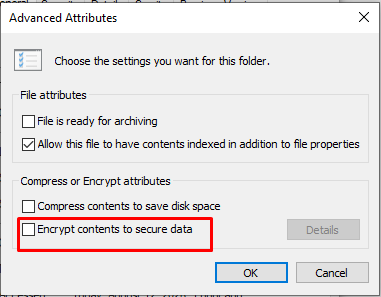
- Uncheck this option, and click OK.
- When prompted, select “Apply changes to this folder, subfolders, and files” and click OK.
- Then, try to open your company file.
Check for Drive-Level Encryption (Windows Device Encryption)
Check whether encryption is active on your system. If it is enabled, then remove the company file folder from the encrypted volume or exclusion list.
- Go to the Start button.
- Select Settings and then click Update & Security.
- Click Device encryption.
- If it does not appear, that means it is not available.
- If it is enabled, that means Device Encryption is on. You can disable it or contact your IT admin.
Method 4: Rename the QuickBooks® Supported Files
Sometimes, QuickBooks® throws the -6000, -301 error, if the configuration files, such as Transaction Log (TLG), Network Descriptor (ND), and Data Source Name (DSN) are damaged. In such a case, you can reset these files by renaming them. To do this, follow these steps:
- Close the application on all computers and also close the QuickBooks Database Server Manager program if it is running.
- Open the folder where your company file is stored. The default company file location is: C:\Users\Public\PublicDocuments\Intuit\QuickBooks\Company Files.
- Then, search for the file name same as your company file, however, with extension, such as .tlg, .nd, or .dsn.
- Now, right-click on each file and then click Rename (Add the word .OLD at end of the file).
- Repeat the same process for the remaining files (.nd and .dsn).
These files are automatically recreated by QuickBooks®.
Method 5: Copy Company File to a Different Location
Folder corruption or changed folder names can cause the error -6000, -301. You can move your company file to a new folder to resolve the issue. Follow these steps:
- Close QuickBooks and background tasks on all systems. For this, end all QBW32.exe processes using Windows Task Manager.
- Now create a new folder and copy your .QBW file and paste in it.
- Give folder full access control by opening its Properties window.
- Now open QuickBooks, click File and then click Open or Restore Company option to select Open a Company file from the new folder.
- If you still cannot open the company file, then it might be damaged.
Method 6: Repair your QuickBooks Company File
The QuickBooks error -6000, -301 can also occur if your company file is corrupted or damaged. You should first attempt to restore QuickBooks company file from backup if it is available. If you have a readable .QBW.adr and .TLG.adr, then you can use QuickBooks Auto Data Recovery to restore corrupt company file. You can also use the QuickBooks File Doctor tool to fix the 6000 series error. This tool helps you fix network and company file issues.
An Alternative Solution to Repair Corrupt QBW File
If the QuickBooks File Doctor tool stopped working or fails to repair the company file, then you can try Stellar Repair for QuickBooks®. It is a reliable QBW repair tool that can repair severely corrupted company files of any size. It recovers all the components from the QBW file with 100% integrity. It also repairs and recovers data from QBB files. It helps you fix all types of corruption-related errors, including 6000 series errors.
The tool supports QuickBooks® Enterprise Solution, Premier, and Pro editions (versions 2007 through 2024). It comes in two subscription plans: as a standalone software and software-plus-services package. In the latter, you also get professional expert assistance in repairing your corrupted QuickBooks company files.
The table below list some other 6000-series errors, along with their causes and solutions.
| Error Code | Causes | Solutions |
| QuickBooks error -6000, -77 | QuickBooks configuration files, like .ND and .TLG, are missing or corrupted
Company file is stored on external storage media
Incorrect Hosting settings
Mapped drive issues
| Use the File Doctor from the QuickBooks Tools Hub
Rename .ND and .TLG files
Use a UNC (Universal path naming convention) path in QuickBooks to open the company file |
| Error -6000, -80 | Data synchronization lag between the database and transaction log
Incorrect Hosting settings
Corrupt .ND or .TLG files
Corruption in company file | Disable hosting on all client workstations
Verify the data path in the Tool Hub
Rename ND and .TLG files
Repair the company file |
| Error -6000, -82 | Incorrect Hosting Settings
Connection to the QBW file has been lost
Company file name is too lengthy or contains special characters
Corrupted/missing QBWUSER.INI file
Corruption in company file
Outdated QuickBooks desktop version | Turn off multi-user hosting on all workstations
Run the QuickBooks File Doctor tool
Update the QuickBooks Desktop application |
| Error -6000, –83 | Damaged company file or shared folder
Network connection issue
Antivirus or firewall program is blocking QuickBooks® Desktop (QBDT)
Workstations don’t have permission to access the company file | Check hosting settings and turn off multi-user hosting on all workstations
Run the File Doctor tool
Check if antivirus or firewall blocking QuickBooks processes |
| Error -6000, -832 | Network Data (ND) file is missing or corrupted
Firewall or antivirus is blocking your QuickBooks files from opening
Incorrect Hosting settings
Outdated QuickBooks release | Ensure the file path is less than 210 characters
Locate your company folder and rename the .ND file extension to .nd.OLD.
Check and enable Host Multi-User Access setting correctly |
In this blog, we have discussed different methods to troubleshoot and fix the QuickBooks error -6000, -301. In case the company file is severely corrupted, you can use Stellar Repair for QuickBooks®. It can help you restore all the data from QBW file, such as the data of Company, Customers, Vendors, and Employees. A free trial version of the software is available that can help you preview the recoverable company file data.
FAQs
