You’re neck deep in a game and about to win the match against your fiercest opponents when suddenly your computer freezes with a blue screen and reboots. Upon restart you see that the BEDaisy.sys has failed with the following bug check code –
- PAGE_FAULT_IN_NONPAGED_AREA: 0x00000050
BEDaisy.sys is a driver used by BattlEye, an anti-cheat software used by games such as PUBG, Fortnite, Rainbow Six Siege, and others. Apparently, BattlEye is quite sensitive to driver or CPU related faults and can make your system crash.
The purpose of this blog is to help people who are facing the BEDaisy.sys blue screen error on their Windows PC and recover lost data, if any, due to the BSoD. Let us get right into it.
BEDaisy.sys Blue Screen Error: The Causes
After going through various user reports on multiple forums, we have come up with a bunch of probable causes that could be triggering the BEDaisy.sys error on your PC:
- The drivers (mainly graphic or network drivers) on your PC are either corrupted or outdated.
- The BEDaisy.sys software is conflicting with Windows security features like Kernel-mode hardware protection or Core isolation.
- The RAM settings on your PC are mismatched or faulty.
- The game or BattlEye installation file is corrupted.
- Overclocking is making your PC unstable.
- The system files on your PC are corrupted.
Troubleshooting the BEDaisy.sys Blue Screen Error
First, try some basic workaround like repairing system files. Press Win + S, type CMD and click Run as administrator. Now execute the following commands one after another:
sfc /scannow
DISM /Online /Cleanup-Image /RestoreHealth
This will fix corruption in BEDaisy.sys and its dependent files.
1. Verify the Game Files
When you come across the BEDaisy.sys error, the first thing to check is whether your game files are corrupted or not.
- Open the Steam app on your computer and go to Library.
- Right-click the game you’re facing issues with and select Properties.
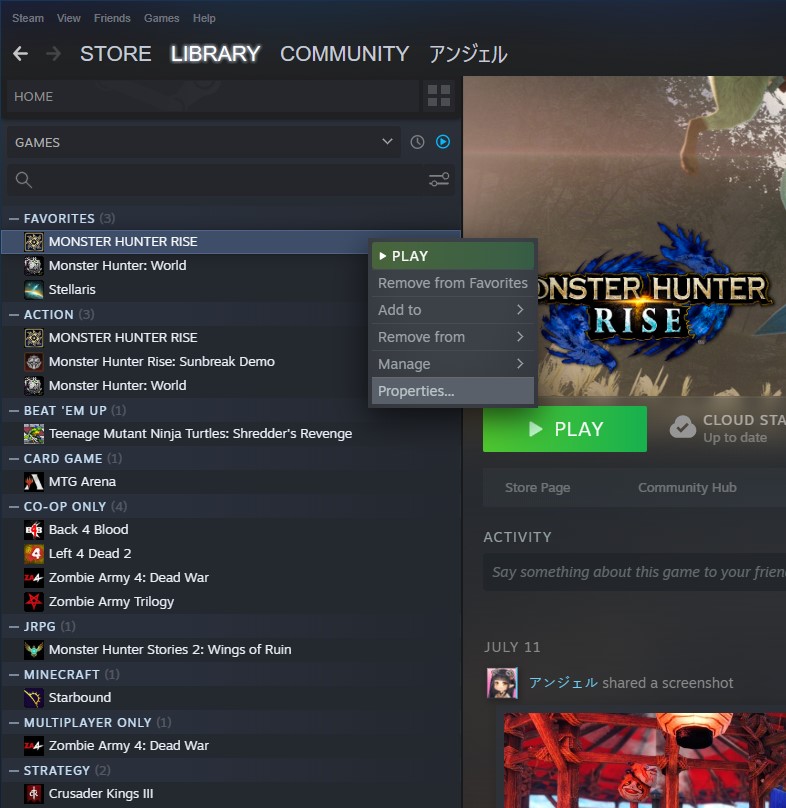
- Expand the Installed Files tab and click Verify integrity of game files.

Steam will verify your game’s files and fix an underlying issue.
2. Update the Graphic Drivers
Go to the Device Manager and update all important network drivers. If Windows fails to find the latest version locally, download it from the OEMs official site.
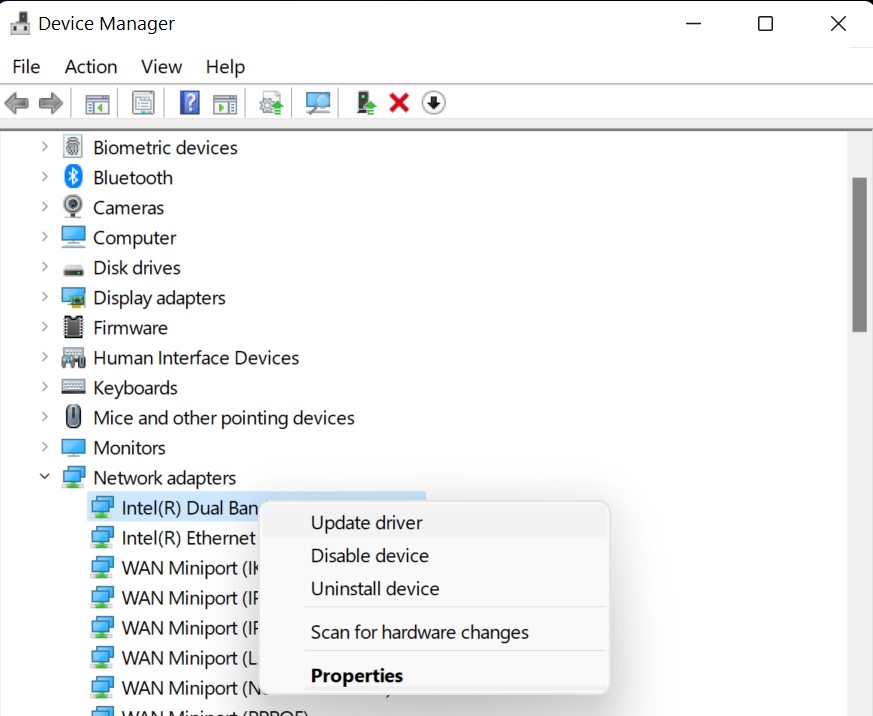
- Open Device Manager.
- Scroll down to Display adapters and expand the entry.
- Right-click on the active graphic adapter and click Update driver.
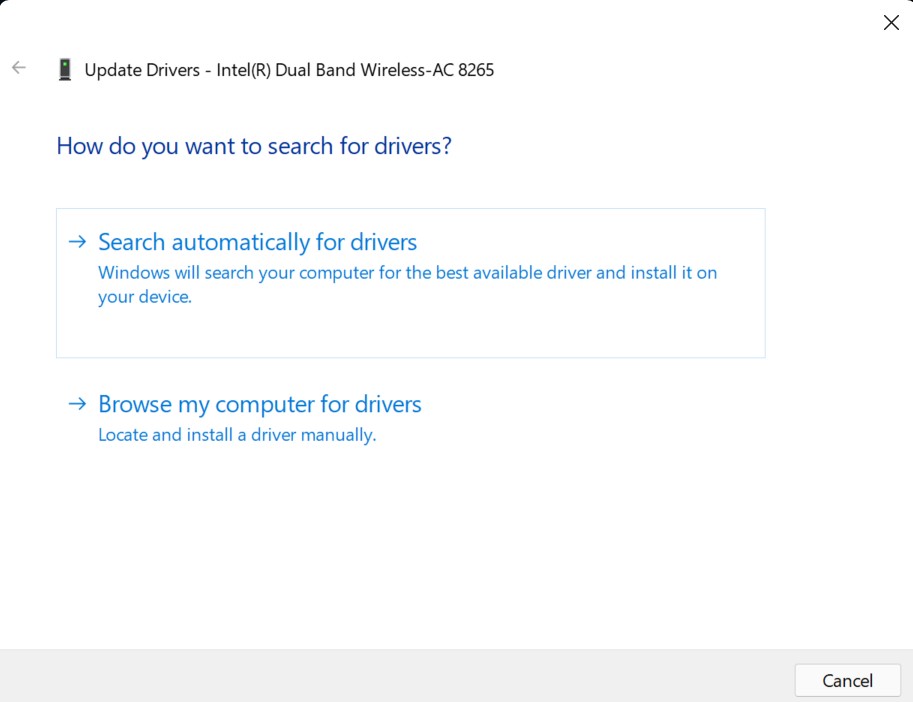
- Click Search automatically for drivers and let Windows install it on your computer.
3. Perform Windows Memory Diagnostic
Usually driver-related issues are the main factor behind this error but occasionally a user or two may face it because of faulty RAM. Run the Windows Memory Diagnostic tool to quickly get past RAM related problems.
- Press Win + R, type mdsched.exe and press Enter.

- Click Restart now and check for problems.
- The PC will restart and automatically check for memory faults.
4. Disable Overclocking on Your PC
Try disabling the overclock settings to effectively resolve this issue.
- Go to Settings > Update & Security.
- Click Recovery from the left sidebar.
- Under Advanced startup, click Restart now and wait till Windows boots into Advanced Startup Options.
- Now, click Troubleshoot and select Advanced options.
- Click UEFI Firmware Settings and hit Restart.

- Your computer will now boot into BIOS.
- Navigate to the Advanced tab, and select Performance.
- Now find the Overclocking option and disable it.
- Press the Esc key and choose Save and Exit.
Recover Lost Data After BEDaisy.sys Blue Screen Error
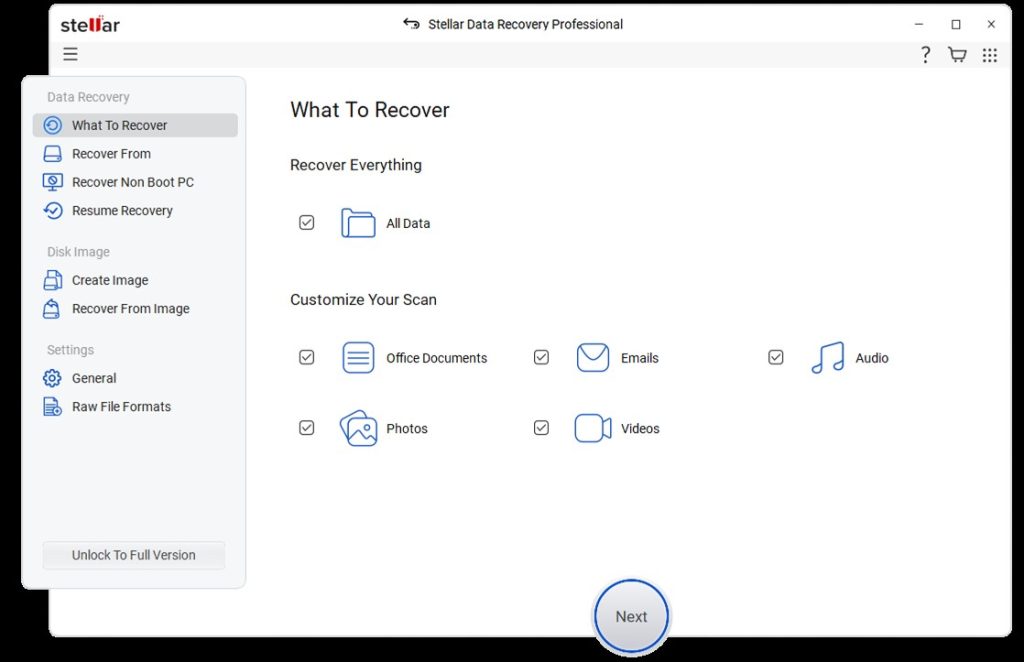
Blue screen errors like the BEDaisy.sys can interrupt the file writing process on Windows. If the error occurred while you were still writing to the disk, it can result in data loss. In such cases, we recommend using a professional data recovery software – Stellar Data Recovery Professional to reclaim your lost files. The software helps you recover data in complex loss scenarios like BSoD errors, logical drive failures, lost partitions, and more.
Bottom Line
To prevent the BEDaisy.sys blue screen error, keep your drivers and Windows updated, avoid overclocking your CPU/GPU, and run routine Windows memory diagnostic to detect and fix any underlying RAM issues. If the BSoD crash results in lost or corrupted data use a professional data recovery software to reclaim your files.
