Microsoft January security update KB5074109 for Windows 11 is shipped with fresh set of problems that are causing black screens immediately after startup on certain hardware configuration. The affected Windows 11 builds are 24H2 (Build 26100.7623) and 25H2 (Build 26200.7623). In most cases, Windows continue running in the background, but the display remains black after the completion of boot process.
According to Microsoft, they are still investigating this issue. This means no permanent fix is available yet.
Until Microsoft issues emergency fix, uninstalling package KB5074109 or avoiding the update remains the most reliable method for resolving the problem.
In this article, let’s decode the problem and how to identify it, and ultimately, what users should do now.
Background and Early Problems with KB5074109
Microsoft released January 2026 Patch Tuesday cumulative update (notably KB5074109) for Windows 11 versions 24H2 and 25H2, which was intended to deliver the latest security fixes and improvements, along with non-security updates from last month’s optional preview release.
However, soon after deployment, some users are reporting issues like:
- Intermittent black screens episodes, which freeze the desktop for one or two seconds before returning to normal
- Outlook (Classic) POP profile hangs and freezes
- Broken connections to Azure Virtual Desktop
- File Explorer no longer respects desktop.ini settings, specifically ‘LocalizedResourceName.
- Install/servicing error codes and rollback messages on subset of devices
Latest update
- Microsoft’s January 2026 Windows 11 security update (KB5074109) is also causing some PCs to fail to boot entirely after installation, leaving them stuck at startup with errors.
- The issue has been confirmed by Microsoft with a limited number of reports, and investigation is ongoing.
- Affected users are reporting black screens and boot failures, and no universal fix has been released yet.
(Source: PCMag)
- Install/servicing error codes and rollback messages on subset of devices
Black Screen Issue: Affected Devices and What Triggers it
One of the most noticeable problems is sudden black screen error, where PC boots normally in the background but the display remains completely black. In short: the black screen may appear on your Windows PC for a few seconds, and then everything returns to normal.
The problem seemed to affect
- both NVIDIA and AMD graphics cards
- Windows 11 builds are 24H2 (26100.7623) and 25H2 (26200.7623)
This behavior has been widely documented by expert community (Windows Latest, Windows Report, Notebookcheck, Windows Central and other technical sites) indicate, that the issue is not universal, but rather exacerbated by specific hardware and software configuration-specific. It also confirms two prime sources of the problem:
Incompatible System Customization Tools
Third-party software such as ExplorerPatcher, etc. that modifies Windows Explorer or the taskbar appear to conflict with new system files introduced in KB5074109 update.
Compatibility Issue with Graphics Drivers
Some GPU drivers seem to lose communication with the Windows display manager after the update due to compatibility issues.
What Should Users Do Right Now?
Until Microsoft releases a corrected update, users are advised to try several technical mitigations in order to restore full functionality:
1. Reset or Update the Graphics Driver
In some cases, force restarting the graphic drivers by pressing Windows + CTRL + Shift + B keys simultaneously can restore your Windows screen immediately
Or, try to update the GPU driver to the latest stable version (WHQL or Studio/Game driver) provided by NVIDIA, AMD, or Intel to fix black screen error caused due to KB5074109 update. As GPU vendors often release hotfix drivers to address compatibility issues when new Windows updates land.
2. Try toggling monitor DP modes
One user told Windows Latest that switching the monitor’s DisplayPort mode between 1.4 ↔ 1.2 helped stabilize the display. This is a temporary fix and may work for some users.
3. Uninstall KB5074109 via Recovery Mode
If the desktop screen stays black, consider uninstalling the update KB5074109 using Windows Recovery Environment to fix it. Here’s how:
- Hold the Power button for 10-15 seconds to force shut down your Windows PC, then turn it back on and force shut it down again during startup.
- Repeat this step thrice to enter the Windows Recovery Environment.
- Now, click Advanced options → Troubleshoot → Advanced options → Uninstall Updates.
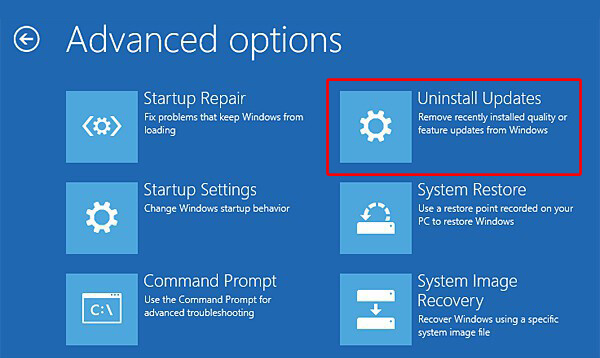
- Select Uninstall latest quality update.
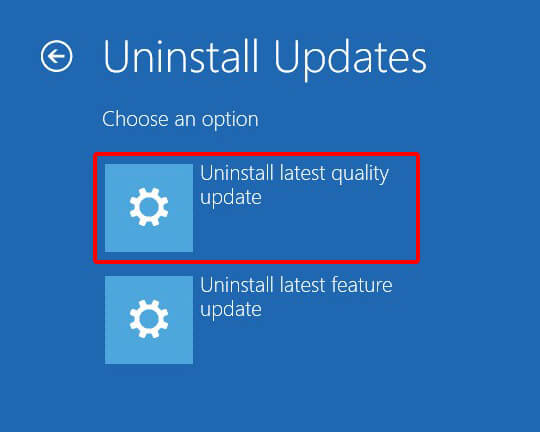
- Follow on-screen instructions and reboot your PC.
This method works better than toggling monitor DP modes or graphic driver resets because it removes the root cause of the black screen error that is KB5074109 update.
Note: Uninstalling a quality update does not remove personal files. However, repeated forced shutdowns or pre-existing disk and file-system issues can, in rare cases, cause accidental data loss. If you’ve already lost files due to forced shutdown, use professional data recovery software like Stellar Data Recovery Professional to recover deleted data.
4. Pause Windows Updates as Preventive Measure
Until formal guidance from Microsoft is published, users are advised to temporarily pause the Windows Update function for few days to prevent installation of KB5074109 update on systems. Here’s how:
- Press Windows + I to open Settings → Windows Update.
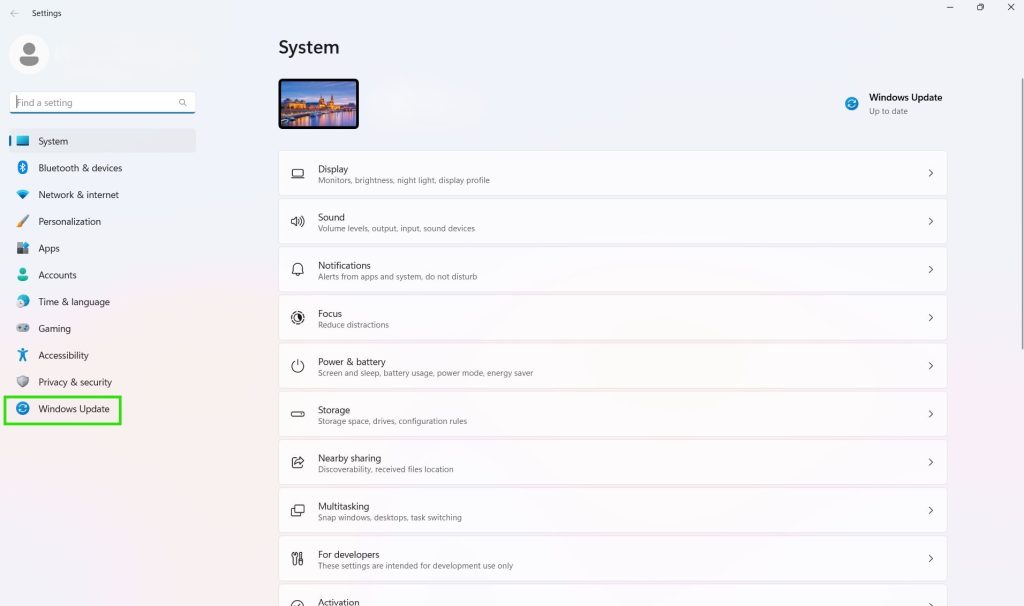
- In the Pause updates option choose to pause Windows updates for up to 5 weeks, according to your needs.
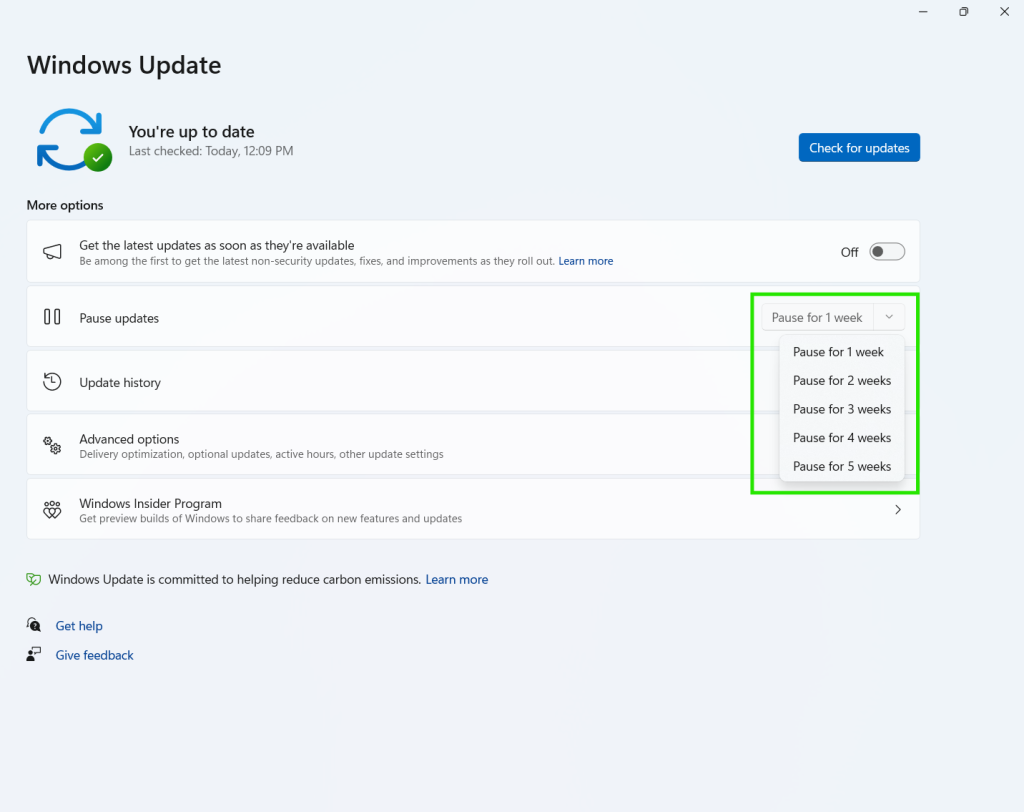
This will prevent installation of KB5074109 update until Microsoft releases a fix.
Latest Update
While Microsoft was investigating black screen and stability issues, it also admitted another flaw: some Secure Launch-capable PCs with Virtual Secure Mode (VSM) enabled are unable to shut down or enter hibernation. Instead, the device restarts due to the security layer misinterpret shutdown signal as an unauthorized firmware change.
The shutdown bug first surfaced on Windows 11 PCs, but subsequent reports and Microsoft’s own confirmation show that the problem later extended to Windows 10 versions.
The issue appeared on various platforms:
- Windows 11, version 23H2, Windows 10, version 22H2, Windows 10 Enterprise LTSC 2019, and Windows 10 Enterprise LTSC 2021.
Microsoft has released multiple emergency updates, KB5077797 for Windows 11 23H2 and KB5077744 for Windows 11 24H2 and 25H2. But the fix remains incomplete; in the meantime, affected users are advised to use a command-line command "shutdown /s /t 0" to shut down the device manually by bypassing safety prompts.
Microsoft Confirms Another Flaw: Explorer.exe Crashes Immediately After Sign-In
Another Windows 11 bug has emerged, while Microsoft was busy resolving the VSM Shutdown Restart Bug, where explorer.exe crashes immediately after sign-in, causing the Taskbar, Start Menu, and Desktop to disappear.
Microsoft confirms a fix for this issue is now rolling out via an optional update (KB5074105).
Why Users Are Losing Confidence in Windows
The accumulation of these technical instabilities in Windows 11 is adding fuel to growing frustration over Windows 11 update stability especially as Windows 10 support ends in October 2026. As a result, alternative platforms are becoming popular among users:
Final Thoughts
The Microsoft’s 11 January Patch Tuesday update (KB5074109, though expected to deliver security fixes, has unexpectedly raised black screen episodes. As Microsoft is working on fixing the issue, in the meantime, users should pause Windows update temporarily, disable system-modifying tools before future updates and maintain regular backups of their important data before Patch Tuesday updates.
