When migrating data from Exchange Server 2010, 2013, 2016, or 2019 to Exchange Online, you may get an error, saying “Cannot save changes made to an item to store.” When you remote move a mailbox to the Exchange Online or run a migration batch of several mailboxes, the upload is stopped for a particular mailbox/s and you get the error. The complete error message looks like:
Cannot save changes made to an item to store. --> MapiExceptionMessagePerFolderCountQuotaExceeded: Unable to save changes. (hr=0x80004005, ec=1252)
From the error message, it seems that the issue is related to the count of items per folder that have exceeded the quota. There is no size limit for a mailbox or a folder. All seems to be working fine as the users don’t have any issues while saving their data on the Exchange Server.
As per Microsoft documentation, there is a limit of number of items in a single folder. So, it seems that one of the folders in your mailbox/s has reached the one million items. As said, the user doesn’t have any issue. The issue only occurs when you try to migrate the mailbox to Office 365.
How to Resolve “Cannot save changes made to an item to store” Error?
First, you need to identify the mailbox and remove it from the migration batch so that you can continue migrating the data while you troubleshoot the issue with the affected mailbox/s.
Open the Exchange Management Shell (EMS) window. Type the below command to get the Folder Statistics of a particular mailbox and temporary store it in the variable $root.
$root=Get-MailboxFolderStatistics -Identity <user email address>

Now, validate the mailbox and check which root folder has exceeded the quota by using the below command.
$root | sort itemsinfolder -descending |ft folderpath,itemsinfolder
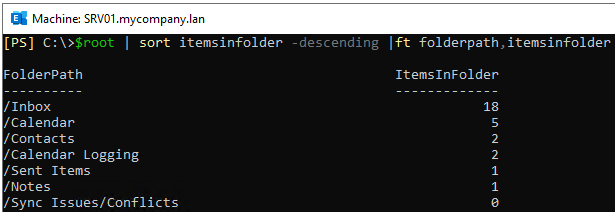
If the result doesn’t show any folders which have exceeded the said quota, you can use the command a little bit different to get the statistics of the user folders rather than the interpersonal messaging (IPM) folder.
For this, you need to modify the first command and use the Folder Scope function to be the Non IPM Root folders (see the below example).
$non_root=Get-MailboxFolderStatistics <email address> -FolderScope NonIpmRoot

When you run the above command, you might get the warning that the run was unable to retrieve the corresponding delete policy tag from the Active Directory. This can be ignored. Once you rerun the second command, the output should be a little bit different.
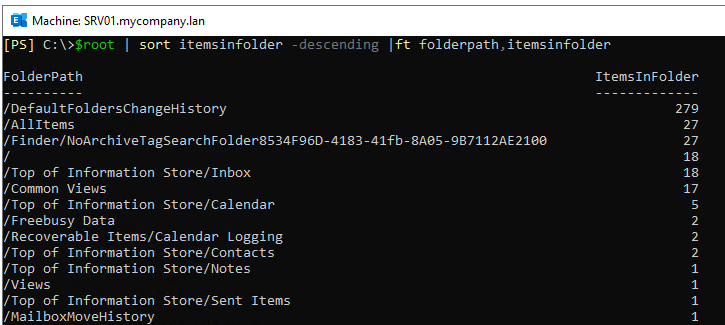
As you can see, the issue is not with the normal folders, but with a hidden folder which the user is not able to see. It might happen that the folder exceeding the quota could be a folder, like System, Spooler Queue, or the Deferred Action folder.
If you manage to find the problematic folder, you will not be able to remove or move it using Outlook. You will need to use an application called MFCMAPI which you can connect directly to the store and delete/move the hidden folders which are not accessible by the user.
After this, you can try to resume the migration.
To Conclude
The “Cannot save changes made to an item to store” error is one of the issues that you might encounter during a migration. However, there are various other issues or complications that you may face while migrating mailboxes from on-premises Exchange to Exchange Online. For smooth and error-free migration, you can take the help of a professional migration tool. One such reliable solution is Stellar Migrator for Exchange.
With this application, you can migrate mailboxes from any version of Exchange Server to Exchange Online (Microsoft 365) or another live Exchange Server, without any size limitations. You don’t need complex configurations, and the migration can be performed seamlessly with minimal downtime. It allows granular migration of user mailboxes, archives, and public folders. The tool ensures a secure and efficient migration experience, while maintaining complete data integrity.
