“The Installer information on the recovery server is damaged” error occurs when you try to reinstall macOS, downgrade to an older version, or set up a newly erased drive on your Mac. This message means that your Mac has stopped verifying the OS files needed to complete the installation process because it thinks that they are damaged.
While this doesn’t point towards a hardware issue, the most usual suspects are incorrect date on your system, an expired installer certificate, or some connection-related issue. The purpose of this blog is to help you resolve the installer error and bring your Mac back on track.
When macOS says that “the installer information is damaged” it doesn’t mean the actual physical data on Apple’s servers is corrupted, instead, it’s a generic response to an authentication failure. The error actually has to do with how Apple validates software integrity.
Your Mac needs to connect to Apple’s servers to download and verify the OS files when you reinstall it via Recovery Mode. These OS files need to pass a certificate test for authenticity before the installation begins. When this verification fails, “the installer information on the recovery server is damaged” error occurs.
“The installer information on the recovery server is damaged” error is often a configuration mismatch rather than a hardware failure or data corruption, though the error message may suggest otherwise. Some of its most common causes include:
- Apple’s servers being temporarily unavailable
- Incorrect system date & time
- Expired macOS installer certificates
- Internet connectivity issues
- Using standard instead of internet recovery
- Improper disk formatting
- Corrupted local cache or NVRAM data (Intel chips)
- Requesting incompatible macOS version for the hardware
Work through these fixes in order. In most cases, correcting the date or switching to Internet Recovery resolves the issue quickly.
1. Check Apple’s Servers
Before you change your system settings or reformat the drive, make sure that the issue isn’t coming from Apple’s side itself. As already mentioned, during reinstallation, your Mac must connect with Apple’s recovery servers to verify the installer. The verification process can fail if Apple’s servers are experiencing some sort of outage or are temporarily unavailable and cause this error. To rule out such external factors, check Apple’s System status page. If you notice a service disruption, wait and try again later once the services are resumed.
2. Verify the Data & Time on Your System
Your Mac verifies the installer using Apple’s security certificates when it tries to reinstall the macOS. When the system clock is set to the wrong year/month/time, those certificates may appear expired and cause the verification to fail—even if the installer is fine. To check & correct the date in Recovery Mode:
- Boot into macOS Recovery.
- Intel Mac: Restart and hold Command + R until the Apple logo appears.
- Apple Silicon: Shut down your Mac. Press and hold the power button until you see options, and select it.
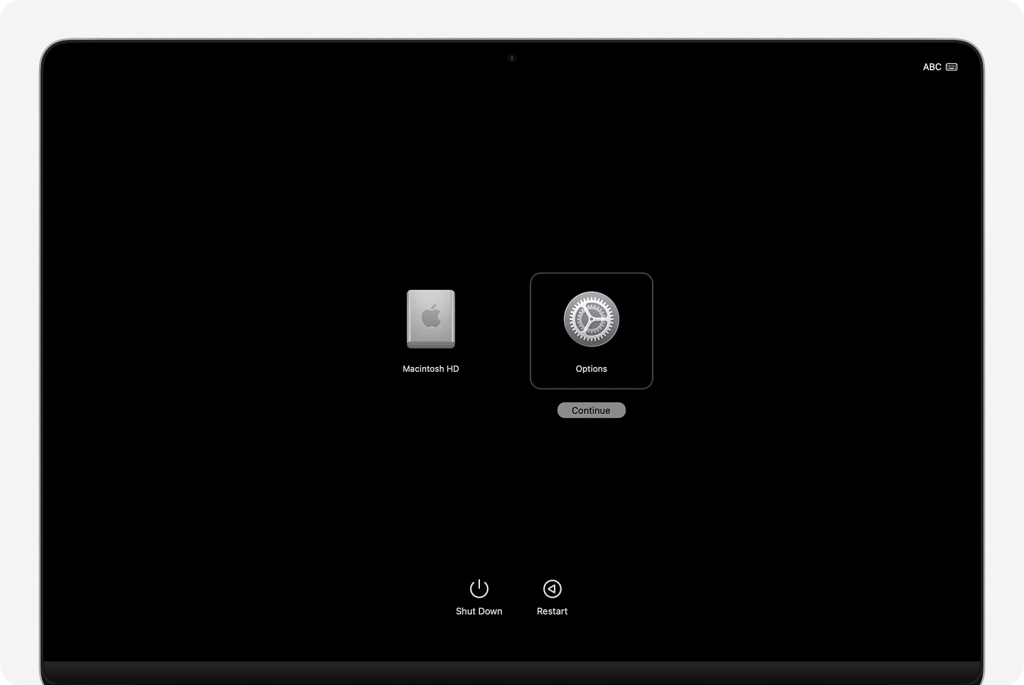
- Select Utilities > Terminal
- In the Terminal, type: date
- This will display the current system date & time.
- If the date is wrong, set it manually using: date mmddhhmmyy
- Press Enter, close Terminal, and try reinstalling macOS again
3. Check Your Internet Connection
For reinstalling, macOS Recovery needs to have a stable internet connection to connect with Apple’s servers and successfully verify the installer. If your network connection is filtered, has unstable DNS routing, or drops midway, it can cause “The installer information on the recovery server is damaged” error.
Make sure your Mac is connected to a reliable network while in Recovery Mode – check this from the Wi-Fi menu in the top-right corner of your screen. Use a wired Ethernet connection instead of Wi-Fi as it offers better stability and avoid using public networks or those with strict firewalls as they can block Apple’s recovery servers.
4. Reset NVRAM (Intel Macs Only)
NVRAM stores some specific system settings, including startup preferences. It can interfere with the installation if it gets corrupted.
- Shut down your Mac
- Turn it on and immediately press and hold: Option + Command + P + R

- Hold for at least 20 seconds, then release and let the Mac restart.
5. Download a Fresh Installer and Use a Bootable USB
If Recovery Mode continues to fail, creating a bootable USB installer is usually the best available fix. Rather than relying on the recovery partition or the live verification process, this fix involves installing macOS from a locally created copy of the installer.
Once the bootable installer is ready:
- Intel Mac: Restart and hold the Option key, then choose the USB installer.
- Apple Silicon: Shut down, press and hold the Power button, then select the installer from the startup options screen.
Installing macOS from a bootable USB helps avoid issues like outdated recovery images & certificate validation errors, making it a solid solution when other fixes fail.
6. Erase and Reformat the Disk
If the installer still keeps failing, do check out how your startup disk is formatted. Incorrect file systems or partition schemes can prevent macOS from preparing the drive and manifest as a recovery server error.
Pro Tip: Back up of your important files before proceeding.
- Boot into macOS Recovery.
- Open Disk Utility
- Go to View > Show All Devices
- Select your internal disk (Apple SSD)
- Click Erase and select APFS for macOS High Sierra and later
- Select Mac OS Extended (Journaled) for older macOS variants
- Set the Scheme to GUID Partition Map
Close Disk Utility and try to reinstall macOS again.
Bottom Line
In case you’ve already erased the drive and realize important files were not backed up, avoid reinstalling the macOS immediately. Doing so can overwrite recoverable data. In such cases, use a specialized Mac data recovery software—Stellar Data Recovery for Mac to scan the formatted drive and reclaim your lost files.
