It happened to me last year. I use a Vivo X60 pro, popular for its professional grade camera. One day, on an outing with friends, I clicked all day on my device. However, upon trying to open the gallery, a message flashed – “Unfortunately Gallery Has Stopped”. I closed the app, restarted the device but nothing moved. The gallery kept crashing every time I tried to view my photos.
My photos were still there on the device but the Gallery app was unable to scan and display them. After trying multiple basic fixes, I moved to more advanced methods and at last it was fixed. However, to my surprise, some of the photos were lost due to mishandling of storage cache and app data. In this blog, I will help you understand why the Gallery app stops or keeps crashing, the safe fixes that you must try first, and how to avoid data loss while resolving the error.
Why Error “Gallery Has Stopped” Occur in Android Devices?
The gallery has stopped working, means the gallery is unable to complete scanning of the media files. The error primarily occurs either because of cache overload, lack of free storage in the device, or the gallery app finds broken images or corrupted video files. Although often an outdated gallery app, missing system updates, a corrupt SD card, large batches of newly captured photos, or an interruption in the media file indexing process can also cause the photos disappear from the gallery.
Quick Fixes to Try
Fixing the causes will definitely help resolve the “Unfortunately Gallery Not Responding“ error on your device. Here are some quick fixes you can try to fix the Gallery app freezing issue on your Android phone.
Check free storage space
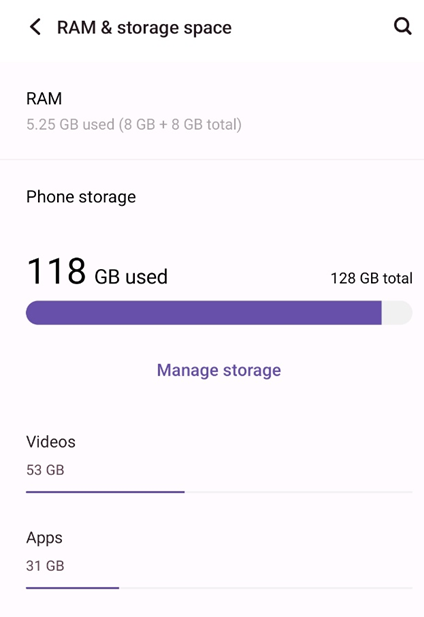
If your phone’s storage space is overwhelmed, the gallery app may not respond properly or stop working in between. Hence, the core strategy here is to manage your Android phone’s storage by checking and clearing unwanted files to free up space. First, go to settings> storage on your device, then check how much free storage is left. Atleast 10 to 15 percent of your phone’s total storage should be left free for smooth functioning of the device. If your device has less than the desired free storage, act fast.
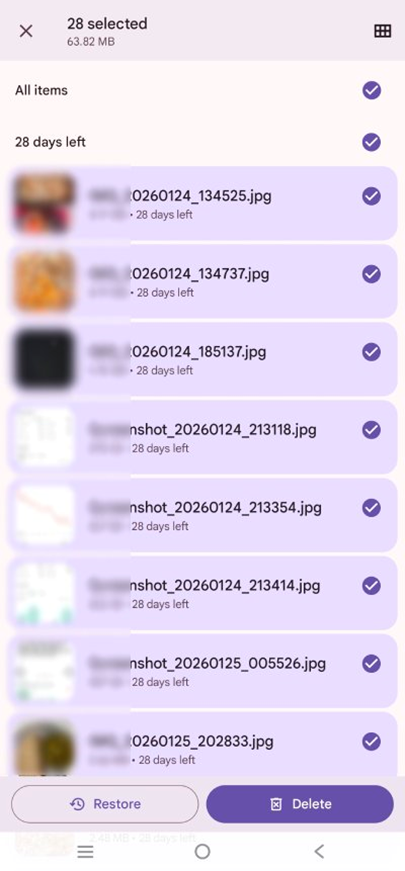
First assess the Trash folder and clear it at once to free up some storage. Then assess the large files such as any unwanted documents, folders, or large video files that you may not require anymore. Remove them from the device to free up a good amount of device.
At last, remove any unwanted apps that are not in regular use anymore, as apps, and especially gaming apps, consume a lot of space. Now the Gallery app might function normally. If not, move to the next method.
Clear Gallery Cache
Excessive Gallery Cache is one of the primary reasons for Gallery app crashes; hence, clear the gallery cache to fix this error. Long-press the Gallery app and click on App Info when the menu appears. Now go to the storage and cache section from the menu list.
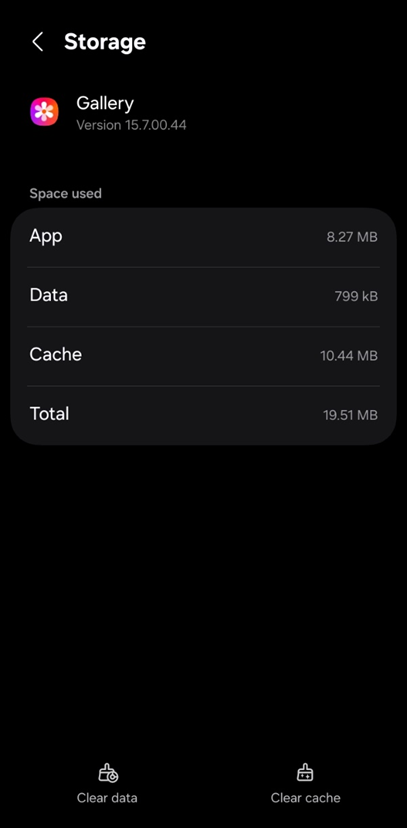
Hit the clear cache button to clear the gallery cache at once. You can also go to Settings > Apps > Gallery > Storage and Cache to access the Clear Cache button. Now check whether your gallery app is working or not. However, if it doesn’t move to the next quick troubleshooting.
Restart the Phone
Restarting the phone can help fix minor software related errors on your phone. Hold the power button for long until the menu appears. Hit Restart. Wait for the device to restart and then re-check your Gallery app. You might be able to access your photos and videos from the gallery. If the Gallery app still crashes you need to other fixes.
Force stop the Gallery
One other option is try is Force Stop the gallery app, this will end any background processes for the app and help fix any temporary system conflicts. This can also give the app a fresh start. Go to the app’s menu – Settings > Apps > Gallery.
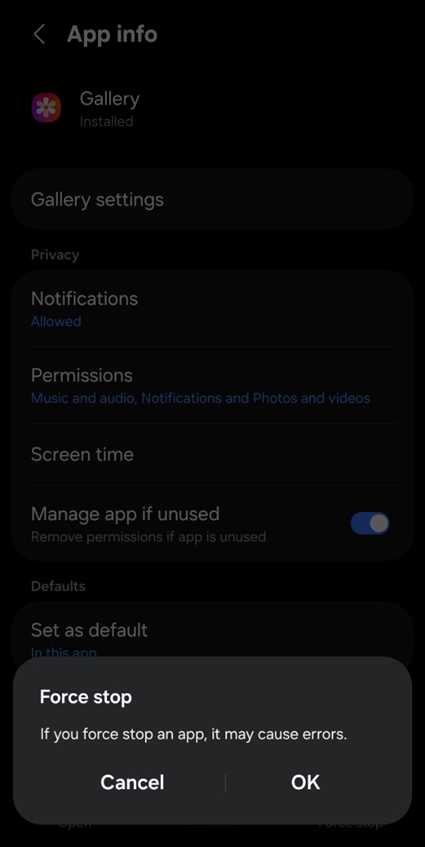
Now look for the Force Stop option and click on it. The app will force stop ending all background processes. In most cases this will resolve the gallery app freezing issue. If not there are other major fixes you can try.
Advance Troubleshooting to Resolve Gallery Freezing issue
If the quick fixes don’t resolve your issue you can try moving to some advanced fixes to resolve gallery not responding or freezing issue.
Update Gallery App and Android OS
In the settings, look for Update app options. If an official update for the gallery app is pending, it will reflect there. Hit the update button, and your app will be updated. If this also does not fix the error, the next advanced fix is clearing out the Gallery app data.
Remove and Check the SD Card
Sometimes the problem might not be in your Gallery app or device but on your external SD Card. To rule out any error on your SD Card, you can try removing the SD card and check the card on your Windows PC. Connect the card to a computer via a reliable SD Card connector and go to file explorer. If your card is visible, and you can view the photos and everything seems fine on your computer the problem is likely elsewhere.
Reset the Device
The gallery app not responding, or gallery has stopped error should resolve by applying the above fixes, but if not, then resetting your Android device is the step that can bring everything back together. A factory reset is, however, not recommended unless all the above methods fail to fix the gallery freezing or stopped issue.
How to Recover Any Deleted or Missing Gallery Pics?
If you have fixed the “gallery has stopped” error on your device and some of the photos and videos are missing on your device, this means the files are either lost or deleted from the device’s file system while trying to fix the error. Don’t worry, your photos are safe unless you have added new files to the device or the data gets overwritten.
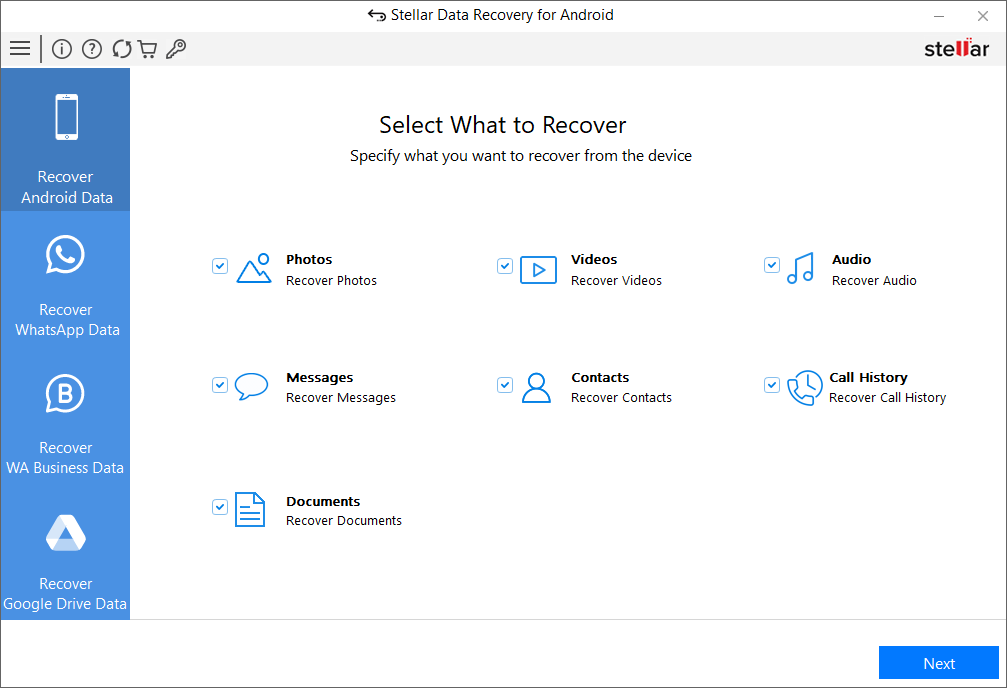
Stellar Data Recovery for Android can help recover lost or deleted photos from Android phone. Simply follow a few steps to recover the Android device data, and your lost or deleted Android files will be back on your device within minutes.
End Notes
If your Android Gallery app is unresponsive or has completely stopped working and shows various error messages, one option is to attempt to troubleshoot the problem using the methods listed above or perform a factory reset on your device. If you are unable to repair the file and need to recover files that were deleted while attempting to resolve the above error, you can completely rely on Stellar’s Android Data Recovery tool.
