Like all electronic devices, iPhones too can have issues including iPhone stuck on frozen screen, White/Black screen of death or the Grey screen. An iPhone faces a grey screen issue when its display turns dull or flat grey, and it becomes unresponsive to touch. Your device may completely freeze, which means that notifications, icons, or apps on the iPhone become faintly visible..
This error can appear in several forms: a grey screen with the Apple logo, a flickering grey display, or a solid grey screen. In this blog, we’ll break down why this might happen and walk through step-by-step fixes to get your iPhone to work normally again.
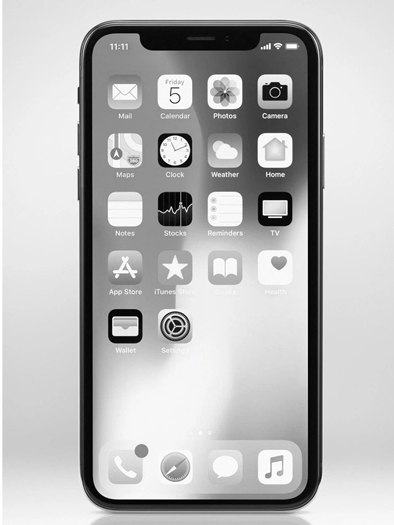
Possible causes of the iPhone Grey Screen problem
It’s crucial to understand iPhone screen can turn grey due to various reasons:
- If the problem occurs after an update, say for example iOS 26, your iOS may also have a bug that is to blame.
- Corrupted system files, jailbreaking attempts, and other software-related issues can trigger a grey screen error in the iPhone.
- Physical damage from drops or water exposure leads to a grey screen error when the LCD panel and internal controller is damaged.
By knowing these causes, we can target the right fixes.
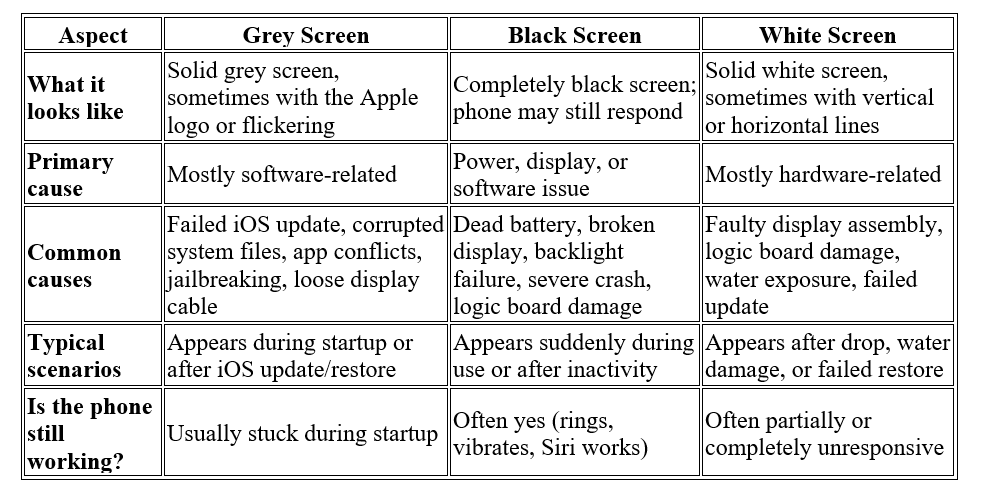
On the contrary, it’s easy to confuse an iPhone’s grey screen error with other black or white screen errors.
Grey vs. Black vs. White Screen on iPhone
Methods to Fix iPhone Grey Screen Issue
Before implementing the below solution, confirm whether your iPhone grey screen is not due to a drained battery. If so, connect your device to its original Apple charger to charge the iPhone for an hour or more.
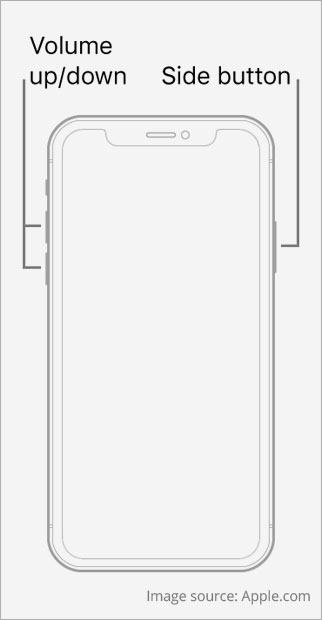
1. Force reset your iPhone
Force restarting your iPhone is another simple solution for fixing a gray iPhone screen.
For iPhone 8, X, 11, 12, 13, or later:
- Hold the Volume Up and then Volume Down buttons for 5 seconds before releasing them.
- Press and hold the Side button until the Apple logo appears.
2. Check iPhone for Physical Damage
Your iPhone may show a grey screen if it is physically damaged. Check for any sign of damage on the iPhone, be it cracks, dents, or screen cracks, etc., then you may need to visit the Apple Genius Bar for professional repair services.
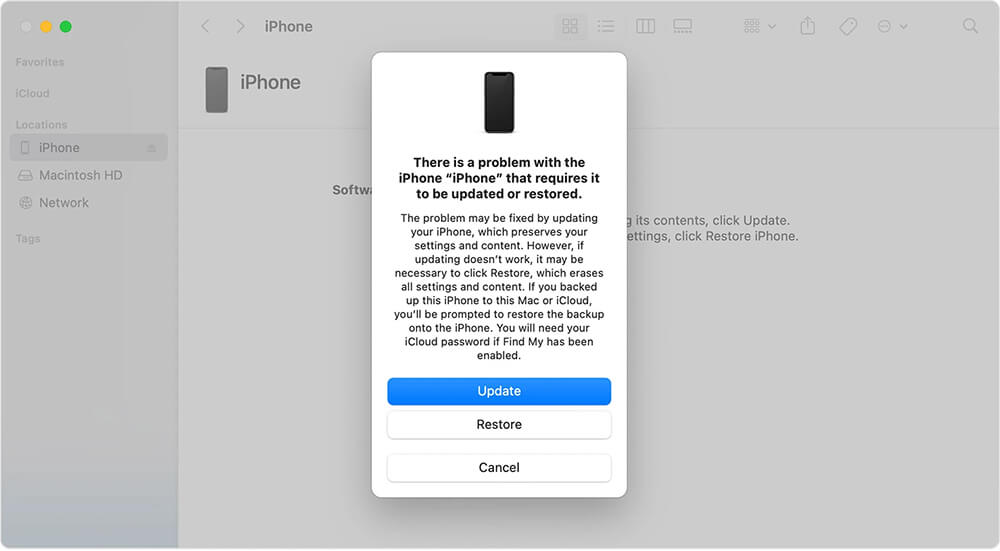
3. Restore or Update iPhone using Recovery Mode
Often, putting the iPhone in Recovery Mode to restore/update the device can help fix the grey screen error.
- Connect your iPhone to your PC, and go ahead with putting your iPhone into Recovery Mode.
- Open iTunes on PC: OK > Update or Restore.
- With the Update option, your iPhone is updated to the latest iOS version without erasing any of your device data; whereas when the Restore option is chosen, iTunes restores your device by erasing your iPhone data.
Check if the iPhone’s grey screen is still there.
4. Restore iPhone with DFU Mode
Use Device Firmware Update (DFU) Mode to fix iPhone’s grey screen issue as DFU mode enables the iPhone to connect to iTunes without loading the bootloader program for iOS to restore the device.
- Connect your iPhone to your PC, and go ahead with putting your iPhone into DFU mode.
- Open iTunes on PC > Restore iPhone, then exit DFU Mode.
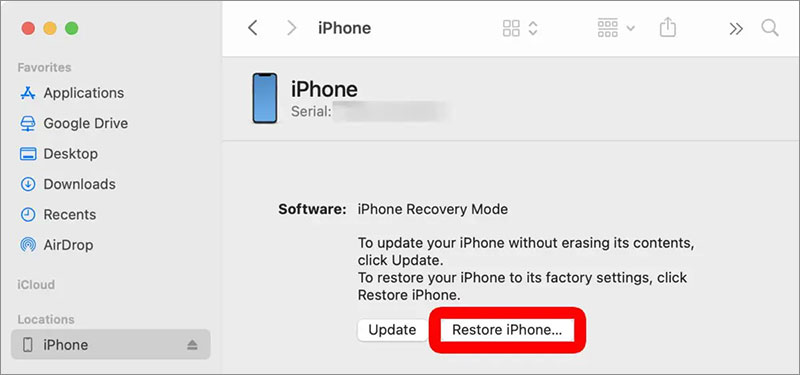
Turn on the iPhone to see if the grey screen error exists or not.
Unfortunately, the downside of using the DFU method to restore an iPhone is that it permanently erases iPhone data. So, having the backup of your iPhone data either to iCloud or iTunes is an absolute necessity before using this method.
However, if you don’t have a backup and have already lost data after using the DFU Mode, immediately download Stellar Data Recovery for iPhone to restore contacts, call logs, photos, videos, and other data easily.
5. Use trusted iOS Repair Software
This method is helpful if none of the above fixes work, or you were not able to bring your iPhone to DFU or Recovery mode. In such a case, one of the solutions may be the use of professional iOS repair software.
Stellar Toolkit for iPhone is one of the top all-in-one iOS tools to solve all iOS issues as the grey screen, iPhone stuck at the Apple logo, the Black/White Screen of Death, the reboot loop, and more.


- Go to the official website, download, and install Stellar Toolkit for iPhone on your Windows/Mac.

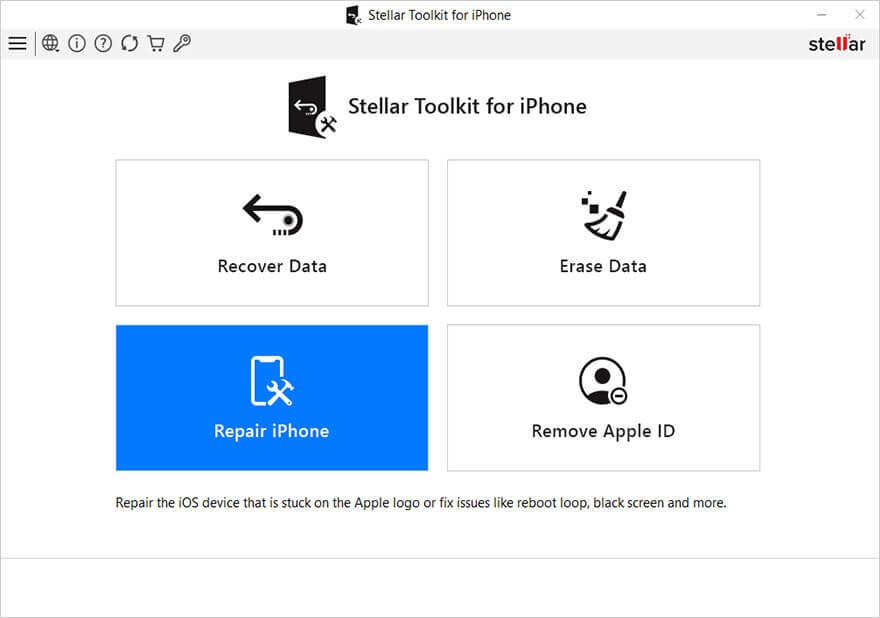
- Launch the software and select the Repair iPhone module > click Next.
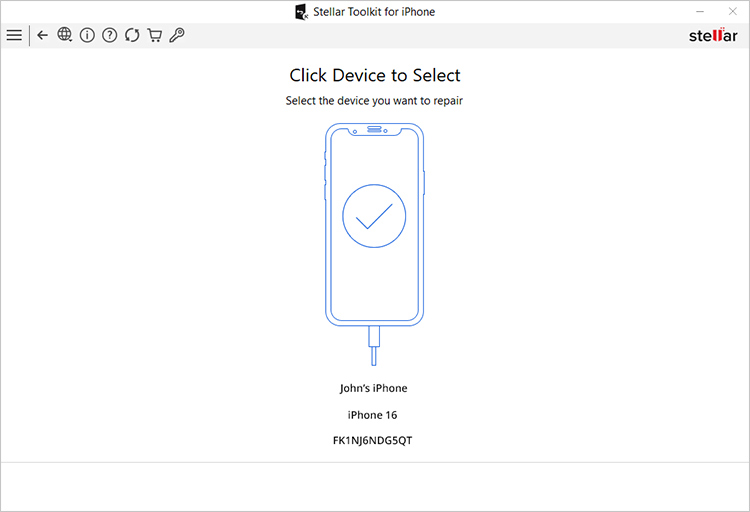
- Select your iPhone to repair.
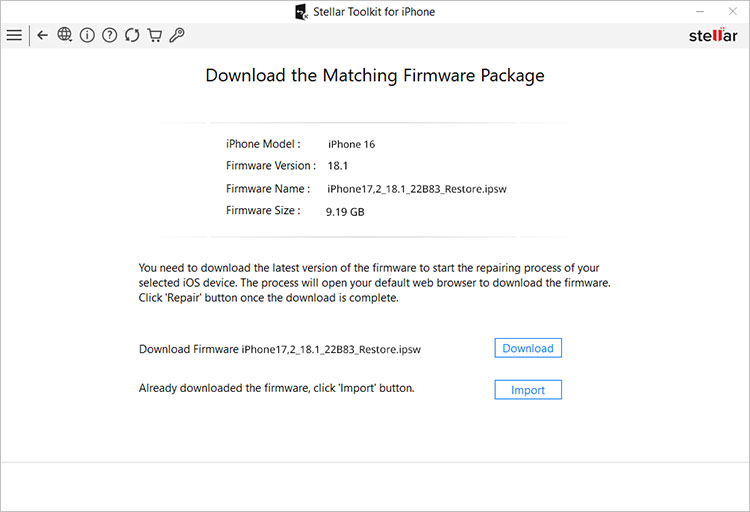
- Click Import to import the already saved file of the latest version of the firmware to repair the iOS device.
- Click Repair to start repairing the iOS device
Wait for the process to complete, and restart your iPhone to see if the grey screen issue is resolved.
Wrapping Up
Generally speaking, the iPhone grey screen error arises due to two main causes: software malfunction or hardware issue. Grey screen error can be fixed through various solutions, including Recovery or DFU Mode to update or restore an iPhone. And if you cannot fix the problem with basic fixes, check the device for physical damage, and if the device is not broken, then use a professional iOS repair tool to repair the iPhone’s grey screen issue. However, if the tool also doesn’t fix the issue, visit a tech specialist at the Apple Genius Bar for assistance.
