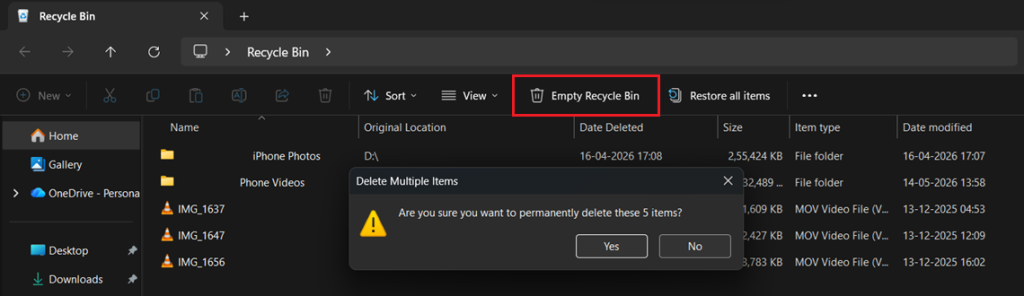
Has it ever happened to you that you were going to see some old photos and videos from a trip to relive some old memories, only to realize that you’ve accidentally deleted them; even from the Recycle Bin. That’s when you dread that the data is gone forever, and the panic is understandable. Don’t fret, even an empty recycling bin can still retrieve data from. That’s because data sits on storage devices until it is overwritten by new data. To estimate the probability of successful data recovery, you need to understand how storage devices function inside.
Windows marks the Master File Table (MFT) on NTFS devices to indicate the file being deleted. Files that are mistakenly wiped may be restored until that space is entirely filled with new data.
So, in a word, absolutely. Even an empty Recycle Bin may include all your details. On the other side, it is time-dependent, the longer you wait, the more difficult it is.
What are the Methods to Recover Deleted Files from Recycle Bin After Empty?
Windows has some built-in tools and functionalities that help the users recover their lost data. Below, we have shared a table that includes all the necessary methods that you should follow before using data recovery software.
| Method | Best For | Difficulty Level | Requires Backup Enabled? | Success Rate | Key Benefit |
| Method 1: Use Windows Previous Versions for Empty Bin Recovery | Recovering deleted or modified files and folders from Shadow Copy snapshots | Moderate | Yes, System Protection/Shadow Copies must be enabled before deletion | Moderate to High | Allows restoration of earlier versions of files and folders without data recovery software |
| Method 2: Restore Files Deleted from Recycle Bin Using File History | Recovering previous versions of files and folders | Moderate | Yes, File History must be enabled before deletion | High | Allows recovery of personal files from backup history |
| Method 3: Recover Deleted Files from Cloud Storage | Recovering files synced with cloud services like OneDrive, Google Drive, or Dropbox | Easy | Yes, cloud sync and backup must be enabled before deletion | High | Restores deleted files directly from cloud storage trash folders |
| Method 4: Use Stellar Data Recovery for Windows | Recovering permanently deleted or lost files without backup | Easy | No | Very High | Deep scan technology helps recover files even after Recycle Bin deletion |
Method 1: Use Windows Previous Version for Empty Recycle Bin Recovery
Previous Version is a Windows built-in tool that may help you restore files to an earlier version from Shadow Copy snapshots. The techniques describe how to recover various files from the Shadow Copy.
- Go to the folder that previously contained the deleted files.
- Right-click on the folder and select Properties from the drop-down menu.
- A new Properties window will appear. Click on the Previous Versions tab.
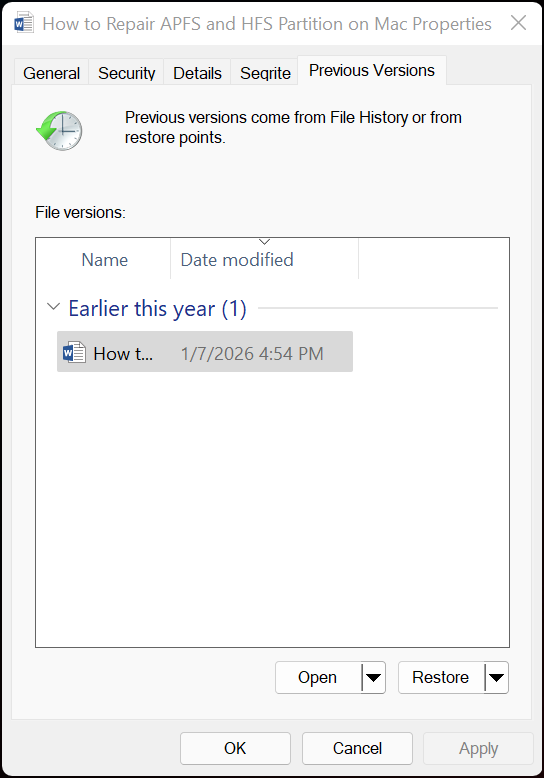
- Select the version that you want to restore. Choose an option and hit Open to view what files the directory had in it at the specified time.
- After finding the version you want to restore from the directory, click on the Restore button.
- A confirmation pop-up will appear. Click on the Yes/Confirm/Restore button to restore the file version.
Method 2: Restore Files Deleted from Recycle Bin Using File History
File History is a built-in Windows feature which enables you to create numerous copies of your data. If you’ve lost data while this software has been enabled, then there is hope for getting it back. Below are directions for how to recover files with File History.
- Search for Control in the Start Menu and press the Enter button on your keyboard to open it.
- Change the View by to Large icons from its dropdown menu.
- Open the File History utility by clicking on it.
- Choose the “Restore personal files” option from the left-side panel.
- Locate the backup folder and select the date and time for which you want your files to get restored.
- Next, open the Backup folder. Over there, select all the files and folders that you wish to recover or restore. Then, click on the “Restore” button to start the process.
- Once all the files have been restored, save them to a different drive or device.
Method 3: Recover Deleted Files from Cloud
If you are using OneDrive, Google Drive or Dropbox as your cloud backup solution, you should have access to those files as well. Here is how you can restore files.
- Login to your cloud account.
- Find your items in your Recycle Bin (Windows) or Trash (Mac) or Recently Deleted folder.
- Highlight all of the items you want to restore and click Restore or Restore to or Download.
- Exit the application and check the download location for restored items.
Note: Most cloud storage apps will retain the contents of the Recycle bin for approximately 30 days after you have deleted the contents. To do this, you must first restore all the data within that 30-day window.
Method 4: Use Stellar Data Recovery for Windows
Stop using the affected drive. Before anything else. Don’t store files in it and omit letting Windows update if it is the primary drive. New data stored on that drive is your biggest threat.
- Download and install Stellar Data Recovery Software for Windows Free edition.
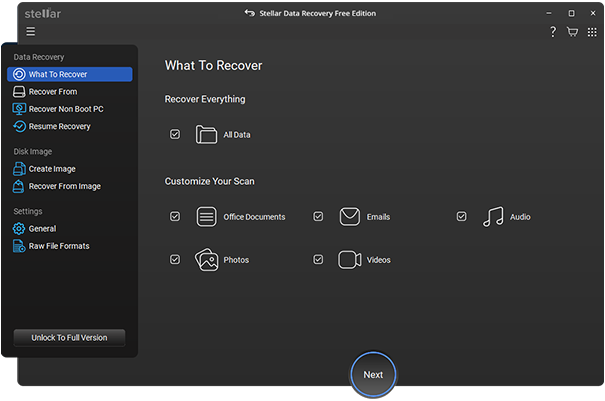
Note: If you are using the Free Version, you can only restore 1GB of data through this app. You will need to upgrade to either Professional, Standard or Premium if you wish to restore over 1GB of data.
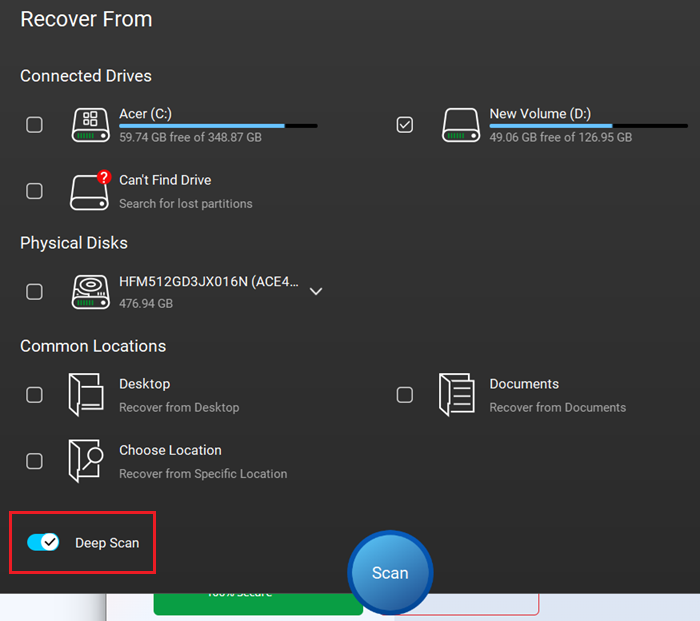
- Launch the software and select the drive from the list of drives shown by the software.
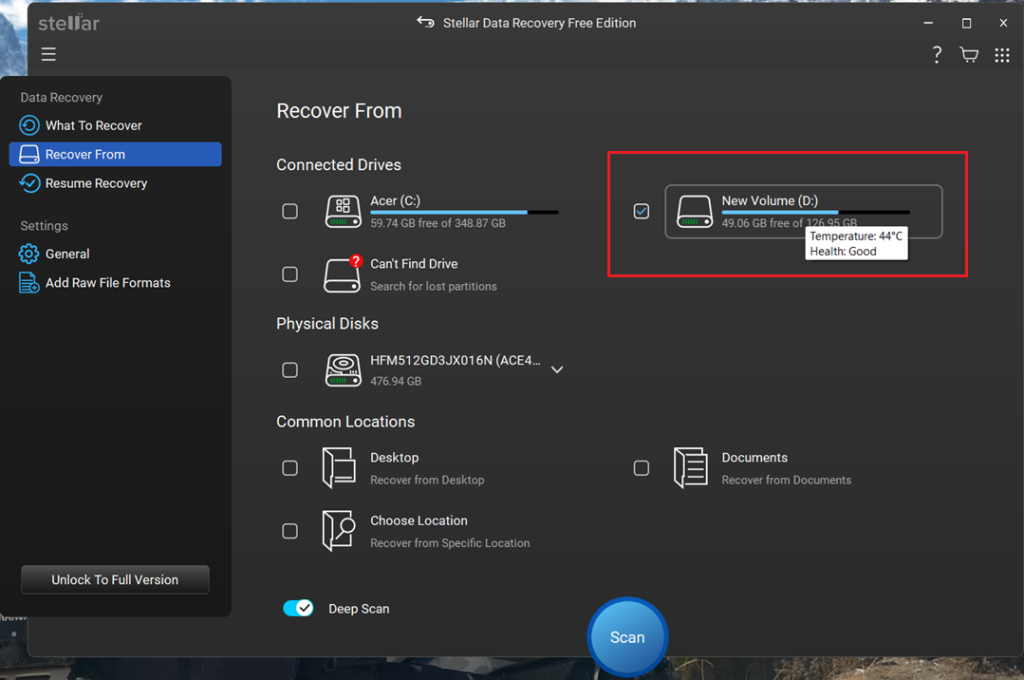
- Run a deep scan and let it finish completely. The software offers a quick scan and a deep scan. Go with the deep scan; it takes longer (sometimes quite a while depending on drive size), but it finds far more.
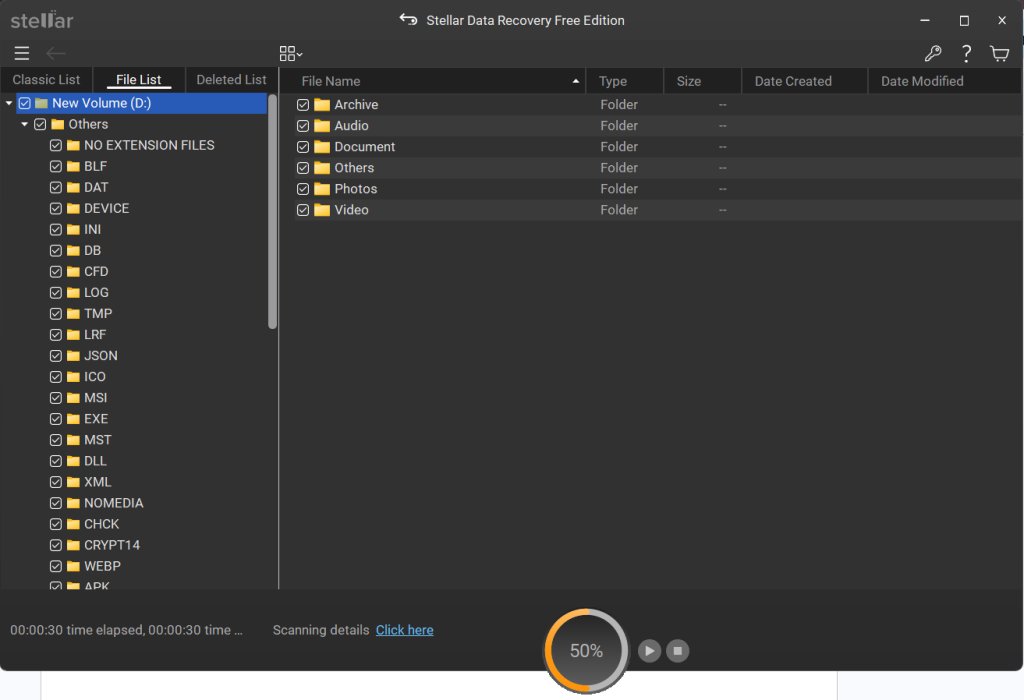
- Browse results and find your files. After scanning, the software shows everything it is found. Sort by file type, date, or folder name to track down what you need. It will let you preview files before recovery. Use that feature to confirm that you have the right ones.
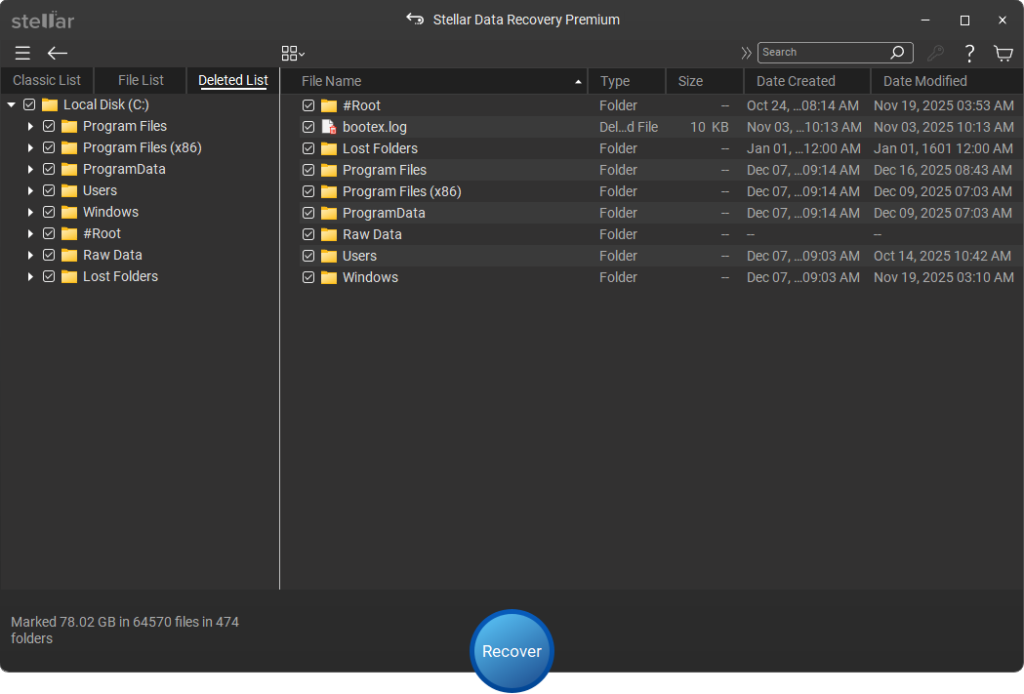
- After choosing your file list, you can restore them back to a different drive other than the one you just scanned.
Note: Even if a file looks corrupted in the preview, go ahead and recover it anyway. The full file is sometimes more intact than the thumbnail suggests.
Recycle Bin Recovery by Storage Type
Every drive has its own way of handling deleted files from the recycle bin after emptying. The following is a summary of important points to take into consideration, based on the different types of storage devices you use.
Recovering from a Traditional Hard Drive (HDD)
Good news here. As long as you don’t store or write new data to an HDD, a proper scan can pull up most of your deleted data. HDD recovery after emptying the Recycle Bin is a straightforward scenario that simply requires you to stop using the drive immediately after data loss so that the data remains intact and is not overwritten. Check your backup folders to restore deleted files from an HDD, and if not found, get free data recovery software to extract them from the drive.
Recovering from an SSD
More challenging but still doable. SSDs may start permanent erasure of deleted file data due to the TRIM process after a few minutes, but it is not immediate. This largely depends on the loading percentage of the drive. You must close all programs and begin the scan as soon as possible to recover empty recycle bin data from an SSD drive.
Recovering from a USB Drive or External Hard Drive
USB flash drives are a bit of a mixed bag. Older and larger external hard drives behave much like an HDD and offer decent recovery odds. Smaller flash drives sometimes use their own internal management that can make recovery trickier. That said, most reputable recovery tools use a scan first, recover later approach, ensuring a safe approach for any external storage device.
The Size and Type of the Files Matter
There are more chances for small files like Word files, PDFs, JPG pictures, etc. not to be destroyed than there are for large files like movies or pictures on a disc. A good example is a large file that has been broken up into pieces or has had its pieces displaced from each other. Recovering all the pieces requires reassembling them all, which is very time-consuming and finds many references to its many pieces.
If you visit almost any online discussion board dealing with recovering lost data, you will see very passionate opinions on either side of the fence. Presented here is a simple explanation without a sales pitch.
| Aspect | Free Recovery Tools | Paid Recovery Tools |
| Best Use Case | Small-scale losses, quick scans, recovering a few files | Large data losses, critical business files, partition recovery, etc. |
| Cost | Free recovery of up to 1-2 GB data | Paid subscriptions available as monthly or annual plans |
| Type of Data Loss Covered | Accidentally Deleted FilesEmpty Recycle Bin & moreBitLocker encrypted files | Deleted or lost partitionsCorrupted or RAW drivesLost RAID arrays Inaccessible drives |
| Recovery Limit | Commonly capped at 1–2 GB of data | Unlimited Recovery from all types of storage devices |
| Recovery Using Bootable Media | Bootable media creation option not available with the free tools | Yes. Let you recover data from crashed/unbootable PCs |
| Who Should Use It | Home users recovering photos/documentsUsers looking to try software before purchasing | Anyone who has a large amount of data to recoverFor complex recoveries involving unbootable devices |
| Tech Support Available | Not available with free tools. But knowledge resources can be found online for help. | Yes, most paid tools offer 24*5 email & chat support |
| Key Advantage | Let you verify recoverable files before purchasing the full software | Provide unlimited recovery of all types of data |
What Free Tools Are Good For
You may scan your disk and see whether data is recoverable using the free versions of most recovery applications. You can know whether your data is still accessible before you make any commitments, and that is useful in and of itself. Where free tools fall short is the actual restoration step: most cap recovery at around 1-2 GB of data. For a handful of documents or a few photos, that is probably enough.
Best for: Small-scale losses, quick checks, and situations where you only need a few files back.
When a Paid Tool Makes Sense
If you have lost a significant amount of data, full folders, project files, or media libraries, a paid tool is something to consider. Paid recovery tools provide unlimited recovery, provide additional features to restore data from even unbootable PCs, and handle trickier situations like severely corrupted drives much better. For, the cost is minor compared to what you are trying to get back.
Tips to Maximize Your Recovery Success
A few practical habits that genuinely change outcomes, especially if you are in the middle of a recovery situation right now.
- Deletion and overwrite margins are small, particularly for an SSD. As soon as you know, data is lost, stop working on the drive immediately.
- This covers everything: new downloads, installing apps, saving documents, and even system updates. If it is your Windows drive and you cannot avoid it, work as quickly as possible. Do not write anything new to the affected drive.
- This is the rule most people break and regret. Even if it means copying files to a USB drive temporarily, keep the destination separate from the source. Always recover to a completely separate drive.
- Multiple scans can trigger additional TRIM cycles on SSDs. Run one thorough deep scan rather than several quick ones. On an SSD, do not repeat scans back-to-back.
- Recovery tools often sort results by file type or scan date. Do not just check the first folder; browse all categories to make sure nothing got sorted somewhere unexpected. Look through all result categories in the software.
- If you are recovering an older external HDD, avoid moving or bumping it while the scan runs. Physical instability can cause read errors in mid-scan. Keep the drive stable and cool during recovery.
Conclusion
We hope that with the help of this article we were able to answer your question about how to retrieve deleted files from Recycle bin. Use Stellar Data Recovery for Windows, as it is the most trusted software among millions of users. Get 1GB recovery for free using the data recovery software that is compatible with all sorts of storage devices.
Using data recovery tools gives you a real shot at getting those files back. The recovery program will scan the whole disk, locate what’s left, and retrieve data, saving you the trouble. Technology exists to restore any lost file, whether it is an important business file, a folder of images, or an arduously crafted text.
FAQs
