All QuickBooks data is stored in a company file (.QBW). The application reads this file to perform any accounting task. However, when the QuickBooks company (QBW) file gets corrupted, you may get various errors while opening the file or working on it. Sometimes, you even fail to access the QBW file. When this happens, it can interrupt accounting operations and payroll processing.
Causes of QBW File Corruption
Corruption in QuickBooks company file may occur due to varied reasons, such as:
- Hardware failure
- Unexpected system shutdown
- Power failure issues
- Sudden power surges or drops can corrupt or even destroy your hard drive if you don’t have a reliable UPS
- Sudden closing of the QuickBooks application
- Virus or malware attacks on the hard drive on which the database is stored
- Bad sectors on the drive on which your QBW file is saved
- Network problems like connection drop
Symptoms and Signs of Corruption in QuickBooks Company File
To know when a QBW file needs repair, it is essential to identify signs of corruption and integrity issues. Recognizing these early helps you resolve problems quickly. The following errors and issues indicate corruption in a QuickBooks company file:
- The QuickBooks company file is not accessible
- Receiving error messages when trying to open or access company file (-6000 series, H series)
- Transactions or entities are missing from the file
- Fail to open the company file
- You get repeated prompts to rebuild or verify data
- Errors like “A data problem prevents QuickBooks from continuing” in the Verify Data Utility or “Verify Target: Values in minor do not match major” on your screen or in the Qbwin.log file
- Sudden shutdown of QuickBooks when trying to save or delete a transaction
- Faulty reports, like Balance Sheets, where the total assets don’t match the total liabilities and equity
- Missing transactions and entries from Lists
- Account names preceded by an asterisk (*), which were created by QuickBooks because the original accounts were missing
- QuickBooks running slow, operations taking longer than normal
- Paid bills and invoices showing as unpaid
- Your transaction history, like Audit trail and transaction list, shows a negative balance
How QBWin.log helps Detect QuickBooks Data Corruption?
You can check the QBWin.log to identify the exact cause of corruption in QuickBooks Desktop company files. It is automatically created by QuickBooks, which records program messages and errors generated during each operation. It also includes information created by the Rebuild and Condense Data utilities. Each QuickBooks version has its own QBWin.log file, which is recreated every time you start the application.
You can go to the location of this log file by opening the Product Information window (F2). In this window, press F3 to open Tech Help window, click Open File and click QBWin.log.
To locate it in Windows system, open File Explorer and navigate to the following path:
C:\Users\YourUserName\AppData\Local\Intuit\QuickBooks\Log\XX\QBWin.log
Replace “XX” with your QuickBooks version
In logs, the error messages about rebuilding your company file indicate corruption.
Source: Intuit documentation-Find QBWin.log or QuickBooks.log files
How to Fix Corruption in QuickBooks Company File?
You can repair and restore corrupt QBW file by following methods:
Method 1 – Rebuild Company File using Verify and Rebuild Data Utility
The Verify and Rebuild Data utility is a built-in utility in QuickBooks that can help in case of company file corruption. First, run the Verify utility. If it finds issues with the QBW file, then run the Rebuild Data utility to rebuild the data. To get started, log in to QuickBooks as an Administrator and ensure you’re using the latest version of the application.
Here’s how to use it:
- Go to the File menu, select Utilities, and then click on the Verify Data option.
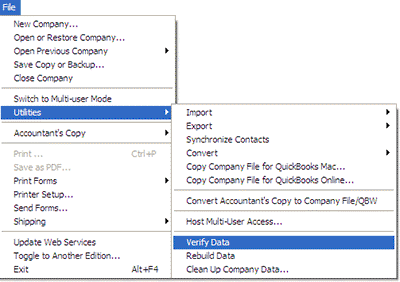
- The Verify Data utility will start verifying the company file for any issues.
- If it detects any issue, it will show a message, saying “Data damage was found in the file. Rebuild your data to fix it.”
To fix the issues, you can use the Rebuild Data utility by following the steps below:
- In your QuickBooks application, go to Utilities and then click Rebuild Data.
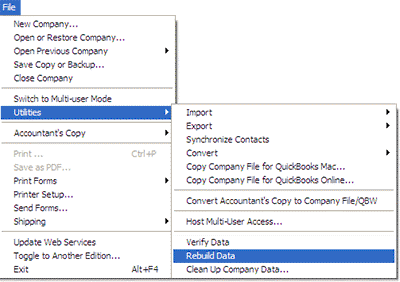
- The QuickBooks Information window is displayed. Click OK.
- A dialog box is displayed asking you to create a company file backup. Follow the on-screen instructions to create the backup.
- When the backup process is completed, the tool will automatically start rebuilding the file.
- Wait till the rebuilding process is complete. Then, select OK.
Once the rebuild is complete, save a copy of the repaired QBW file on the local machine as well as on the server. Refrain from hosting the file on the local machine and give the new file a different name than the original file.
Note: The Rebuild process takes longer than Verify. Do not stop it, and avoid using your computer until it finishes.
Method 2 – Restore Company File from Backup
If the Verify and Rebuild Data utility doe s not fix the corruption, restore the company file from your latest healthy backup to replace the damaged one. Here’s how to restore the company file from backup:
Note: Before restoring, first make sure your backup file is accessible. If it is stored on an external device or network drive, move it to your local hard drive.
- In your QuickBooks application, go to File menu and click Open or Restore Company.
- Click on the option that says Restore a backup copy and then click Next.
- Click the option labeled – Local Backup and then click Next.
- Browse to the backup (.qbb) file on your system.
- Next, choose a location to save the restored company file and then click Open.
- Click Save.
You can also use the QuickBooks built-in backup restore tool – Auto Data Recovery – to restore the lost data in the company file. It can help you recover recent transactions using the original (.TLG) file and .QBW.adr file. However, this method is not suitable if you’re using the QuickBooks Accountant edition or if the size of backup file is more than 1.5 GB.
Method 3 – Use QuickBooks File Doctor tool
QuickBooks File Doctor is a free company file repair tool provided by Intuit to fix common company file issues (H101, H505) and network-related errors. You can use this tool, especially if QuickBooks fails to open the file or displays errors in multi-user environments. It is available in the QuickBooks Tool Hub
QuickBooks Tool Hub offers a variety of other tools to fix issues in the company file. You can download, install, and launch its latest version. Then, you can use the QuickBooks File Doctor tool and Quick Fix My File to repair the corrupt company file.
QuickBooks File Doctor Tool Download and Installation Steps:
- Download the advanced version of QuickBooks Tool Hub.
- Go to the Downloads and open the downloaded QuickBookstoolshub.exe.
- The installation window is displayed. Click the Install option. It will start the installation process.
- Once the process is completed, click on the Finish option.
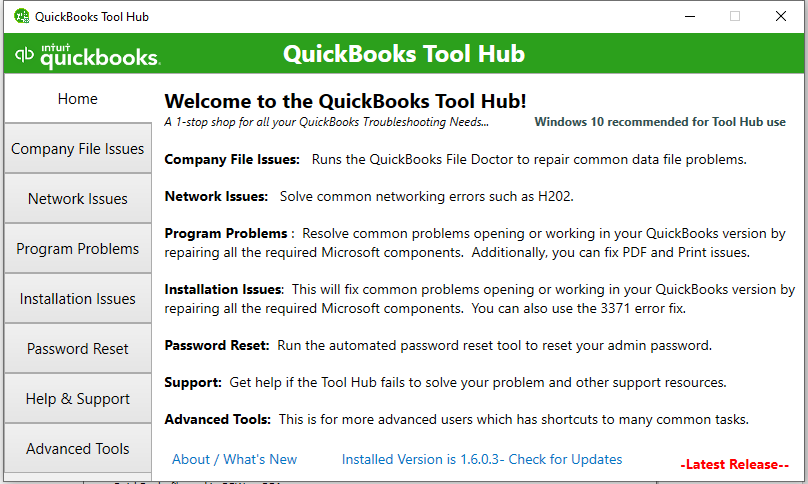
- Next, click on the QuickBooks Tool Hub icon to launch/open the tool to use the QuickBooks File Doctor tool.
Steps to use the File Doctor tool to repair QBW file:
- In Tool Hub, select Company File Issues.
- Select Run QuickBooks File Doctor tool.
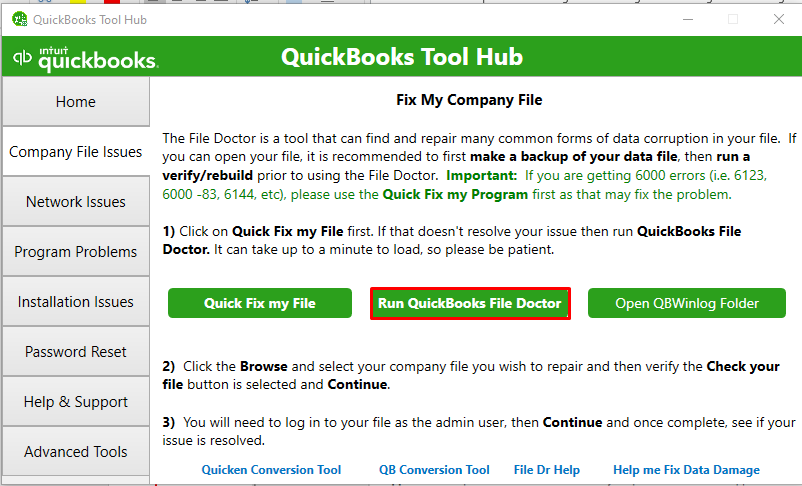
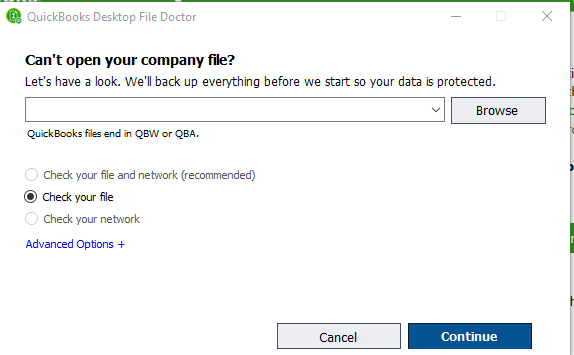
- In the QuickBooks File Doctor wizard, click Browse to choose the desired company file. Select one of the following options:
- Check your file and network.
- Check your file.
- Check your network.
- Click Continue.
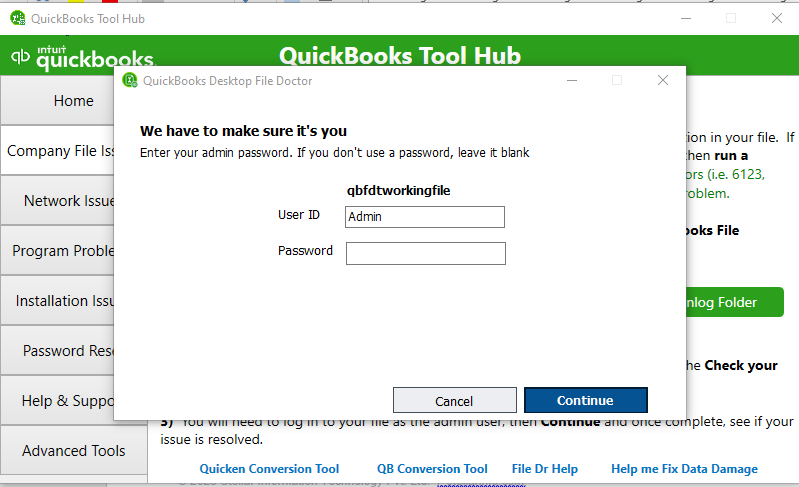
- On the prompt, enter the QuickBooks® Admin password and then select Continue.
- It may take some time, depending on the QBW file size.
- After the scan is complete, try to open your company file.
Note: If it fails to repair the company file, then you can use other tools in Tool Hub. Simply click Company File Issues, select Quick Fix My File, and then click OK.
Sometimes, when trying to repair the company file using the QuickBooks File Doctor tool, you can face various issues, like QuickBooks File Doctor not working.
Such an issue can occur due to the limitations of the file doctor tool, such as:
- It is not suitable for repairing large QBW files.
- The tool can fix or repair minor errors and inconsistencies in the QBW files. If the QBW file is severely corrupted or damaged, it may fail, hang, or stop responding while repairing the file.
- To upload a company file on the tool, an internet connection is required.
- It requires admin credentials while repairing the company file. If you enter incorrect credentials, then it fails to repair the file.
Method 4 – Use a Professional QuickBooks Company File Repair Software
If the size of the QBW file is large or it is severely corrupted and the above repair methods fail to work, then you can use Stellar Repair for QuickBooks® software. This software can easily repair company (QBW) file, even if it is severely corrupted. It can recover every bit of information stored in corrupt company file. It also helps recover data from QuickBooks backup file (QBB). You can download this tool on any Windows system. It’s compatible with all QuickBooks editions – QuickBooks Pro, Premier, and Enterprise solutions. The software provides a free preview of recoverable data in corrupt QBW files.
Steps to Repair Corrupt QuickBooks® Company File with Stellar Repair for QuickBooks® Software
Repairing your corrupt QBW file using this software is very easy. Follow these steps exactly in the order as described:
- Download, install and launch Stellar Repair for QuickBooks® Software.
- On the software’s main interface window, click Browse to choose the corrupt company file you want to repair, and then click Next.
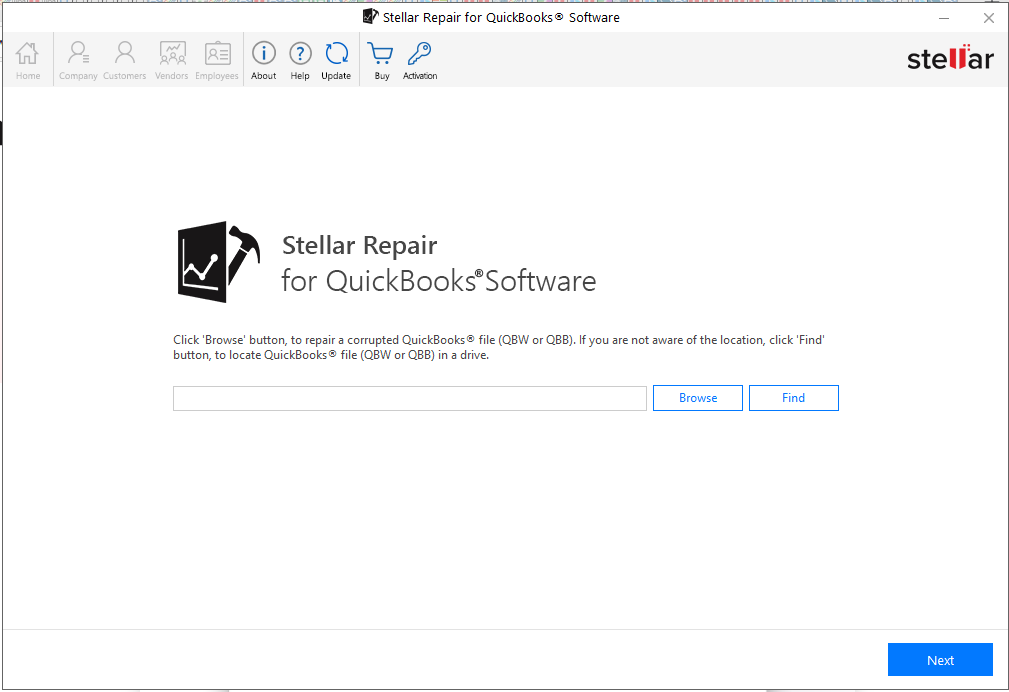
Note: If you are not aware of your QBW file location, click ‘Find’ to search for the file in a particular drive.
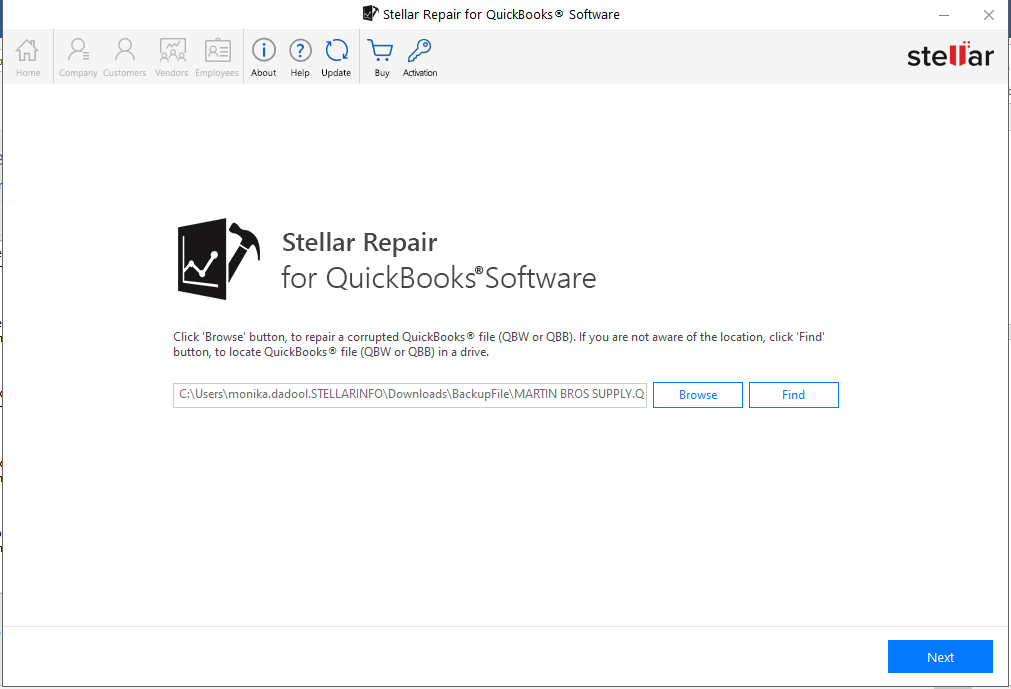
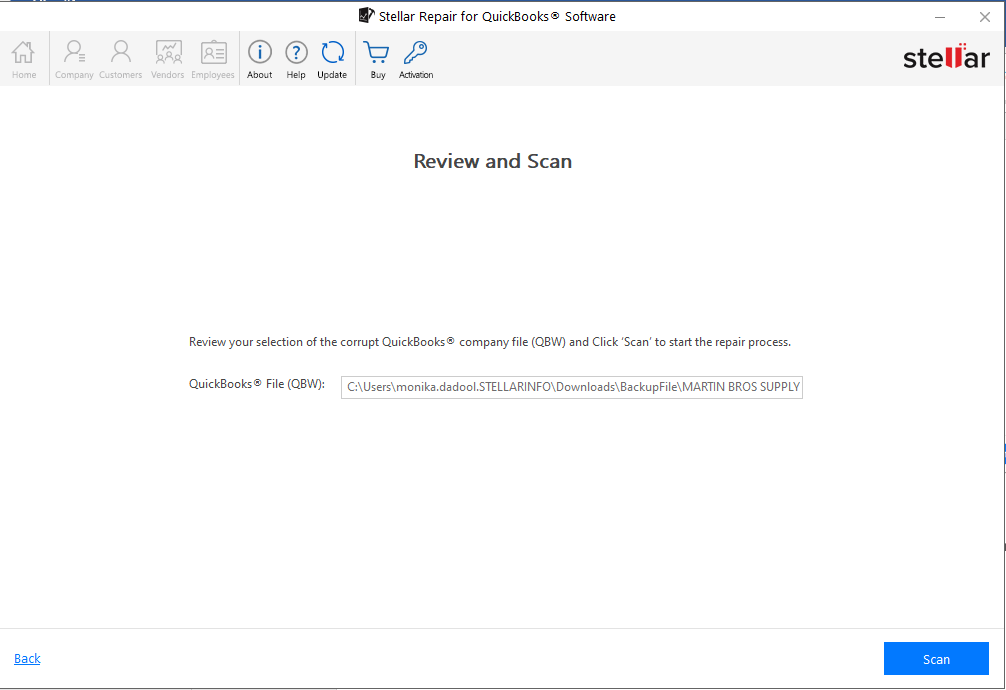
- In the Review and Scan window, click on the Scan option.
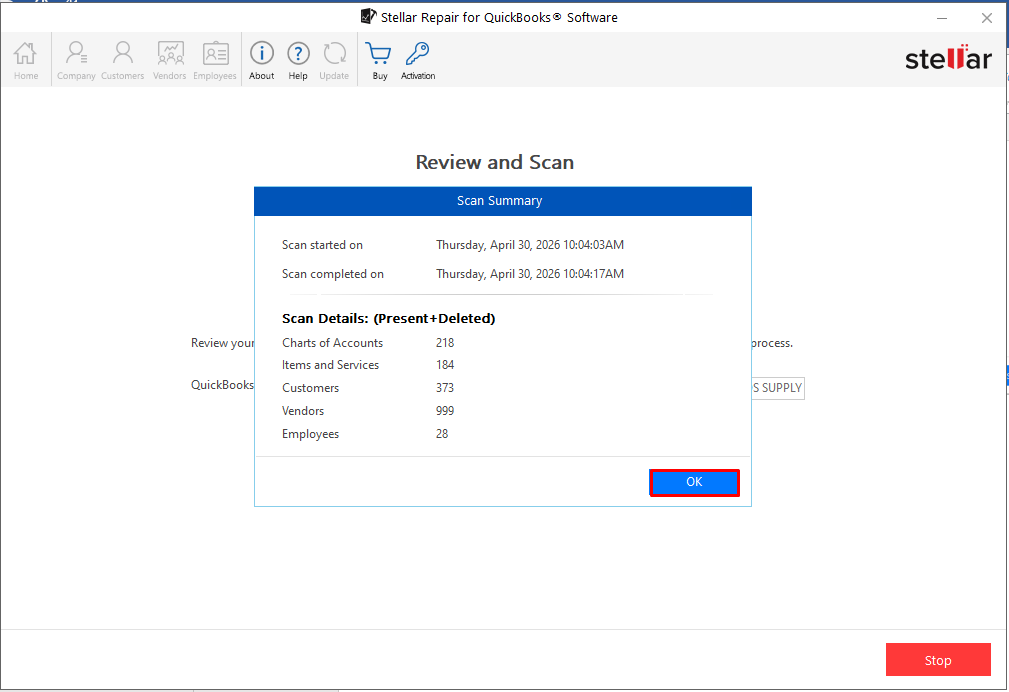
- Once the selected file is scanned, a window opens with details of the scanning process. Click OK.
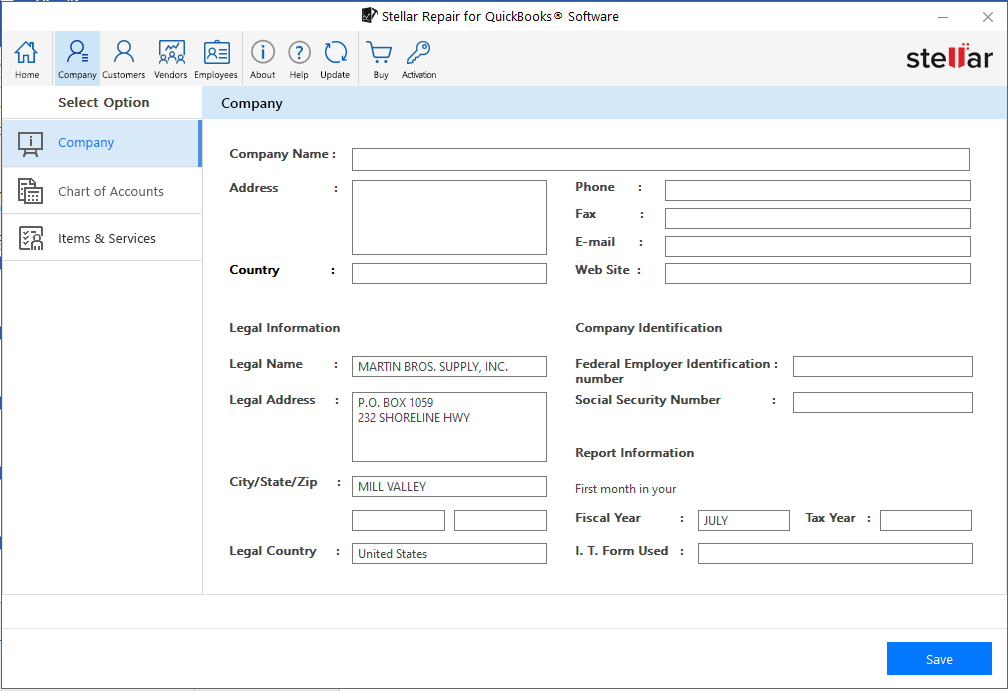
- The software shows preview of all the recoverable QBW file components, including the Company, Customers, Vendors, and Employees.
- For saving the repaired file and its recoverable data, click Save.
Note: For saving the scanned QBW file, you need to register for Stellar Repair for QuickBooks® software. If you have already registered for the software, proceed with the next step.
Read this: How to register or activate Stellar Repair for QuickBooks Software?
- In the Save File window that appears, choose Company File (QBW) or QuickBooks backup file (QBB).
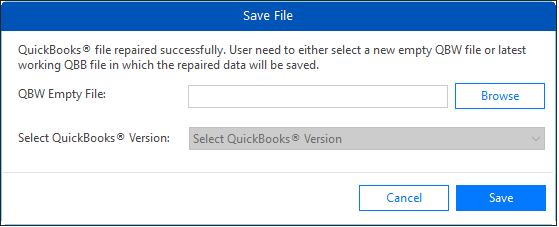
- Click on the Save button to save the repaired file.
- Click OK when the ‘Repair process completed successfully’ message appears.
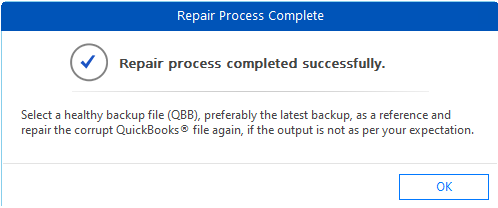
- You can start using your new company file containing all the repaired data.
The table below provides comparison between QuickBooks File Doctor Tool, Verify and Rebuild tool, and Stellar Repair for QuickBooks:
| Features | Stellar Repair for QuickBooks | QuickBooks File Doctor Tool | Verify and Rebuild Tool |
| Repair Capability | Repair severely corrupted QuickBooks company files | Limited to fix only minor corruption in QuickBooks company files | Can fix only basic corruption in QuickBooks company files |
| Recovery | Recover all the data from corrupted QuickBooks company file | No guarantee of complete data recovery from QuickBooks company file | Does-not guarantee complete data recovery |
| Repair Support | Repair both QBW and QBB files | Cannot repair QBB files | Cannot repair QBB files |
| Preview Feature | Provide preview of recovered data before saving | No preview option is available | No preview feature |
| File Size Limitation | No file-size limitations. Can seamlessly handle large-sized company files | Usually crash when repairing large-sized company files | Less effective with large company files |
Conclusion
Corruption in QuickBooks company files can occur due to different reasons. In such a case, you can restore the backup file or use Auto Data Recovery (ADR) feature to restore recent transactions. If this doesn’t work, then you can use tools like Verify and Rebuild Data or QuickBooks File Doctor to fix corrupt company files. They may fail with large or severely damaged QBW files. In such cases, you can opt for an alternative QuickBooks repair tool – Stellar Repair for QuickBooks. This DIY tool can quickly repair QBW and QBB files without data loss and in just a few easy-to-follow steps. It also has no file size restrictions. The tool can help resolve QuickBooks errors caused by corruption in QBW files. It supports QuickBooks versions 2024, 2023, 2022, 2021, 2020, and earlier.
FAQs
