Emergency mode allows access to a corrupt SQL database in RECOVERY PENDING or SUSPECT state to troubleshoot and repair. If the database gets stuck in emergency mode, it means the repair is in process or it is severely corrupted. In such cases, you can restore the database from backup or use a professional MS SQL repair tool. In this article, we will discuss the stepwise troubleshooting methods to recover database from Emergency mode.
What is Emergency Mode in SQL Server?
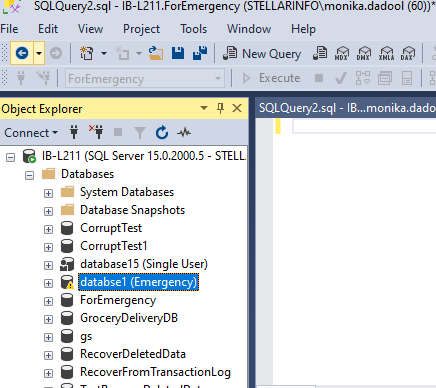
EMERGENCY mode is a read-only status of the SQL database that you or administrators can manually set. It allows you to open and have direct access to the data in the database, bypassing the transaction log. Usually, you can use this mode while troubleshooting corrupt SQL databases when they are inaccessible, in SUSPECT mode, or in RECOVERY PENDING state. Although this mode opens the database, it does not allow to do any modifications in the database.
Why you Need to Set the Database to Emergency Mode in SQL Server?
SQL DBAs usually set the database into emergency mode when,
- The MDF/NDF file is corrupted or damaged.
- The transaction log file is damaged or corrupted.
- Database is in SUSPECT/RECOVERY PENDING state.
- Need to run DBCC CHECKDB command to check and repair the database.
- To export database data before rebuilding.
- Want to run metadata queries like system catalog views, and information schema on inaccessible database.
- Extract some of the data from the database.
How to Recover SQL Database from Emergency Mode to Normal Mode?
To recover SQL server database from EMERGENCY mode, use the ALTER DATABASE command. Here are the steps to follow:
Step 1 – Check the Database State
Before proceeding, check if the database is still in EMERGENCY mode by running the following command:
SELECT name, state_desc FROM sys.databases WHERE name = Test_Database
This command will return the state of the database.
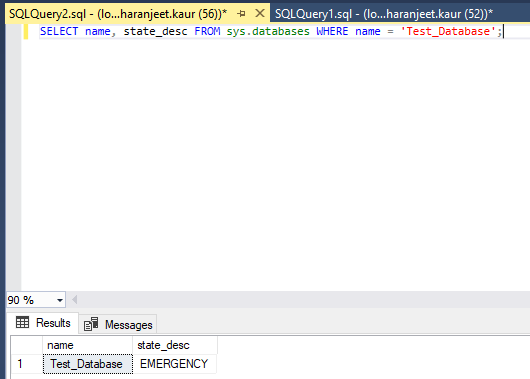
As you can see, the database named – ‘Test_Database’ is in EMERGENCY state.
Step 2 – Use ALTER DATABASE Command
Now, you can the following command to bring the database to normal mode.
ALTER DATABASE database_name SET ONLINE
This command forces the server to reinitialize the database and make it accessible to perform operations.
What If SQL Database is not Coming Out of EMERGENCY Mode?
Many SQL users have reported encountering issues that their SQL database is not coming out of the EMERGENCY mode. Let’s take a look at one such query:
| My database (MyDB) in SQL Server Management Studio 2012, enters into SUSPECT mode. I set it to EMERGENCY, then SINGLE_USER, and ran DBCC CHECKDB successfully. However, when switching back to MULTI_USER and ONLINE, the process ran endlessly for over 24 hours, leaving the database stuck in EMERGENCY mode and unable to come online. |
SQL database remains in EMERGENCY mode if the server thinks the database is in mid-restore, i.e., it is under a repair process. It might take you a few minutes to bring the database back online. But if the database seems stuck in EMERGENCY mode, then you can follow the below troubleshooting methods:
Method 1: Change Mode to SINGLE USER and Run DBCC CHECKDB
If you fail to take database out from EMERGENCY mode, you can run the following commands:
ALTER DATABASE YourDB SET SINGLE_USER WITH ROLLBACK IMMEDIATE;
DBCC CHECKDB (YourDB, REPAIR_ALLOW_DATA_LOSS);
This helps you to change the state of database to SINGLE USER mode to run REPAIR_ALLOW_DATA_LOSS option of DBCC CHECKDB. If this fails, then it indicates there is severe corruption or internal metadata damage in database. In such a case, you can try to look for the last backup to restore the database and recover its information.
Method 2: Restore the Database from Backup
If you are unable to recover the severely corrupted database, then restoring backup may help. Microsoft SQL Server allows you/admins to use SQL Server Management Studio (SSMS) or Transact-SQL commands to restore the database file. Restoring backup replaces the corrupted allocated structure of the database and make sure the recovered database is in consistent state. For detailed step-by-step process, read How to Restore Database in SQL Server from .Bak File.
Method 3: Restore the Database using Professional SQL Repair Tool
If the backup is corrupt or unavailable, use a SQL recovery tool like Stellar Repair for MS SQL to restore your database to its original state. This tool can repair severely corrupted database of any size and save the repaired data to new database file or a live database. The tool allows specific data recovery to save your time. It supports repairing SQL database on both Windows and Linux systems.
Watch this video to repair the severely corrupt database stuck in EMERGENCY mode:
Conclusion
The database usually stays in EMERGENCY mode when it is still getting repaired. If it doesn’t return to normal, set the database state to ONLINE or restore from a valid backup. If the backup is corrupt or unavailable, use Stellar Repair for MS SQL – a powerful SQL recovery tool, to quickly repair the inaccessible SQL database files with no data loss.
