Indexes allow a database to quickly locate and sort records without scanning the entire table. In Access, they are data structures that store record locations by field. This allows faster searches, sorts, and joins. These indexes are automatically created by primary keys. You can even manually index the fields as required. Defining indexes helps improve query performance.
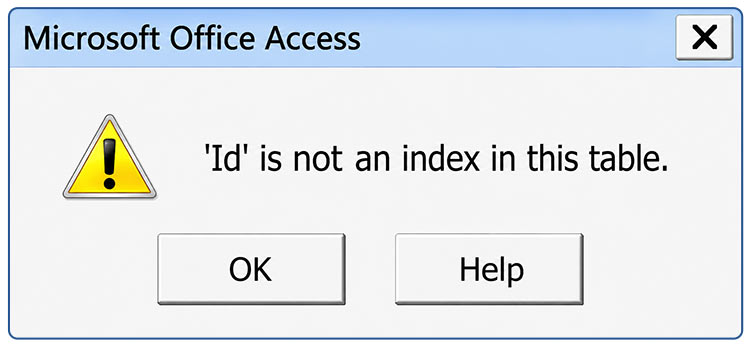
However, if Access tries to use an index that has not been defined, you may encounter the “ID is not an index in this table” error. You usually face this error while opening the database, which indicates data corruption. It can also arise due to application crash, network interruptions, or version conflicts.
What does “ID is not an Index in this Table” Error Mean in MS Access?
The error message “ID is not an index in this table” (Error 3800) in Microsoft Access appears when the application attempts to reference a named index ,often the ID field index is missing from the table’s current index list. This is one of several Microsoft Jet Database Engine errors that signal deeper problems with the database’s internal index metadata and is closely associated with corruption in MS Access database.
Access 2013 Error 3800: A user reported that while adding a maintenance invoice, Access locked up with “ID is not an index in this table”.
Error 3800 in Access 365 (2024): Another user encountered “<Name> is not an index in this table” when opening an .accdb file. Microsoft moderators confirmed the error is associated with corruption.
What Triggers the “ID is not an Index in this Table” Error?
The error “ID is not an index in this table” (Error 3800) in Microsoft Access usually signals either corruption or a missing index definition.
Corruption-based Cause (Most Common):
Corruption in an Access database might occur due to the following:
- Multi-user Network Access: The database is shared over a network in a multi-user environment; and, a copy of the database is accessed by multiple users simultaneously.
- VB Code Interruption: If code (procedures) stops working during write operations, it can cause corruption in the database. However, it is quite impossible to access the VB editor to check the real cause of the interruption.
- Mixed Access Versions: Different versions of the application (Access Database) are used over the network by different users. For example, some systems running Access 2007 and others running Access 2010. This creates compatibility issues that damage index metadata.
- File Corruption at Jet Engine Level: Corruption in Access database file (.accdb or .mdb) cause the mismatch between the system tables (like MSysObjects and MSysIndexes) and the actual table structure. Due to this, the Jet Database Engine cannot read the index properly and causes this error.
Index‑Not‑Defined Cause (Developer/VBA)
The error 3800 in Access can happen when a query, relationship, or VBA code references a field as an index, but the field’s Indexed property in Table Design View is set to No. The database itself is not corrupt — the issue lies in design or code.
How to Resolve “ID is not an Index in this Table” Error in MS Access?
This error is a direct symptom of corruption or missing index definitions in Microsoft Access database. To fix it, you need to apply the solutions according to the cause.
Repair your Corrupt Access Database File
If you encounter the MS Access error message “‘ID’ is not an index in this table” due to corruption in Access database, try these solutions:
Solution 1 – Use Compact and Repair Tool
Compact and Repair is the built‑in tool in MS Access for fixing certain types of database corruption and improving performance. It reduces file size by eliminating unused space and can repair damaged objects. It helps fix index corruption and often resolves index‑related errors such as Error 3800.
Steps to use Compact and Repair utility to repair Access database:
- Close the Access database if it is currently open.
- Launch MS Access without opening any database.
- On blank database, click on File > Database Tools and then click Compact and Repair Database.
- Click on the corrupted database file (.accdb) you want to repair and then click Compact.
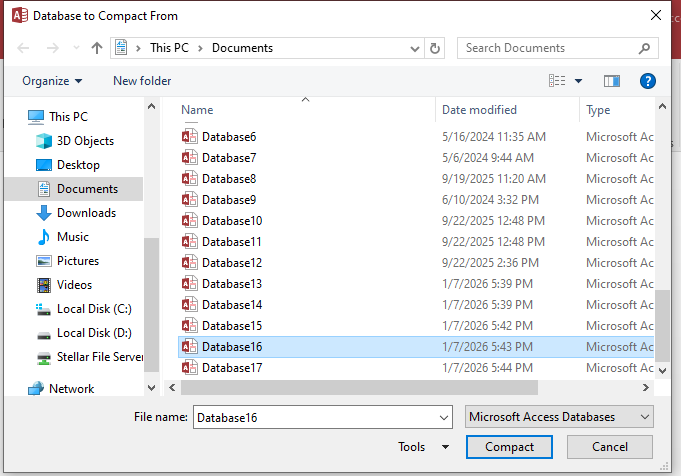
- Wait for a few minutes till the repair process is finished. Access creates a compacted copy and replaces the original.
- Reopen the database and check if the error persists.
If Compact and Repair tool fails to work, try the following solutions.
Solution 2 – Export Database Objects to a New File
If the error persists, check if you can open the corrupted Access database. If it opens, use the export tool in your MS Access application to export every object of the corrupted database to a new Access database manually. The steps to export the objects to a new database are as follows:
- Create a New blank database.
- Click the External Data option and select the Import Access Database option.
- In the Get External Data – Access Database window, select the option labeled – “Import tables, forms, reports, macros, and modules into the current database.”
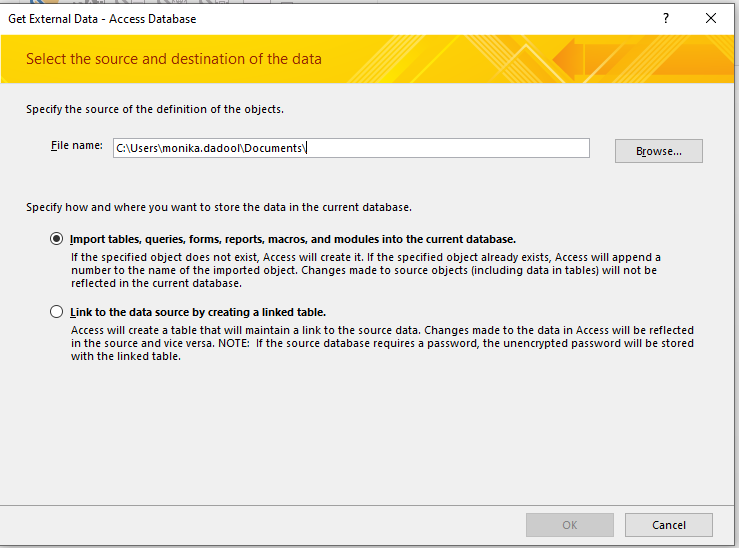
- Browse and select the affected .accdb or .mdb file.
- In the Import Objects dialog box, select the objects you want to import (tables, queries, forms, reports, macros, and modules) and click OK.
This will import all the selected objects from the affected database into the new database file.
If your Access database file is large and complicated, then it could be time-consuming to import the DB objects manually. Also, it may not resolve severe corruption in database file. In such cases, you can go with the next solution.
Solution 3 – Use Professional Repair Tool like Stellar Repair for Access
Try using Access database repair software to fix your corrupted database (.MDB/.ACCDB) file that might have resulted in the “’ID’ is not an index in this table” error. The software can repair database files of Access version 2019, 2016, 2013, 2010, and earlier versions. Also, it helps restore all the database objects like tables, indexes, queries, relations, etc. It even provides a preview of all the recoverable data, including deleted records, forms, reports, macros, etc. to help the users validate data accuracy before saving it.
Steps to repair a corrupted Access database are as follows:
Let’s look at how you can fix the Access Database error: “ID is not an index in this table” using this software:
- Download Stellar Repair for Access software.
- Select the database by using ‘Browse’ or ‘Find’ option.
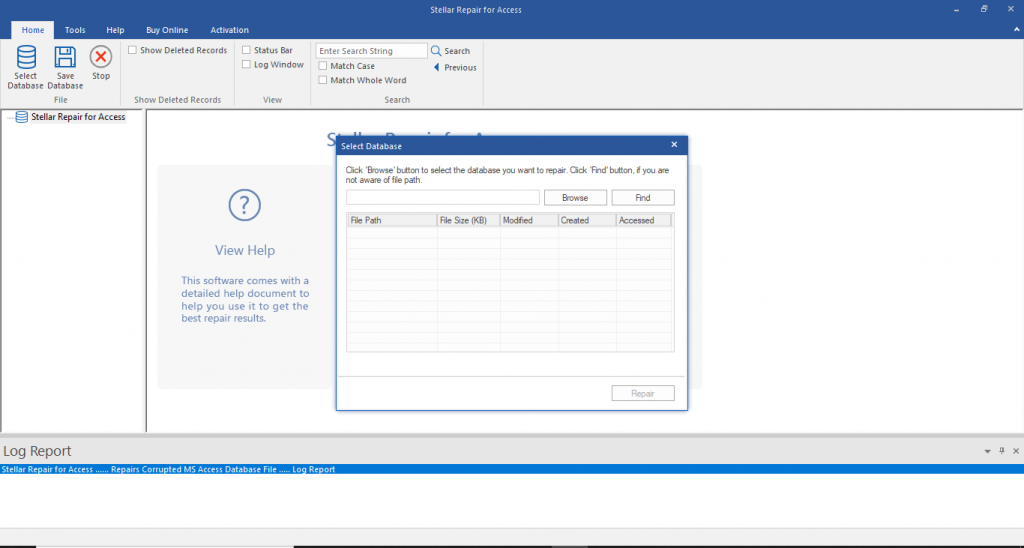
- Once the file is selected, click the ‘Repair’ button to begin the database repair process.
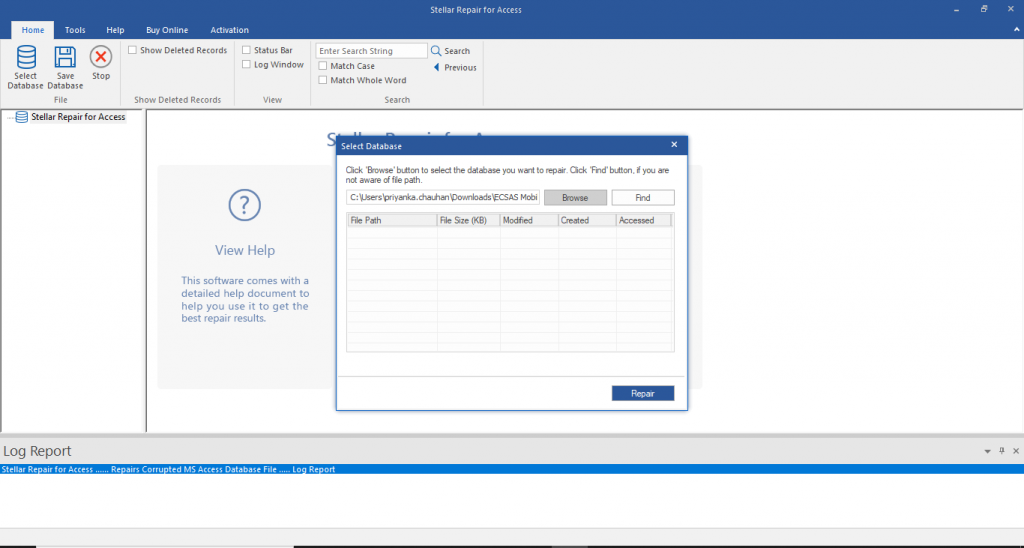
- The software shows progress of the repair process.
- Once the repair is completed, a message box which reads: ‘Selected MS Access database repaired successfully’ will appear. Click ‘OK’.
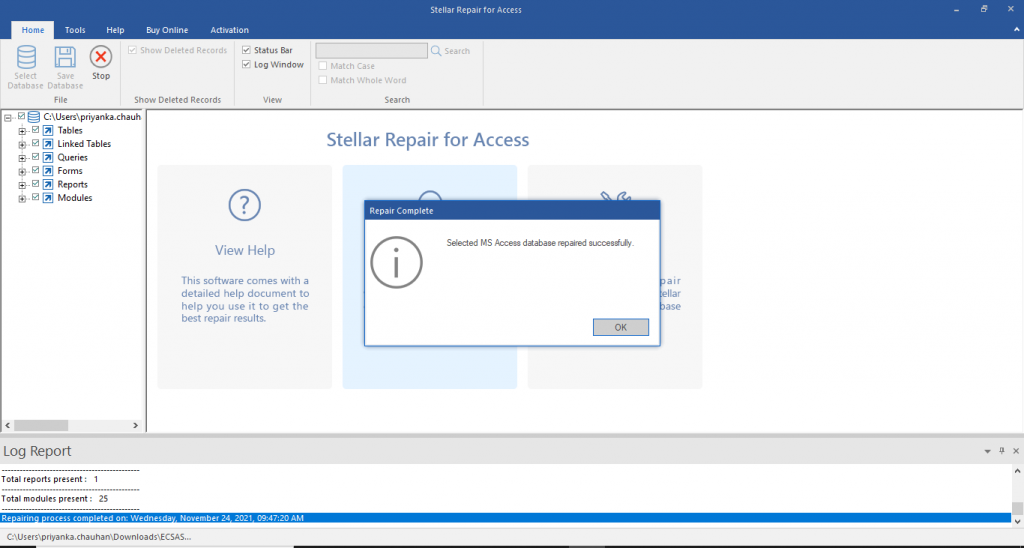
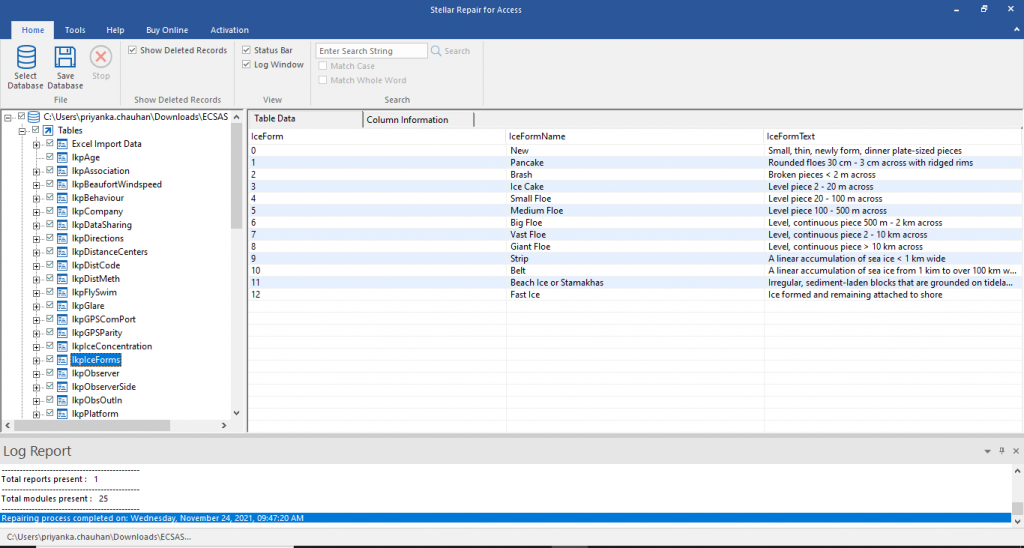
- You can preview the contents of the selected database, including tables, deleted records, forms, reports, macros, etc. You can select single or multiple items for recovery.
- Once the repair procedure is completed, the tool will ask for a storage location to save the recovered items. You can select to store data at the same location where the original ACCDB file is located or in a new folder.
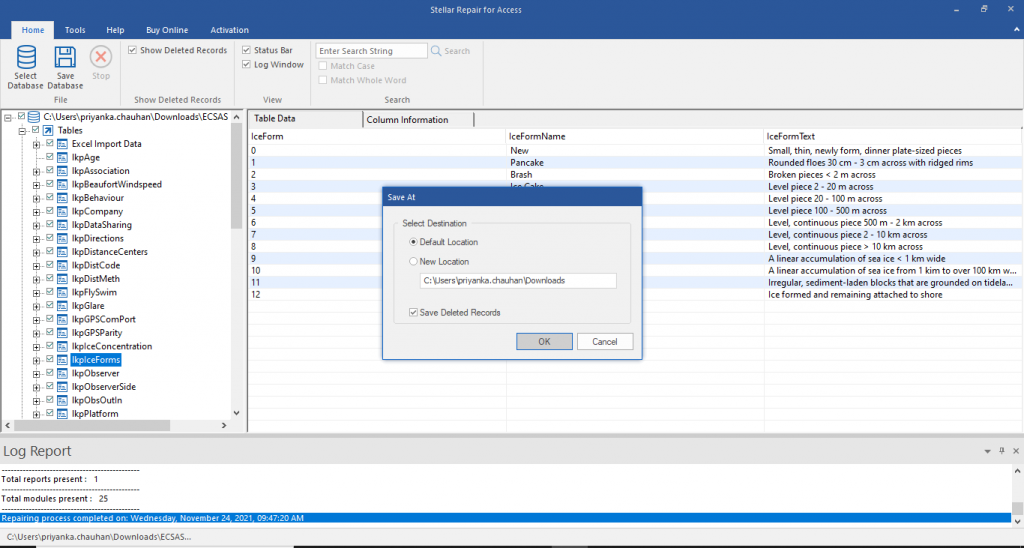
- Click ‘OK’ to complete the procedure.
Watch the full video to repair ‘ID’ is not an index error using Stellar Repair for Access.
Fix Index Definition Issues to Resolve “ID is not an Index in this Table” Error
In some cases, repairing the database file won’t help. The error 3800 can also arise when the issue is not corruption but a missing or undefined index, which requires fixing the index definition itself. To resolve index issues, follow these methods:
Method 1: Refresh Table Indexes in a Shared Network Database
Refreshing the table’s index list can resolve ‘ID is not an index in this table’ (Error 3800) when it occurs in a shared network database, especially if users have saved local copies of the shared .accdb file.
Steps to refresh indexes in Access database tables:
1. In the Access Navigation Pane, right-click the affected table.
2. Click Refresh on the Ribbon.
Refreshing clears Access’ local cache of table definitions. This forces Access to reload the real index list from the shared database and helps fix the mismatch that caused the error 3800.
Method 2: Recreate Missing Index in Table Design View
You can open the table in Design View and redefine the index to resolve the Access “ID is not an index in this table” error. This ensures that Access can properly recognize the field as an indexed column and eliminates the error.
It helps when the error has occurred due to,
- A VBA procedure, or query
- Table relationship referencing a field that has never been defined as an index
- Field’s Index was deleted during a schema change
Following are the steps to recreate Index in Table Design View:
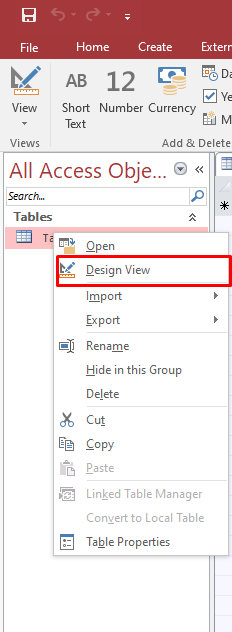
- In the Navigation Pane, right‑click the table named in the error and select Design View.
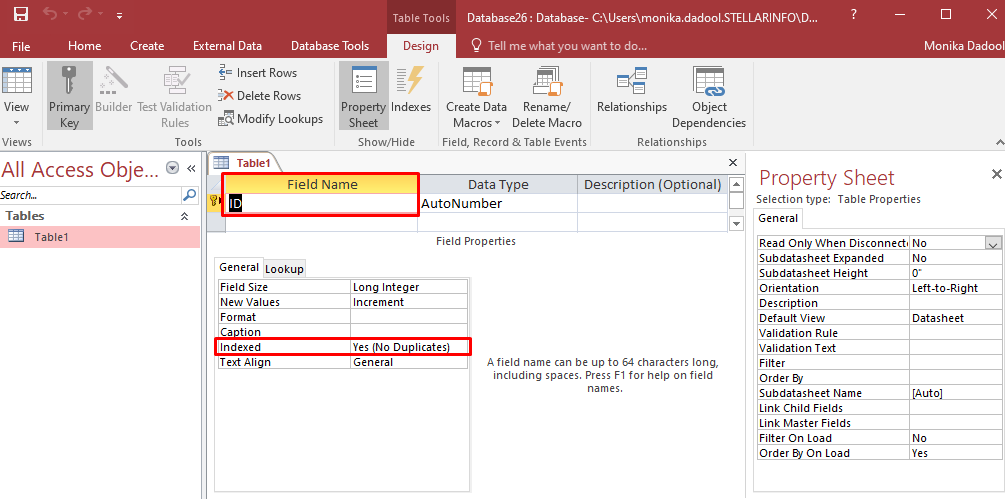
- Click the field referenced in the error message (e.g., the ID field).
- In the Field Properties panel at the bottom, locate the Indexed row.
- Set Indexed to:
- Yes (No Duplicates) for primary key fields.
- Yes (Duplicates OK) for foreign key or non‑unique fields.
- Save and close the table (Ctrl + S).
- Reopen the form, query, or VBA procedure that produced the error to confirm the fix.
Manual fixes like Compact & Repair, refreshing indexes, or recreating them in Table Design View resolve many cases of the “ID is not an index in this table” (Error 3800). But when the underlying issue is deep corruption in the .accdb or .mdb file, these methods may fail or even risk further data loss. In such scenarios, a professional Access database recovery tool is the right choice.
You should use Stellar Repair for Access when:
- Database cannot be opened — Error 3800 appears immediately and Access won’t load the file; a tool reads raw file pages directly.
- Compact & Repair fails — indicates corruption at the file allocation level beyond what the built‑in tool can handle.
- Deleted records must be recovered — manual methods cannot restore deleted data; Stellar Repair for Access previews and recovers them.
- No backup available — repair requires previewing recoverable data before writing; only a professional tool ensures this.
- Split database corruption – In a split Access database setup, the back‑end file holds the tables and indexes. If it becomes corrupted, the error “ID is not an index in this table” appears because the front‑end cannot read or export the damaged tables. Manual fixes fail since they depend on both files being intact. Stellar Repair for Access scans the back‑end file directly, repairs the broken indexes, and restores the data without needing the front‑end.
How to Prevent “ID is not an Index in this Table” Error in MS Access?
Most occurrences of “ID is not an index in this table” (Error 3800) are avoidable by following these practices:
- Use split database: Keep all tables in a back‑end .accdb on the server, while each user works with a front‑end file containing forms, queries, and reports. This prevents index corruption caused by simultaneous writes.
- Standardize Access versions: Ensure all users run the same Access version. Mixed releases (e.g., 2016 vs 2019) accessing one shared file can trigger index definition errors.
- Always open from the network path: Avoid copying the shared .accdb locally. Working on a local copy disconnects the lock file and leads to index mismatches.
- Schedule Compact & Repair: Run this utility regularly (weekly as per database availability).
- Maintain backups before schema changes: Always back up before altering table design or relationships. If an index definition is lost, backups are the only guaranteed recovery option.
Wrapping Up
Above, we have discussed some effective and tested methods to fix the MS Access error “ID is not an index in this table” (Error 3800). You can refresh or recreate the missing Index in Table Design View to resolve index definition issues. If the corruption in .accdb/.mdb is behind the error, start with the Compact and Repair tool. If there is severe corruption in the Access database, then use Stellar Repair for Access. It can recover tables, queries, forms, reports, macros, relationships, and even deleted records directly from the corrupt Access database file.
You might also be interested in:
How to fix Access Database Error: ‘Database needs to be repaired’?
Reasons for a failed table export in MS Access 2000 and it’s fixes
FAQs
