You need to format your SD card either because of compatibility issues, storage issues, or storage needs. Formatting deletes everything on the card, giving you a fresh start.
What many users still overlook in 2026 is that choosing right formatting method and file system directly affects SD card performance, device compatibility, and data safety, especially when using high-resolution cameras, drones, and smartphones.
Let’s walk you through how to format SD cards on all devices, including cameras, smartphone, computers, etc. But before that, here’s a quick checklist.
Formatting Deletes Everything – Before you format an SD card, I guess you already know that it not just deletes the files and folders but can also wipe the SD card clean, depending on the type of formatting you choose.
Quick Vs. Full Format – A quick format deletes everything, and a full format wipes everything. The difference is that in a Quick Format, the data can be recovered with the help of specialized data recovery tools. However, you don’t get that privilege with a full format.
File System – While formatting an SD card, the choice of file system also affects the compatibility and performance.
- FAT32 is best suited for cards with up to 32 GB.
- exFAT is recommended for SDXC cards of size 64 GB and above. Compatible for 4K and 8K video.
- NTFS is recommended for Windows devices, but not suitable for cameras.
- APFS is not suitable for SD cards meant for cameras or phones.
Speed Classes – Speed class of your SD card also influences how fast your card can write data.
There are three types of speed classes :
- UHS – U1(10 Mbps) or U3 (30 Mbps) denotes the speed of data transfer in SD cards.
- Video speed class – Such as V30(30 Mbps write speed), V60, V90 is important for HD, 4K, or 8K video recording in high-end cameras. A higher number generally means the card supports faster write speed.
- Application class – Like A1, A2 is meant for Android devices and denotes app storage speed.
In-device format – Formatting an SD card on the device (camera or GoPro) is better optimized compared to formatting on a computer. In-device formatting prepares the SD card’s file system for the device’s own write pattern, which prevents any future file corruption.
Safely Remove Card – Removing the card without ejecting it properly can cause file system errors, corrupt the card, and in severe cases, make it non-functional.
You might need to format your SD card for any logical error or performance reason. Let’s see detailed steps for formatting an SD card on Windows, macOS, cameras, Android, and DJI drones.
The Correct Way to Format an SD Card on Windows:
a.) Via File Explorer
Connect the SD card to a Windows computer with help of a card reader.
- Open File Explorer on the Windows computer.
- Right-click the SD card and select Format.
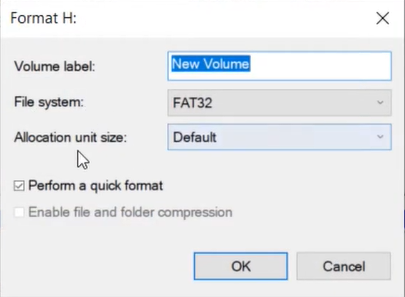
- Check the below attributes:
- File System: exFAT for 64 GB and above and FAT 32 for up to 32GB.
- Allocation Unit Size: Default
- Check Quick Format

b. Via Command Prompt
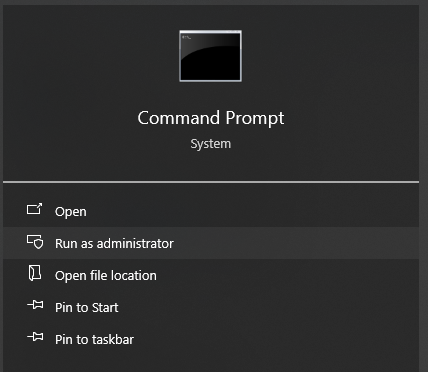
Open Command Prompt and Run as Administrator.
Then run the below command shown in the image.
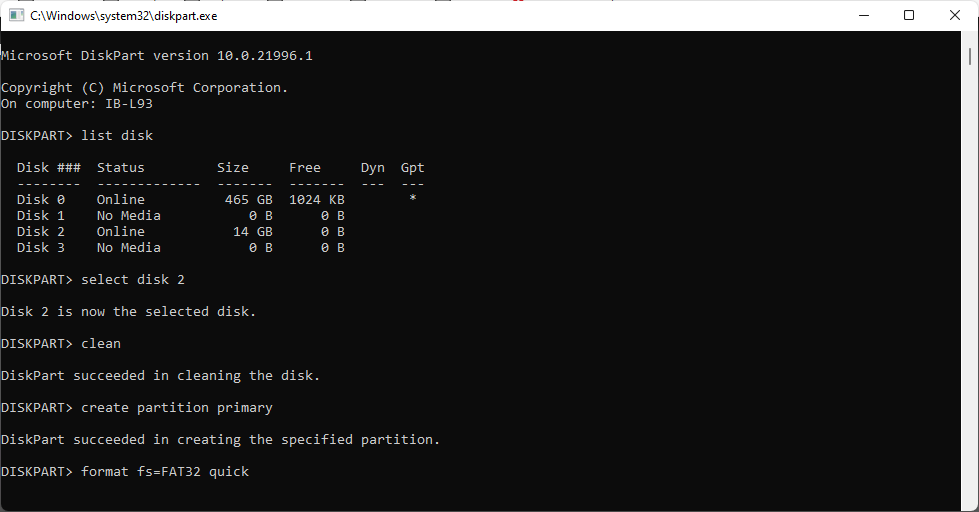
This is another method to format and SD card on Windows system, however, the latter is straightforward. You can apply the same commands in Windows PowerShell to format an SD Card.
c. Via Disk Management
Another way to format an SD card is on your Windows system is via Disk Management utility tool.
To format an SD card via disk management on your Windows system, follow the below steps.
- Connect the SD card to your Windows system.
- Right click on the Windows icon/ Start button on the taskbar.

- Click on Disk Management and then look for your SD Card. For e.g., Removable Disk D:
- Verify you are formatting the correct card before proceeding, then right-click the SD card’s partition and then hit Format.

- Your SD Card will be formatted with the default attributes unless you make changes.
Suggested Read – 6 Proven Methods to Recover Deleted Photos on Windows
The Correct way to Format an SD Card on Mac Device
a. Via Disk Utility on Mac
You can format a micro SD Card on a Mac with the help of Disk Utility. Here are the steps:
- Connect the SD card to the Mac device with the help of a card reader.
- Open Disk Utility and select the SD card from the left panel.
- Click Erase and then choose format exFAT (recommended) or FAT32 (same rule applies as Windows) rest everything is default
- At last, hit the Erase button to confirm button.
That’s the only way to format an SD card on your Mac system. However, maintain caution while formatting and do not format the SD card in APFS or Apple File System.
b. Via Terminal on Mac
If disk utility shows some errors (which is rare) then you can format your card directly through Terminal. Formatting via Terminal requires unmounting the SD card that disconnects the SD Card from the macOS so no apps can use it, so the terminal card can now safely format it without errors.
- Open Terminal and run the command – diskutil list
- Then unmount the SD card with command – unmountDisk /dev /diskX
- At the next command format your SD Card with command – diskutil eraseDisk FAT32 SDCARD /dev /diskX
Note – Replace the X with your SD card’s actual number.
Suggested Read – Recover Deleted Photos from SD Card on Mac
The Correct Way to Format an SD Card in Android Device
It’s really simple to format an SD Card on an Android device. All you need to do is:
- Go to the File Manager App, then select the SD Card from the storage menu.
- Go to the menu section and hit the Format button.
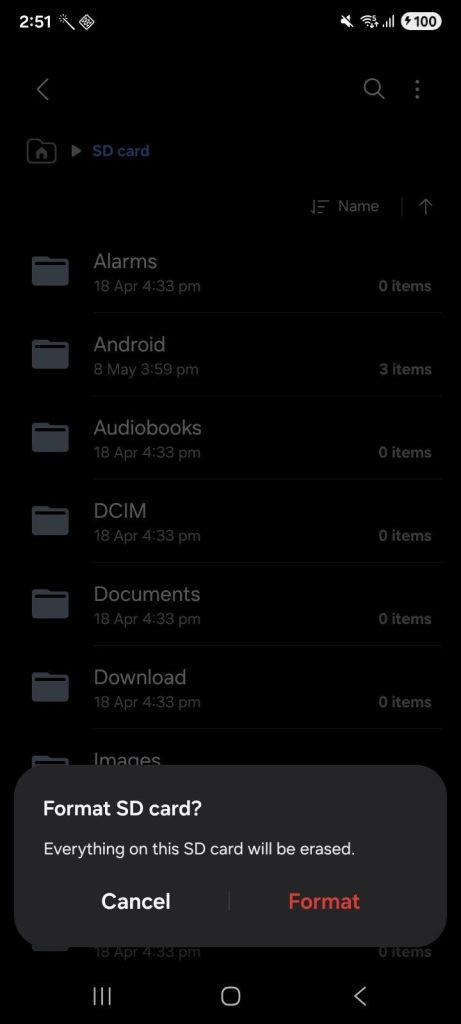
Hit Format again if prompted and wait for the formatting process to complete.
Suggested Read – Tips to Recover Deleted Photos from Android Devices
How to Format an SD Card in DSLR Cameras
While each and every DSLR camera will have a different setting, the basic process to format an SD Card via a camera is provided below.
- Press the Menu button on your camera’s panel.
- Go to setup menu and then select Format or Format Memory Card.
Some cameras might offer a quick format or a low-level format option, which is helpful if you face sluggish or slow performance on your SD Card.
How to Format an SD Card in GoPro Action Cameras
GoPro records in 4K or 8K quality, and hence, it requires a high-performance SD Card like card with U3 or V90 ratings. For GoPro devices, it is recommended that you prepare your SD card for in-device formatting, providing better compatibility.
- Insert the card in your GoPro device.
- Go to Preferences and select the Reset option by clicking on it.
- Now, select the Format SD card, and it will be done.
But remember to format the card inside your GoPro only when you are finished transferring the video footage.
Suggested Read: How to Recover Deleted GoPro Videos and Photos
When trying to clear out space to capture a perfect shot, you may mistakenly format a wrong SD card. It can happen to even the most well-organized photographers, who keep everything labelled and systematically stored. A 2-step mistake can cost you hours of hard work. The first thing to do here is to stop using the SD card immediately.
Stop shooting at all, don’t reformat, and keep it aside unless you recover all the photos and videos with the help of a reliable photo recovery tool. Stellar Photo Recovery tool can help you out in such situations. Here’s a step by step guide to recover photos or videos from a SD card after a quick format.
- Download and Install Stellar Photo Recovery tool on your Windows or Mac computer.
- Once installed run the tool on your computer.
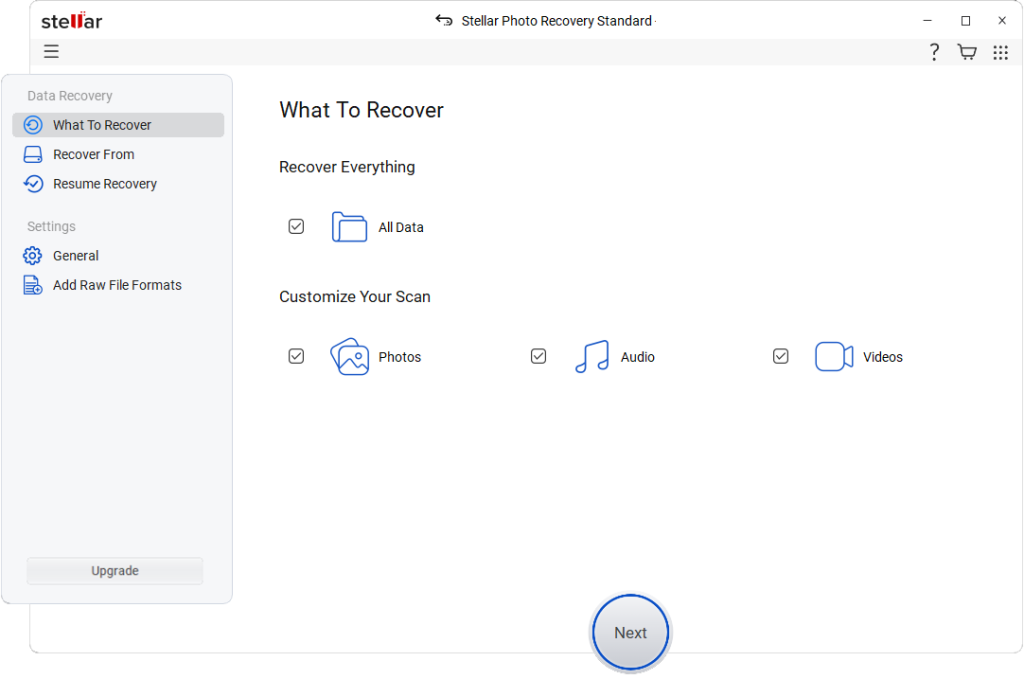
- The software will prompt what to recover – select photo, video, etc.
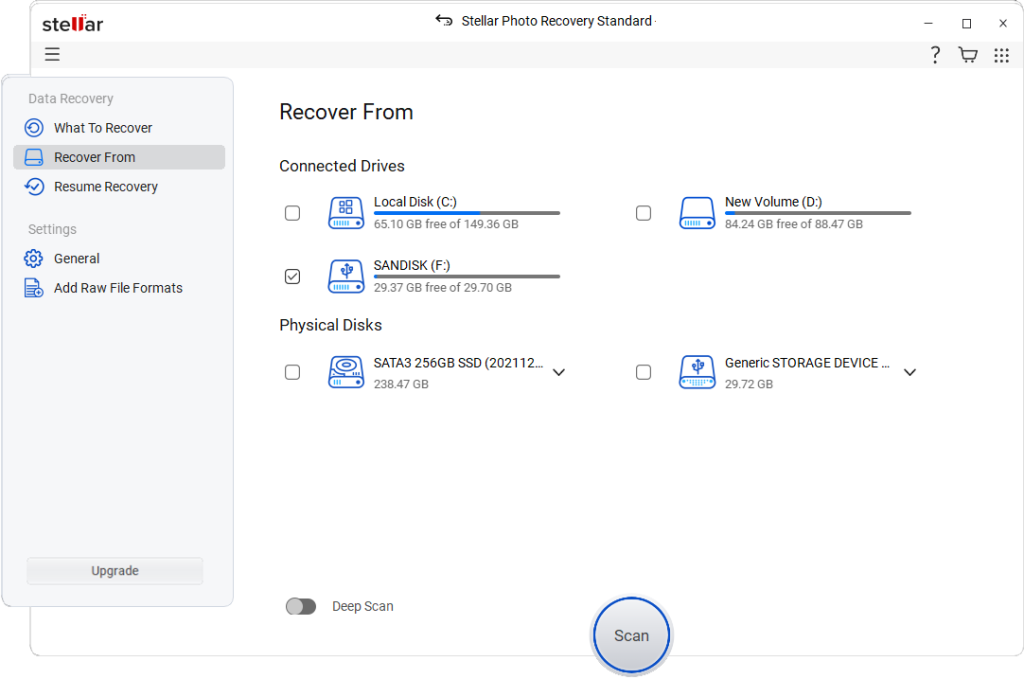
- On the Select where to recover from page – select your SD Card and then hit the Scan button.
- Wait for the tool to scan your SD Card for recoverable files and list them on your screen.
- Next you can select the files from the list and preview it one by one before saving.
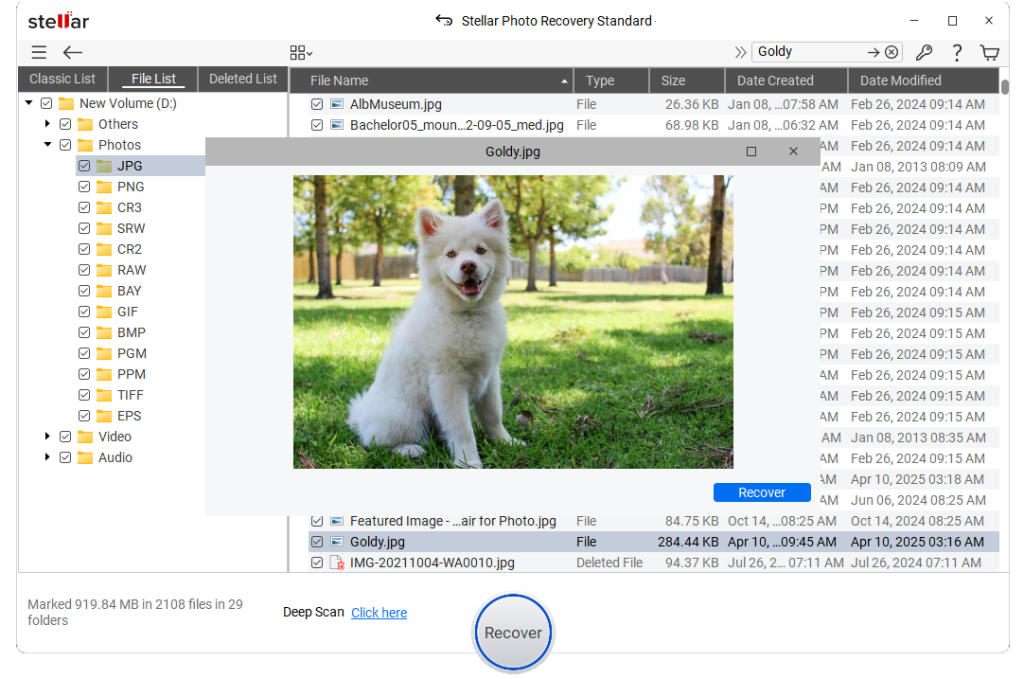
- Select the files you want to save and hit the Recover button, choose a desired location and save them instantly.
This way you can try recovering the files or photos that were accidentally deleted from your SD card. Also you can try out the tool for free and only require a subscription when you want to save the files.
End Notes
Formatting is simple, but you need to understand how every SD card handles it. The file format and system files work differently in each and every device, be it a drone, a GoPro, a DSLR, or an Android phone. To make sure your SD card works smoothly, you need to check the format type, file system, and other important details while formatting it. Because using the right file system and format structure will help your SD card to record at full speed, avoid recording errors, and file corruption.
All of it ensures the SD card is set up exactly the way the device needs to perform properly. However, if you face any errors while formatting an SD card or if the SD card won’t format properly, consult an expert or comment with your issue below.
