Hitting delete on your iPhone doesn’t erase your data on the spot. It simply moves it to another location that you can’t access. And no, this isn’t a loophole or a glitch. It’s simply how your iPhone’s internal storage is built. The real question isn’t whether recovery is possible. It’s whether you’re moving fast enough to make it happen.
- What if you never set up iCloud or iTunes?
- What if you haven’t backed up in months?
- Does that mean you’re out of options for recovering your iPhone files?
Not necessarily. And that’s what we are going to answer in this guide. For iPhone data recovery, start with the built-in options Apple provides, walk through a full step-by-step recovery using tools, compare these tools, and cover iCloud recovery without a full restore.
Can I Recover Deleted iPhone Data Without a Backup?
Yes, recovery without a backup is possible in some cases, especially when the deletion or loss is recent and it works because of how iPhone storage handles files after deletion.
When you delete a file on an iPhone, iOS marks that storage space as available but doesn’t immediately erase the data. The actual content stays in your phone’s NAND flash memory until the system needs that space and writes new data to it. That time period between deletion and overwrite is your actual recovery window.
What Types of iPhone data can be recovered without a backup?
You can recover photos, videos, text messages, contacts, call logs, notes, voice memos, iMessages, WhatsApp chats, calendar entries, and even recover Safari bookmarks without backup.
The recovery performance depends on three things:
- How much time has passed?
- What iOS version is your phone running?
- How actively you’ve used the device since the deletion?
Before you attempt recovery, be informed that modern iPhones use hardware-level AES-256 encryption. When iOS deletes certain data, it discards the encryption key for that, making deeper recovery harder. However, it is not impossible with software-based iPhone data recovery tools, as they can pull your lost data from other cached systems. Recovery is most reliable for data deleted recently on a phone with light usage since the deletion.
Also, permanently deleted in iOS language (emptied from recently deleted) is not the same as overwritten. Emptying the folder removes the file’s directory entry – but the actual data may still sit untouched in storage. Overwriting happens gradually as you use the phone. This distinction matters because many people give up after hitting Delete All, when recovery is still possible.
Method 1: Check iPhone’s Built-in Recently Deleted Folders
Before spending anything on software, check what Apple already has built-in. Several iOS apps quietly hold deleted items for 30 days -and most people scroll right past them without realizing it.
Photos App – Recently Deleted Album
Open Photos, go to the Albums tab, and scroll to the bottom. The “Recently Deleted” album holds every photo and video you’ve deleted in the past 30 days. Tap any item and hit Recover to put it back where it was. No tools, no software, no cost.
If iCloud Photos is turned on, deleting something from the Recently Deleted album on your iPhone removes it from iCloud too -across every device. Do not empty that folder until you’re certain you don’t need the files.
Notes App – Recently Deleted Folder
Open the Notes app, go back to the main folder list, and look for “Recently Deleted.” Deleted notes stay there for 30 days. Swipe left on any note and tap Recover.
Voicemail
Go to the Phone app, tap Voicemail, and scroll to the very bottom of the list. Depending on your network carrier, deleted voicemails often sit in a hidden section there until you manually “Delete All” a second time. Tap any one to listen or recover it –with this you can easily recover deleted voice message on iPhone.
Mail App
Deleted emails go to each account’s Trash folder and stay there for up to 30 days by default. Check under each email account in your sidebar.
When the 30-Day Window Has Closed
All of these options share the same limitation: once 30 days pass, or once you actively empty the folder, iOS removes the file reference entirely. At that point, a dedicated recovery tool that scans below the file system is your only remaining option.
Method 2: Recover iPhone Data Using Stellar Data Recovery for iPhone
This method is most likely to work when everything else has already failed.
What is Stellar Data Recovery for iPhone?
Stellar Data Recovery for iPhone is a desktop software (Windows and Mac) that plugs directly into your iPhone over USB and performs a deep scan of your device’s internal storage. It recovers deleted data without needing any backup at all.
The iPhone data recovery tool offers free downloading, scanning, and preview. Only for macOS users though, it has a free trial plan (recovers 10 videos or photos up to 10MB each file) and also supports multiple types of data (photos, videos, bookmarks, chats, etc.). Most importantly, it never writes to your phone during a scan – which means nothing on your phone gets altered while the tool is running.
Two Ways It Recovers iPhone Data
- Recover directly from iPhone/iPad/iPod (no backup needed). Stellar connects to your device over USB, scans internal storage, and recovers deleted files directly. There’s a preview feature for recovered files.
- Recover from iTunes backup. If there’s a partial or older iTunes backup sitting on your computer (Mac and Windows), Stellar extracts specific items from it rather than restoring everything.
What you’ll need before you start?
| A Windows or Mac computer |
|---|
| A USB cable that came with your iPhone (or a quality cable) |
| Stellar Data Recovery for iPhone downloaded from stellarinfo.com |
| Your iPhone passcode (required to authorize the Trust prompt) |
| Your iPhone powered on and not disabled |
Step-by-Step: Recover Directly from Your iPhone
Here are the steps to recover deleted iPhone data using Stellar Data Recovery for iPhone:
- Download and install the software from stellarinfo.com on your Windows or Mac computer.
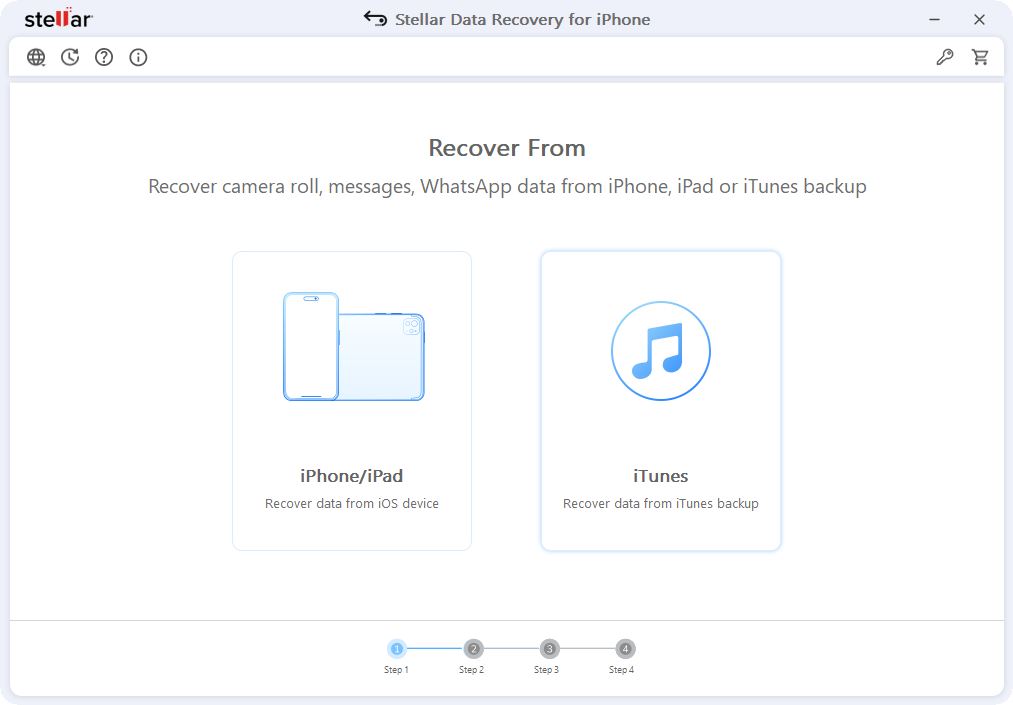
- Open the software. On the home screen, select “iPhone/iPad.”
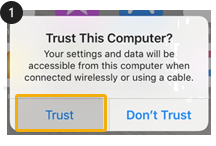
- Connect your iPhone to your computer using a USB cable. If a “Trust This Computer” prompt appears on your iPhone, tap Trust and enter your passcode when asked.
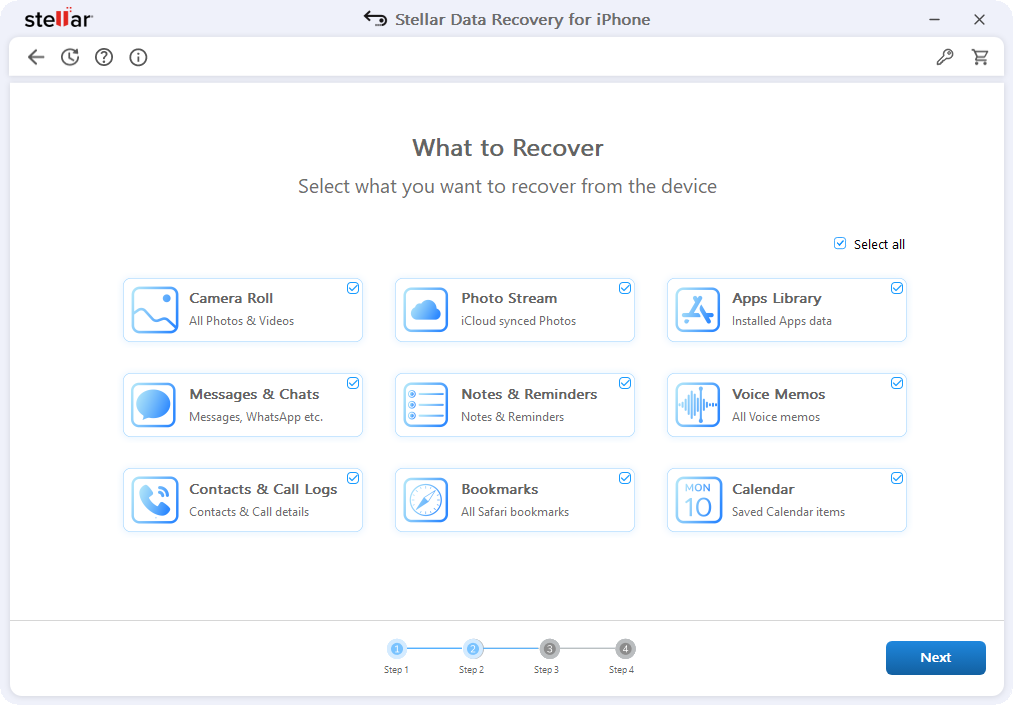
- Choose the types of data you want to recover -photos, messages, contacts, WhatsApp, etc. You can select all of them or filter by category.
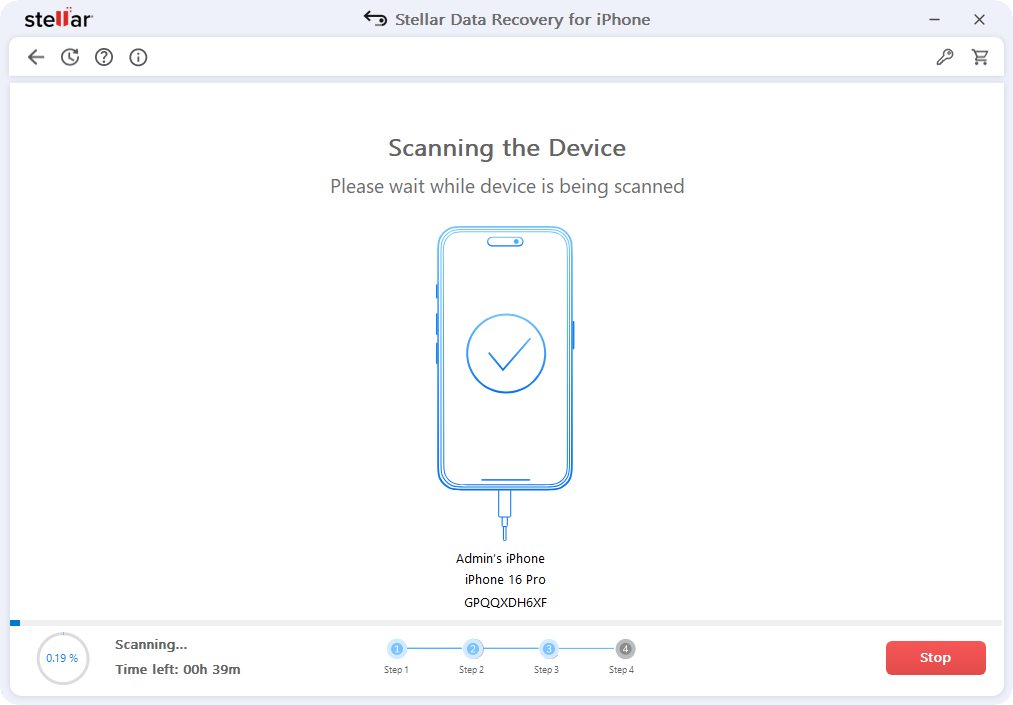
- Click Scan. A standard scan takes a few minutes.
- Browse the preview. Stellar shows you every recoverable file with thumbnails for photos and readable previews for messages and contacts -before you pay anything.
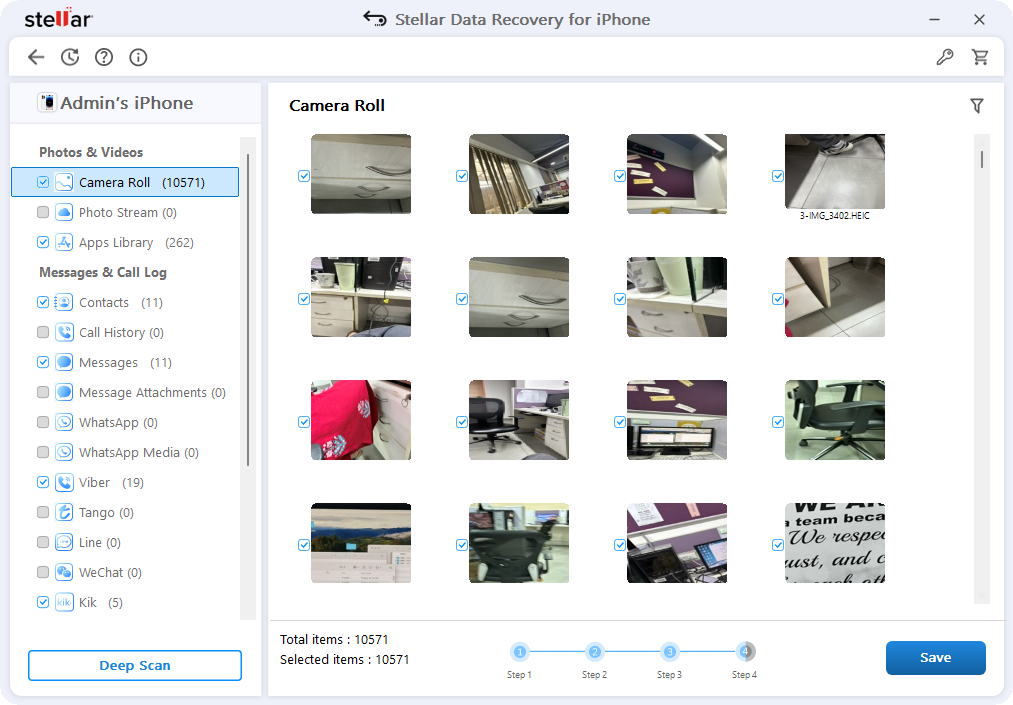
- Select the files you want to recover. You can pick individual items or entire categories.
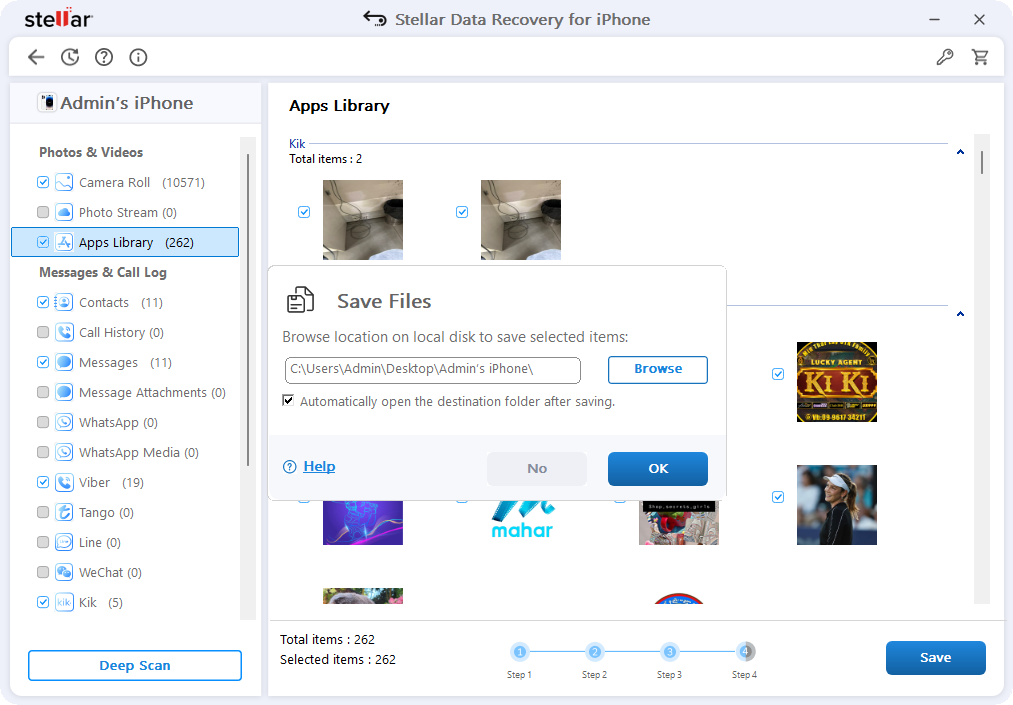
- Click Recover and choose a folder on your computer where Stellar will save the recovered files.
Free Preview vs. Paid Recovery
Downloading, scanning, and previewing everything is completely free. The free trial also allows recovering 10 photos or videos up to 10MB each. When the free limit is exhausted, you can upgrade to a paid plan for unlimited file recovery. This free trial helps you to confirm your data is there before committing to a purchase – unlike some tools that make you buy first.
Is Stellar Data Recovery for iPhone Safe to Use?
Yes. The scan is entirely read-only as the software never writes to your iPhone’s storage. No jailbreak is required at any point. Your data stays local on your computer during recovery; nothing is uploaded to Stellar’s servers. For anyone worried about privacy, that’s an important detail.
Method 3: Check iCloud Without Restoring Your Phone
A lot of people assume that “no iCloud backup” means iCloud can’t help at all. That’s not quite right. There’s an important distinction between iCloud Backup (the full device snapshot) and iCloud sync, which stores individual app data independently.
iCloud Backup is the complete phone image that saves when your device is plugged in and on Wi-Fi overnight. Many people turn this off. But iCloud sync for specific apps – Photos, Contacts, Notes, Reminders – can be on even when backup is off. Those items get synced to iCloud regardless of your backup settings.
What’s Accessible at iCloud.com?
- Photos – If iCloud Photos was enabled, your deleted photos may still be in the Recently Deleted album at icloud.com for up to 30 days
- Contacts – Recoverable directly from the Contacts section at icloud.com with a single click.
- Notes – Synced notes appear in icloud.com’s Notes section, including recently deleted ones
- Files – Anything saved to iCloud Drive is accessible from a browser without touching your phone
How to Check if an iCloud backup exists?
- Go to icloud.com on any browser and sign in with your Apple ID.
- Check Photos -open the Photos app, then look for a Recently Deleted album in the sidebar.
- Check Contacts, Notes, and iCloud Drive individually from the icloud.com home screen.
- If an item is there, click Recover. It restores to your iPhone automatically when sync is active.
What is not covered in an iCloud backup?
iCloud.com only helps if sync was turned on for those specific apps before the deletion happened. Text messages, WhatsApp, call logs, and voice memos don’t sync to iCloud this way -those require either a full iCloud backup restoration or Stellar’s direct device scan.
Method 4: Recover Specific Data Types – WhatsApp, Texts, Contacts, Videos
Not everyone needs everything back. If you’re looking for one specific thing, this section covers each data type individually.
Recover Deleted WhatsApp Messages on iPhone Without Backup
WhatsApp stores its chat database locally on your iPhone in a format that most tools can’t parse. Stellar Data Recovery for iPhone is one of the few tools built to read that format directly.
There’s also a second option worth checking first:
WhatsApp maintains its own separate iCloud backup while using the same iCloud infrastructure.
- Open WhatsApp, go to Settings < Chats < Chat Backup, and check if a backup exists.
- If one does, you can restore your entire chat history from inside the app itself without any third-party software.
- If no WhatsApp iCloud backup exists, run an iPhone data recovery tool, select WhatsApp chats as the data type, and preview the recoverable conversations before restoring.
Suggested Read – How to Recover Deleted WhatsApp Chat History on iPhone
Recover Deleted Text Messages Without iCloud
iMessages and SMS threads live in a database on your iPhone’s local storage. Stellar Data Recovery’s deep scan engine specifically targets this database and can surface conversations that iOS has marked as deleted. Data recovery success is higher when the phone hasn’t been used heavily since the messages were removed.
Recover Deleted Contacts
Check iCloud.com first. If Contacts sync was on, deleted contacts can be restored from there in seconds. If sync was off, the recovery tool pulls contact records directly from the iPhone’s local storage and displays them in a readable format so you can select exactly which ones to bring back.
Recover Deleted Videos
Start with the Recently Deleted album in the Photos app – deleted videos live there for 30 days. If that window has passed, Stellar’s device scan can locate video files that are still present in internal storage. One practical note: after a deletion, avoid recording any new video on that phone. New recordings are written directly to storage and can accelerate overwriting of the deleted content you’re trying to recover.
What Brings Down Your Chances of Data Recovery from an iPhone?
The most damaging thing you can do after losing data is continue using your phone as normal. Every action writes new data to your iPhone’s storage -which is exactly the space your deleted files are still occupying.
- Stop taking photos and videos immediately. Photos and videos are large writes that land directly on internal storage. Each one reduces the physical space where your deleted content is still sitting.
- Do not update iOS before running a recovery. An iOS update downloads hundreds of megabytes and writes them across your storage. Running an update after data loss is one of the fastest ways to make recovery impossible.
- Don’t factory reset the phone until after you’ve tried Stellar. A reset wipes your settings and data index, but the underlying storage sectors may still hold your files. Attempting recovery before a reset is always the better sequence.
- Avoid installing new apps. Even a small app install writes data to storage. If you need to run the software, run it from your computer -not by installing anything on the iPhone itself.
- Don’t restore from a new iCloud backup. Restoring a fresh backup overwrites your current device state entirely. If you’re trying to recover something that wasn’t in that backup, restoring from it makes the situation worse, not better.
Important note: Put your iPhone down, plug it in to keep the battery up, and run the software on your computer as quickly as possible. Every hour matters less than every gigabyte of new content you add.
Does iPhone Data Recovery Work After a Factory Reset?
The results are mixed. It’s not impossible to recover your files after a factory reset, but it’s rare. A factory reset erases your settings, accounts, and all visible data. What it doesn’t always do is instantly wipe every storage sector.
On NAND flash memory, erasure happens in blocks, and depending on the flash controller’s wear-leveling behavior, some blocks that held your old data may not have been rewritten yet by the time you run a recovery scan.
However, it’s not going to be easy because encryption also plays a role on modern iPhones. A reset causes iOS to generate a new encryption key, making any data linked to the old key encryption become inaccessible.
The best-case scenario for post-reset recovery is: reset happened recently, phone hasn’t been used since, and the data was not encrypted at the segment level (more likely for older content or specific data types). If you’re in that window, run Stellar Data Recovery for iPhone or any other data recovery tool immediately without activating the phone through setup, if possible.
Quick-Decision Table
Not sure where to start? Match your situation to the right method:
| Scenario | Best First Step | Works Without Backup? | Time Sensitive? |
| Deleted within last 30 days | Recently Deleted folder | Yes | Act within 30 days |
| iCloud sync was on for that app | icloud.com | Yes (if sync on) | Act within 30 days |
| Deleted WhatsApp | Check WhatsApp Chats Backup | Yes (WhatsApp iCloud) | Moderately |
| Deleted some days ago, no backup | Data Recovery Software | Yes | Immediately -act fast |
Conclusion
Remember, if your data is still recoverable, recover it right now. However, the recovery chances decrease with every photo you take or file you save. This short window between deleting a file and file overwriting with new data becomes crucial for data recovery.
So here’s exactly what one should do:
First, open the Recently Deleted folder in the Photos app, Notes, and Voicemail. It takes two minutes and costs nothing. If what you’re looking for is there, you can simply “Restore.”
Next, if iCloud sync was turned on for the app that kept your deleted data, check iCloud.com from any browser before doing anything else on your phone.
At last, put your iPhone down, don’t use it, and get an iPhone Data Recovery tool.
