You can configure both the hardware and software RAID in the BIOS. When it is configured, the motherboard stores all the configuration settings of the array in its non-volatile memory called CMOS. The system uses this information to access the RAID array and manage its read/write operations. CMOS or Complementary metal-oxide-semiconductor, typically stores the following information of the RAID array:
- Status of the RAID array (enabled/disabled)
- Selected RAID level (0, 1, 5, 6, etc.)
- Settings of the integrated/dedicated RAID controller
During its setup, the SATA mode settings are also changed from AHCI to RAID. The reason is simple – to use data redundancy and other features of RAID, which are unavailable in the AHCI mode.
Why RAID Array Fails after Updating the BIOS?
All the settings are reset when you upgrade BIOS or install new updates – for example – the SATA mode changes back to AHCI from RAID. If you remove the CMOS battery, then the BIOS settings will also set to default. These are reasons why the RAID fails.
What to do when RAID Fails after Upgrading the BIOS?
If your RAID fails or becomes inaccessible after BIOS updates, then follow these workarounds.
1. Check the Connections
Faulty or loose connections may make the RAID array inaccessible. You’ll need to check all the connections. Here is what to check:
- CMOS battery. It should be seated properly in its slot.
- SATA and power cable connections between the motherboard and the hard drives
- Cables connecting drives to the backplane, RAID controller, etc.
If the connections are proper, follow the next workarounds.
2. Re-Enable RAID from BIOS
You can check and set the SATA mode back to RAID from AHCI in BIOS. Follow the steps below to do this:
- Restart your PC and start pressing the assigned BIOS key.
Note – The designated BIOS key could be F2, F8, F10, F11, ESC, DEL, or any other key specified by your computer manufacturer.
- In the BIOS window, use the arrow keys to navigate to the Advanced tab.
- There, find SATA Controller > SATA Controller Mode.
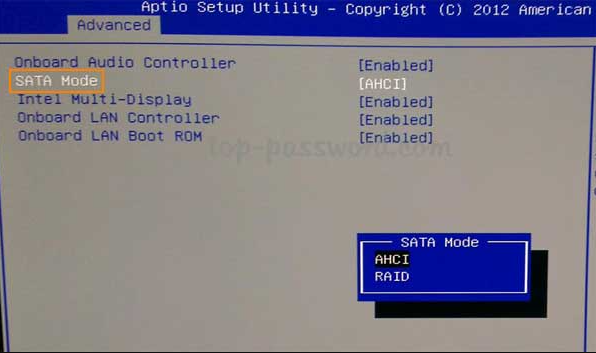
- Change it to RAID.
- Press F10 to save the changes and exit BIOS.
How to Recover Data from Failed RAID after Upgrading BIOS?
You can recreate the failed RAID array. But it is risky, as any interruption – sudden power loss or a subsequent drive failure – could increase the chances of data loss. Hence, your utmost priority should be to recover data from the failed RAID array before reconstructing it. For this, you can use Stellar Data Recovery Technician – a specialized RAID recovery software to rescue the data safely. This tool scans the member drives, rebuilds the failed RAID array virtually, and retrieves your data.
Recovery is pretty straightforward with this software. The software scans the connected member drives and virtually rebuilds the failed RAID array. This is done either by using parameters input by the user or probable parameters, which the tool calculates after scanning the drives. Once the virtual RAID array is ready, the tool scans it thoroughly for any recoverable data and recovers it safely.
You can use this powerful tool to perform RAID data recovery to locate data lost due to varied reasons, like accidental deletion, corruption, partition formatting, incorrect RAID rebuild, URE, etc.
Moreover, you can also use this software to recover lost files from storage devices, such as HDDs, SSDs, flash drives, SD cards, CDs/DVDs, etc. Basically, it is a powerful solution to help you recover data from a broken or inaccessible RAID 0, 5, or 6 array, or any other storage device in a few simple steps.
After you have recovered data from the failed RAID array, use either Windows Storage Spaces or the Intel (R) Rapid Storage Technology (IRST) to recreate it.
Conclusion
A RAID array is a robust solution to store data and increase data availability on connected devices. Installing available BIOS updates resets all custom settings, which makes connected devices like RAID inaccessible. In this post, we’ve discussed some workarounds to help you get back your RAID that has failed after installing BIOS updates. When a RAID array fails, your first move should always be data recovery — not trying to fix things yourself. If you want to recover data safely, try Stellar Data Recovery Technician. It safely recovers data from a failed, crashed, or damaged RAID array, with 100% precision.
