Video codecs and containers play a crucial role in digital video world and are often used interchangeably. However, with big collection of anomalous letters and numbers like MOV, MP4, etc.; it is hard to explain each format. The lines blur when you realize that most common codecs aren’t exclusive and can use multiple container to get the job done.
So, how to differentiate between dozens of codec vs container options, especially when a video file becomes corrupted or unplayable.
This article will dive into the basics of video codecs and containers, and discuss their critical differences. Whether you want to become a successful videographer, YouTuber, or simply edit videos for fun, learning difference between codecs, and containers can save you headaches.
Video Codecs: The Heart of Video Compression
A codec is an amalgamation of two terms ‘Encoder’ and ‘Decoder,’ It is software or hardware tool that compresses or decompresses the video and audio data for efficient transmission, storage, and playback.
When a video is being compressed, codecs utilize either lossless or lossy methods to make the file smaller so it’s easier to store or share. Lossless compression maintains data integrity keeping all the details in the video exactly the same; whereas lossy compression sacrifices some information to achieve higher compression, resulting in a much smaller file size. The encoded, compressed video is then sent over the internet or stored.
Later, on the receiving end, the codec decodes the information, reverse the compression to reconstruct the original data. This decoded data is then used for playback, display, or other applications.
Video codecs are not just used for streaming online videos on Netflix, YouTube, etc., they are also crucial in video calls, online meetings. Platforms like Zoom, Microsoft Teams, and Google Meets uses codecs to transmit video in real time.
Examples of popular video codecs include:

Once the video is encoded and compressed by the codec, it is neatly wrapped up in a file for storage and sharing. Here is where video containers come in.
A video containers is often called formats or wrappers that holds multiple data types of a video together into a single file. This data includes compressed video and audio streams, subtitles, codec information and metadata (includes resolution info, creation date, device type, and language files).
Video containers ensure seamless playback of multimedia content across devices and media players by organizing and synchronizing all of these data types. Common types of video containers:
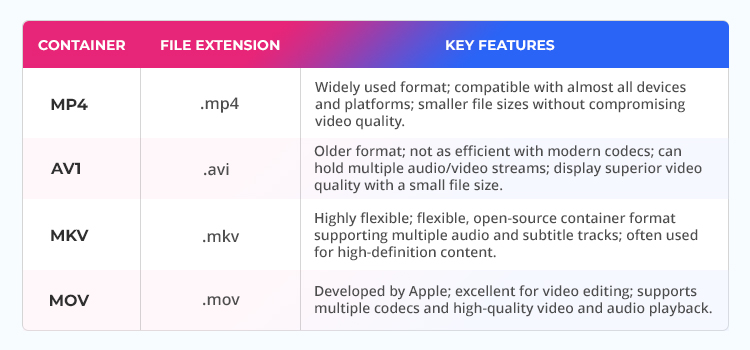
Codecs and Containers: How they work together?
A container and a codec work hand-in-hand to provide a seamless viewing experience while video streaming. Codecs are responsible for compressing the video while containers organizes the compressed video, audio and other multimedia element together. Together, they help in efficient transmission and delivery of video content over the internet while being compatible across different devices and platforms.
It’s important to remember: a broken container can make a video unplayable, even if the video and audio streams are intact. Simultaneously, faulty or incorrect codec can ruin the playback even if the container is intact, resulting in distorted or missing video/audio streams. Understanding video container vs codec helps troubleshoot video issues more effectively.
Why Video Files Get Damaged?
Video files are amalgamation of various components like video streams, subtitles, audio tracks, and metadata. Corruption or damage in video can occur due to problem in either the container or the codec. Understanding if the problem is in the container or codec helps in fixing the video file effectively.
How to know when it is a Container issue?
If any of these feel familiar, you’re likely dealing with a container issue that makes the video unplayable.
- The file won’t open in any media player.
- Certain audio or video streams are missing.
- Video playback freezes or stops abruptly.
Common causes:
Here are some reasons why this could be happening-
- If your video file wasn’t fully downloaded or copied, then the container may be broken
- Any interruptions while saving or transferring the video corrupts the container
- Failing devicescan lead to file corruption
Let’s see how to fix video container damage:
- Try re-downloading or re-transferring the file from the original source
- Use a tool like VLC Media Player or Digital Video Repair to restructure the video file structure so that player can read the file again. VLC has a built-in feature that automatically fix broken AVI files and make your container damages files playable again. A notable limitation, however, is that the VLC player can fix only AVI files, not MP4 or MOV.
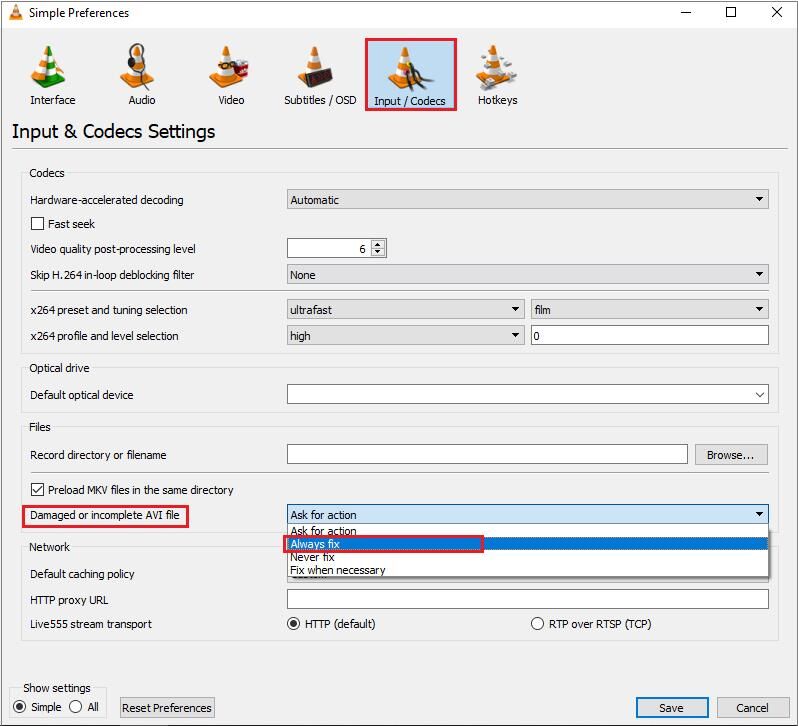
Other digital video repair tools are available for repairing MOV and MP4 files by reconstructing the broken part of the video to make it plausible.
Tip: These tools don’t change the content of the video; they simply repair the internal structure that holds the video and audio streams together.
- Use a dedicated video repair tool like Stellar Repair for Video for severe corruption in all popular video file formats like mp4, mov, avi, mkv, and more. It repairs issues like videos not playing, audio-video sync errors, freezing, or missing sound. The tool is easy to use, supports lots of formats, and lets you preview the repaired file before saving.
How to know when it is a Codec-level damage?
Usually, codec –level damage affects how the video or audio is interrupted during playback. If you spot any of these signs, your video is damaged due to codec-issue:
- Audio may be missing or out of sync.
- Your media player display “unsupported codec” error.
- The video plays but has glitches, or shows a black screen.
- The video play on one device but fail to play on another.
Common Causes of Codec Damage
Here’s why it usually happens-
- Missing or outdated codec
- Your player doesn’t support that specific codec
- The video uses a newer or niche codec
- The file gets corrupted during export or compression
- Using unreliable converters or editing tools can damage the codec data
Quick Repair Methods you can try to Fix Codec-Level Damage
- Install or update the codec: Check for missing codec or update the existing one to see if the video play now. Here’s what to do:
- Windows: Install the simple and K-Lite Codec Pack.
- Mac: Try IINA; a modern VLC alternative with wide codec support.
- Re-encode the video- Convert the file to MP4 with H.264 codec, the most widely supported format in 2025 using reliable software. Here’s how:
Option 1: VLC Media Player
- Open VLC > Media > Convert/Save.
- Add your video file.
- Choose MP4 as the output format.
- Click Start.
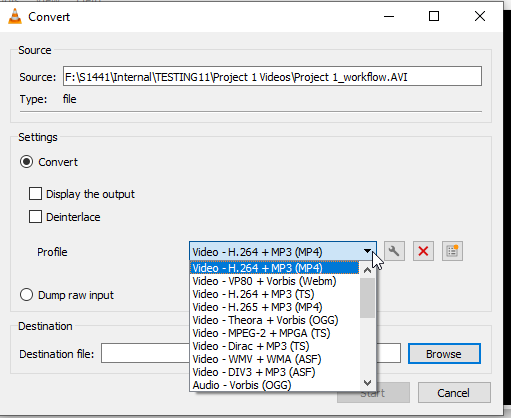
Option 2: HandBrake (free)
- Download HandBrake from handbrake.fr
- Open your video file.
- Choose a preset (or set MP4 with H.264 manually).
- Click Start Encode.
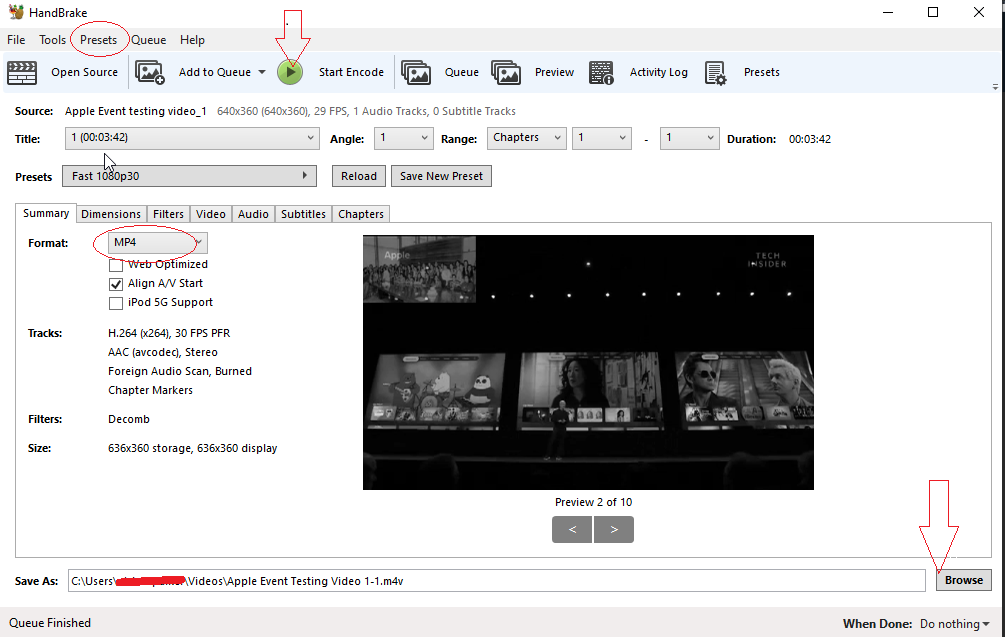
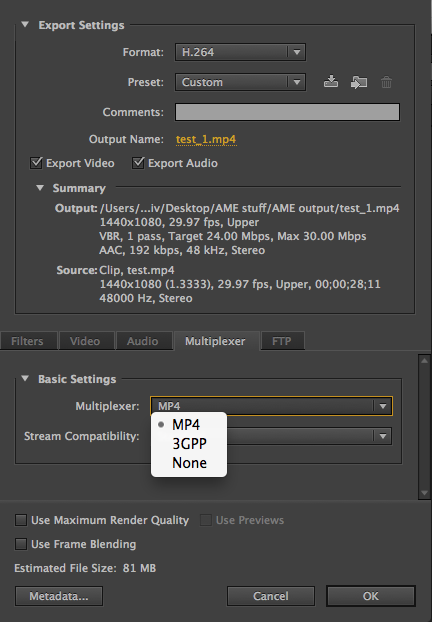
Option 3: Adobe Media Encoder
- Open adobe media encoder and import your video file.
- Choose MP4 as the format and set a Preset.
- Set the output location and file name.
- Click Start Queue.
Final Thought: Container and Codecs are Different
Knowledge of video codecs and containers empowers media professionals, content creators, and streaming platforms to optimize video files. Remember, containers hold all media components together; whereas codecs encode and decode the media data. Despite everyone’s best efforts, you usually encounter some container and codec issues at some point that makes your video unplayable. These issues can be intimidating, but simple tricks like installing the codec, re-encoding the file, downloading or transferring again can fix the issue.
