Hard drives are the memory keepers of your digital life, and hearing the word “failure” can feel like a mini heart attack. Don’t panic! Most of the time there’s still hope to rescue your files. We know the fear of losing family photos, tax docs, or that novel draft you’ve been writing… trust us, we’ve been there too. Let’s dive into the most common culprits behind hard disk failure and how to recover your data.
6 Major Causes of Hard Disk Failure
Below are the six biggest reasons both physical and logical that lead our hard drives to just give up:
- Physical Shock and Mechanical Damage: Dropping, bumping or jarring the drive can injure its moving parts that are delicate in nature.
- Overheating and Environmental Stress: Poor cooling, clogged vents or maybe some extreme temperature changes can just burn the drive’s electronics down.
- Power Surges and Electrical Faults: Voltage spikes, power supply’s fluctuations or that sudden power cut can damage the drive’s circuit board or make its firmware corrupt.
- Firmware and Controller Issues: Corrupt drive firmware or a failed logic board, also known as PCB, can make the drive inaccessible even when its hardware is working fine otherwise.
- Bad Sectors and Wear (Age-based): Every drive wears out eventually… We know that. Over time, sectors just become unreadable and when there are increased bad sectors, then it is a classic sign of an aging and failing drive.
- Software, File System, and Malware Issues: Non-physical problems like file whole system getting corrupted, formatting by accident, or malware infection can make data unreadable.
Now that we know those causes, let’s address each cause with recovery steps for each one of them.
How to Fix Hard Drive Failure and Recover Your Data
Before we go ahead and break down each cause, just remember our golden rule: stop using that failing drive immediately. We don’t need any overwriting of recoverable data. Also, if you find that Windows is recognizing the drive, back up those accessible files right away…a simple copy-paste would do. Now, let’s tackle each cause one by one.
Mechanical Shock and Physical Damage
A hard drive’s interiors include spinning platters above them and even a small drop or knock can damage the motor or spindle.
Symptoms of physical damage are that you will hear strange noises (clicking, grinding or whirring) or the drive not spinning.
Recovery Steps (Mechanical issues):
- Power down immediately. Continuing to run a mechanically damaged drive can worsen the damage. As one data recovery guide warns: “Do NOT try to fix a physically damaged HDD yourself”. The platters and heads are extremely delicate.
- Try that drive on any other PC or with a new SATA/USB cable as sometimes a loose cable or port issue might be causing this.
- Do not open the drive enclosure. Opening the sealed drive yourself guarantees dust and damage that make recovery impossible.
- If the drive is not detected at all (it doesn’t spin or isn’t listed in BIOS/Disk Management), you’re facing a severe hardware failure. Contact professional data recovery lab services, such as Stellar Lab Services. Their clean-room labs can often salvage data when the hardware is totally non-functional.
Overheating and Environmental Stress
If your system’s fan fails, vents are blocked or become exceptionally hot, the drive’s components can overheat and fail.
Typical symptoms of overheating or related damage include the drive casing feeling hot to touch, sudden abrupt shutdown or sudden slowdowns and glitches. You might see high temperature warnings in your SMART check using Stellar Drive Monitor, a drive health monitoring software, or just maybe hear clicking noises as the drive strains.
Recovery Steps (Heat/environment issues):
- Turn off and unplug your PC. Let the drive cool down to room temperature.
- Clean dust from vents and fans to improve airflow. A clogged vent can cause continuous overheating.
- Inspect for any liquid damage or heavy dust inside the drive bay. If the drive got wet, don’t power it on. You know water can be disastrous for electronics.
- Backup immediately if the drive mounts. Copy any important files off the drive while it’s still accessible.
- Run a file system check: Open Command Prompt and run chkdsk Z: /f /r (replace Z with your drive letter). The /r flag scans for and attempts to recover bad sectors.
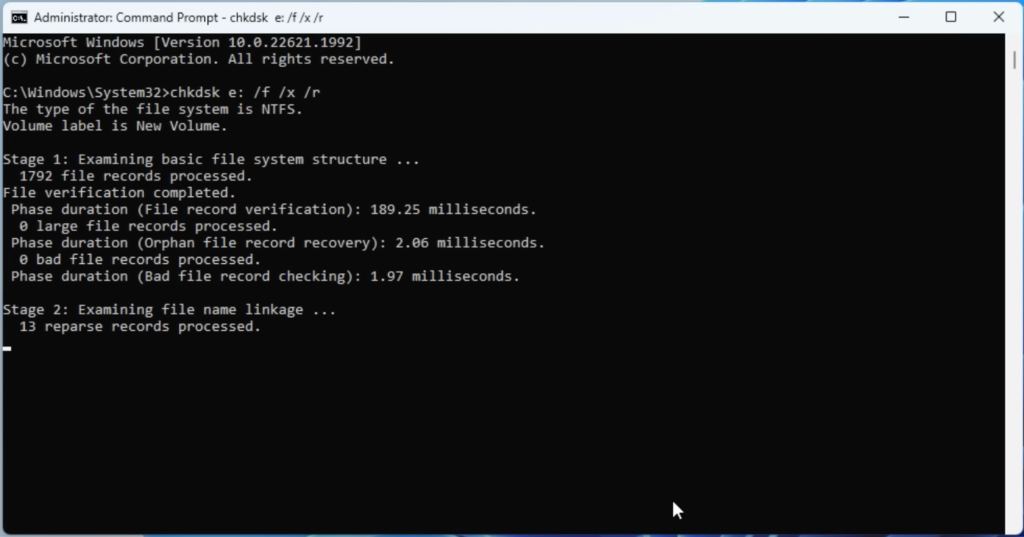
- If errors or bad sectors appear, create a disk image/clone (for example, using Stellar’s tool). This ensures you have a working copy of what remains.
- Use that clone to recover data. Scan it with Stellar Data Recovery Professional; this professional data recovery software deep scanning algorithm can often pull off files even when the drive is failing.
After recovery, replace the overheating drive. Overheating often causes permanent damage; a replacement is safer than reinstalling on the same drive.
Power Surges and Electrical Failures
Power spikes, brownouts or a flakey power supply can fry the drive’s logic board or corrupt the firmware. Even a sudden loss of power while writing data can cause corruption.
Signs of an electrical problem include the drive powering on but not spinning correctly or Windows showing the drive briefly then losing it. Rapid clicking from the drive’s motor may also be heard.
Recovery Steps (Power issues):
- Test with a different power cable or outlet, and if possible, swap in a known-good PSU. This rules out a bad power supply causing repeat failures.
- Power the drive back on. Listen carefully: a normal start-up is a steady spin; loud or rapid clicks usually mean the motor failed.
- Backup any accessible data immediately. Unexpected power loss can leave files only partially written, so saving what you can is critical.
- Use a UPS in future. It smooths out power delivery and shuts you down safely in an outage.
- Seek Professional Help. If the drive still spins but isn’t recognized by Windows (e.g. not listed in Disk Management) or it is just completely dead (no spin & nothing in BIOS), be careful and let experts handle it. A professional lab is your next step. Electrical damage often requires skilled electronics work to repair the board or extract the drive’s data.
Firmware and Controller Issues
Corruption or bugs in firmware here can make the drive appear dead. Similarly, a failed controller (the drive’s PCB) can break the connection between the computer and the drive’s storage media.
Under these circumstances, you could get an “unreadable” error or the drive of yours might freeze when accessed.
Recovery Steps (Firmware/controller):
- Check Device Manager in Windows. If the drive appears with an error or not at all, firmware/board trouble is likely.
- Reseat or replace your SATA cable. A faulty cable can also mimic drive failure, so just eliminate that first.
- If the drive is still visible to you, go to your drive manufacturer’s website and start looking for a firmware update tool there. But use it only if the drive is recognized. A failed firmware flash can make things worse.
- Attempt a data recovery scan. Use Stellar Data Recovery Professional to image and scan the drive or even an image of it. The software can cope with minor firmware corruption by reading those sectors directly.
- Do not format or initialize the drive if Windows asks. That would overwrite that data.
- If the drive won’t spin up or isn’t recognized in BIOS at all, stop and get expert help. Contact Stellar Lab Services or a similar professional recovery service. They have special equipment to repair firmware or read data off failed drives.
Bad Sectors and Wear (Age-related)
Each read/write wears a Hard Disk’s media slightly and eventually over time, these sections become unreadable. Drives try to remap bad sectors automatically but drive failure is imminent.
You might see warning signs like error messages when opening files or Windows may mark the file system as RAW. A SMART check using Stellar Drive Monitor will show bad sectors and information about other attributes.
Recovery Steps (Bad sectors/wear):
- Run chkdsk X: /r in Command Prompt like we did earlier.
- Backup immediately. Copy your most important files off the drive once it’s accessible.
- Create a full disk image (clone) using backup or Stellar Data Recovery Professional’s disk imaging feature. Doing this preserves the current state of the drive. Remember that there is a difference between disk imaging and cloning.
- Replace the failing drive with a new one. A drive with many bad sectors will only get worse. After recovery, just plan to retire it.
Software, File System, and Malware Issues
Sometimes, the disk hardware is fine, but software problems make data inaccessible. File system corruption, an unexpected format, or viruses/ransomware can “break” the drive logically. In these cases, the drive might even spin and be listed in Windows, but you can’t open folders or see files.
Signs include those error messages like “Drive needs to be formatted,” missing partitions, or even when folders are suddenly empty. Ransomware or other malware can encrypt or hide files too and make it seem like your drive is broken.
Recovery Steps (Physical/ Logical):
- Run anti-malware scans on the drive. This can remove infections that might be blocking access.
- If Windows won’t boot normally, try booting from a USB recovery disk or Stellar Data Recovery Professional’s bootable media, then scan the drive for malware.
- For file system errors, run chkdsk X: /f on the drive. Also, consider sfc /scannow if Windows itself is unstable.
- Do not format the drive if prompted. Formatting makes recovery much harder.
- Launch Stellar Data Recovery Professional, select the affected drive and let it scan for recoverable files… the software can find data lost to accidental deletion, corruption, or even certain ransomware attacks.
- If Windows won’t start at all, use Stellar’s feature to create a recovery USB drive. Boot from it to access the drive and recover files.
After you recover your data to a safe location, reformat that drive if it is still usable and restore your files from that recovered backup.
What if the Hard Disk Doesn’t Show Up?
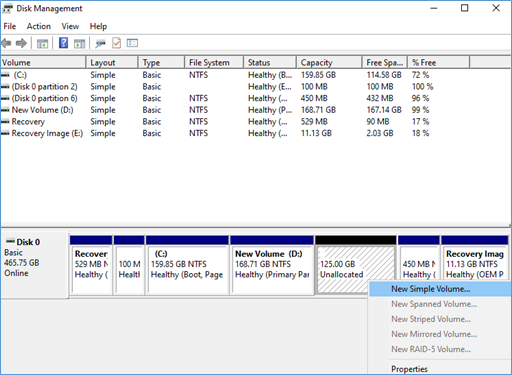
If the hard disk just doesn’t appear in File Explorer but shows unallocated in Disk Management… follow these steps to fix this error:
1. In the Disk Management window, right-click on Unallocated drive and select New Simple Volume.
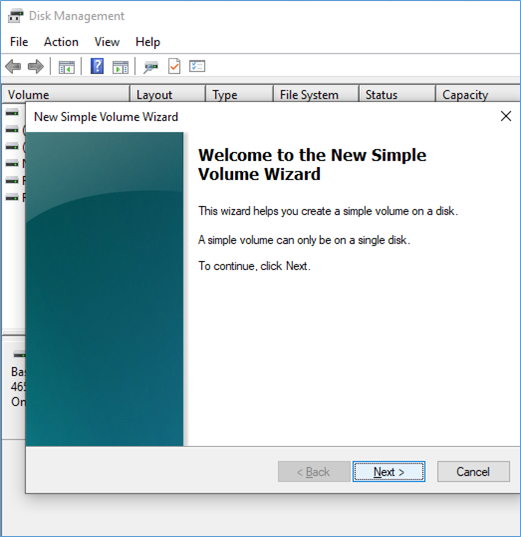
2. In the New Simple Volume wizard, click Next.
3. Click Next again to specify the volume size.
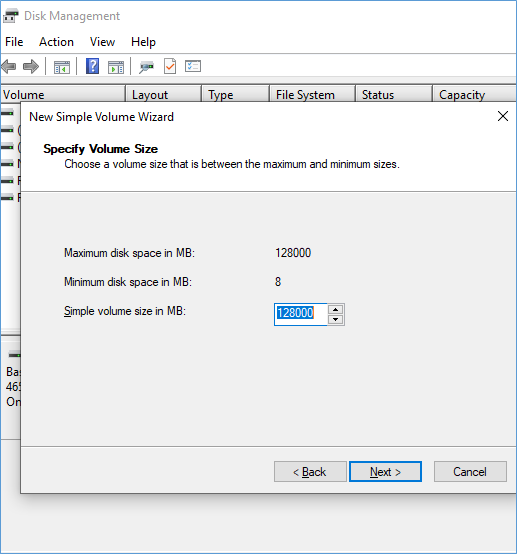
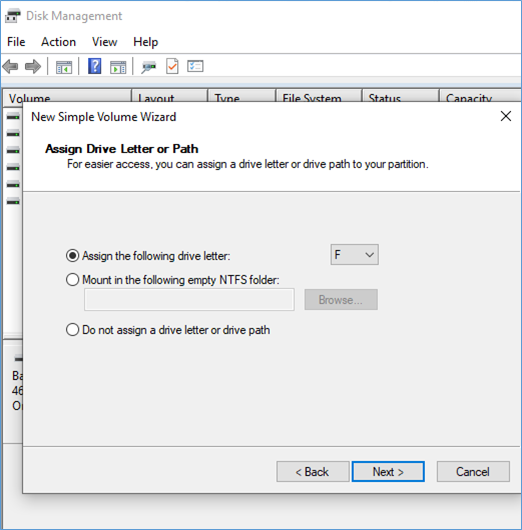
4. Click Next and select ‘Assign the following drive letter.’ Choose a letter from the drop-down list, and click Next.
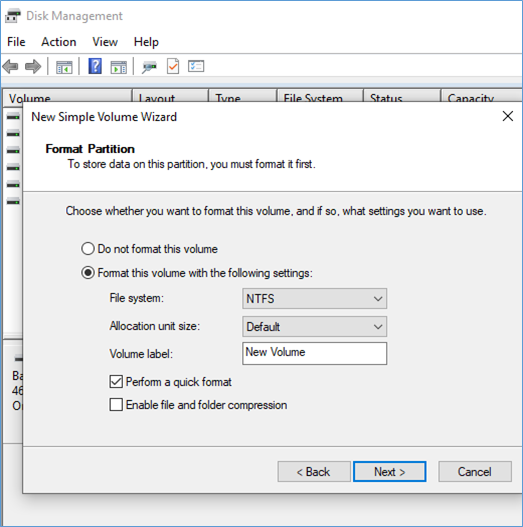
5. Select ‘Format this volume with the following settings’, select the desired file system, and click Next.
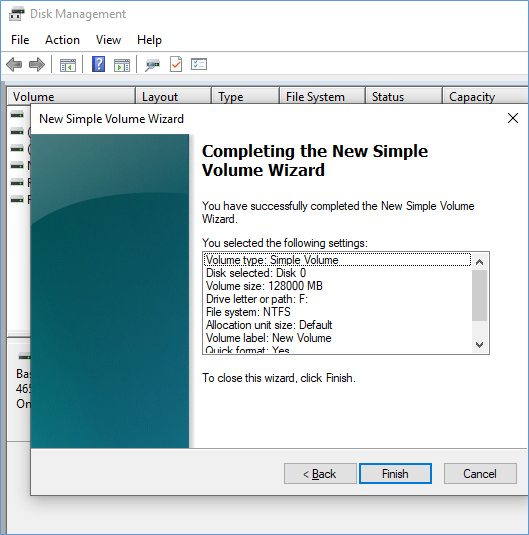
6. Click Finish and your hard drive is ready to use.
Now, check whether you can access the hard drive. If the drive becomes accessible finally, you will still not be able to access your data as the hard drive has been formatted as you resolve its unallocated state. But listen… here you can recover your data from a formatted hard drive easily using Stellar Data Recovery Professional, a reliable Windows data recovery software.
Bottom Line
By following these steps for each scenario, you can solve most logical hard drive failures on your own. For software-related issues, recovery tools like Stellar Data Recovery Professional can work wonders for you. For hardware failures, where the drive isn’t even detected, professional help is often needed. Always remember! You have to keep good backups, religiously. After you recover your data using solutions we listed, just set up those regular backups. That way, even if a drive suddenly decides to give up, those important files of yours stay safe.
