The “Filename is not valid” error message usually appears while attempting to open or save a file in Microsoft Excel. There are other messages you may receive suggesting there is problem with the name of your Excel file. Some of those error messages are as follows:
- The file could not be accessed.
- The path you entered, ‘<filename>’ is too long. Enter a shorter path.
- <Filename> could not be found. Check the spelling of the filename, and verify that the file location is correct.
Irrespective of the error message you get, you may face problem loading the Excel file.
Possible Reasons Behind the “Excel File Name is not Valid” Error
The most common cause is the file path (including the Excel file name) has exceeded the limit of 218 characters. If that’s not the case, here are some other reasons that may result in the “Filename is not valid” error:
- The file name contains invalid characters (like \ / : * ? ” < > |).
- Spelling of the Excel filename or the file location is incorrect.
- The file is renamed, moved, or deleted.
What Can You Do to Fix the “Excel File Name is not Valid” Error?
To fix the ‘Excel file name not valid’ error, use the following methods:
Note: Before attempting the solutions, check if the spelling of the file name is correct. If it is misspelled, correct it and then try to save the file.
Solution 1 – Ensure the File Path Does Not Exceed 219 Characters
Make sure that the file path has fewer characters than 219. If the path exceeds the defined limit, do the following:
- Shorten the file name.
- Shorten the name of the folder that contains the Excel file.
- Move the file to a new folder having a shorter path name.
Ideally, an Excel file must have less than 218 characters in the file path. The file path comprises up to 31 characters in the sheet name, a cell reference, apostrophes and brackets in the file name, and an exclamation point.
Solution 2 – Remove Invalid Characters
Rename the file by removing any unsupported (or unusual) characters in the file name, and then try saving the file.
Solution 3 – Run the Open and Repair Command
If none of the above solutions works for you, chances are that the problem is not with the file name, but its contents. The data in the file may be damaged, causing Excel to throw an error while opening or saving the file. You can run the ‘Open and Repair’ utility to fix the problematic Excel file. Follow these steps:
- Open your Excel application and click on Blank workbook.
- In the blank workbook screen that opens, click the File menu.
- Click Open > Computer > Browse.
- Select the Excel file throwing the ‘invalid name’ error and click on the Open button arrow. Choose Open and Repair.
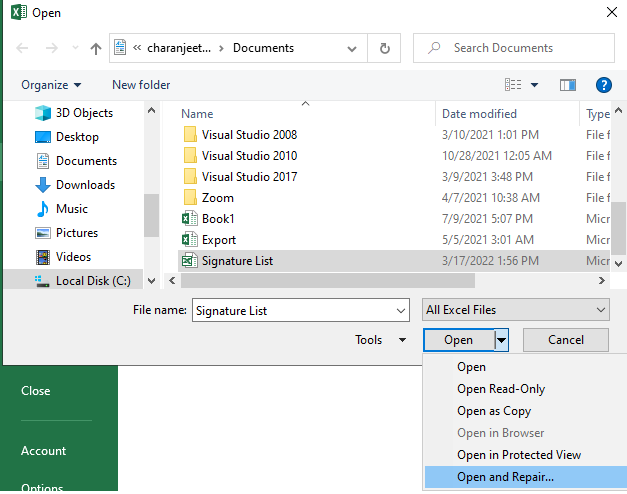
- In the dialog box that pops up, click the Repair button to fix corruption in the Excel file and recover maximum data from the file.
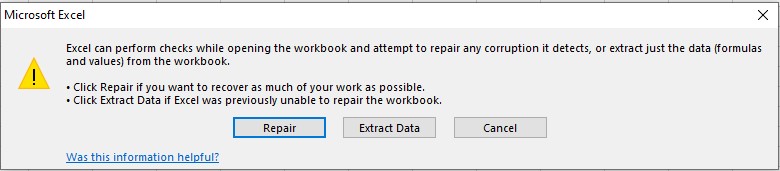
- If repair fails, click Extract to recover as much data as possible from the file.
If you are unable to repair the file using the ‘Open and Repair’ utility, try using an Excel file repair tool, like Stellar Repair for Excel. The software can fix a severely corrupted Excel file while preserving its data integrity.
For details, read this: How to repair corrupt Excel file using Stellar Repair for Excel?
Conclusion
This blog discussed some common reasons behind the “Excel File Name is not Valid Error”. The error usually occurs when the path of the Excel file is longer than 218 characters or there are invalid characters in the file name. In some cases, you may receive the ‘invalid filename’ error due to incorrect name of the file, etc. Based on the reason behind the error, try solving the issue using the solutions explained in the blog.
