If you’re looking at a blank screen showing – This video file cannot be played error, this guide is certainly for you. This browser-based playback issue isn’t just about slow internet anymore. Today’s high-definition streaming demands precise synchronization between your GPU and the browser to play a media file without any hiccups. Similarly, if you get the – video file cannot be played error on a video file saved locally – you’re likely dealing with a corrupted video file.
- To fix the video file cannot be played error on your browser – clear your browser’s cache, recheck the graphics acceleration settings, or switch to a player that supports high-quality video playback.
- To fix video file corruption and other playback issues on your device – you will likely need a video repair tool.
Read this guide for step-by-step solutions to fix the error in both the scenarios.
What Does “This Video File Cannot Be Played” Error Mean? (Browser vs. Local File)
Video file cannot be played error is the outcome of a conflict between the video file and the platform trying to play it. It happens on your browser when watching videos on either YouTube, Netflix, or any other video streaming platform. You may also face this error while trying to open a downloaded & saved video on your phone or laptop.
In both scenarios- they look the same on screen but have totally different causes and fixes.
Browser/Streaming Error:
For instance, in the browser or streaming-based error, an issue in your browser blocks the video from loading. This could be because of sync issues with the hardware/graphics acceleration feature on your browser, corrupted or old cache data, outdated AV1/HEVC codecs, or a blockade from a third-party ad blocker or extension. In case of a disabled setting or a third-party extension blockade – these errors are often accompanied by codes like 224003, or 102630.
Local File Error:
Playback error appears on a locally saved file when the video file or its header is damaged – because of incomplete file transfer or a malware infection leading to file corruption.
Quick Overview: What’s Causing the Error and the Most Reliable Fix
| Symptom You See | Likely Cause | Best Fix |
| Playback Error on YouTube / other streaming site | Browser or cache issue | Refresh the page/ delete cache or cookies/ Reinstall Browser |
| Error on a downloaded MP4 / MOV file | File corruption | Re-download the file or Use VLC media player |
| Video fails after copying or transferring | File damaged during transfer | Re-transfer the file |
| Error on Android with a local video | Codec mismatch or corruption | Stellar Online Video Repair |
| Error after incomplete download | Incomplete/broken file | Re-download or use Stellar Online Repair |
| Error only on one specific browser | Browser-specific setting | Check your browser playback settings |
| Error on Google Drive video | Format not supported by drive | Download file, repair if needed, re-upload |
| Error code 224003 in Chrome | Browser playback failure | Refresh the page/ delete cache or cookies/ Reinstall Browser |
Common Causes of this Error
Video cannot be played error shows up for the reasons listed below.
- Often, a local MP4 video file is corrupt or damaged. It occurs because of incomplete file download or connection cut off mid-transfer. This can damage the file’s header(metadata) or its index (the moov atom that maps the video) or the actual video data itself. For header and index data corruption – it’s an easier fix, but an actual video data corruption may require advanced repair tools.
- The video player may not read a video due to the lack of correct instructions. There are two parts to this error:
- The container – or the file format you see. For e.g., MP4, MOV, MKV, etc.
- The codec – or the actual technology used to compress the video data. For e.g., H.265, or ProRes, etc.
If video player recognizes the MP4 container but not the specific codec – video fails to play.
- Browser cache or cookies can cause trouble during video playback because many times, outdated site data saved by the browser interrupts the video playback.
- Hardware acceleration in a browser helps offload other tasks from the CPU to improve performance and efficiency. If it is disabled in your browser, other tasks might slow load times for video files.
- Sometimes, the browser or media player may be out of date. In that case, older versions often do not handle newer video formats.
- Often, videos are blocked by your location because of geo restrictions. In that case – region locks can stop you from accessing a video’s content.
- Third-party extensions on your browser, such as Chrome or Mozilla Firefox – can also block playback or hinder the normal browser playback process.
How to Fix Browser or Streaming Errors?
If error appears on YouTube or other streaming platform/website – it’s likely a browser settings problem. Follow these fixes in order:
Fix 1: Refresh the Page and Reopen Your Browser
Sometimes, simply refreshing the page gives the video player a clean start without changing any settings.
- Press F5 on your keyboard or click the refresh icon in your browser.
- If the error stays, close the browser completely and then reopen the browser and try playing the video again.
Fix 2: Clear Browser Cache and Cookies
Old cache data can hamper video players from loading websites properly and cause playback and streaming errors. Let’s understand how to clear Browser cache and cookies in popular browsers.
Chrome:
- Click the three dots in the top-right corner.
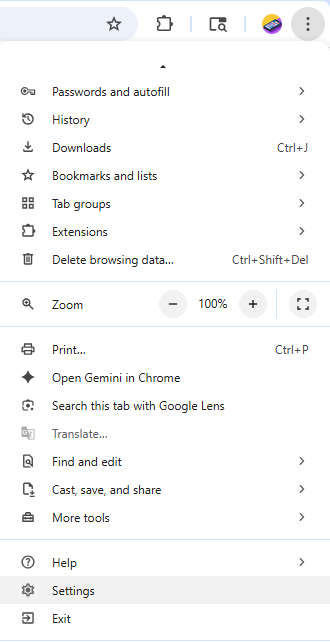
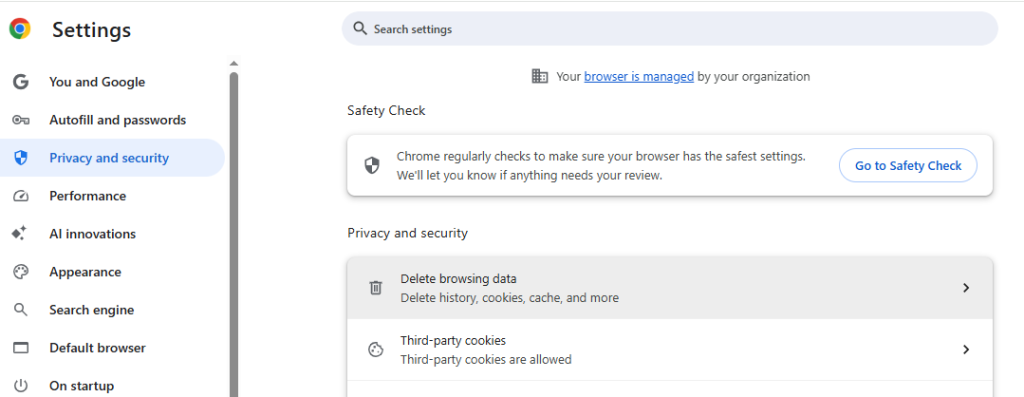
- Go to Settings > Privacy and Security > Delete Browsing Data.
- Check “Cached images and files” and “Cookies and other site data.”
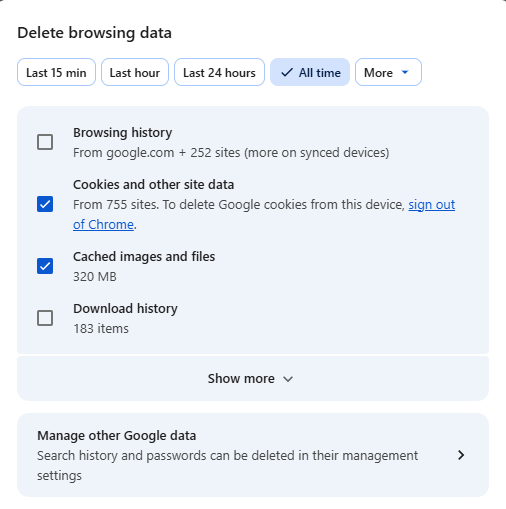
- Click Delete Data or Clear Data – depending on your geographic settings.
Similarly, if you are using Firefox, follow the steps below to delete cache and cookies.
- Click the three lines in the top-right corner.
- Go to Settings > Privacy and Security.
- Now look for Cookies and Site Data > Clear Data.
- Check both boxes and click Clear.
Fix 3: Disable Browser Extensions
Adblockers and privacy tools work by blocking certain scripts from running. Some of these scripts however, are used to playback videos on streaming sites.
1. In Chrome, click the three dots, then go to More Tools < Extensions < (the “Manage” link in the Extensions menu).

2.Toggle off ALL extensions one by one.
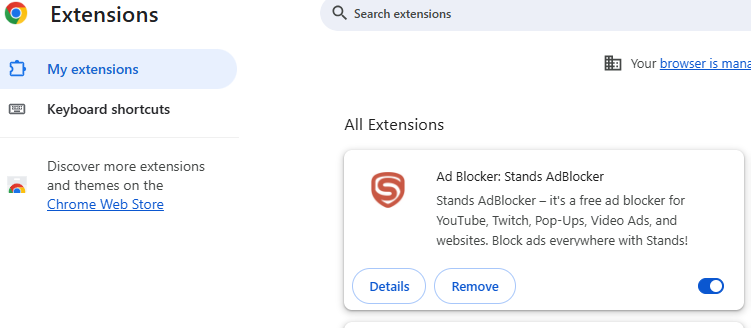
- Reload the page and test the video.
- Turn extensions back on one at a time to find the one causing the problem.
Fix 4: Disable Hardware/Graphics Acceleration
Hardware/Graphics acceleration uses GPU to make videos play smoothly by offloading the work from the CPU. If GPU encounters driver conflicts or compatibility issues it cannot handle playback and the video fails to play. Turning this feature off forces the browser to handle video using the CPU, thus it bypasses the GPU-related crashes and the video loads. However, sometimes disabling graphics acceleration can cause your video to freeze or lag, since your CPU is doing all the heavy task now.
Chrome:
- Open Settings on your Chrome browser.
- Scroll down and click System.
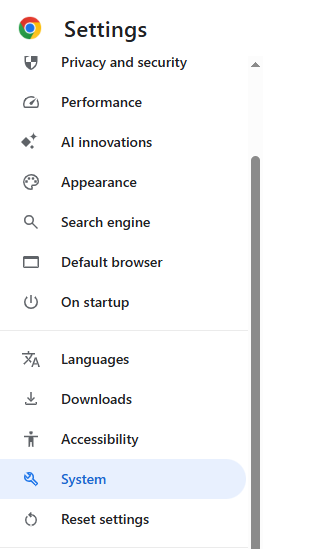
- Look for the option “Use Graphics acceleration when available.”
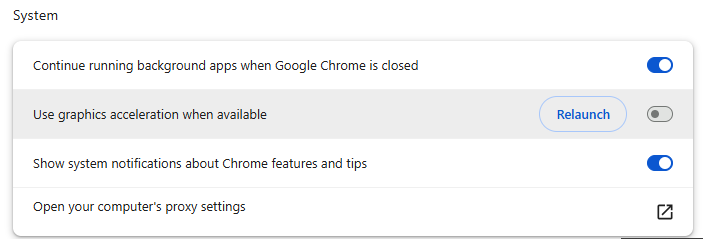
- Toggle it off.
- Relaunch Chrome and test the video playback.
On your Firefox browser, use the below settings:
- Open Settings and go to Performance.
- Uncheck “Use recommended performance settings.”
- Uncheck “Use hardware acceleration when available.”
- Restart Firefox.
It is likely that your Hardware or Graphics Drivers are too old or out of date (not synchronizing). In any event, the playback on your CPU should continue until you update your Graphics Drivers. You should go to your Graphics Card Manufacturer’s website to update your drivers.
You may also be able to find GPU conflicts to resolve. Once your Graphics Driver has been updated, you can re-enable the Hardware or Graphics Acceleration for better playback. If your Hardware or Graphics Acceleration becomes disabled again, you may want to consider switching browsers.
Fix 5: Update Your Browser
An older browser may simply lack the playback technology needed for newer video formats. Update to the latest browser version and that might resolve the issue.
Chrome: Go to Help > About Google Chrome. Chrome checks for updates automatically.
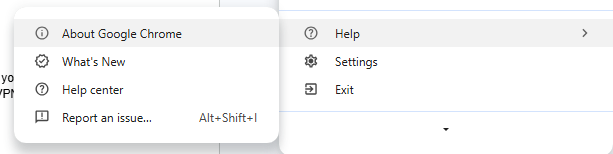
Firefox: Three lines > Help > About Firefox. Click “Restart to Update” if an update is available.
Safari: Open the App Store on Mac and click the Updates tab.
Fix 6: Disable VPN for Geo-Restricted Videos
Often a video content is only available in certain regions. If you are using a VPN, it can cause video playback errors especially with browser and streaming platforms. That’s because some browsers and streaming platforms use Geo-IP filtering and VPN detection scripts. If they detect a data center IP that is restricted, they purposefully trigger playback errors. So, if VPN was already enabled, turn it off and try to play the video file again.
Fix 7: Lower Video Quality Settings
A slow internet connection cannot handle high-resolution video. A slow internet and a wonky network not just drop the quality of a video playback but sometimes cause errors like – this video file cannot be played. You can immediately lower the video quality settings on your device and try playing the video without errors. This is still a temporary solution, and the permanent solution is to upgrade to a better network or internet connectivity.
- Click the gear icon on the video player.
- Select Quality.
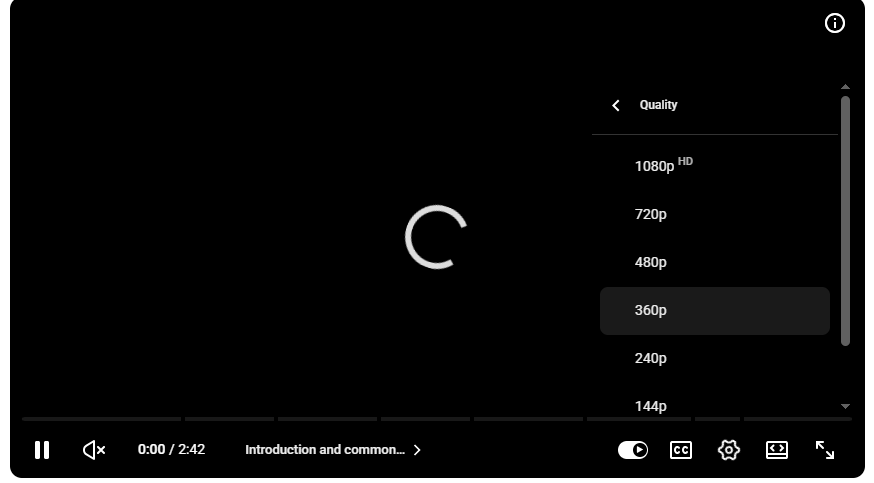
- Choose 360p or 480p instead of 1080p or 4K.
Fix 8: Reset Browser to Default Settings
Over months of use, browser settings can get modified in ways that hamper video playback. A reset will bring everything back to the original factory state.
Before you reset: Save your bookmarks and log out of important accounts. A reset will remove all extensions and browsing history.
- In Chrome, go to Settings > Reset settings.
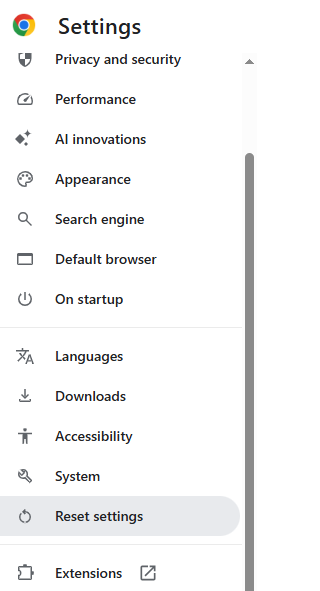
- Click “Restore settings to their original defaults.”
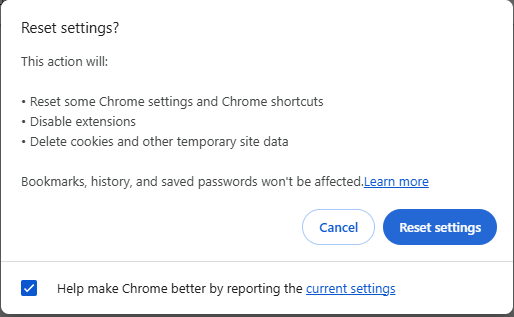
- Click Reset Settings to confirm and relaunch your Chrome browser.
While general browser related issues can be fixed with these troubleshooting methods – addressing a persistent or specific error code like 224003 might require a more targeted fix.
How to Fix Video Playback Error Code 224003?
The video playback error code 224003 is browser-specific and shows up most often in Google Chrome. It is especially common on sites that use JW Player – a widely used media player for content streaming used by developers host videos, like certain streaming and anime platforms.
Technically this is a decoding error. It occurs when Chrome cannot load or decode the video stream, it throws this error code. This code specifically triggers when the browser’s settings prevent it from having a handshake with the video player. But it can be frequently triggered by DRM failures or server side issues with the video host, such as CDN failures.
Here are five fixes you can try right now to fix the error:
- Update Chrome to the latest version.
- Clear cache and cookies.
- Disable extensions.
- Disable hardware acceleration in Chrome.
- Switch browsers.
If none of the browser fixes above worked – the playback error is not occurring on your device but rather source derived. It is due to DRM authentication or CDN failures. Since, these issues are outside your control, you can report it to the streaming platform by reaching out their contact/ help section.
How to Fix “This Video File Cannot Be Played” for Local or Corrupted Files?
Now let’s see how to fix the error if the video file saved on your device cannot be played.
Quick Checks Before Using a Repair Tool
Before reaching for a repair tool, try opening the video in VLC Media Player. Why VLC? Because at times, you can repair a video file with VLC, as it supports far more formats than most default players. Check the video file format and if the format is actually supported by your media player. Be informed that Windows Media Player does not play every format. For example – MKV file. You can also try playing the same file on a different device. If the video file plays there, the problem is your player and not the file.
Option A: Repair Video files using Stellar Online Video Repair Tool
As a data protection company – we designed Stellar Repair for Video tool specifically for these scenarios. If you got a small corrupted video or don’t have the time to install a repair tool – Stellar’s online video repair tool helps you fix it right in your browser with no software to download. Just upload, repair, and download your fixed file.
- The tool does not require any installation or download. It works directly in your browser
- Free File limit – 1 file of up to 100 MB
- Supported formats: MP4, AVI, MOV, and other popular formats and codecs
How to use it:
Option B: Repair Large or Multiple Files using Stellar Repair for Video Tool
If you aren’t running out of time and have large size and complex corrupted files for repair – try using Stellar Repair for Video.
- Easily repairs multiple files, or severely corrupted videos.
- Available for – Windows and Mac
- Supports various formats including – MP4, MOV, AVI, MKV, WMV, FLV, DIVX, WEBM, HEVC, and 20+ more
- Batch repair, advanced repair available
- You can also Preview repaired file before purchasing
Stellar Repair for Video is built for files bigger than 100 MB, multiple broken videos, or clips with deep corruption.
How to use it:
Which Tool Should I Use and why?
| Feature | Stellar Online Repair (Free) | Stellar Repair for Video (Paid) |
| Cost | Free for 1 file(100MB) / $9.99/ month | $49.99/ year |
| File Upload Limit | Up to 5GB | No limit |
| Number of Files | 1 file at a time | Batch repair available |
| Installation Required | No Installation – Fully browser-based | Yes — Download and install |
| Supported Formats | 20+ formats including HEVC, DIVX, WMV codec support | 20+ formats including HEVC, DIVX, WMV codec support |
| Severe Corruption | Advanced repair | Advanced repair mode |
| Preview Before Saving | Yes | Yes |
| Platform | Any browser, any OS | Windows and Mac |
| Repaired File Availability | 24 Hours (Server-based) | Unlimited (Local Storage) |
| Best For | Quick fix for small-sized files | Large, multiple, or severely damaged files |
How to Prevent Video File Cannot Be Played Error?
To prevent video file cannot be played error – take the below precautions on your device.
- Always download videos from trusted and reputable sources to avoid broken or malware-infected files.
- Check video file format compatibility with your device before playing any video.
- Keep your browser, operating system, and media player updated.
- Clear your browser cache every week or at least in a month to prevent cache-related playback errors.
- Use widely compatible video formats, such as MP4 (H.264) while storing or sharing video files.
- Back up important videos to cloud storage or an external hard drive so you don’t have to deal with corruption issues.
- Do not force-close any apps or disconnect power while a video file is rendering or getting transferred to another device.
Conclusion
For the browser-based video file cannot be played error, start by clearing your cache or disabling ad blockers and third-party extensions. Disabling hardware acceleration can also solve these abrupt streaming issues. Also, update your GPU driver to restore connection between your hardware and browser.
If the error transpired on a video file saved locally on your device (be it on your laptop / smartphone) – it generally suggests that the video file is corrupted or broken. While you can repair an MP4 video file, make sure you use a reliable tool as any wrong move can damage the file beyond repair.
FAQs
