You can restore deleted files or folders from your RAID 0, 5, or 6 array from backup, if available. If you don’t have one, you can take the help of a specialized RAID recovery tool – Stellar Data Recovery Technician to recover deleted or lost files. In this post, we’ll explore RAID in detail and see how this powerful software can help you immediately recover deleted files from RAID 0, 5, or 6 arrays, without any problems.
What is a RAID Array?
Redundant Array of Independent Disk (RAID) is a logical arrangement of two or more physical disks that appear as a single drive volume to the OS. Once a RAID array is configured, you can use the RAID volume as any other hard drive volume to store your data.
A RAID array provides either redundancy (data protection against disk failure), or faster read/write speeds or both. But RAID is also susceptible to data loss due to reasons such as human errors, software failure, power outage, impending RAID drives, etc.
How to Recover Deleted Files from RAID 0, 5, or 6 Array?
If you have lost business-critical documents or deleted some important files from your RAID setup, stop using it right away. Ceasing all read/write (R/W) operations can help you prevent overwriting of the lost data, thus significantly improving the chances of getting back the deleted/lost files.
To safely recover deleted files from your RAID array, you can use Stellar Data Recovery Technician – a specialized RAID data recovery software that can recover deleted files from RAID 0, RAID 5, or RAID 6 array. This powerful software is equipped with advanced algorithms that perform an in-depth byte-level scan on the member drives to retrieve the deleted or lost files. The software reconstructs the RAID array for data recovery, even when you don’t know or remember the RAID parameters. Here are some highlights of this software:
- Recovers data lost due to accidental deletion, partition formatting, and other reasons.
- Supports recovery of different types of files – documents, images, videos, presentations, mailbox data files (MBOX, OST, PST, etc.), and more.
- Retrieves files and folders from crashed, broken, or logically damaged RAID drives with 100% accuracy.
- Helps recover individual files and folders from the scanned member drives of a RAID server.
- Retrieves data from RAID server with unknown RAID configuration parameters.
- Works with RAID 10, RAID 50 and more.
- Recovers data from other types of storage media: HDDs, SSDs, SD cards, flash drives, optical media (CD/DVD), etc.
- Monitors the health of connected storage media using the built-in drive monitor.
- Retrieves files and folders from crashed or unbootable Windows PCs.
Now let’s see how to use Stellar Data Recovery Technician to recover deleted files from RAID 0, 5, or 6 array:
- First, carefully disconnect all the member drives from the RAID server enclosure and then connect them to a Windows PC via SATA cables/RAID controller.
Note: Make sure that they are in the same sequence as in the enclosure.
- Download and install Stellar Data Recovery Technician on the same PC. Launch it.
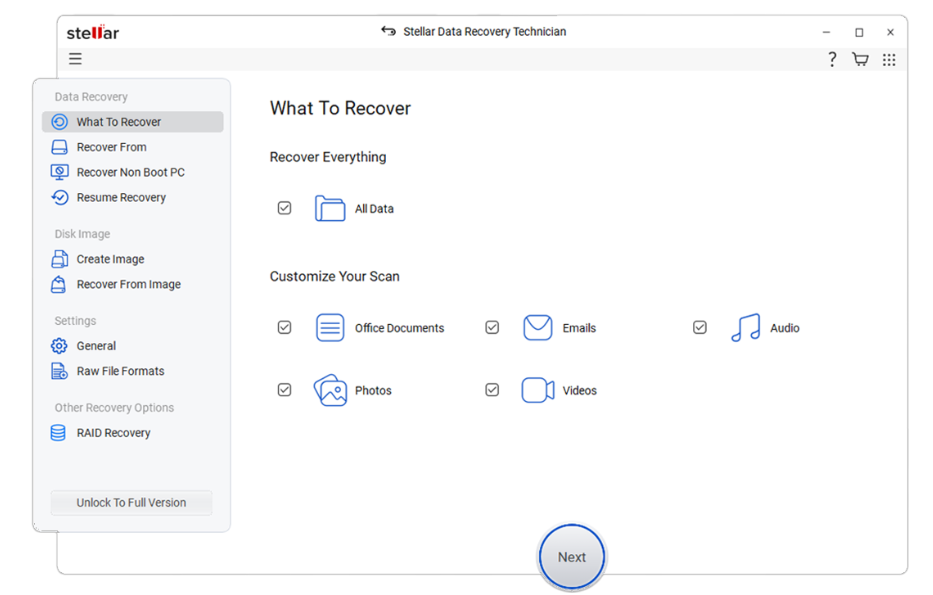
- The “What To Recover” screen will appear. Select the ‘type of data’ you want to recover. By default, All Data is selected. Click Next.
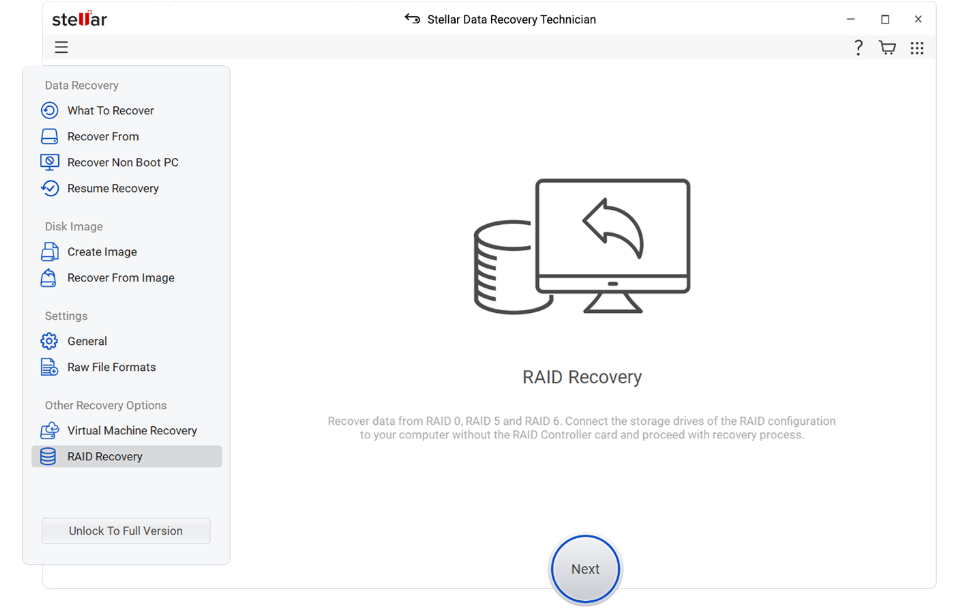
- On the next screen, select RAID Recovery and click Scan.
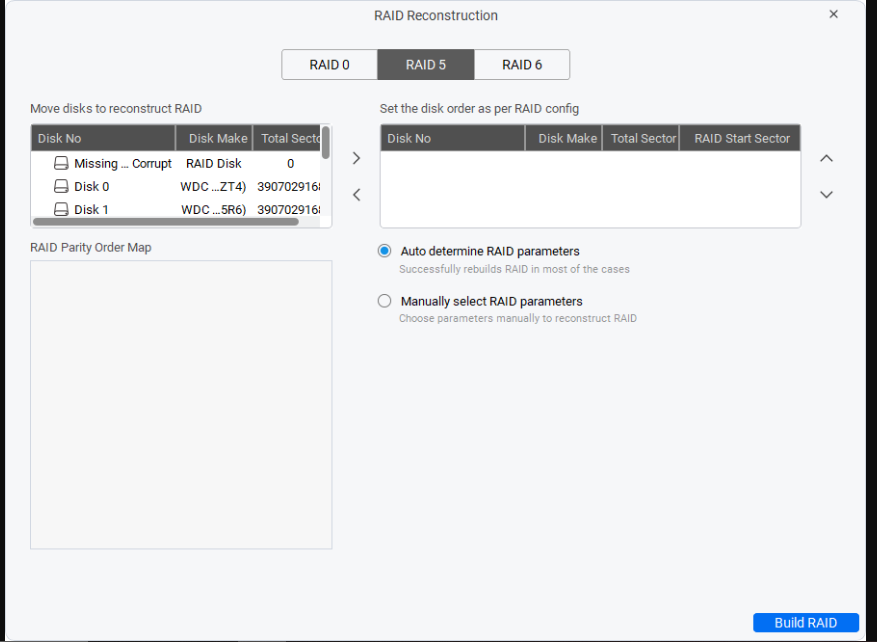
- It will open the RAID Reconstruction window. Select the RAID type at the top (RAID 0, RAID 5, or RAID 6).
- Next, move the disks from the left column to the right column using the LEFT and RIGHT directional arrows.
- After this, use the UP and DOWN arrows to set the disk order as per the RAID configuration.
- Next, choose Auto-determine RAID parameters. The software will automatically rebuild the virtual array. If you want to manually add the parameters, then select the Manually select RAID parameters option.
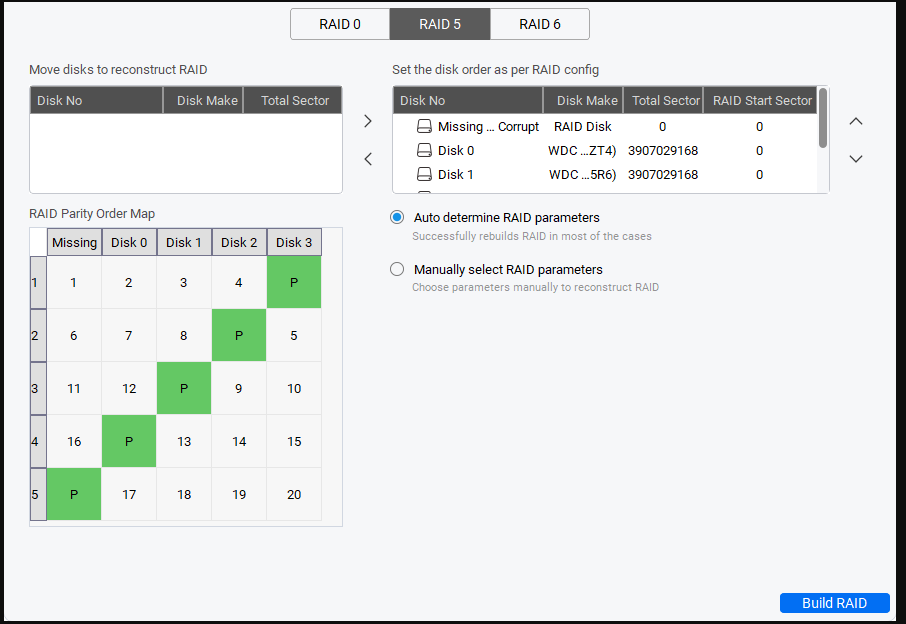
- It will show the RAID parity order map. Click on Build RAID.
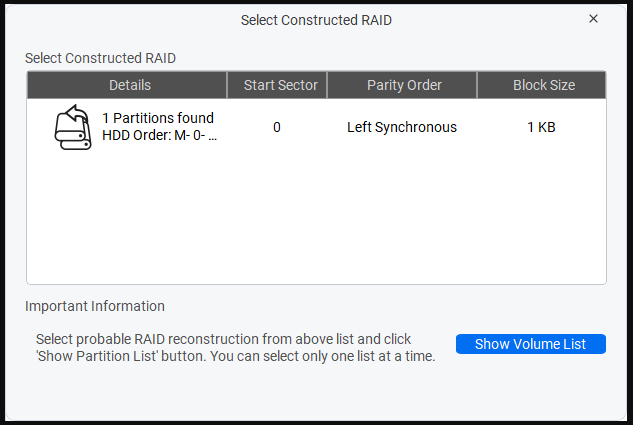
- It will open the Select Constructed RAID window. Click on the probable reconstructed RAID and click the Show Volume List button.
- A list of available partitions will show up. Select the RAID volume from where the files were deleted. Click Scan. To recover data from the whole disk, select the Physical Disk option.
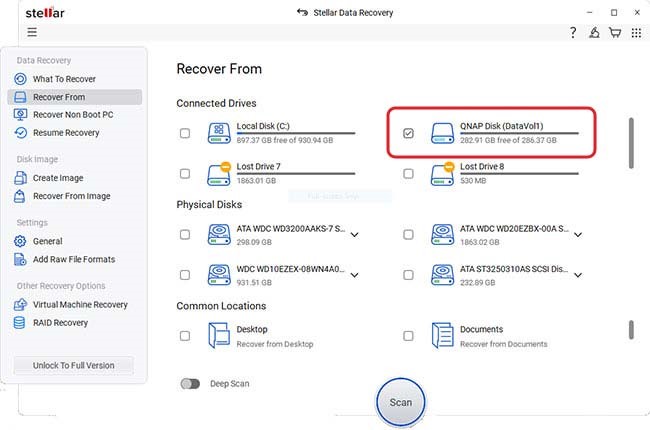
- The software will scan the selected partition/disk for the recoverable data. Wait for the process to complete.
- Once the scan is complete, the software will display all the recoverable files. Select any file to preview it.
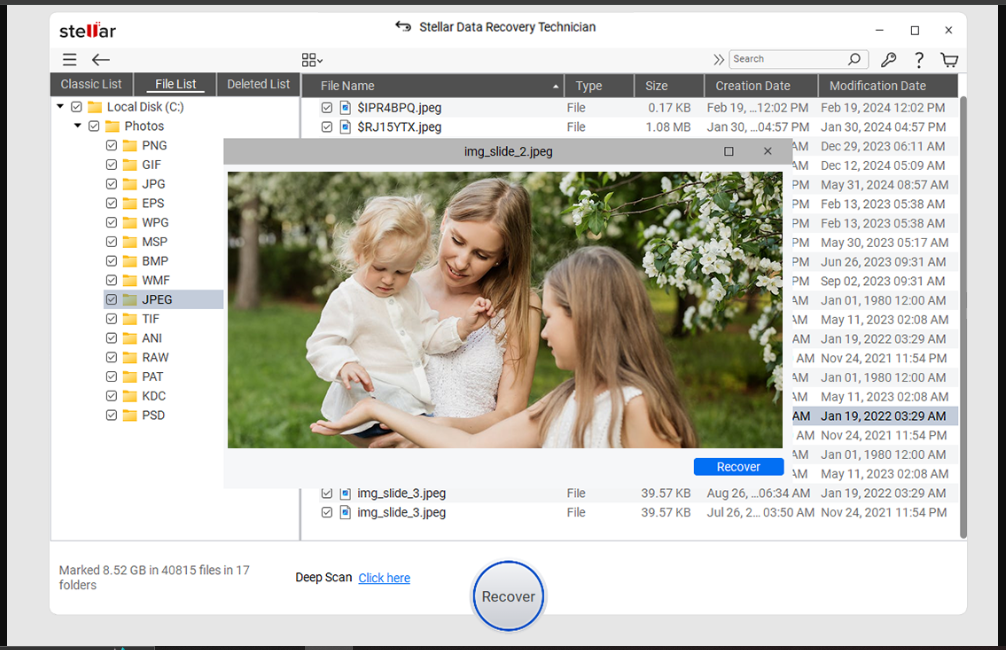
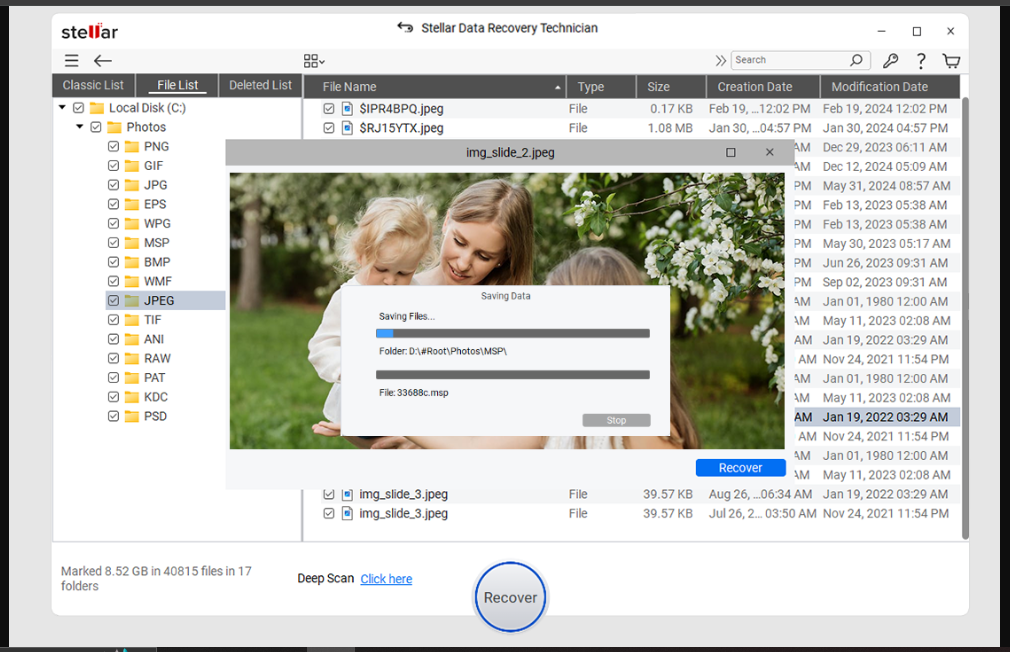
- Now select the files you want to recover and click on Recover. Select the destination path to save the recovered files.
- The software will begin saving the recovered files at the selected destination path.
Tips to Prevent Data Loss from a RAID Array
Here are some useful tips you can follow to prevent data loss from RAID array:
- Carefully monitor the health of the drives.
- Follow the 3-2-1 backup technique – 3 data copies, 2 on different storage media, 1 on the cloud.
- Keep the array in a well-ventilated, dust-free, and dry environment.
- Use a UPS with your RAID setup to avoid an abrupt shutdown.
- Keep a specialized RAID data recovery software installed on a computer
Conclusion
Keeping a regular backup of your RAID data helps you recover it in case of deletion or any other data loss situation. But when there is none, leverage Stellar Data Recovery Technician – a specialized desktop application to recover deleted data from the RAID 0, RAID 5, and RAID 6 arrays. This powerful software can help you accurately get your lost or deleted files back in no time.
Recover Data from RAID 5 with One Drive Failure
How To Recover Data from a Damaged RAID 5 Array
All You Need to Know About RAID Arrays
