You can easily export an archive PST file through Outlook’s Import/Export wizard. By importing the PST file you can access your archived emails, contacts, and other mailbox items. In this post, we will be explaining the step-by-step process to recover corrupted archived PST file in Outlook. We will also explain what to do if the import process fails due to corruption in PST file.
What is an Archive PST File?
As the name itself indicates, an archive PST file is a file that is created by Outlook when you enable the AutoArchive option to store old emails and other mail items. You can also move the old items to a PST (archive) file manually by using the Archive option. This helps to reduce the size of mailbox without having to delete any mail items. This file is ideal for long-term storage, backups, and managing strict mailbox capacity limits.
How to Recover the Archive PST in Outlook?
Follow these steps to restore your archive PST file in Outlook:
1. Find your PST File on your System
You should know where your archive PST file located on your system. If you’re not sure where it is, then you can search it on your computer through Windows Search option. Usually, Outlook saves the archive PST file at the following default storage locations:
Windows 10/11
- C:\Users\[YourUsername]\Documents\Outlook Files
- C:\Users\[YourUsername]\AppData\Local\Microsoft\Outlook
Older Windows Versions
- C:\Documents and Settings\[YourUsername]\Local Settings\Application Data\Microsoft\Outlook
Note: The path can be vary depending on your Outlook version, Windows edition. You can check your Outlook data file settings – File > Account Settings > Data Files – to know the exact path of PST file.
2. Import the Archive PST File into Outlook
After figuring out where your PST file is, you can then, import it into Outlook. Here’s how:
Note:If you’re using New Outlook, you’ll need to switch to Classic Outlook.
- Open your Outlook application.
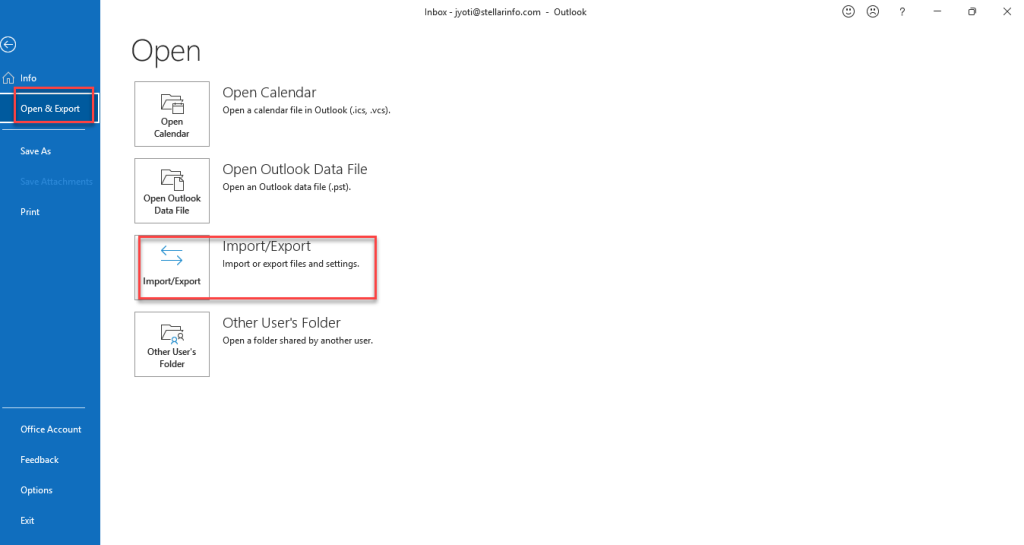
- Go to File.
- Click on Open and Export and choose Import/Export.
Note: If you’re using Outlook 2003 or 2007, go to File > Import and Export.
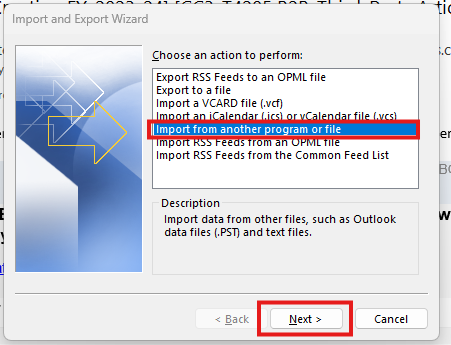
- Now, select Import from another program or file.
- Click on Next.
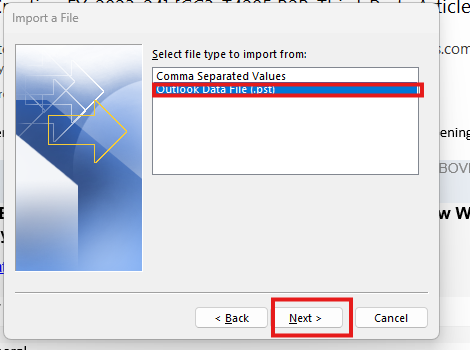
- Click on the Outlook data file (.pst) option.
- Then, click on Next.
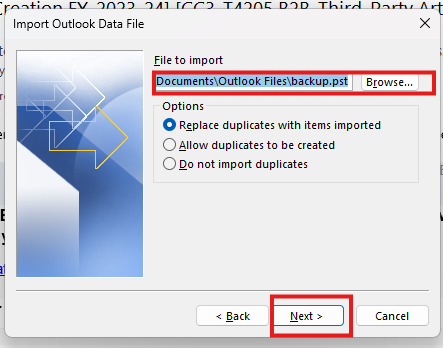
- Click on Browse to select the archive PST file.
- Select the Replace duplicates with items imported option.
- Click Next.
- Select the folders you want to import or choose the entire mailbox.
- Click Finish.
Now, you are able to access your archive PST file items in Outlook.
What to do if your Archived PST File is Corrupted?
You may face a situation where you experience issues with archive PST file after the import process. Common errors include:
- The file xyz.pst is not a personal folders file
- Errors have been detected in the file Abc.pst
- Outlook cannot open the data file.
These errors appears when your archive PST file is damaged or corrupted. In such cases, you can easily repair your PST file by using Microsoft Outlook’s integrated feature i.e. ScanPST.exe (also known as Inbox Repair Tool). Below are the instructions to use this repair utility:
- First, close your Outlook application.
- Now, go to the location of ScanPST.exe

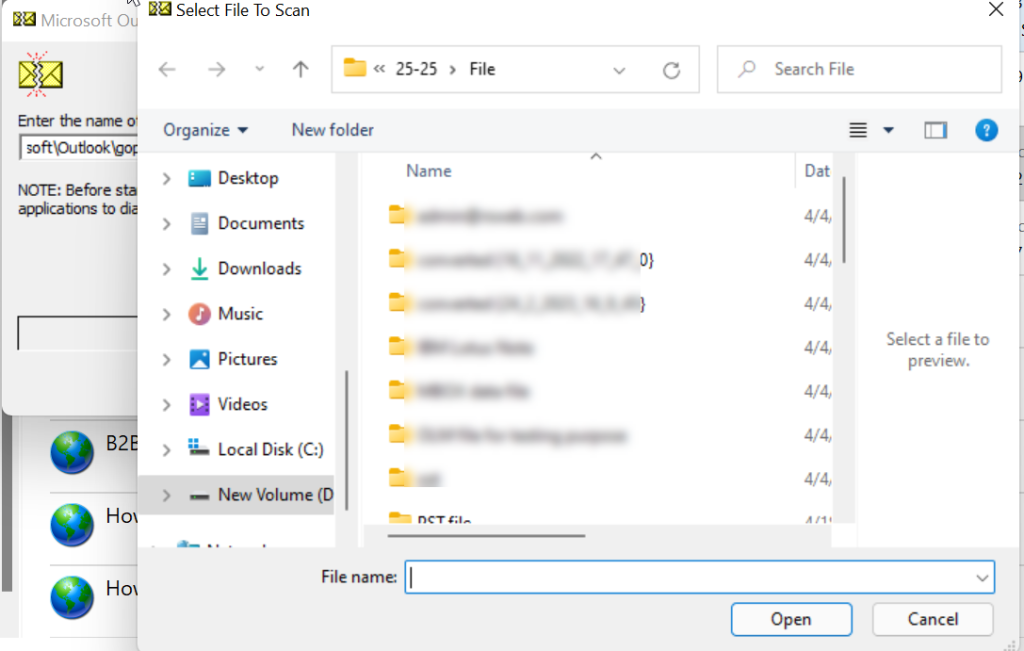
- Double-click to launch the utility. Click on Browse to choose your archive PST file.
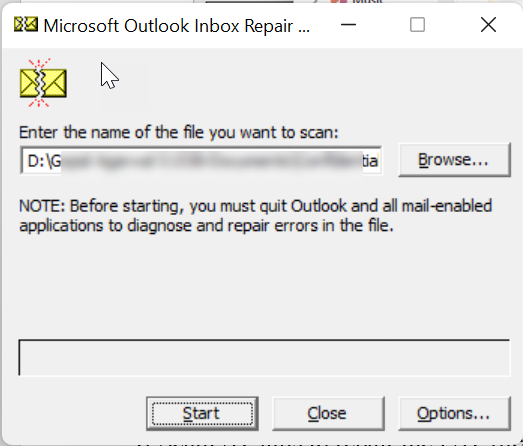
- To start the scanning process, click on Start.
- Outlook will display the errors once the scanning is complete.
- Now, click on Repair button to fix the errors.
Note: Make sure Make a backup of scanned file before repairing option is selected before starting the repair.
- Save your Repaired PST file at the desired location.
- Now, you can import the repaired archive PST file into Outlook.
If you’re still facing issues, it most likely means that the PST file is highly corrupted. In this case, you can go for Stellar Repair for Outlook – an advanced PST repair tool. This tool can serve as a perfect alternative to ScanPST. It can extract all the mailbox items – emails, attachments, contacts, etc. – from the corrupted PST file and save them to a new PST file. It maintains original structure and hierarchy of your mailbox. Apart from PST format, you can save your repaired data in multiple formats, like HTML, EML, MSG, PDF, etc.
Moreover, this tool can support all the Outlook versions. You can free download Stellar Repair for Outlook on your computer, scan your corrupted PST file, and preview the mailbox data.
Conclusion
As explained above, you can smoothly recover your archived PST file. You just need to locate your file and then import it into Outlook. But, sometimes, you face issues after importing the PST file. This typically happens when there is corruption in PST file. However, the solution is simple in this case – repair your archived PST file by using the Outlook’s Inbox Repair tool or ScanPST. If this tool didn’t work, the only alternative is to use Stellar Repair for Outlook. This is a powerful PST repair tool which can effectively repair the PST file, irrespective of the size and severity of corruption. It saves the recovered mail items – emails, contacts, attachments, etc. – to a new fresh PST with accuracy and integrity.
