If your Android phone is physically damaged it doesn’t mean your data is completely lost. There are multiple ways to recover your files from a broken phone. However, full recovery of photos would largely depend on the extent of damage to your phone. Here are the scenarios to consider:
- If your device screen is cracked, but touchscreen works – you can recover deleted or lost files.
- If your device touchscreen is unresponsive, but you can command the screen via an external mouse – you can recover deleted or lost files.
- If your device screen is damaged and unresponsive, but USB Debugging was already enabled – you can recover deleted lost files.
- If your device is completely damaged but you have a cloud backup of all your files – you can recover or restore them easily.
- Data from a severely damaged Android phone, that does not power on can only be retrieved by professional data recovery service providers.
But before we start with recovering your files from broken or damaged Android phone – quickly learn how to connect an external mouse so you can easily operate your device, even if the phone’s touchscreen is not working.
Use an USB Type-C OTG cable to connect a mouse to the Android phone. A mouse-like cursor will appear on your phone’s screen (This only happens if the mouse gets detected successfully). Use the mouse to navigate your phone and select/deselect features or enable/disable any settings on your phone.
DIY Methods to Recover Photos from Broken Android Phones
If your Android phone is broken, try these methods to recover deleted photos without professional help.
Method 1: Use an Android Data Recovery software
The safest way- Stellar Data Recovery for Android can help with recovering photos and other lost files from a broken Android phone for free.
The free Android data recovery tool works when the phone’s display is cracked but the touchscreen works. It can also work if touch is not working or display is black but USB debugging is already enabled in your Android device or you can enable it via an external USB mouse.
- Install and launch Stellar Data Recovery for Android on your PC. Connect the phone to the computer.
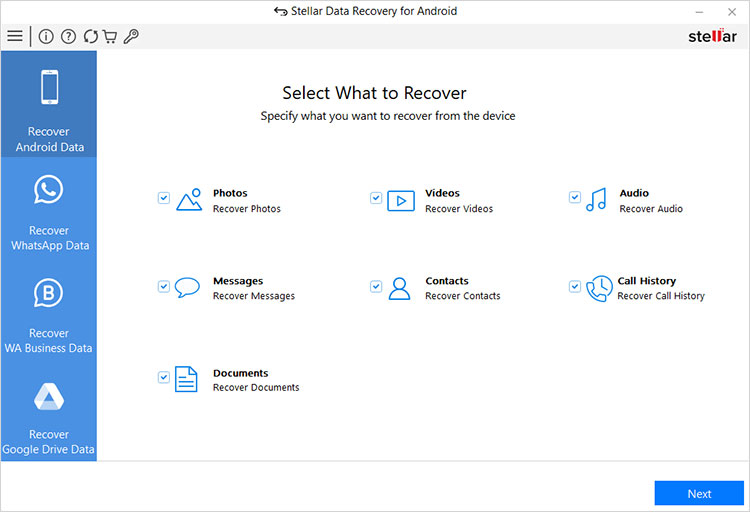
- Select the type of data you want to recover. For e.g., Photos. Then, click Next.
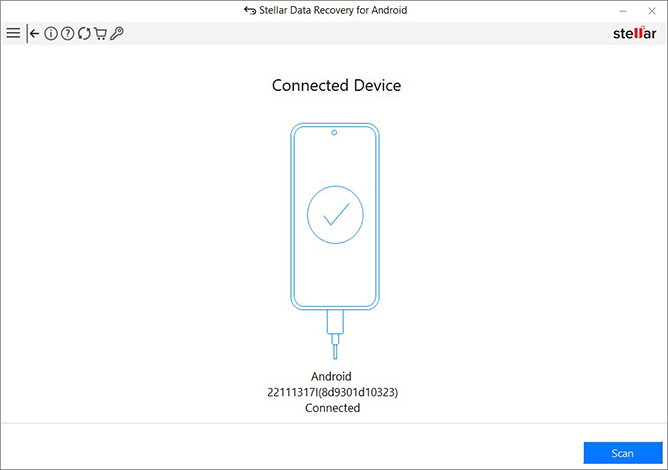
- Once your phone gets detected, click Scan to initiate the scanning process.
- The recoverable files list will be displayed once the scanning is completed.
- You can preview the recovered files by double-clicking on them.
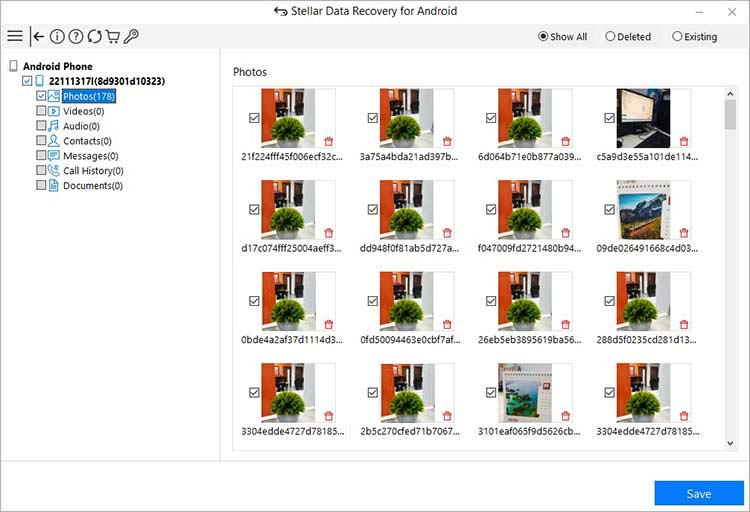
- Next, you can click Save to restore them at a desired location.
The free Android data recovery tool allows you to recover up to 10 video or photo files of 10MB for free. Beyond that limit, you need to purchase the paid subscription.
Method 2: Use a Windows Computer to retrieve photos
You can also utilize the AutoPlay feature on your computer to get the photos from your broken Android phone. For this method, the USB slot of your phone should be working, as it requires connecting a USB cable for the purpose. You don’t necessarily require your phone’s USB debugging enabled, most devices will connect without it.
However, your phone might require permission for File Transfer. That’s not a problem if the touch is working, but if it’s not, then try using an external mouse or your phone’s keys to select the File Transfer option.
- Connect your broken/cracked phone to the PC via a USB cable
- If your broken phone is detected, and the AutoPlay window appears on the PC. Click Open folder to view files.
- As the files from the broken phone appear on your computer screen, select, copy, and paste the photos to your computer at another location
If the USB debugging is Disabled, you might see nothing on the screen when you connect your phone to the computer. In that case, just use an OTG cable to connect your Android phone to a mouse and then control the operations of the broken phone with the mouse.
Method 3: Recover photos from Google Photos
This method does not involve your Android phone and is the easiest way to recover any file, unless you have created a backup of the same.
Google Photos or OneDrive’s backup allows you to back up the photos from your Android device with a free tier limit of 15GB and restore the photos to any device. With Google Photos, you can easily recover broken smartphone photos on your computer with the help of Google Drive.
If backup was already enabled, then chances are the app is storing all your photos saved on your Android phone, including Gallery pictures and those shared via WhatsApp messages app, etc.
- Sign in to Google on your computer, using the same account that was used on your broken phone.
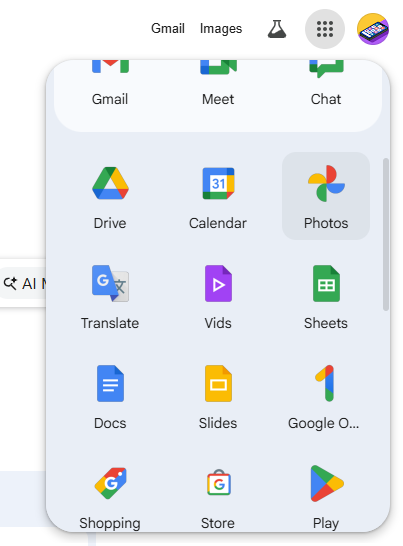
- Open Google Photos or Google Drive on your computer in the Chrome browser.
- All the photos stored on the cloud backup will appear.
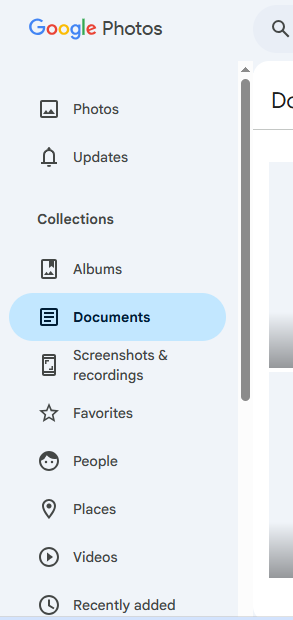
- Right-click on photos and download them onto your computer.
Note: Google Photos could be your savior in case the phone is broken or fully damaged. You can easily transfer Pictures from the Old Phone to the New Phone with Google Photos. Read here how to recover deleted photos from Google Photos.
Method 4: Recover using an SD card
Almost all Android Phones are compatible with an external SD card. If your broken Android phone has an SD card and your photos were stored in it, then you can easily find your lost photos from it. All you need to do is plug the SD card into your new Android phone or any computer using a card reader. Once you plug in your SD card, you can get all your pictures in no time. Just move them to your desired location on your computer or easily access them on your new device. However, to avoid any logical trouble with the SD card (if the phone with the SD Card in it was water damaged), you must restore photos from the SD card, and then format it for reuse.
To Sum Up
Physical damage is a possibility with any smartphone, no matter how much is claimed about its evolving sturdiness. The screen is the most fragile part of the phone (maybe a few degrees less with tempered glass protection, etc.). But a physically damaged phone shouldn’t bother you about losing the photos stored on it. Because with the methods listed in this blog, they can be recovered.
- Try retrieving the photos from your broken Android phone by connecting it to the computer through a USB cable.
- Use Google Drive backup (if available), which is a convenient option to restore mobile phone pictures.
- Try out Stellar Data Recovery for Android to get back deleted photos.
