Table of Contents


    Android Data Recovery

    How to Recover Photos from a Broken Phone?


    Table of Contents

      Summary: Photo recovery from a broken Android phone largely depends on the extent of physical damage and your storage preference for the photos. If the photos were stored on an SD card, you can easily access them on any other device by reinserting the SD Card. However, if they were stored in your device’s internal storage and the damage broke the screen, touch is not working, or the display is black, you may not be able to access them. There are some ways to recover these photos from a broken Android phone. Start by connecting it to a computer via USB. If your device's storage is detected, you can easily check the image folders and move them from internal storage to your computer. Otherwise, if you have a backup of those photos, you can easily access them by logging in to your Google Account. You can also recover Android photos from Google Photos or Gdrive.

      If your Android phone is physically damaged it doesn’t mean your data is completely lost. There are multiple ways to recover your files from a broken phone. However, full recovery of photos would largely depend on the extent of damage to your phone. Here are the scenarios to consider:

      • If your device screen is cracked, but touchscreen works – you can recover deleted or lost files.
      • If your device touchscreen is unresponsive, but you can command the screen via an external mouse – you can recover deleted or lost files.
      • If your device screen is damaged and unresponsive, but USB Debugging was already enabled – you can recover deleted lost files.
      • If your device is completely damaged but you have a cloud backup of all your files – you can recover or restore them easily.
      • Data from a severely damaged Android phone, that does not power on can only be retrieved by professional data recovery service providers.

      But before we start with recovering your files from broken or damaged Android phone – quickly learn how to connect an external mouse so you can easily operate your device, even if the phone’s touchscreen is not working.

      Use an USB Type-C OTG cable to connect a mouse to the Android phone. A mouse-like cursor will appear on your phone’s screen (This only happens if the mouse gets detected successfully). Use the mouse to navigate your phone and select/deselect features or enable/disable any settings on your phone.

      DIY Methods to Recover Photos from Broken Android Phones

      If your Android phone is broken, try these methods to recover deleted photos without professional help.

      Method 1: Use an Android Data Recovery software

      The safest way- Stellar Data Recovery for Android can help with recovering photos and other lost files from a broken Android phone for free.

      The free Android data recovery tool works when the phone’s display is cracked but the touchscreen works. It can also work if touch is not working or display is black but USB debugging is already enabled in your Android device or you can enable it via an external USB mouse.

      • Install and launch Stellar Data Recovery for Android on your PC. Connect the phone to the computer.
      • Select the type of data you want to recover. For e.g., Photos. Then, click Next.
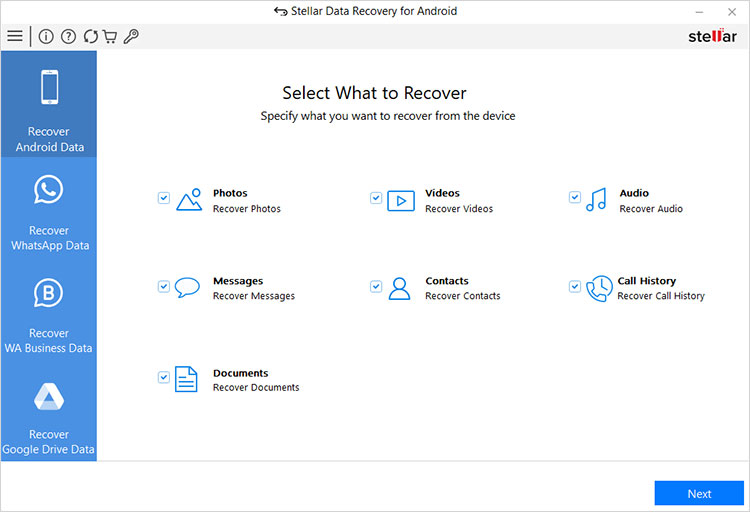
      Select the type of data you want to recover
      • Once your phone gets detected, click Scan to initiate the scanning process.
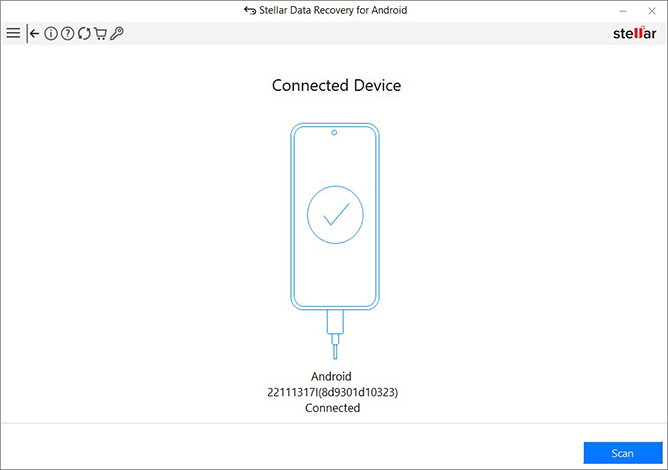
      click Scan to initiate the scanning process
      • The recoverable files list will be displayed once the scanning is completed.
      • You can preview the recovered files by double-clicking on them.
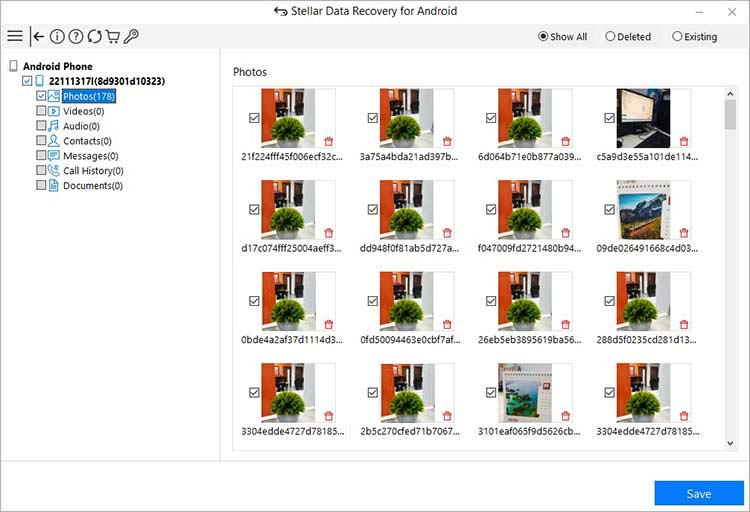
      Preview the recovered files
      • Next, you can click Save to restore them at a desired location.

      The free Android data recovery tool allows you to recover up to 10 video or photo files of 10MB for free. Beyond that limit, you need to purchase the paid subscription.

      Method 2: Use a Windows Computer to retrieve photos

      You can also utilize the AutoPlay feature on your computer to get the photos from your broken Android phone. For this method, the USB slot of your phone should be working, as it requires connecting a USB cable for the purpose. You don’t necessarily require your phone’s USB debugging enabled, most devices will connect without it.

      However, your phone might require permission for File Transfer. That’s not a problem if the touch is working, but if it’s not, then try using an external mouse or your phone’s keys to select the File Transfer option.

      • Connect your broken/cracked phone to the PC via a USB cable
      • If your broken phone is detected, and the AutoPlay window appears on the PC. Click Open folder to view files.
      • As the files from the broken phone appear on your computer screen, select, copy, and paste the photos to your computer at another location

      If the USB debugging is Disabled, you might see nothing on the screen when you connect your phone to the computer. In that case, just use an OTG cable to connect your Android phone to a mouse and then control the operations of the broken phone with the mouse.

      Method 3: Recover photos from Google Photos

      This method does not involve your Android phone and is the easiest way to recover any file, unless you have created a backup of the same.

      Google Photos or OneDrive’s backup allows you to back up the photos from your Android device with a free tier limit of 15GB and restore the photos to any device. With Google Photos, you can easily recover broken smartphone photos on your computer with the help of Google Drive.

      If backup was already enabled, then chances are the app is storing all your photos saved on your Android phone, including Gallery pictures and those shared via WhatsApp messages app, etc.

      • Sign in to Google on your computer, using the same account that was used on your broken phone.
      • Open Google Photos or Google Drive on your computer in the Chrome browser.
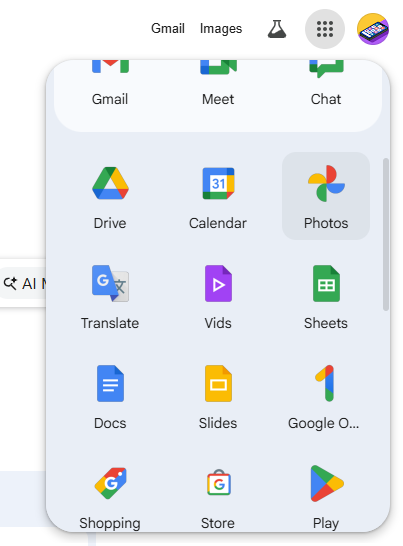
      Open Google Photos
      • All the photos stored on the cloud backup will appear.
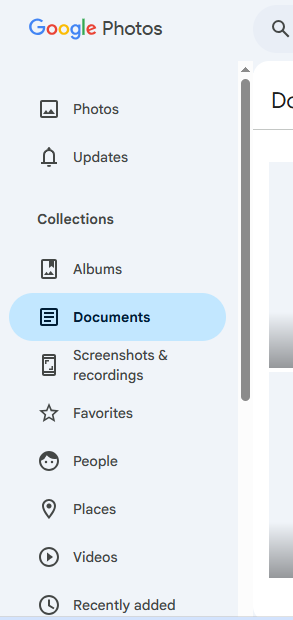
      All the photos stored on the cloud backup
      • Right-click on photos and download them onto your computer.

      Note: Google Photos could be your savior in case the phone is broken or fully damaged. You can easily transfer Pictures from the Old Phone to the New Phone with Google Photos. Read here how to recover deleted photos from Google Photos.

      Method 4: Recover using an SD card

      Almost all Android Phones are compatible with an external SD card. If your broken Android phone has an SD card and your photos were stored in it, then you can easily find your lost photos from it. All you need to do is plug the SD card into your new Android phone or any computer using a card reader. Once you plug in your SD card, you can get all your pictures in no time. Just move them to your desired location on your computer or easily access them on your new device. However, to avoid any logical trouble with the SD card (if the phone with the SD Card in it was water damaged), you must restore photos from the SD card, and then format it for reuse.

      To Sum Up

      Physical damage is a possibility with any smartphone, no matter how much is claimed about its evolving sturdiness. The screen is the most fragile part of the phone (maybe a few degrees less with tempered glass protection, etc.). But a physically damaged phone shouldn’t bother you about losing the photos stored on it. Because with the methods listed in this blog, they can be recovered.

      • Try retrieving the photos from your broken Android phone by connecting it to the computer through a USB cable.
      • Use Google Drive backup (if available), which is a convenient option to restore mobile phone pictures.
      • Try out Stellar Data Recovery for Android to get back deleted photos.

      About The Author

      Totan Banerjee linkdin

      Totan Banerjee is a proficient tech writer with over 8 years of experience in the technology and SaaS domain. Currently, he is assisting iPhone, and Android users with a range of technical challenges ...

      52 comments

      1. Information recuperation labs are like the superheroes of the advanced world, diving in to make all the difference when all trust appears to be lost. Keep up the fantastic work!

        1. Hi Apoorva,
          If your phone is being recognized by your laptop, then you can easily recover the data from it. Else you may have to get your phone repaired.

        1. Hi,
          If the photos were on your SD card, then you can easily recover them with Stellar Photo Recovery software. Else, you can try to connect you phone to the computer and see if it detects. If the computer detects the Phone then, you can use Stellar Data Recovery for Android software. It can recover all your data in no time.

      2. Hello, mam…. I updated my some app from playstore suddenly phone restart itself … It takes longer time ..so I pressed power button to restart…. Then screen appears says ” some files are corrupted you have to…… try again or reset factory….I choose try again….it failed…. again press power button..then again choose try again.. phone restart normally …I show every app is there work properly…but all my photos are delete… How can I recover it plz Help 😭 lots of memories…. my phone is infinix not 12 pro 5g

        1. Hi Amit,
          You can check your Google Photos and Google Drive and see if your photos were backed up on the drive. Also, if your photos were stored in an SD card then you can definitely recover them with Stellar Photo Recovery. Also, you can try our Android Recovery software to recover data from your Android device.

      3. Hi, my phone’s battery is damaged so it’s not turning on. Is there a way I can recover my files from not?

        1. Hi Lex,
          You can try accessing Google Photos on a different device or computer. Also, you can scan your SD Card to recover the photos that you have lost.

      4. How do I recover photos or data from a phone that screen is black and charging port is broken but will charge via wireless charger and it will power on do they make an adapter for the head phone jack to be able to connect a phone to PC if not they should if Iphone has an adapter for the port to make it auxiliary then surely Samsung can get in the game

        1. Hey Yvonne,
          You can try to access the phone’s SD card to get the data from the phone, and you have to mount the phone to a computer to access the internal data. I suggest getting the port fix, as this will help you connect your phone to any computer.

      5. Hey can you please help me get my old stuff from my old phone because you can’t replace them so could you please help me put them on my new phone

        1. Hi Marie,
          If you have a copy or backup of your stolen phone then it is possible to restore them. But if you don’t have the old phone or the backup then you may have to go to the authorities.

      6. My Oppo A36 was broken last night. Now I am struggling to recover my photos and videos from the storage. I use a SanDisk memory card, and that is showing empty. Please help.

        1. Hi Lee, There may be the possibility that your SD card got corrupted from the damage. Don’t Panik! and try all the methods shown in the blog. If nothing works, you can format the card and recover the files with the help of Stellar Photo Recovery.

      7. This is why phone need sdcard for photos.
        Now expensive phones removed that, so that all your data will be lost, to force you purchase expensive data plan and sync all photos to cloud for data mining.

        1. Hi JanisT,
          On such cases, you can go for Stellar Data Recovery for iPhone or Stellar Android data recovery to recover the lost data from your phones.

      8. HI,
        My Phone display is completely broken and USB option doesn’t, I have not synced my mobile photos to Gdrive, it is there anyway we can retrieve the data.

        1. Hi AKilan, our software can recover data from a phone’s SD card. You need to connect the card through an SD card reader and run our software. You can easily recover your deleted or lost file from a Phone SD card. In case, you want to recover photos or videos from your android phone’s internal storage, you can try another free tool called Stellar Data Recovery for Android. Thanks!

      Leave a comment

      Your email address will not be published. Required fields are marked *

      Google Trust
      Related Posts

      WHY STELLAR® IS GLOBAL LEADER

      Why Choose Stellar?

      • 0M+

        Customers

      • 0+

        Years of Excellence

      • 0+

        R&D Engineers

      • 0+

        Countries

      • 0+

        PARTNERS

      • 0+

        Awards Received

      BitRaser With 30 Years of Excellence
      Technology You Can Trust
      Data Care Experts since 1993
      ×