Corruption in MS Access database usually occurs when errors are found in the underlying binary file format of the database. It may also happen due to connectivity issues or an abrupt system shutdown while working on a shared database file.
Because of this, you may face difficulty in accessing Access database files (.accdb/.mdb) or the objects. You may also encounter an error message like “Unrecognized database format ACCDB/MBD” while trying to open a corrupted database file.
However, there are ways to repair corrupted Access database file. In this post, we will explore some DIY methods in detail.
What are MDB & ACCDB Files?
MDB and ACCDB are the two database file types used by different MS Access versions. Let’s read more about them in detail.
MDB
Short for Microsoft Database, MDB file (file extension – .mdb) is a database file type used by the legacy versions of MS Access – Access 2003 and earlier (till Access 1.0). It stores typical database objects, like queries, tables, forms, and reports.
ACCDB
All latest versions of MS Access: Access 2007, 2010, 2013, 2016, 2019, 2021, 2024 and Microsoft Access (part of Microsoft 365) use ACCDB (.accdb) as the default file type for creating databases. This file format offers advanced features with improved and optimized functionality.
With an improved database security model, it supports the security validation of DB files, with the major advantage being that both MS Outlook and SharePoint trust this validation.
As per Microsoft’s documentation, you can open MDB files using any new version of MS Access (2007 or later). However, you won’t be able to use some functionalities that require the .accdb file format. So, if you want to use new features, you’ll need to convert MDB to ACCDB first.
Here is how you can do this by using Access 2007 or newer version:
- Launch MS Access.
- Choose the Blank desktop database option.
- Give the new database file a name and click on Create.
- Once the new database file opens, click on File > Close.

- Again, click on File from the ribbon. Select Open from the left pane.
- Select your MDB database file to open it.
- Now, click on File > Save As.
- Choose “Access Database (Default database format)” file type under Save Database As and click Save As.
- Select the location where you want to save the database file and click Save.
- It will show the “Database upgraded” dialog box. Click on OK.

To verify the file format change,
- Go to the location where you have saved the converted database file.
- Select it and right-click on it.
- Click on Properties.
- Check the Type of file field. It should be .accdb.
- Click OK to close the window.
Why does an Access Database Get Corrupted?
The following are the reasons that may lead to Access database corruption:
Type 1: Operational Causes
- Frequently editing data in Memo fields (Long text fields)
- Interruptions like network issues when making changes to data
- Jet database engine version conflicts
Type 2: System Causes
- Power cut or abrupt system shutdown
- Windows freezes or the application crashes while making changes
- Inadequate free space available on the local storage drive
Type 3: Other Causes
- Virus or malware attack
- Hardware failure or software bugs
- Conflicting plug-ins
- Bad sectors on the storage drive
- Shared database file is accessed by a large number of users simultaneously
- Large size of the database file (>2GB)
How to Repair Microsoft Access Database?
You can fix the corrupted database by using following DIY solutions.
Tip – Check this article on MDB file repair for information about common error messages related to MDB File Corruption.
Method 1- Use ‘Compact and Repair’ to Repair Access Database Manually
You can use ‘Compact and Repair’ – a Microsoft Access built-in utility for repairing a corrupt .MDB/.ACCDB database file. It can also help fix inconsistencies or remove unused spaces in the database file.
Case 1. Database is Opening
If the Access database is corrupted but you are able to open it, follow these steps:
- Open the problematic Access database file.
- In your Access database, click ‘File.’
- From the window that appears, click the ‘Compact & Repair’ option on the ‘Info’ page.
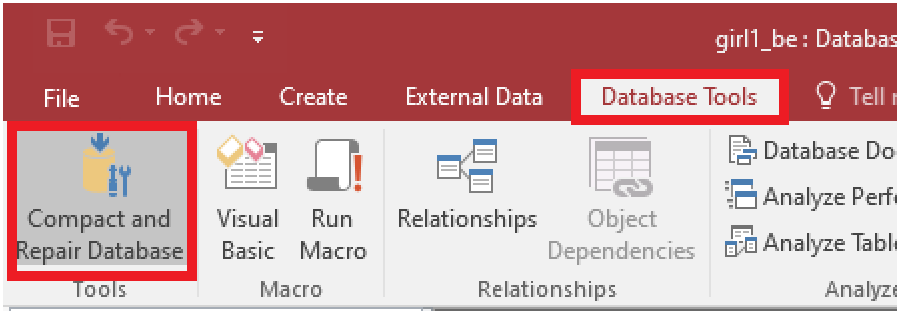
Note: You can also do this from the menu bar. Select Database Tools and click on Compact and Repair Database.
Case 2. Database is Not Opening
If you can’t open your ACCDB/MDB file, try repairing the file using these steps:
Notes:
- These steps apply to Access 2013, 2016, and 2019.
- Take a backup of the database file before proceeding.
- Open your MS Access program.
- On the ‘templates’ screen, double-click ‘Blank desktop database.’
- In your Access program, click the ‘File’ menu. Next, click ‘Close’ to exit the database.
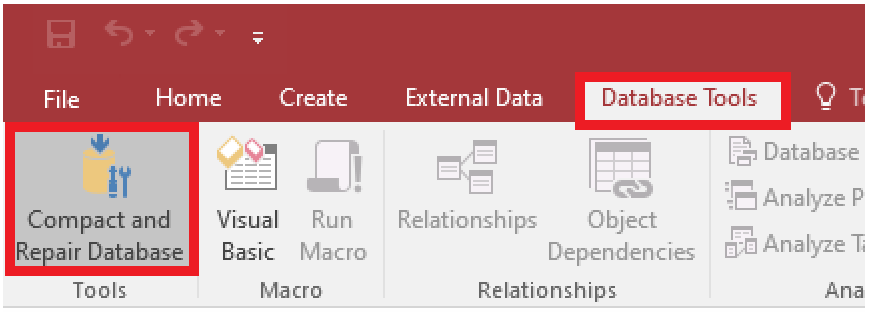
- Click Database Tools > Compact & Repair Database.
- In the ‘Database to Compact From’ window, locate the corrupt Access database file and select it. Click on Compact.
- The ‘Compact Database Into’ window will appear. Specify a new name for the repaired database file, and click ‘Save.’
The repaired file will be saved at the original DB file’s path.
Method 2: Manually Recover Corrupt Access Database
There is also a manual workaround to restore DB objects. Follow the step-by-step process below in the given sequence.
Step 1: Restore the Database from the Backup
If you’ve a backup of your Access database, try using it to restore the database file. The detailed steps are listed below:
- Open File Explorer, select and copy the backup file.
- Paste the copied file at the same location where the corrupt database file is saved.
- When prompted, replace the existing DB file with the backup copy.
For detailed information on restoring and backing up an Access database, read this: How to Backup and Restore Access Database?
Step 2: Delete Microsoft Access Lock Information (.ldb) Files
An LDB file gets created when an Access db is opened or accessed for shared use (i.e., in a multi-user environment). It has the same name as that of the primary file but has the .ldb extension. This helps in keeping track of all active users accessing the database.
When the last user closes the file, the lock file is deleted automatically. But, it might not get deleted if the user doesn’t have delete permissions to the Access database (.mdb) file or the database is corrupt.
Note: Deleting the .ldb file is important to remove the lock on the .mdb file if you want to recover the data from that file.
Step 3: Use Jet Compact Utility
Using the Jet Database Engine of Access helps auto-fix minor issues that crop up in the database from time to time while reading and writing data. Due to this, in most cases, you may never even find out that something went wrong.
Step 4: Remove all Compiled VBA Codes from the Database
This can be done by using this command line switch:
C:\Program Files\Microsoft Office\Office\MsAccess.exe /decompile C:\DatabasePath\FileName.mdb
Note: You may need to change the path shown above for MsAccess.exe if you installed it in a different location.
Step 5: Import Corrupt Database Objects into a New Database
Try importing objects into a new Access database file by following these steps:
- Open MS Access and create a new database file. To do so, click File > New > Blank Database.
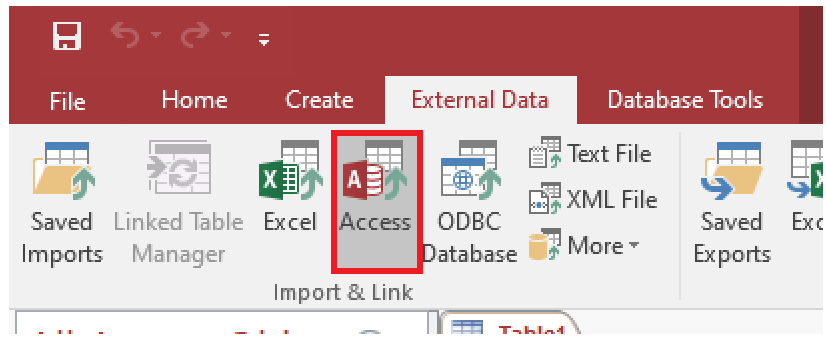
- Next, click the ‘External Data’ tab and select ‘Access’ on the ‘Import & Link’ menu.
- The ‘Get External Data – Access Database’ dialog box is displayed. Click ‘Browse’ and locate the database file that needs to be imported.
- Select Import tables, queries, etc., option under ‘Specify how and where you want to store the data in the current database.’ Click OK.
- Select all database objects you want to import from the next window and then press the OK button.
- The wizard will begin the process of importing the selected objects from the corrupted MDB file into the newly created database file.
- Once it has successfully imported the selected database objects, click Close.
Note: This procedure might also help you repair the Access database file that might have turned corrupt due to damaged system tables.
Method 3: Use Stellar Repair for Access Software
Stellar Repair for Access is a powerful DIY software you can use to repair and recover .MDB/.ACCDB file in a few simple steps. This Access database repair tool previews all the recoverable database objects like tables, deleted records, queries, forms, reports, etc. This is useful for the users to verify the data accuracy before saving it.
Follow these steps to perform Access database repair using the software:
- Download, install, and run Stellar Repair for Access software.
- The Select Database window will appear.
- Browse for the corrupt Access database file.
- Click ‘Repair’ to start the repair process.
- After completion of the repair process, various database object categories will be displayed in the left pane.
- Click on ‘+‘ to expand each category. Individual objects under that category will appear.
- Select any object to see its preview.
- To save, click ‘Save Database’ in the ‘Home’ tab.
- The Save At window will appear.
- The Default Location option is selected automatically. This is the location of the source database file. You can choose this or select the New Location option if you want to save the repaired database file at a new path on your local storage drive.
- After selecting an option, click OK to save the repaired database file.
The file will be saved at the desired location.
Wrapping Up
There can be umpteen reasons that can turn an Access database (MDB/ACCDB) corrupt. These include large database file size (greater than 2GB), hardware issues like bad sectors, or more. You can manually compact and repair the database.
But sometimes, the MS Access built-in ‘Compact and Repair’ utility may not properly fix the corrupted Access database. In that case, you can repair the corrupted database by using a Stellar Repair for Access – a powerful Access database file repair software that can effortlessly repair severely corrupted Access database files. It can also recover and restore all the database objects from the corrupted file to a new one.
