


Quick Fixes for Excel ‘Data Source Reference Not Valid’ Issue
August 8, 2025| 7 min read



Summary: MDB file may get corrupted due to network interruption while updating data, hardware/software issues, and various other reasons. In this article, you will learn the behind Access database (MDB) file corruption and the methods to fix the corrupt MDB file. You’ll also know about an Access database repair software that can repair corrupt MDB file without data loss.
Free Download 100% SecureMDB is the default file format for Access database file created in Microsoft Access 2003 and earlier versions. This database file contains items, like queries, tables, forms, etc. Sometimes, when opening an MDB file or executing the queries, you may face random errors. This usually happens due to corruption in the database file. When an Access database file is corrupted or damaged, you may even unable to open it.
Let’s try to understand the causes behind Access database file corruption and see how to repair the corrupt file without data loss.
Following are some common causes that may result in MDB file corruption:
Common Error Messages related to MDB File Corruption
When an Access database file is corrupt, you may receive error messages when accessing it. Here is a list of some common error messages related to corruption in MDB file:
There are several methods to fix corrupt MDB file and recover the data. Let’s take a look at them in detail. But before you proceed, do the following:
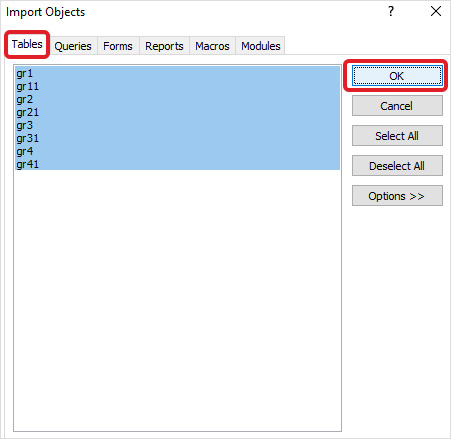
If the MDB file is corrupted, you can try to export its objects, such as tables, forms, queries, etc., to a new database file. Follow the stepwise process given below to do so:
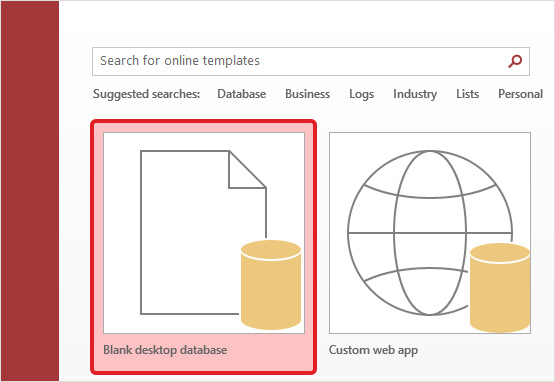
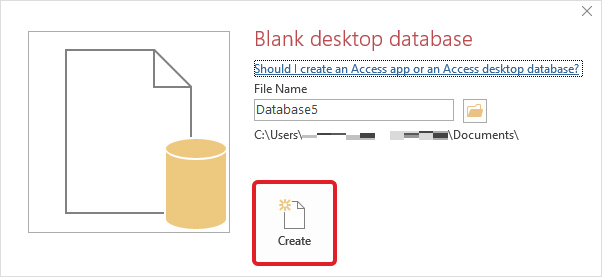
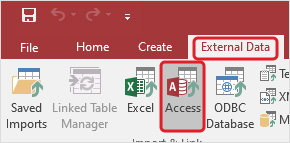
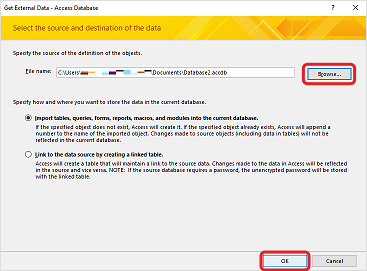
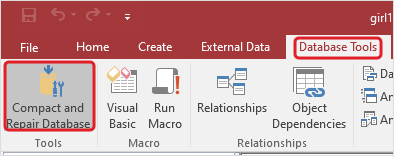
MS Access has a built-in utility – Compact and Repair – that helps fix inconsistencies and corruption issues in the database file. You can use this utility to repair your corrupt MDB file.
Case 1: If you are able to open the Access database file
If you are able to open the problematic MDB file, follow the below steps:
Case 2: If you are unable to open the Access database file
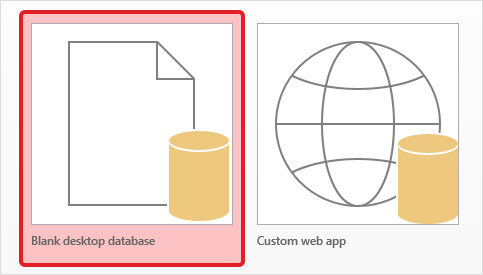
In case you are unable to open the Access database file, follow the below steps:
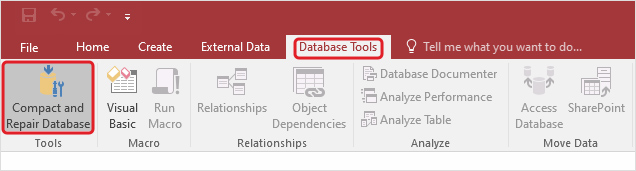
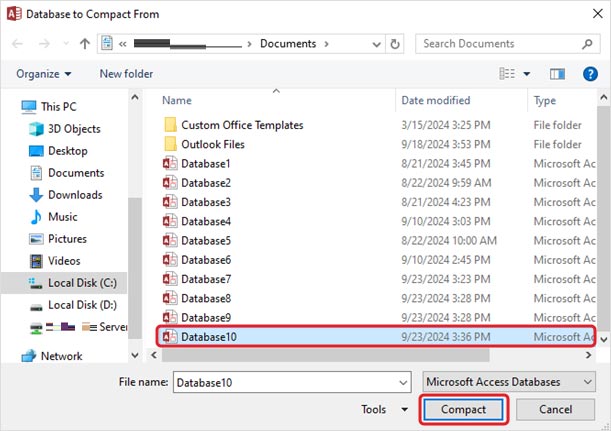
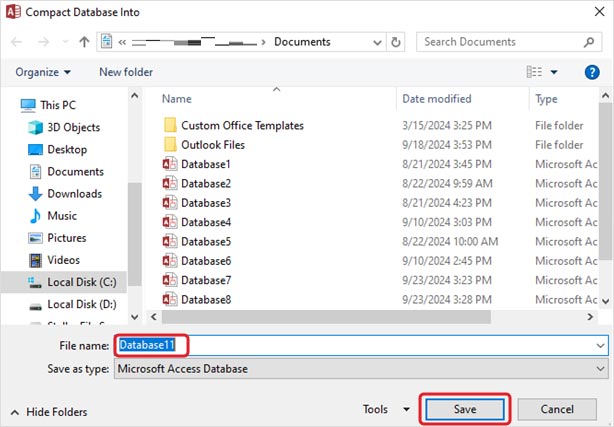
After repair, a copy of the file will be saved at the exact location where the original file is saved.
If the above methods fail to fix the issue, then you can use Stellar Repair for Access – an efficient and reliable Access database repair software for repairing Access database (MDB/ACCDB) files. It can recover all the database objects, such as tables, indexes, relations, queries, etc., and save them to a new database file with complete integrity. The software's powerful algorithms support repairing of linked tables and calculated data types. It can repair database files created in MS Access 2019, 2016, 2013, 2010, 2007, 2003, and 2002.
Follow the steps below to repair corrupted MDB file using the software:
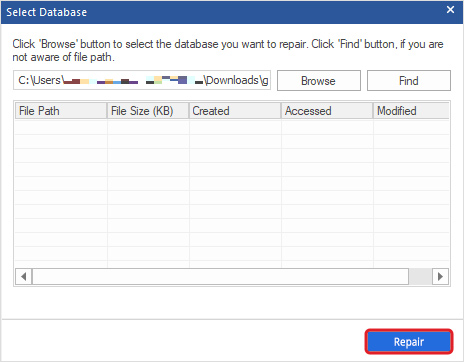
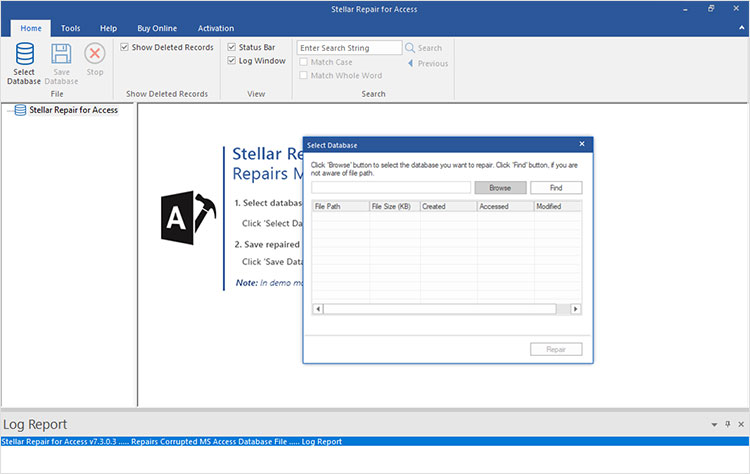
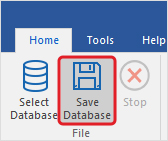
The repaired file will be saved at the selected location.
Corruption in MDF files can occur due to several reasons, such as conflicting JET engine services, large size of the file, etc. To fix the corrupt MDB file, you can follow the methods explained above. To easily repair the Access database file without any data loss, you can use Stellar Repair for Access. It is a powerful Access database repair software that can repair corrupt database files with complete precision and in just a few clicks.
Data Recovery Expert
This article was Reviewed by Kuljeet Singh, a Data Recovery Expert at Stellar Data Recovery.
Senior Content Writer
This article was written by Keshav Katyal , a Senior Content Writer at Stellar Data Recovery.
August 8, 2025| 7 min read
![[Fixed] This Document is either Deleted or not Currently Accessible](https://www.stellarinfo.com/public/image/article/Fixed-This-document-is-either-deleted-or-not-currently-accessible-1129.jpg)
February 5, 2024| 7 min read

February 5, 2024| 7 min read






 7 min read