ScanPST – also known as Inbox Repair Tool – is used to fix a corrupted PST file in Outlook. However, at times, this tool may fail to repair, freeze, crash, or stop working when your PST file is severely damaged or oversized. Additionally, this tool has several limitations, such as:
- It may not repair PST files with severe B‑Tree structural corruption.
- It cannot repair a large Unicode PST file above 20–25 GB.
- Mail items that are not repaired are discarded, resulting in permanent data loss.
- It may freeze or crash when handling large or complex corruption.
- This tool can only repair the file structure, such as headers, indexes, and tables.
- It may fail to maintain the original folder hierarchy and metadata.
In this post, we will cover scenarios where ScanPST fails and explain how to repair the PST file without ScanPST.
Scenarios where you Need to Repair Corrupt PST without SCANPST
ScanPST is capable of repairing minor inconsistencies in Outlook data files, as per Microsoft. However, in the following three situations, it stops responding, crashes, or simply cannot complete the repair.
Scenario 1: Severe Structural (B-Tree) Corruption
A PST – personal Storage Table – file stores all your mailbox items. Outlook relies on an internal indexing structure to efficiently manage this data. If this structure becomes severely corrupted, Outlook may have trouble accessing your mailbox. This can lead to issues like missing emails, missing folders, and Outlook crashes.
ScanPST can only fix minor PST corruption. However, when ScanPST encounters B-Tree corruption that it cannot fix, it displays mentioned error:
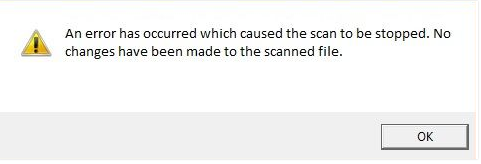
In such a situation, ScanPST either permanently deletes the unreadable mailbox data or fails to complete the repair. If you see this message, ScanPST cannot repair the damage—proceed to Solution 2 or Solution 3.
Source: Support.microsoft.com
Scenario 2: Large PST Files
ScanPST cannot repair large PST files efficiently. When a Unicode PST file – the default format for Outlook 2003 and later versions – grows beyond 20–25 GB in size, the tool may become slow, freezes during the scan or fail to complete the repair process.
Although Outlook 2010 – 2024 and MS Office 365 support PST files up to 50 GB. So, if your PST become very large, it may struggle to repair it if it exceeds 20-25 GB.
Older ANSI PST files – utilized in Outlook 97–2002 versions – are limited to a maximum file size of 2 GB only. Once an ANSI PST file exceeds this size limit, you will experience corruption issues like corruption in your PST file. Generally, ScanPST is not capable of fixing such files.
In such a situation, you need to use a professional PST repair tool.
Scenario 3: Encrypted or Password-Protected PST Files
If your PST file is password protected or encrypted, ScanPST.exe may not be able to access the file. The tool cannot, therefore, complete the repair process.
In this case, you can try a professional PST repair tool that can directly repair a password protected PST file.
When to Use ScanPST vs When you Need an Alternative
You can refer the table mentioned below to identify your scenario and choose the right path.
| Situation | ScanPST.exe | Professional PST Repair Tool (e.g. Stellar Repair for Outlook) |
| Minor PST inconsistencies or basic mailbox errors | Recommended — works well for minor corruption | Usually not required |
| PST file under 20 GB with light corruption | Generally effective | Effective |
| PST file between 20–50 GB | May become slow, freeze, or fail during repair | Recommended for better stability and faster recovery |
| PST file larger than 50 GB | Often unable to complete the repair successfully | Recommended |
| Severe B-Tree or structural PST corruption | Cannot rebuild damaged internal PST structure | Recommended |
| Password-protected or encrypted PST file | Cannot bypass or remove password protection | Recommended |
| ScanPST repeatedly detects the same errors | Indicates deeper corruption that ScanPST cannot fix | Recommended |
| Outlook cannot open the PST file | You can try ScanPST first | Recommended if ScanPST fails |
| Need to recover permanently deleted emails or mailbox items | Does not support deleted item recovery | Recommended |
| Oversized ANSI PST file (over 2 GB) | Cannot properly process oversized ANSI PST files | Recommended |
| Corrupted PST causing Outlook crashes or freezing | May fail if corruption is severe | Recommended |
| Need to recover emails, contacts, calendars, and attachments selectively | Limited recovery control | Recommended |
| Need to preview recoverable mailbox items before saving | No preview functionality | Supported |
| Need to save recovered data in multiple formats (PST, EML, MSG, PDF, etc.) | Not supported | Supported |
Solutions to Repair Corrupt PST File without ScanPST
Below, we have mentioned recommended solutions to repair a PST file without ScanPST.
Solution 1: Manual Copy to New PST File
If your PST file is partially corrupted and still opens in Outlook, then you may be able to copy the accessible mailbox items into a new PST file. Below we have mentioned the steps:
1. Open the corrupt PST file
- Launch Outlook.
- Go to File > Open & Export.
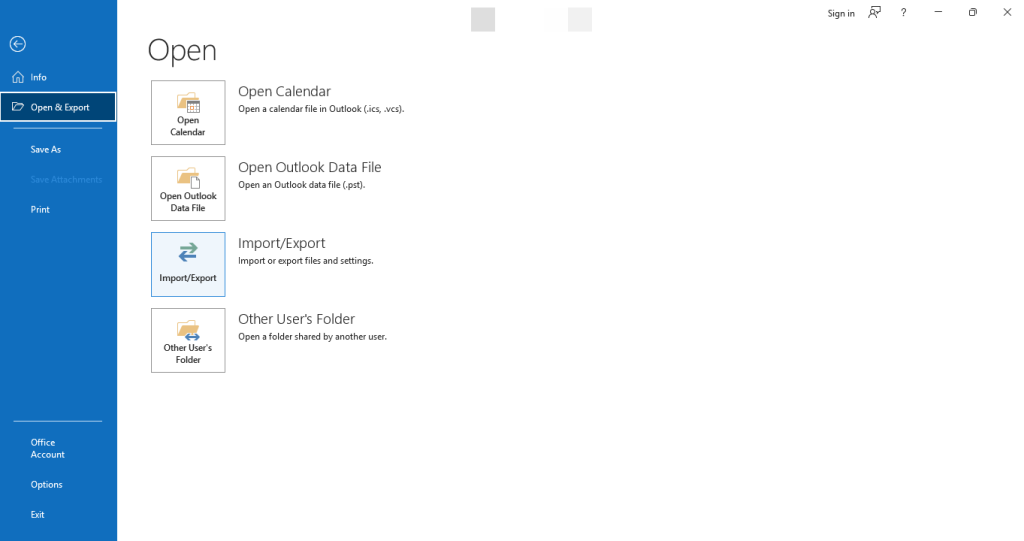
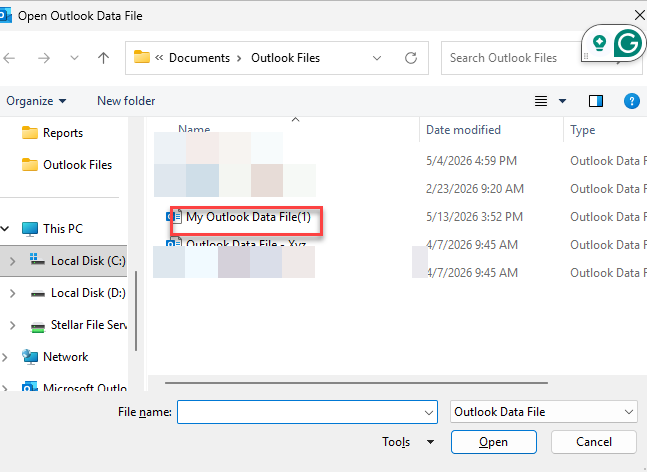
- Click on Open Data File.
- Select the corrupted PST file.
2. Create a new, clean PST file
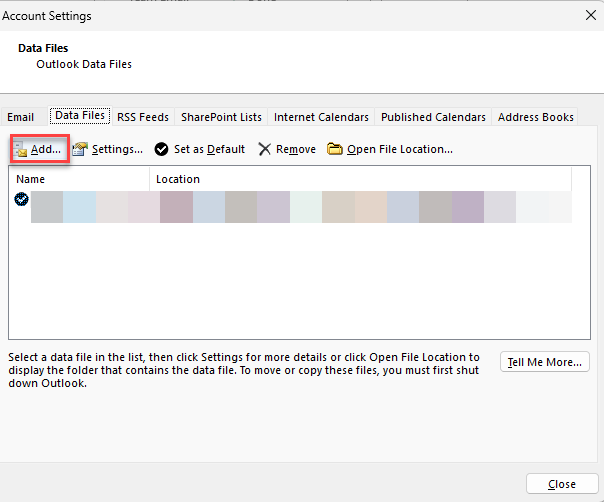
- Now go to File > Account Settings > Account Setting.
- Click add under the data file tab.
3. Copy items from the corrupt PST
- In the folder pane on the left, expand the corrupt PST.
- Click a folder (e.g., Inbox).
- Press Ctrl+A
- Right-click, then select Move
- Click Other Folder.
- Choose the folder in the new PST file.
Note: Repeat the same process for each mailbox folder like Sent Items, Drafts, Calendar and more — one folder at a time.
5. Set the new PST as the default data file.
- Go to File > Account Settings
- Click on Data Files.
- Select the new PST and click Set as Default.
6. Remove the corrupt PST from Outlook
- In Account Settings > Data Files, select the old corrupt PST and click Remove. This removes it from Outlook’s view — it does not delete the file from disk.
Note: This approach only works when your PST file is partially corrupted and still opens in Outlook. If your data file is severely corrupted and inaccessible, then follow the Solution 2.
Limitations of the manual method
- This method only rescues items that Outlook can still read from the corrupt PST.
- Items in corrupted folders will not be accessible — those require a professional repair tool.
- You cannot recover permanently deleted items.
- If your Outlook cannot open the corrupt PST file, skip to Method 2.
Solution 2: Use Free PST Repair Online
When PST is up to 5 GB and repair using ScanPST is unsuccessful, the best and quickest option is the Stellar Online PST Repair. It is a web-based PST Repair service. This tool is designed to Repair and recover damaged or corrupted data files directly from your web browser. No software will need to be downloaded or installed for this. Simply upload your damaged file and repair it. Also, you can preview and download your recovered mailbox items in HTML format.
Here’s how:

- Upload your corrupted or damaged PST file.
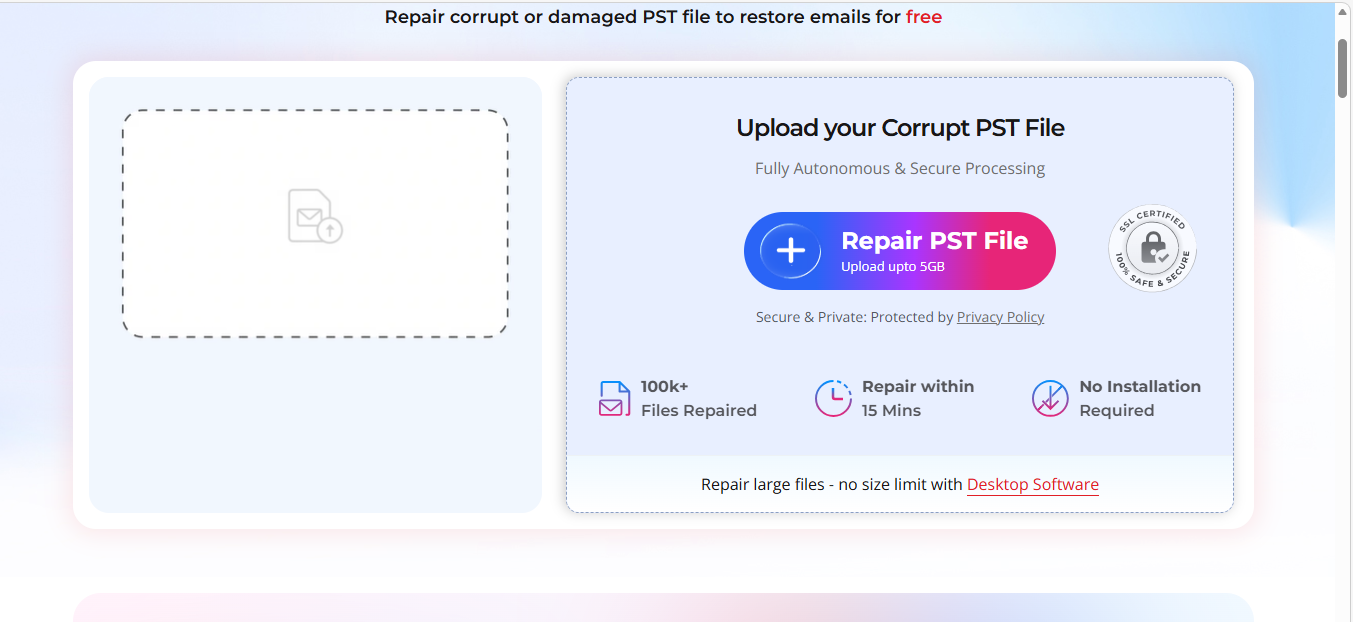
Note: You can repair up to 500 MB of PST file for free. If your data file is larger than 500 MB, then you should go for the premium version of this tool.
- Now, the scanning and repairing process start.
- After completing the repair, you can download and preview your repaired PST file in HTML Format.
Note: The repaired PST file is available for download within 24 hours, in free version and 48 hours in premium version of this tool.
- Now, download and save the repaired PST file to your system.
Solution 3: Use Stellar Repair for Outlook
If you have severely corrupted, large-sized PST files, you can use an advanced Outlook PST repair tool such as Stellar Repair for Outlook. This tool is capable of repairing damaged or large PST files without any size limitations. It has an auto-split feature as well that splits the large PST file automatically to enhance the performance of Outlook. Moreover, you can save your repaired PST file in HTML, XML, PDF etc. formats.
Here’s how:
- Launch Stellar Repair for Outlook.
- Select List Profiles.
- Now the software automatically fetches PST files associated with configured Outlook profiles on your system.
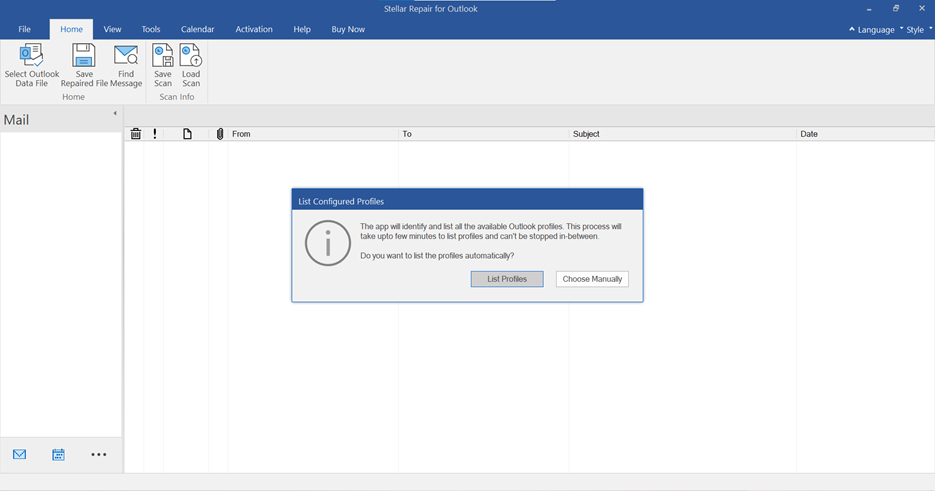
- You can also use the Choose Manually option to select the file from another location.
- Choose the desired PST file and click Repair.
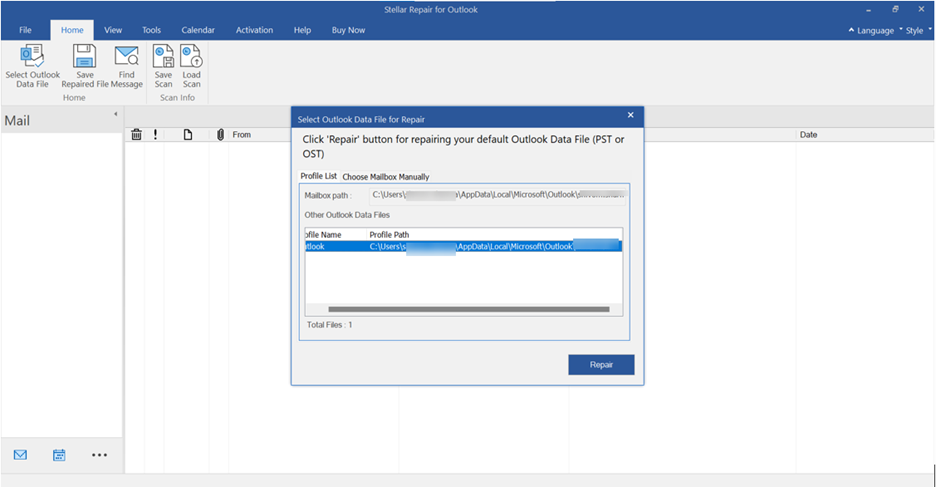
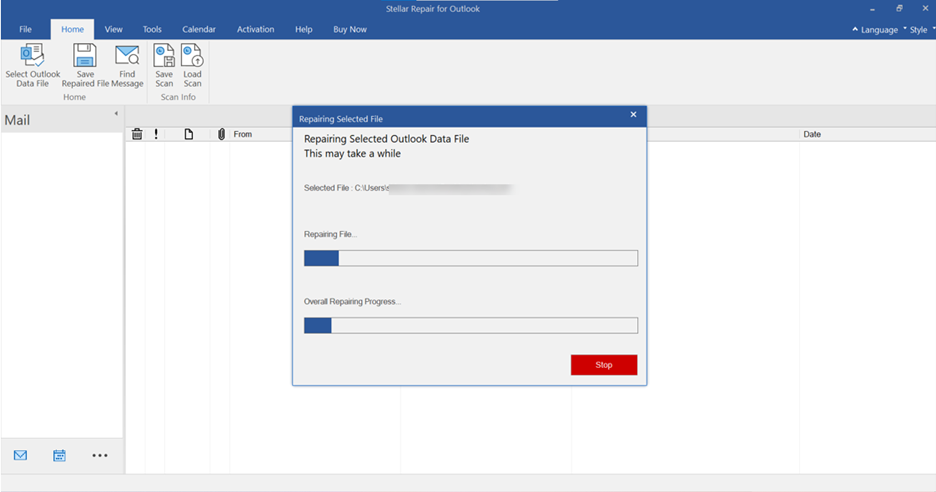
- The software starts scanning the PST file. The tool analyzes the entire PST structure, including the B-Tree index, message header data, folder hierarchy, and attachment data, regardless of the corruption level or file size.
- Let the scan complete.
- Scan time depends on PST file size; if the size of your file is 10 GB, it takes 10 to 20 minutes.
- The tool displays a real-time progress bar that shows the number of items found during the scan.
- Now, you will see a preview of your mailbox data.
- You can browse folders and preview emails, contacts, calendar items, and other mailbox data before saving.
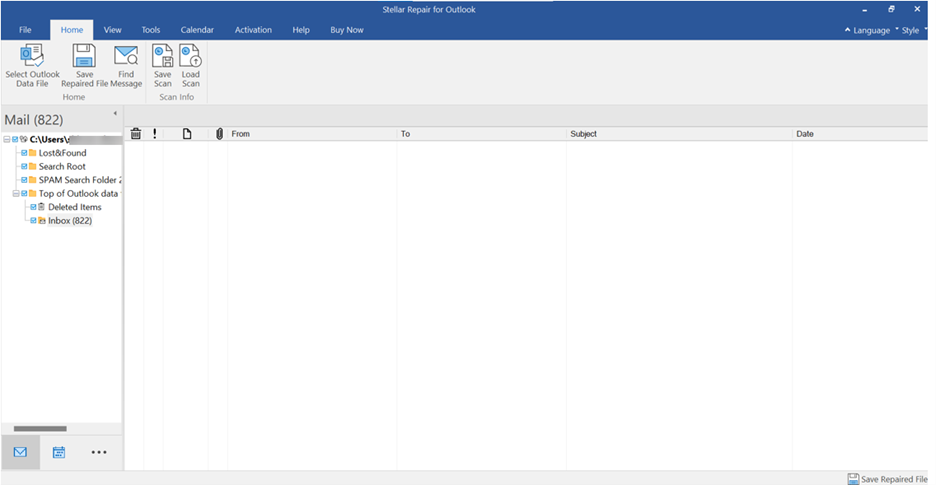
- Items marked in red in the preview are permanently deleted emails recovered from the PST. Verify these items before saving, as they represent data that ScanPST would typically discard.
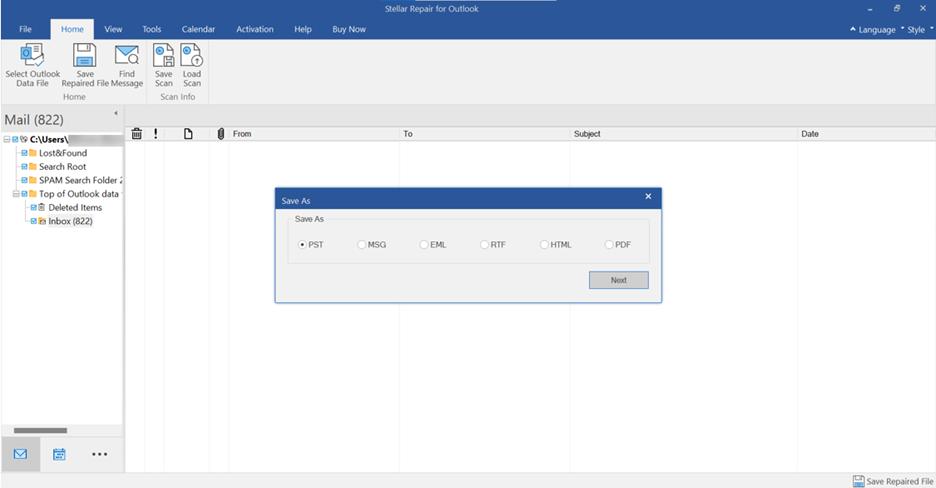
- Now, click Save Repaired File.
- Select the file format like PST, HTML, etc.
- Click OK.
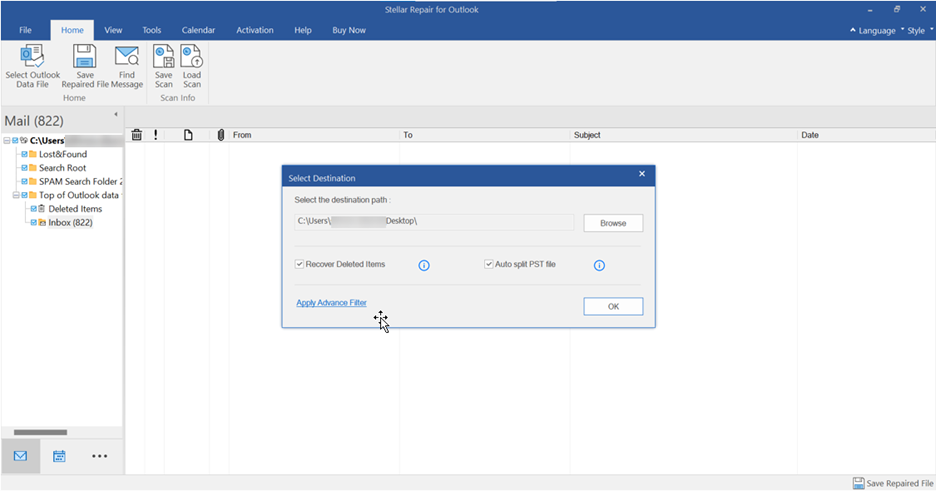
- Browse the location where you want to save the PST file and select it.
- Choose the Recovered Deleted Items and Auto Split PST file options based on your preferences.
- Click OK.
Now, you can import the repaired PST file into any Outlook and recover your mailbox data.
Solution 4 — Restore PST from Backup
If you already have a backup copy of your data file, then you can restore your mailbox data quickly. It is one of the safest ways to recover your mail items. In this method, you can simply replace the corrupted PST file with the healthy backup copy.
Here’s how to do:
- Close Outlook completely.
- Go to your backup location.
- Find the backup PST file.
- Copy the backup PST to: %localappdata%\Microsoft\Outlook\
- Rename it to replace the corrupt PST.
- Open Outlook — it will load from the backup PST.
When not to use this method?
Avoid restoring from a backup if it predates the latest data stored in your PST file. Rather, try to retrieve the most recent emails using Solution 1 or 3, and use Solution 4 to retrieve older emails from the backup if needed.
To Conclude
If your ScanPST fails or is unavailable, recovery methods depend on the severity of corruption of your PST file. If your Outlook can open the PST, and you need to recover only accessible items, then go with Solution 1. In this solution no tools are needed, and the process usually takes 15-30 minutes for a common mailbox. If your PST is up to 5 GB and ScanPST fails then try Solution 2 – Stellar Online PST Repair. This is a web-based service so you don’t need to install any software. If ScanPST hangs, crashes, or the PST is encrypted, larger than 20 GB, or severely corrupted then you can use Solution 3 – Stellar Repair for Outlook. This utility handles all corruption levels, previews recovered items before saving and can auto‑split oversized files. If you have back up your data file recently then you can use Solution 4 – Restore from backup. It is a fastest and safest way to recover data. In any case, it’s always best to make a copy of the corrupted PST file before you try to repair it.
FAQs
