‘I am not able to access my iCloud email via the Mail app on my iPhone 17. I get the message ‘Cannot Get Mail: The connection to the server failed ’ Although my Gmail is working on Mail app. How can I fix the issue?’
Are you also not able to access mails on your iPhone? Is your Mail App giving error messages related to mail server connection failure while you try to open mail on your iPhone?
Whether it is Gmail, Yahoo!, Hotmail, Rediff, or Outlook Exchange, your iPhone is the most convenient device to access mail on the go. Unable to read and reply to your important mails can be frustrating, as sometimes it may impact your work or personal life.
There can be many reasons for the failed connection to the mail server, from a poor Internet connection to an iOS bug.
This blog guides you on how to fix the iPhone error ‘ Cannot Get Mail: The connection to the server failed ’ and view your emails.
Methods to Fix iPhone error “Cannot Get Mail: The connection to the server failed”
Here are some methods to fix the iPhone error “Cannot Get Mail: The connection to the server failed”, listed below:
Method 1: Check the Internet connection on iPhone
First thing to check is your Internet connection. Whether using cellular data or Wi-Fi, ensure it is fast and continuous to avoid the ‘Mail server connection failed’ error on your iPhone.
Method 2: Restart your iPhone
Restarting the iPhone fixes most of the errors. Hold and press the Home and Power buttons until you see the Apple logo. Now try to open your emails via the Mail App. The mail server failure issue should be fixed.
Method 3: Delete and re-enter the mail account on iPhone
Delete your mail account and again add it. Re-entering the username and password often makes the mail work on your iPhone, without giving an error.
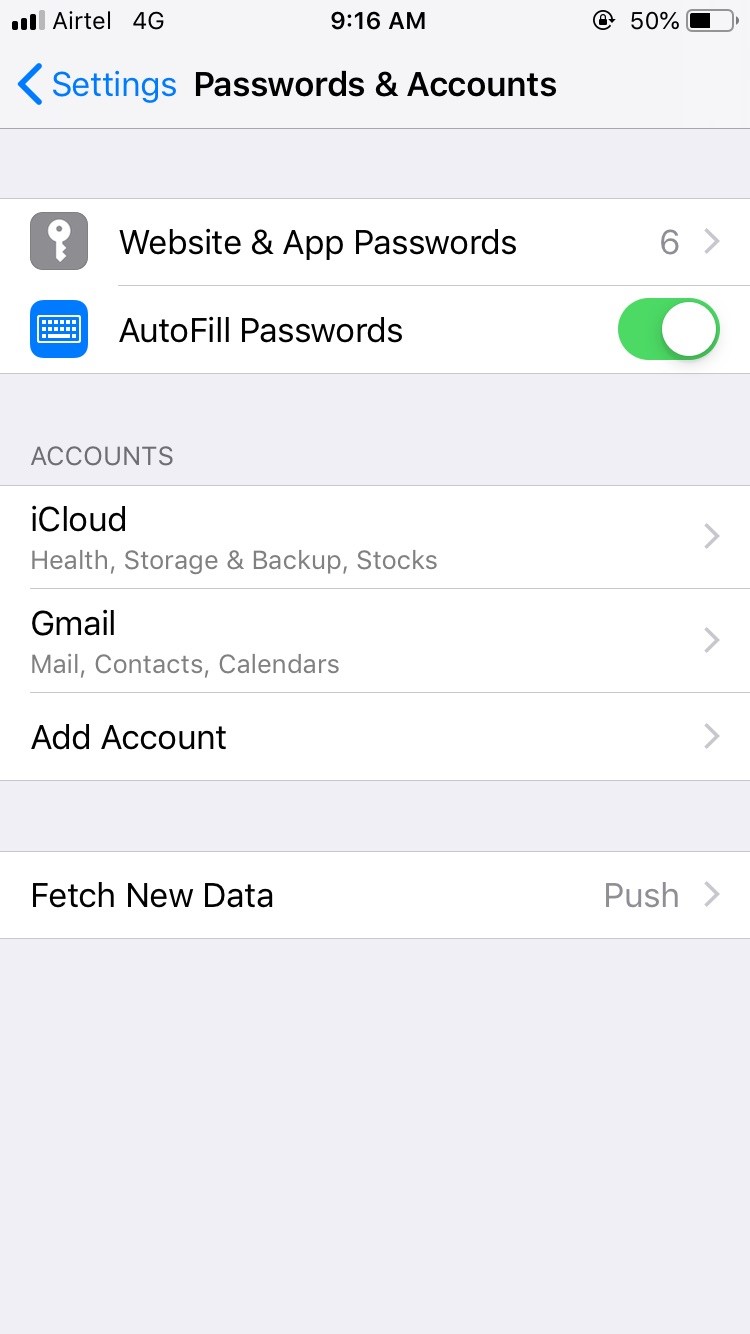
Steps to re-enter account & password:
- Go to Settings > Passwords & Accounts on iPhone
- Select the mail account and click Delete Account
- Go back to Account & Passwords. Add your account again.
Method 4: Change the mail account password on iPhone
Changing your mail account password can also sometimes fix the iPhone error, ‘Cannot Get Mail: The connection to the server failed.
In case your Mail App is not opening at all, you can change your password by visiting the website of your mail account via Chrome, Safari, or Opera.
Method 5: Move emails to a different folder
Some users were able to open their mail by moving it to a temporary folder from the Inbox. You can also try to open your emails by this method.
Steps to move emails to the temporary folder:
- Select the mails from the Inbox that you want to open
- Use the ‘Move’ option to move mails to a new folder
- Visit the folder and access the emails
Method 6: Mail Server Connection Error on iPhone
If you are unable to access your Outlook mails on your iPhone due to mail server connection error, contact your Exchange administrator. There are chances he/she has unchecked the permission on Exchange server that allows you to access mails on your iPhone. The exchange administrator will change the Microsoft Exchange Security settings. You can then access your Microsoft Outlook mails on your iOS device.
Method 7: Reset Network Settings on your iPhone
If the above ways fail to fix ‘Cannot Get Mail: The connection to the server failed’ problem move to ‘Reset Network Settings’ method.
Steps to reset network settings on iPhone:
- Settings > General > Reset > Reset Network Settings
- Enter your passcode
- Choose Reset Network Settings
- Restart your iPhone
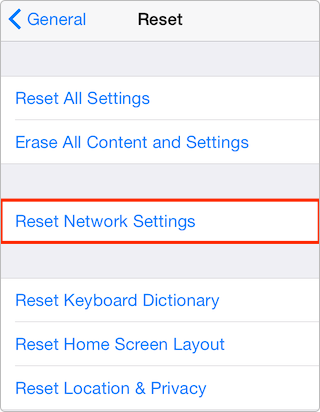
Note: Reset Network Settings clears your saved Wi-Fi networks, passwords and cellular settings. You will need to re-enter your network preferences and passwords after following this method to resolve mail server connection error on iPhone.
Method 8: Factory reset your iPhone
Choose this method as the last option to fix the problem of being unable to get mail.
Hard reset or factory reset iPhone leads to the complete loss of iPhone data. Always back up your device in iTunes or iCloud before performing a hard reset.
Forgot to take an iPhone backup or are unable to restore data from iTunes or iCloud?
Use iPhone Data Recovery Software by Stellar to recover lost information. The do-it-yourself software helps you to get back lost data from your iPhone and iTunes.
It safely and quickly recovers contacts, call history, photos, videos, music, mail attachments saved in iPhone, chat messages (WhatsApp, WeChat, Line, Viber, Tango, and Kik), notes, and other app documents.
Conclusion
Whenever you witness ‘Cannot Get Mail: The connection to the server failed‘ while trying to access mails on your iPhone, first check your cellular data or Wi-Fi. Next, consider other troubleshooting methods such as re-entering your mail account, changing the mail account password or contacting the Exchange administrator. Remember, solutions like Reset Network Settings and Factory Reset involve the risk of iPhone data loss. Always rely on secure Stellar Data Recovery for iPhone software to reclaim your data in the unfortunate event of data loss from your device.
