Table of Contents


    iPhone Data Recovery

    How to Fix ‘Cannot Get Mail – The connection to the server failed’ Error on iPhone


    Table of Contents

      Summary: If you get the error “Cannot Get Mail – The connection to the server failed” on your iPhone device, it means that the Mail app is unable to connect to the email server, usually due to incorrect mail account settings, slow internet connectivity, outdated iOS, authentication issues, or server downtime. This does not necessarily imply that there’s a problem with the iPhone. This mail connection error commonly results from misconfiguration in IMAP or POP details. You can fix the error by checking if your internet connection is working properly, next you can restart the iPhone and check if iOS is up to date. If the issue continues, remove the affected mail account and add it again using the correct server details provided by the email service. You can also fix the “Cannot Get Mail – the connection to server failed” error by resetting network settings, updating the email password on the device after a password change, or temporarily switching between Wi-Fi and mobile data to rule out network restrictions. When the incoming and outgoing server settings, SSL options, and authentication methods match the email provider’s requirements, the Mail app is usually able to reconnect to the server and start syncing emails again. If the server remains unavailable, contacting the email service admin or checking the provider’s server status is the next practical step.

      ‘I am not able to access my iCloud email via the Mail app on my iPhone 17. I get the message ‘Cannot Get Mail: The connection to the server failed ’ Although my Gmail is working on Mail app. How can I fix the issue?’

      Are you also not able to access mails on your iPhone? Is your Mail App giving error messages related to mail server connection failure while you try to open mail on your iPhone?

      Whether it is Gmail, Yahoo!, Hotmail, Rediff, or Outlook Exchange, your iPhone is the most convenient device to access mail on the go. Unable to read and reply to your important mails can be frustrating, as sometimes it may impact your work or personal life.

      There can be many reasons for the failed connection to the mail server, from a poor Internet connection to an iOS bug.

      This blog guides you on how to fix the iPhone error ‘ Cannot Get Mail: The connection to the server failed ’ and view your emails.

      Methods to Fix iPhone error “Cannot Get Mail: The connection to the server failed”

      Here are some methods to fix the iPhone error “Cannot Get Mail: The connection to the server failed”, listed below:

      Method 1: Check the Internet connection on iPhone

      First thing to check is your Internet connection. Whether using cellular data or Wi-Fi, ensure it is fast and continuous to avoid the ‘Mail server connection failed’ error on your iPhone.

      Method 2: Restart your iPhone

      Restarting the iPhone fixes most of the errors. Hold and press the Home and Power buttons until you see the Apple logo. Now try to open your emails via the Mail App. The mail server failure issue should be fixed.

      Method 3: Delete and re-enter the mail account on iPhone

      Delete your mail account and again add it. Re-entering the username and password often makes the mail work on your iPhone, without giving an error.
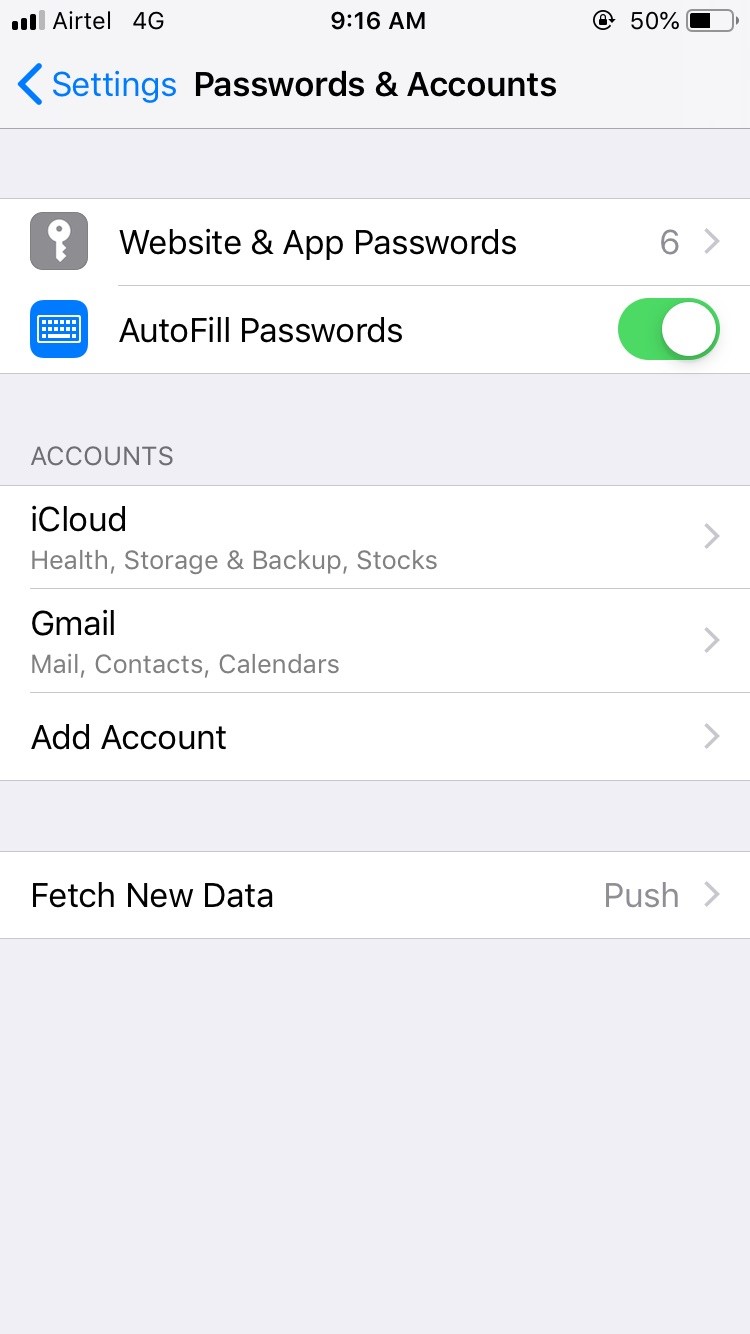
      Delete and re-enter the mail account on iPhone

      Steps to re-enter account & password:

      • Go to Settings > Passwords & Accounts on iPhone
      • Select the mail account and click Delete Account
      • Go back to Account & Passwords. Add your account again.

      Method 4: Change the mail account password on iPhone

      Changing your mail account password can also sometimes fix the iPhone error, ‘Cannot Get Mail: The connection to the server failed.

      In case your Mail App is not opening at all, you can change your password by visiting the website of your mail account via Chrome, Safari, or Opera.

      Method 5: Move emails to a different folder

      Some users were able to open their mail by moving it to a temporary folder from the Inbox. You can also try to open your emails by this method.

      Steps to move emails to the temporary folder:

      • Select the mails from the Inbox that you want to open
      • Use the ‘Move’ option to move mails to a new folder
      • Visit the folder and access the emails

      Method 6: Mail Server Connection Error on iPhone

      If you are unable to access your Outlook mails on your iPhone due to mail server connection error, contact your Exchange administrator. There are chances he/she has unchecked the permission on Exchange server that allows you to access mails on your iPhone. The exchange administrator will change the Microsoft Exchange Security settings. You can then access your Microsoft Outlook mails on your iOS device.

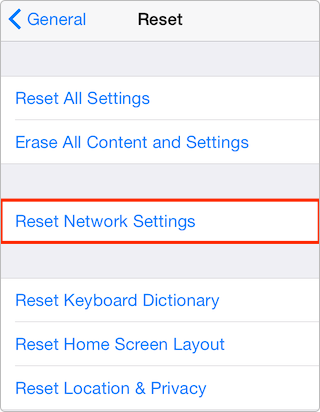
      Method 7: Reset Network Settings on your iPhone

      If the above ways fail to fix ‘Cannot Get Mail: The connection to the server failed’ problem move to ‘Reset Network Settings’ method.

      Steps to reset network settings on iPhone:

      • Settings > General > Reset > Reset Network Settings
      • Enter your passcode
      • Choose Reset Network Settings
      • Restart your iPhone
      Reset Network Settings on your iPhone
      Note: Reset Network Settings clears your saved Wi-Fi networks, passwords and cellular settings. You will need to re-enter your network preferences and passwords after following this method to resolve mail server connection error on iPhone.

      Method 8: Factory reset your iPhone

      Choose this method as the last option to fix the problem of being unable to get mail.

      Hard reset or factory reset iPhone leads to the complete loss of iPhone data. Always back up your device in iTunes or iCloud before performing a hard reset.

      Forgot to take an iPhone backup or are unable to restore data from iTunes or iCloud?

      Use iPhone Data Recovery Software by Stellar to recover lost information. The do-it-yourself software helps you to get back lost data from your iPhone and iTunes.

      It safely and quickly recovers contacts, call history, photos, videos, music, mail attachments saved in iPhone, chat messages (WhatsApp, WeChat, Line, Viber, Tango, and Kik), notes, and other app documents.

      Download for Windows Download for Mac

      Conclusion

      Whenever you witness ‘Cannot Get Mail: The connection to the server failed‘ while trying to access mails on your iPhone, first check your cellular data or Wi-Fi. Next, consider other troubleshooting methods such as re-entering your mail account, changing the mail account password or contacting the Exchange administrator. Remember, solutions like Reset Network Settings and Factory Reset involve the risk of iPhone data loss. Always rely on secure Stellar Data Recovery for iPhone software to reclaim your data in the unfortunate event of data loss from your device.

      About The Author

      Harsha Alamchandani linkdin

      Harsha is a technical expert who loves Mondays, technology and is a big time Apple fan. She knows her way around the data loss problems and is always looking for ways to help out people.

      46 comments

      1. This problem happens intermittently on my iPhone 8 and on my iPad Air 2, both using the IOS app. An hour or so later, it’s fine without me doing anything other than swiping up to close to the app after the failure. I access my Gmail account from this app at the same time on both devices and have no problem getting those emails. So I don’t think any of what you suggest will work. I posted my Gmail email below so I can read your response. 😀

        1. Hi Phil,
          Thank you for your comment. It seems like the issue you are experiencing is intermittent and might be related to the iOS app. However, if you are still facing the problem, you can try the solutions mentioned in the article such as checking your internet connection, verifying your login details, resetting your device’s network settings, or deleting and re-adding your email account on your device. These steps might help in resolving the issue. If the problem persists, you can contact your email service provider for further assistance. We hope this helps!

      2. Thanks a zillion. I’ve had a problem with my iphone for several years and with several models. I just moved the problem from an old model to a new again and again.
        My notes somtimes dispeared, my e-mail had often connection problems, my chrome was very slow. I could never find an answer on google and was sceptical with your advices as well. It turns out that I had an old gmail password stored under passwords. I deleted it and my iphone went from iphone 5 to iphone 13 😀

        1. Hi Bjørn,
          I am glad that I could be of help to you. And I must say this is the same reason we make such issue-eradicating blogs for people who face such problems daily. So keep on reading and sharing whatever you like from our Articles & Blogs section to the users who might need help in their cases.
          Stay tuned for more updates on more.

      3. I had facing this issue when I upgrade iOS 12 in my iPhone I tried to search the web and found your blog. This information is helpful for me to fix the mail issue. Thanks a lot!

      4. I had an issue with my iOS 9 suddenly stopped being able to receive mail from yahoo server. What should I do? Any solution would be appreciated!

        1. Hi Irfan, Please try methods 3 after you updated your iOS, remove and re add your yahoo mail on your device. Thanks!

      5. hello, i have a server problem on my iPhone 6.
        can you help me solve this problem? please
        my Game Center does not work because of this issue

        1. Hi Rashid, Kindly follow the given method to fix the iPhone problem. If you have any iPhone data loss issue you can try our software demo version and see the preview of files. For more information, you can contact our support team through email support[@]stellarinfo.com or call at +1-877-778-6087.Thanks!

      Leave a comment

      Your email address will not be published. Required fields are marked *

      Google Trust
      Related Posts

      WHY STELLAR® IS GLOBAL LEADER

      Why Choose Stellar?

      • 0M+

        Customers

      • 0+

        Years of Excellence

      • 0+

        R&D Engineers

      • 0+

        Countries

      • 0+

        PARTNERS

      • 0+

        Awards Received

      BitRaser With 30 Years of Excellence
      Technology You Can Trust
      Data Care Experts since 1993
      ×