Table of Contents


    Raid Data Recovery

    How to Recover Data from RAID Based NAS?


    Table of Contents

      Network Attached Storage (NAS) is a centralized file storage device connected to a local area network. The storage drives in a NAS enclosure can be configured to act either as a single storage pool or a RAID. RAID-based NAS is preferred because it offers increased storage capacity, data redundancy, improved data availability, improved read/write performance, and scalable architecture.

      Much like any conventional storage device, a RAID-based NAS is susceptible to failure or data loss. This can happen for several reasons. In this article, we will take a look at the reasons behind RAID-based NAS failure and see how to recover data from it.

      Common RAID Configurations used in NAS Device

      Before we move on to the reasons behind RAID-based NAS failure, let’s take a look at some commonly used RAID arrays in NAS setup:

      Here is a table showing features of the popular RAID-based NAS setups:

      Type of RAIDData Storage Technology UsedMin. No. of Drives RequiredFault Tolerance (Max. no. of drive failure/s allowed)
      RAID 0Striping2Not available
      RAID 1Mirroring21 drive failure
      RAID 5Striping  + Distributed Parity31 drive failure
      RAID 6Striping + Double Distributed Parity4Up to 2 drives failure

      Reasons behind RAID-based NAS Failure

      There are several reasons why a RAID-based NAS setup fails:

      • Member drive/s failure due to mechanical wear or a logical error
      • Faulty RAID controller, SATA connectors, or NAS enclosure
      • Backplane issues
      • Improper or loose SATA connections
      • Buggy RAID controller firmware/NAS updates
      • Corrupted RAID configuration

      Best Way to Recover Data from RAID-based NAS

      If your RAID-based NAS setup is in a degraded state, you need to first perform a preliminary check before rebuilding the failed RAID array. This will help you identify the cause of failure, gauge the extent of drive failure, and find any possibility for data recovery.

      If the number of failed drives is within the permissible limits (fault tolerance) of the configured RAID, there is a chance to recover data from the failed RAID-based NAS using a specialized NAS data recovery software. Otherwise, you would need to use a backup to restore the lost data after rebuilding the RAID-NAS setup.

      To recover data from a failed RAID-based NAS device, you can use Stellar Toolkit for Data Recovery – a powerful NAS data recovery software. You can use it to recover data from NAS device in case of volume formatting, member drive failure, or more. It can also recover accidentally deleted files and folders from NAS device.

      Let’s look at some salient features of this advanced tool:

      • Simple-to-use DIY NAS/RAID recovery tool
      • Supports NAS devices of QNAP, ASUSTOR, and Synology
      • Recovers data from inaccessible or degraded RAID-based NAS setups
      • Virtually reconstructs the RAID (0, 5, and 6) for recovery
      • Supports data recovery from all VM image file formats, including VMDK, VDI, VHD, and VHDX
      • Recovers files and folders from HDDs, SSDs, flash drives, etc.
      • Compatible with NTFS, FAT16, FAT32, exFAT, APFS, HFS, HFS+, Ext4, Ext3, and Ext2 formatted storage devices

      Here’s how to use Stellar Toolkit for Data Recovery to recover data from RAID-based NAS:

      • Carefully disconnect the member drives from the NAS enclosure and label them in the correct order.
      • Next, connect the member drives in the same order to a Windows PC with the help of a RAID controller interface card and SATA cables.
      • Now, launch Stellar Toolkit for Data Recovery on the same system.
      • On the Select What to Recover screen, select the type of data to recover. By default, All Data is selected. Click Next.
      Select What to Recover
      • The Recover From screen will appear. You will see various drives and connected devices.
      • Here, the tool will automatically detect the connected drives and display the NAS with its brand name under the Connected Drives section. Click on Scan to proceed.
      Select Synology Disk and click Scan
      • The software will scan the connected NAS drives and show the recoverable data.
      • After previewing the files, choose the files that you want to recover. Click Recover.
      select files to recover
      • Next, click on Browse to select the location to save the selected data.
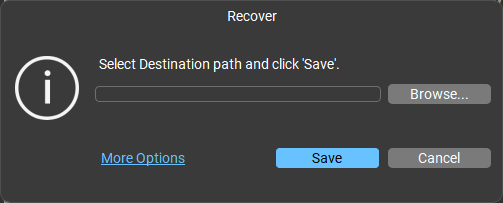
      select the location to save the selected data
      • After selecting the destination, click on Save. The software will start saving the recoverable files at the selected location.
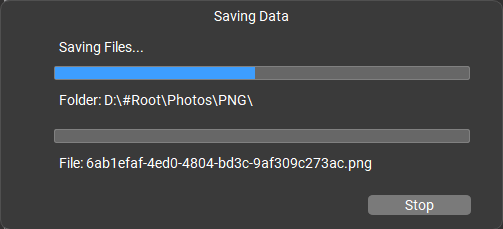
      click on Save
      • When finished, it will show the Data saved successfully message.
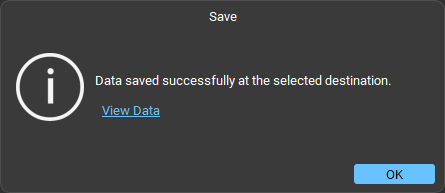
      save data successfully

      Conclusion

      A RAID-based NAS can fail due to a number of reasons discussed above. This could disrupt your business operations or jeopardize your critical data. In this situation, you can rely on a powerful NAS data recovery software, like Stellar Toolkit for Data Recovery. It can help you safely recover all the data from failed or inaccessible RAID-based NAS and other storage devices.

      About The Author

      Keshav Katyal linkdin

      A passionate writer driven by his interest in everything tech, Keshav Katyal has always been captivated by the latest gadgets since childhood. His interest in technology grew when he got his first gaming console, the Nintendo Game Boy Advanced. Hours and days of tinkering with old & new gadgets made his inner geek passionate about technology.

      18 comments

      1. When my RAID based NAS failed, I was devastated. But after doing some research, I found a data recovery service STELLAR DATA RECOVERY TECHNICIAN that was able to recover most of my data.

      2. We are a startup company and we had Raid failure and, due to our need had to attach our Raid with NAS and we tried some software but we didn’t get the desired result . But it seems stellar data recovery will help us. Hope for good. Thanks for the suggested software.

      3. Hi
        I have attempted to recover my raid5 with your app. When I get to the place select disks for the raid I can see only the system disk and I cannot see my 4 HDD attached via USB. As I am trying the app is there any restriction or your software does not work. I have checked the computer management and the discs are there.
        Could you please advice?

        1. The disks should be visible under RAID 5 tab. However, you may try to assign drive letter to disks if they are displayed as RAW. Then try the software.
          In case this doesn’t work, connect them through SATA cable.

      4. No do not need to scan the file again, Once you have scanned and can preview the recovered file from the demo version, you have to just put the license key in order to activate the Software In order to save to desired option available in the Software.

      5. Now, I have gained the lost access to data from lost RAID-based NAS. But, we can’t forget your role in our grand success.

      6. TS-809 PRO RAID 6, the format was done accidentally on bad advice. 809 Pro now
        states it is waiting to be initialized. NO ACTION. unit purchased 2009
        out of warranty.

        I would assume the indexing is now deleted and ready to continue the
        formating. I need to recover as there is no backup. can I recover the
        index?

        I have recovered a single disk. is it possible to recover this?

        operating with MACBOOK PRO 10.14.5 or can use PC Windows 10.

      7. Dear reader,

        Today my Sinology DS415+ died on me after installing the latest DSM. The blue light of death….
        I can get it to work for a couple of minutes but then the network connection get broken each time. I was reading your article here and was wondering if I could get my RAID 5 data recovered using this product —> Renkforce rf-docking-06 USB 3.0, eSATA SATA 4 poorten Harde schijf-dockingstation. I could fit in all 4 discs and use your software ?

        Thanks in advance

        Regards, Luc

        1. Hi Luc, You can connect your RAID drives to your Windows PC via any USB or SATA device. You need to connect all 4 drives at one time to recover data using Stellar Data Recovery Technician.

        1. Try the free demo of software for depth analysis. If you face any trouble, then feel free to share with us.

          Our team is ready to help you 24*5 (Mon-Fri).

      8. The tool supports the recovery of NAS storages from different vendors such as Buffalo LinkStation and Terrastation, Iomega StorCenter, Synology, LaCie, QNAP and other Linux-based NAS devices.

        you have define the different brand of NAS Box… i have netgear NAS box… is your software recover the data from netgear NAS

        1. Hello Jaldhi,

          We highly recommend trying the demo version of our software to determine whether the data could be recovered from Netgear NAS box or not.
          We would like to mention that the demo version of software scans the drive and allows you to preview the recoverable data.
          This application works on “what you see is what you can recover”. That means the files will be recovered in the same manner as you were able to see them in the preview window after the scanning is completed.

          1. Hi Jyoti,

            Once the demo version of the software is used, is it as simple as entering a license key to recover the files or will the scan need to be performed again?

            (Trying to avoid any extra operations against the formatted disks)

      Leave a comment

      Your email address will not be published. Required fields are marked *

      Google Trust
      Related Posts

      WHY STELLAR® IS GLOBAL LEADER

      Why Choose Stellar?

      • 0M+

        Customers

      • 0+

        Years of Excellence

      • 0+

        R&D Engineers

      • 0+

        Countries

      • 0+

        PARTNERS

      • 0+

        Awards Received

      BitRaser With 30 Years of Excellence
      Technology You Can Trust
      Data Care Experts since 1993
      ×