You’ve just settled in with a cup of coffee, ready to edit your client’s wedding video or product launch MP4 video. You hit play, and you see a ‘Cannot open MP4’ error message on your Mac.
It can seem frustrating at first, but not to worry, you haven’t lost your MP4 video. ‘MP4 won’t play on Mac’ is a common playback error on macOS that occurs due to codec incompatibility, improper handling of videos, file corruption, malware infection, or incomplete video transfer.
The good news is that you don’t need to be a tech expert to fix this. This guide explains why MP4 videos won’t play on Mac, and what you can do to repair them. Whether you’re dealing with an incompatible codec issue, a file download or transfer gone wrong, or just plain bad luck, this blog is your one-stop solution to bringing those videos back to life.
Why MP4 Videos Not Playing on Mac?
Most of the apps on Apple device can play MP4 video files. However, some apps won’t play MP4 on Mac due to incompatible codecs.
This is because MP4 is a container format which relies on different video/audio codecs, including MPEG-4 Part 10 (H.264/AVC) codec, MPEG-4 Part 2 codec, MPEG-H Part 2 (H.265/HEVC) codec, and AAC audio codec. You see, if your MP4 file actually uses a different codec than what is supported by Mac, then it won’t play.
Besides, you can’t play damaged or corrupt MP4 video files on Mac. Here are some of the frequent causes of MP4 file corruption:
- Damaged or missing video header
- Low-quality compression, transmission, or conversion during video editing
- Incomplete MP4 video download because of a shaky internet connection
- Outdated or other problems with the video player
- Mac system failure due to a power outage
While it may be difficult and tedious to repair MP4 files that are not playing on a Mac, you can use manual and automated tricks to repair damaged videos, as shown in the next section.
Suggested Read – How to Repair MP4 Video File Online for Free
5 Ways to Fix MP4 Not Playing on Mac
Here are some quick solutions you can try whenever the “MP4 won’t play on Mac’ error occurs:
1. Try a Different Video Player
The first (and easiest) fix is to use a different media player. Many built-in players, especially on Mac, support only the most common formats. If your video format is even slightly different, they show the “not supported” error.
The most widely used media player is VLC Media Player, which plays nearly every file format and codec. Try playing the video using VLC, if it plays, problem solved!
2. Restart your Mac
If MP4 files are not playing on Mac, close all the applications and restart it. As sometimes, a simple restart fixes minor system or app glitches.
Try playing your MP4 files again, if this doesn’t help, move to the next method.
3. Update QuickTime player
If QuickTime player can’t open video files, try to update it. Usually, when online, the app prompts you to download the latest version, if available. However, nowadays QuickTime updates are delivered through macOS system updates.
- Open System Settings > General > Software Update.
- Install any available updates. Restart your Mac if required.
Now check if the QuickTime player plays MP4 files.
4. Convert to AVI and try “Always Fix” Feature in VLC
VLC media player offers a built-in repair function for AVI video files. Therefore, if you are facing the issue of ‘MP4 video not playing on Mac,’ convert the unplayable video into AVI format and try this built-in repair feature.
Here are the steps to convert your MP4 file to AVI with VLC:
- Open the VLC media player.
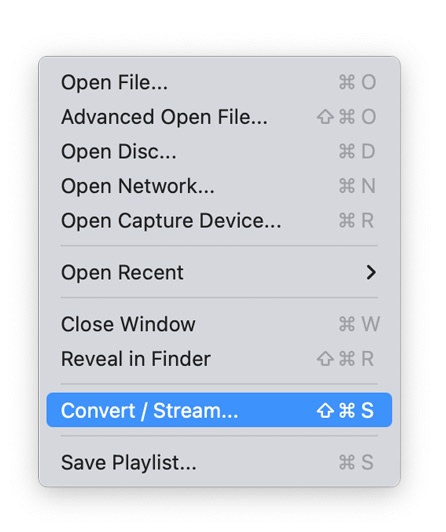
- Now go to File > Convert/Stream.
- Now add the unplayable file by selecting Open Media and then click on Customize.
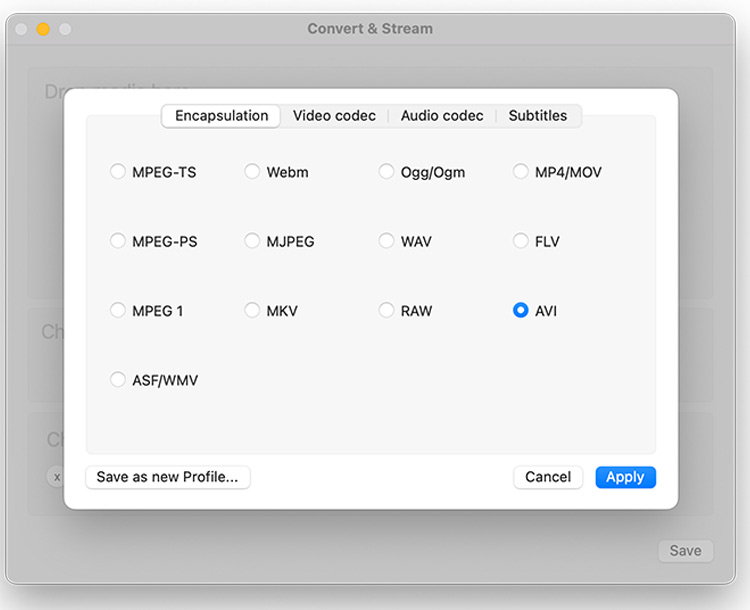
- In the Customize tab, select AVI from the menu and click Apply. Click Save to rename the file and save it in your desired location.
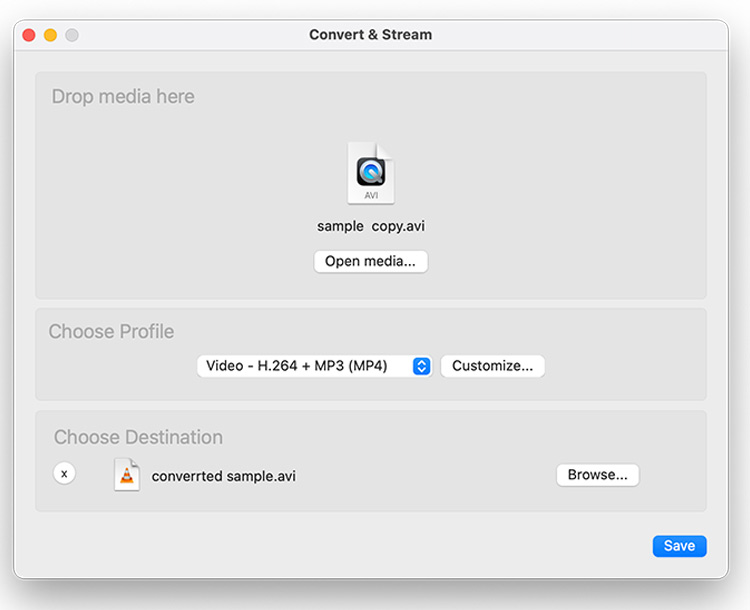
Use this converted file to implement the Always Fix setting on your VLC.
- Open the VLC and select the VLC tab from the menu at the top.
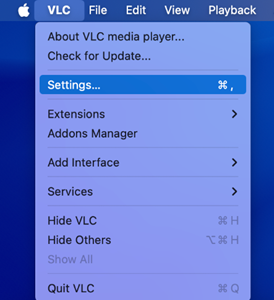
- Click on the Settings > Preferences tab, click the Forward Arrow icon at the top-right corner.
- Now select the Input/Codecs from the small pop-up menu.
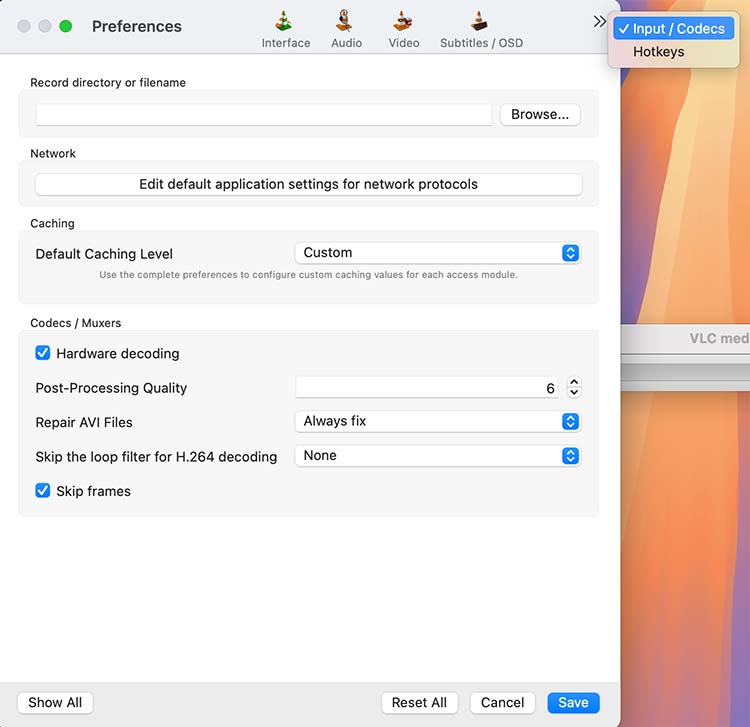
- Next, look for the Repair AVI files option on the Codecs/Mixers panel.
- Click on the drop-down tab beside it and select “Always Fix.”
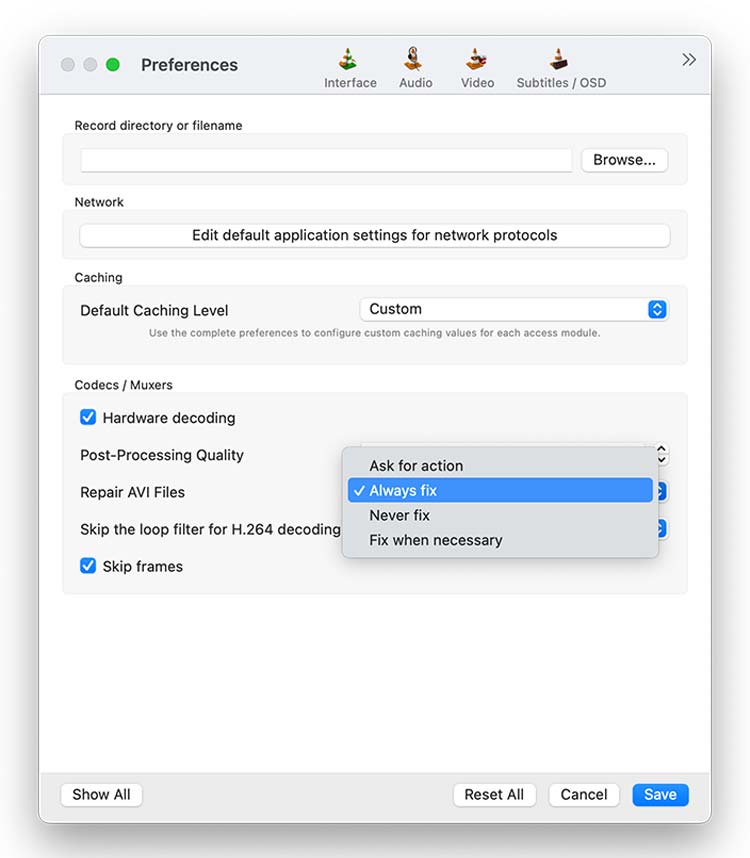
- Save this setting preference and try opening the unplayable MP4 file that was converted into AVI.
Note: If the “MP4 not Playing on Mac” error is because of minor corruption, the above steps might fix the error. But if the files are severely damaged, try out the next method.
5. Use Professional Video Repair Software to Repair MP4
One way to quickly fix corruption in MP4 files is by using Mac Video Repair Tool like Stellar Repair for Video. This software is easy to use and has lots of features that can assist you in resolving video file corruption. It can fix MP4 files corrupted during video editing, recording, transferring, or conversion on Mac.
In addition, Stellar Repair for Video can fix file formats, such as MOV, AVI, MKV, AVCHD, MJPEG, WEBM, ASF, WMV, FLV, DIVX, MPEG, MTS, M4V, 3G2, 3GP, and F4V from DSLR, iPhone, iPad, drones, etc. It provides a complete video file repair solution for macOS Monterey, Big Sur, Catalina, and older versions.
You can repair multiple MP4 videos, simultaneously, and download the repaired files at a desired location on your Mac. The free trial is for demo purposes only and provides a preview of repaired files up to 20% of the total video size.
This is how you can start the video repair process:
- Download Stellar Repair for Video from the official website and install it.
- Launch the application and click the “Add” button to select the corrupted MP4 video file you wish to repair.
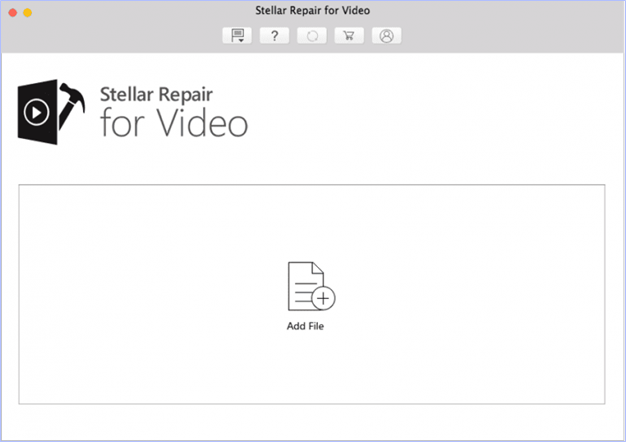
- Click Repair to initiate the repairing process. This may take up to several minutes to complete.
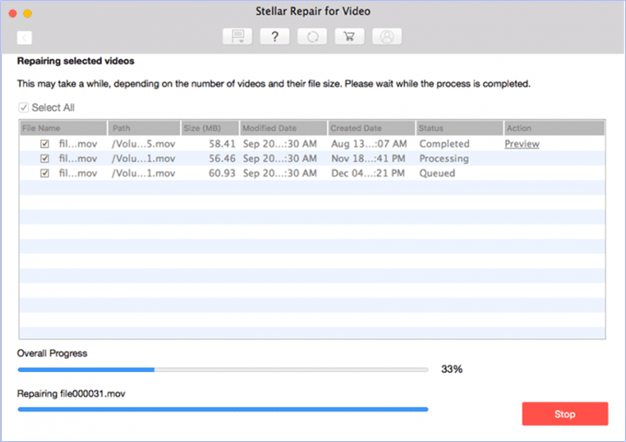
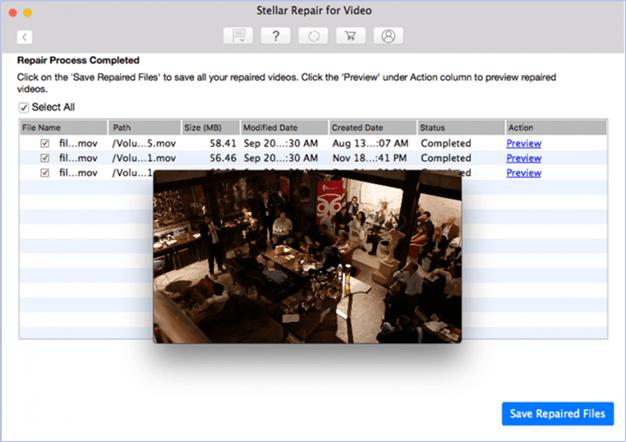
- When the files are repaired, preview them and select the ones you want to save. Then click on “Save Repaired Files” at the bottom-right corner.
Can You Download MP4 Codecs on Mac? (Important Note)
No, macOS does not allow installing video codecs system-wide like Windows does. Apple tightly controls codec support at the system level.
Bonus: Prevent MP4 corruption on Mac in the Future
You’ve solved the problem. Now let’s talk about how to avoid the MP4 corruption in the first place.
- Keep macOS and apps updated
- Install antivirus on your computer.
- Ensure complete transfer of the video file before disconnecting.
- Always work on a copy of the original video.
- Charge your Mac, iPhone, or camera battery to full while working on videos.
- Back up your videos using Time Machine or iCloud.
These tiny habits can save you hours later—and help you keep MP4 files safe.
Conclusion
When trying to watch videos on Mac, you might encounter errors like ‘MP4 not playing on Mac’. While this could be due to multiple reasons, the good news is that damaged or corrupted videos can be repaired through some easy manual tricks or automated file repair solutions like Stellar Repair for Video. If the manual methods don’t help your case, take the free trial of the video repair software.
The ‘MP4 not playing on Mac’ error feels intimidating. But most of the time, it’s a fixable error!
