Table of Contents


    NAS & Virtual drive recovery

    How to Recover Data from Broken or Crashed Synology RAID Set?


    Table of Contents

      Summary: If your Synology RAID set has degraded, crashed, or failed, your priority should be to recover the inaccessible data and files. You can recover data from a failed Synology RAID set using a specialized NAS data recovery software. In case there are multiple drive failure you can try rebuilding the array and use a backup to restore the lost data.

      A Synology RAID set can fail, degrade, crash, or break due to several reasons. These include mechanical failure with member drive/s, an issue with the hardware components (SATA cable, improper connections, or more), or a logical error introduced because of a malware or a buggy firmware update. When it happens, both the RAID set and the data on it are no longer accessible to the users. In such a scenario, DiskStation Manager (DSM) can be used to ascertain the number of failed drives. Then, a specialized NAS data recovery software to recover data from it.

      Read this blog to learn more about a broken Synology RAID set and discuss the step-by-step procedure to recover data from a broken Synology RAID set.

      What are the Signs of a Broken Synology RAID Set?

      Listed below are some signs to identify a broken/failed RAID set in a Synology NAS:

      • Unable to mount the storage pool in the NAS
      • DSM shows warning messages like “Problem with the partitions/volumes”
      • Drives showing abnormal status in Storage Manager
      • Sounds like clicking or grinding noise from the member drives; beeps from Synology NAS, etc.
      • LED indicator showing various statuses, such as a blinking green LED denotes Lost Configuration.

      How to use a NAS Recovery Tool to Recover Data from a Broken Synology RAID Set?

      As soon as the configured RAID set crashes or fails due to a member drive failure, you’ll receive a notification. Cease all read/write operations immediately and check the system logs, status, and health of the member drives from DiskStation Manager (DSM). This’ll help you gauge the extent of damage.

      Here, you’ll also find the details about the number of member drives that have failed. For example: If you are using RAID-5 or RAID-6 configurations that offer data redundancy, they can sustain 1-drive failure and 2-drive failure, respectively.

      If the number of disk failure is within the defined limits, you can easily recover data from your broken Synology RAID set using a specialized NAS data recovery software like Stellar Toolkit for Data Recovery.

      It is an advanced desktop-based application that recovers all kinds of data, such as files and folders, media files, etc., from a broken Synology RAID set. Its advanced data recovery algorithms can recover lost files from inaccessible Synology NAS drives. It can also recover lost files and folders from SHR and other types of storage media, like HDDs, SSDs, flash drives, CDs/DVDs, and more.

      Here is the stepwise procedure to perform Synology data recovery using this software:

      Pre-Activity:

      Before you use the NAS data recovery software:

      • Disconnect the member drives carefully from the NAS enclosure and label them in the given order.
      • Connect the drives in the same order to a Windows PC via a RAID controller interface card and SATA cables connected to it.

      After connecting the member drives to the Windows PC, follow the steps given below:

      • Download and install Stellar Toolkit for Data Recovery from its official website.
      • Launch the software.
      • The Select What to Recover screen will appear. Select the type of data to recover. By default, All Data is selected. Click Next.
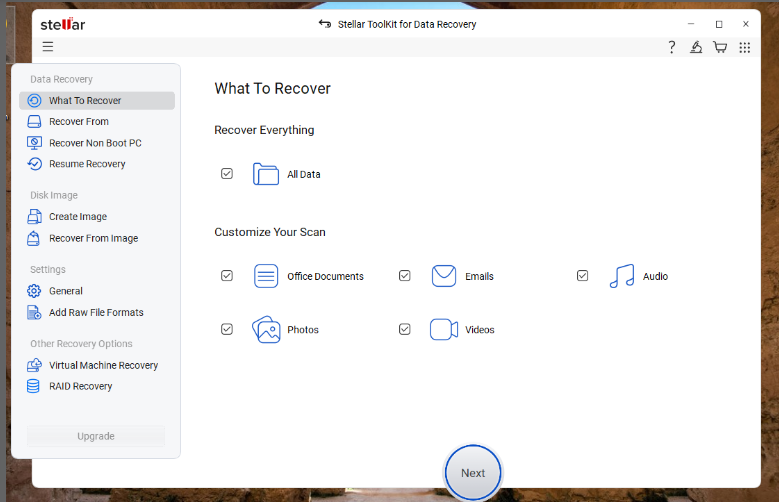
      Select What to Recover
      • Next, you will see the Recover From screen. The software automatically detects the connected drives and displays the NAS with its brand name under the Connected Drives section. Click Scan to proceed.
      • The software will scan the connected NAS drives and show the recoverable data.
      • After previewing the files, choose the files that you want to recover. Click Recover.
      • Next, click on Browse to select the location to save the selected data.
      • After selecting the destination, click on Start Saving.
      • The software will start saving the recoverable files at the selected location. When finished, it will show the Data Saved Successfully prompt.

      Related ReadSynology NAS: Data Organization and Recovery

      How to Rebuild the Failed Synology Raid Set?

      After you have successfully recovered data from your broken Synology RAID-based NAS, you can rebuild the failed RAID. However, it will depend upon the type of RAID configuration and the number of disk failure.

      If you have a one-bay model or have used a single drive to set up a storage pool without data redundancy (JBOD, single-disk pool, or SHR with 1 drive), you’ll need to restore lost data from a backup such as Synology C2 backup, Hyper Backup, etc., and then rebuild the pool.

      In case of a multi-bay model with multiple drives used to configure a RAID configuration with data redundancy – RAID-5, RAID-6, RAID-F1, SHR-1/SHR-2, you can

      • Hot-swap the failed member disk/s (if within the limits) and then rebuild the array.
      • Rebuild the array if the disk failure has exceeded the permissible limits, and then use an existing backup solution to recover lost data

      Related ReadRecovering Data from Synology NAS Server – A Comprehensive Guide

      How to Avoid NAS Failure and Consequent Data Loss?

      Here are some tips to prevent Synology NAS failure and avoid data loss from it:

      • Regularly monitor the health of member drives using S.M.A.R.T. tools.
      • Avoid interruptions while writing data or rebuilding the RAID array.
      • Avoid using RAID after a disk failure. It becomes prone to subsequent disk failures.
      • Use UPS and surge protectors to avoid frequent power cuts and surges.
      • Implement a robust backup strategy like the 3-2-1 backup strategy.
      • Avoid incorrect RAID configuration while rebuilding the failed RAID array.
      • Keep a professional NAS data recovery software installed on your system.

      Related ReadHow do I recover data from a Synology NAS that is no longer accessible?

      Conclusion

      Synology NAS based on RAID arrays may break or crash due to disk failure caused by logical, mechanical, or physical issues. Often, it occurs due to logical errors such as file system errors, virus or malware infection, abrupt shutdown, device driver issues, etc.

      You can use a powerful NAS data recovery software such as Stellar Toolkit for Data Recovery. It is a DIY tool to help you easily recover data from a failed, crashed, degraded, or broken Synology RAID set.

      It would be very difficult to recover data from a failed RAID 5 configuration in a Synology NAS as RAID 5 protects against only a single drive failure. A second disk failure results in complete array failure and data loss. In such a scenario, you can try recovering data using a professional data recovery software. But if this doesn’t work, use Synology C2 backup, Hyper Backup, or any other existing backup to restore lost data after rebuilding the failed RAID set from scratch.
      The time required to recover data from a Synology RAID using Stellar Data Recovery Toolkit depends upon several factors – RAID configuration, size of each member drive, number of drives in the RAID set, level of corruption (file corruption due to bad sectors), health of the drives, and more.

      Synology NAS devices use beeping to notify you of hardware or system problems. Read this guide to find out more about these audible system alerts in Synology NAS devices.

      About The Author

      Keshav Katyal linkdin

      A passionate writer driven by his interest in everything tech, Keshav Katyal has always been captivated by the latest gadgets since childhood. His interest in technology grew when he got his first gaming console, the Nintendo Game Boy Advanced. Hours and days of tinkering with old & new gadgets made his inner geek passionate about technology.

      11 comments

      1. Tried a few methods before stumbling upon your blog. Your concise steps and practical tips made the data recovery process less intimidating. Thank you!

      2. As a system administrator, I’ve seen my fair share of RAID array failures, and it can be quite nerve-wracking. Your blog post is an excellent guide for users and IT professionals alike who need to recover data from SSD RAID arrays. One additional precaution I’d like to suggest is maintaining a log of RAID maintenance and regularly monitoring the health of drives to catch any issues early on. Prevention is always better than cure when it comes to critical data! Keep up the good work!

      3. Thanks for sharing this helpful article on how to recover data from a broken or crashed Synology RAID set. I’ve experienced similar issues with my own NAS device, and it can be incredibly frustrating trying to access your important files and I was able to recover my important documents by using stellar data recovery technician.

      4. The step-by-step guide provided in the post is well-structured and easy to follow, making it accessible even for users who may not have extensive technical knowledge. The explanation of common causes for RAID failures, such as disk errors or power outages, helps readers understand the potential reasons behind their own issues.

      5. Does “Rebuild RAID” step make any changes to the actual drives? My Synology RAID (SHR) is totally fine, I just need to recover accidentally deleted files, and then planning to use all drives in NAS again.
        So, I do not want to modify existing data or damage RAID structure in any way. Also, what if I choose wrong drive order?

        1. Hi, Alexander

          Thanks for reaching out.If you choose to rebuild your RAID, it may make changes to the actual drives. Rebuilding the RAID involves copying data from the remaining drives onto the new drive, which can overwrite any existing data on the new drive.
          To recover accidentally deleted files, you can try using STELLAR DATA RECOVERY Toolkit software instead of rebuilding the RAID. This way, you can recover the deleted files without modifying any existing data or damaging the RAID structure.
          If you choose the wrong drive order, it can lead to data loss or corruption. It’s important to ensure that the drive order is correct before rebuilding the RAID.

      6. One of my volumes is crashed, the system is not getting powered on and data is not accessible from the RAID array. So by using the RAID recovery software do I need to rebuild the array or it will be done virtually to access the data again?

      7. The feature of monitoring the status of drives is awesome. This helps us to replace drives which had bad sector Thanks

      8. Can we do this using the Mac version of Stellar Data Recovery Technician? or is this capability is only available on the Windows version? Thanks in advance.

        *totally in panic. My Synology drive crashed with no other backups. help!

      9. Can you elaborate on Step 1? If I have 5 sata 8tb drives configured in a shr2 raid format what equipment cables controllers etc would I need to connect all of that to my windows machine?

        1. You don’t need any controller but may need a PCIe SATA Expansion card to connect multiple drives via SATA Cable. You may also use SATA to USB Converter but check if your system has 5 USB 3.0 slots. USB 2.0 also work but the process will be much slower.
          Once connected, open the Disk Management tool to check if all drives are shown. Then use the software to rebuild a virtual RAID by following the steps and recover your data. After recovery, you can rebuild RAID from scratch and then move your recovered data to new RAID array.

      Leave a comment

      Your email address will not be published. Required fields are marked *

      Google Trust
      Related Posts

      WHY STELLAR® IS GLOBAL LEADER

      Why Choose Stellar?

      • 0M+

        Customers

      • 0+

        Years of Excellence

      • 0+

        R&D Engineers

      • 0+

        Countries

      • 0+

        PARTNERS

      • 0+

        Awards Received

      BitRaser With 30 Years of Excellence
      Technology You Can Trust
      Data Care Experts since 1993
      ×