stellar data recovery
search
data recovery services
My status

Sales Contact Numbers

USA : 1-877-778-6087
UK : +44-203-026-5337
Australia & APAC : +61-280149899
Worldwide : +91-921-395-5509

stellar data recovery
powerpoint recovery software Stellar Phoenix PowerPoint Recovery Software v.1.0

PowerPoint Recovery Software


A Microsoft PowerPoint Recovery software that can repair .ppt and .pptx files. The software repairs all the objects of an MS PowerPoint file—color, charts, images, headers, footers, etc. The PowerPoint Recovery tool supports PowerPoint 2007, 2003, 2002, and 2000, and repairs files that have been corrupted due to improper system shut down, virus infection, operating system corruption, etc.

  • Overview
  • Key Features
  • Spec
  • FAQs
  • Support
  • Testimonials

Features of Stellar Phoenix PowerPoint Recovery Software :

  • Repairs all the constituents of a PowerPoint presentation—text, graphical images, Word Art Objects, etc.
  • Retrieves Headers and Footnotes.
  • Repairs all MS PowerPoint files—.ppt, .pptx
  • Retains all the information while restoring files.
  • Raw Recovery can also be performed using Stellar Phoenix PowerPoint Recovery.
  • Supports MS PowerPoint 2007, 2003, 2002, and 2000.
  • Supports Windows 7, Vista, XP, 2000 and NT operating systems.

PPT Recovery needs to be performed when PowerPoint files get corrupted. PowerPoint files can get damaged due to umpteen reasons :


  • Application malfunctioning
  • System has been shut down incorrectly
  • The Operating System is corrupted
  • Virus infection
  • Fluctuation in power
  • Human errors
  • Sabotages


Following error messages indicate corruption of the PowerPoint file :


  • PowerPoint can't read.
  • PowerPoint cannot open the file.
  • There was an error accessing...
  • "POWERPOINT.exe has generated errors and will be closed by Windows. You will need to restart the program. An error log is being created".
  • "???? .ppt cannot be accessed. The file may be read-only or you may be trying to access a read-only location. Or, the server on which the presentation is stored on, may not be responding".
  • The file may be corrupt, in use, or of a type not recognized by PowerPoint.


Stellar Phoenix PowerPoint Recovery v1.0, can Recover PPT and PPTX files after any data loss situation including the above listed problems.


PPT Repair Software - Detailed Features :


Stellar Phoenix PowerPoint Recovery v1.0 an MS PowerPoint Recovery Software that repairs all damaged PowerPoint files.


Stellar Phoenix PowerPoint Recovery software provides various options to select any corrupted file for repair. You can search for files even if you don't know where they were saved on your drive, and create a log of the whole process. The software also have a RAW Recovery functionality whereby you can recover extremely corrupt files in raw format.


Below listed are the various options provided in the 'toolbar' of the PowerPoint Repair Software that help you to select/remove, scan, and repair your damaged file.


There is also 'Help' icon in the toolbar that guides you in case of any difficulty.


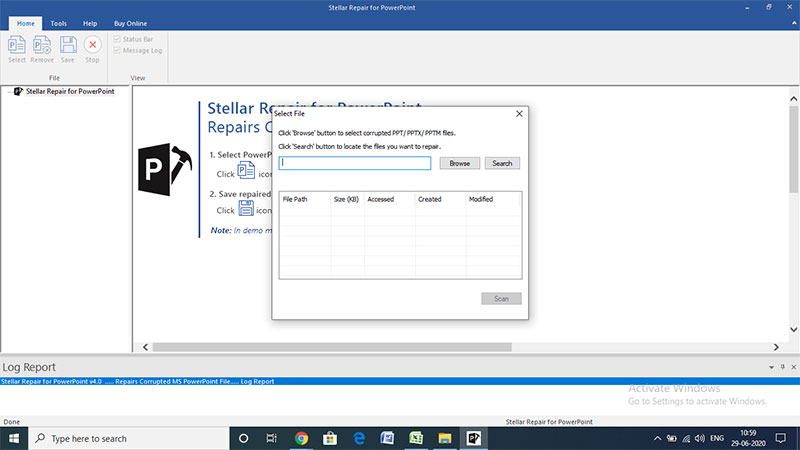
Add File To Tree View Icon : Selecting this icon allows you to select the files you wish to repair. On selecting this option, a window with three other options opens up:


  • Select File : This option allows you to simply select the PowerPoint file to be repaired.
  • Select Folder : This option should be used when you wish to select multiple files. It selects all the PowerPoint files from a particular folder.
  • Search Files : When you are unsure of the location of the files to be repaired, you should select this option. It gives you two more choices to enhance the search process :
    • Look in : This gives a drop-down list from where you can select the drive on which the files are saved. Only files from that drive will be shown in the search results.
    • File type : Allows you to type the file type (.ppt or .pptx). The search will only show files with that particular extension.


Note : The 'Search in Sub-folders' check box at the bottom of the screen option should be chosen when there are files in the sub-folders (of the chosen drive/folder) which you wish to repair. Unselecting this option means that the software will only limit it's scan to the folders, and recover data therein.


After selecting the file(s) to be recovered, clicking the 'ADD' icon will add the files to the 'Tree View' on the left of the screen.


The scan results are then displayed on the lower right pane of the screen. Thumbnails of the recoverable files are displayed above it (on the upper right pane).


  • Remove Files from Tree Icon : Selecting this icon allows you to remove a file from the tree view on the left side of the screen. When you aren't sure of the files to be recovered, you can first search and then list all the available files. You can then remove the unwanted files.
  • Start Repair Icon : Selecting this icon enables you to start the repair of the files displayed in the tree. The recovered files are saved to the destination chosen by you.
  • Stop Scan Icon : Selecting this icon stops the scanning process done to search files using the 'Search Files' option in 'Add Files to Tree View' option.
  • Help Icon : Clicking this icon opens another window which has various topics to guide you, in case, you face any problems while using the software.
  • Updates Icon : This icon allows you to search, and update the current version of Stellar Phoenix Photo Recovery to the latest version.
  • About Icon : Clicking this icon, gives detailed generic information about the software.
  • Other Functions : There are a number of other functions which are performed by the software.
    • Creating Log : Under 'View', select the 'Message Log' option. This keeps a record of all the activities performed by the software.
      • To Save Log, select the 'Save Log' button under Tools in the Menu. When the Save As window opens, select the destination where you would like to save the log that has been created.
      • To delete this log, select the 'Clear Log' option under Tools in the Menu.
    • RAW Recovery : This option is available under Tools in the Menu. If a PPT file is badly damaged, one can use this option to recover the file. It is then recovered in RAW format i.e., without any internal formatting, indentations, etc.


Download Stellar Phoenix PowerPoint Recovery demo version to preview Recoverable PowerPoint files and to have a glimpse of its functionalities.


Key Features : Stellar Phoenix PowerPoint Recovery v1.0


  • Repairs the PowerPoint files (such as .ppt, .pptx) created with varied versions of Microsoft PowerPoint.
  • Recovers PowerPoint files with all formatting and attributes
  • Recovers PowerPoint files same as original
  • Preserves everything when restoring files
  • Automated and quick analysis
  • Stellar Phoenix PowerPoint Recovery v1.0 provides absolute repair of .ppt and .pptx files after error messages like:
    • PowerPoint cannot open the file.
    • The file may be corrupt, in use, or of a type not recognized by PowerPoint.
    • PowerPoint can't read.
    • There was an error accessing...


Stellar Phoenix Powerpoint Repair Software


License Types :


Lifetime License available in Download format


Languages :


Software Interface Available In :

  • English


Package Details :


Name: Stellar Phoenix Powerpoint Repair Software

  • Version: 1.0
  • Version Launch – 2009
  • Do it yourself software


Software Components : Download EXE


MS PowerPoint: Versions Supported:

2000 / 2002 (XP) / 2003 / 2007


Systems Requirement:


  • Processor : Pentium Class
  • Operating System : Windows NT / 2000 / XP / Vista / Windows 7
  • Memory : 128 MB recommended
  • Hard Disk : 10 MB of free space


FAQs – Stellar Phoenix Powerpoint Recovery Software


What do I see in the demo version of the PPT repair software to confirm whether the data can be repaired/recovered ?

You can see the preview of the file that you want to repair in the PPT Repair software window before the purchase to confirm about the recovery. To see the preview you need to follow the below steps :

  • Go to File-> Add File to Tree View. Click on Select File Button to select the file.
  • Click on Add.
  • Click on the file to see the preview of the file (shown in the left hand panel of the software).

If you are able to see the preview of the file in the software window then there is a good chance for the recovery. If the file is severely corrupted then you can see the Raw Text under the Raw Text Tab (shown in the right hand panel of the software).

Back to top


Can I use Microsoft PowerPoint while PPT Recovery software is running ?

No, please make sure that Microsoft PowerPoint should not be running while the software is scanning the corrupted file.

Back to top


I have run the PPT recovery software demo and can see the preview correctly in the software window. Do I need to rescan the corrupted file after I have purchased the software ?

The demo version of the powerpoint recovery software is just to show you the possibility of the recovery. If you are satisfied with the demo then you can purchase the full version . Yes you need rescan the corrupt file again after the purchase of the PPT repair software

Back to top


How much time the Power Point Recovery software will take to repair the file ?

The scanning time depends upon the corruption level and size of the file. If the process is running that means the software is still scanning the corrupted file and you have to wait for the scanning process to complete. Once the scanning will complete you will get the repaired file in the destination location.

Back to top


Will the powerpoint repair software replace the original corrupted file ?

No, software cannot replace the original corrupted file. Powerpoint repair software scans the corrupted file and produces a new repaired file on the destination location which you have selected to save the recovered repair ppt or pptx files.

Back to top


Support Options :


Phone Support :


USA (Tollfree- Pre Sales Queries) : 1-877-778-6087
USA (Post Sales Queries) : 1-732-584-2700
UK & (Europe) : +44-203-026-5337
Germany : +49-180-110-105-0051
Netherlands ( Pre & Post Sales Support ) +31-208-111-188
Worldwide : +91-921-395-5509


SKYPE : stellarsupport

Support is available
Monday-Friday (except holidays) 24/5


Support :


Free Download --- details :


Free Download – is demo download of the product and offers preview of all the recoverable files using the software. Only those files viewed in preview are recoverable. For Recovering data you will have to purchase the software.


I was in a dizzy when my 200 slides business presentation got corrupt last week. But thanks to Stellar Phoenix PowerPoint Recovery. The application repaired all my corrupted files completely and systematically.


Derouen


I am really impressed with your PowerPoint Recovery Software. Undoubtedly, it is the most powerful PowerPoint Recovery software designed till date.


Mladen


Thank you so much for recovering my precious data. Your company and support is truly awesome. I will surely suggest this software to my friends.

George Neuman


I tried many softwares for repairing my ppt and pptx files, but nothing worked. But, when I used your software, it gave me excellent results by repairing all my corrupt files, which I thought would never fix. Thanks a ton!!

Schneller


Your product did it and it did it great. Thanks. I have already suggested the software to all my clients..

Col Pert

buy now30 days money back guarantee
download powerpoint recovery software
upgrade now

* Free Download offers free evaluation of the software & preview all the lost files and folder that can be recovered by the software.


product tour

screenshots powerpoint recovery software


contact for lab recovery services