If you’ve used Windows for a while, you’re probably familiar with System Restore, which lets you roll back certain system changes when Windows runs into trouble. Windows 11 now also offers another recovery feature called Point-in-Time Restore, designed to take this rollback a step further.
Along with system files, settings, and apps, it also rolls back your personal files to an earlier state. So does that mean it can recover deleted files? It can, but only if the file existed when the restore point was created, and only by rolling back your entire PC, which undoes everything you’ve done since then.
What is Windows Point-In-Time Restore?
Point-in-Time Restore is a built-in recovery feature in Windows 11 that returns your PC to the exact state it was in at an earlier point in time. Microsoft made it generally available in June 2026 for Windows 11 version 24H2 and later, across the Home, Pro, and Enterprise editions.
The feature is built for problems that break Windows itself, not for recovering individual files. Think of an update that leaves your PC unstable, a faulty driver, corrupted apps, or a setting change gone wrong. Instead of spending hours troubleshooting or resetting the PC, you can roll the whole system back to a recent restore point, which Microsoft says takes only minutes.
Whether the feature is already running on your PC depends on your setup:
- On by default on Windows 11 Home, and on Pro devices that aren’t managed by an organization, as long as the Windows drive is 200 GB or larger.
- Off by default on Enterprise and Education devices, and on Pro devices managed by an organization, until Windows 11 version 26H2.
- Off by default on smaller drives, though you can turn it on manually.
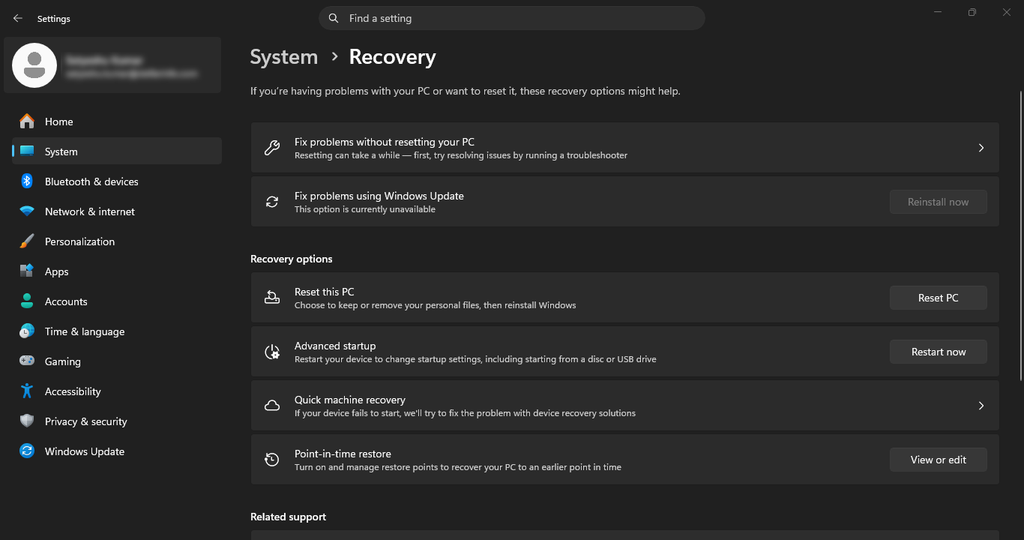
To check, go to Settings > System > Recovery > Point-in-time restore. It’s worth checking now rather than after you lose a file. Point-in-Time Restore can only roll back to restore points it has already created, so if the feature was off, there’s nothing to go back to.
How Does Point-In-Time Restore Work?
Point-in-Time Restore works by taking regular snapshots of your PC, called restore points. Each one records the full state of your system at that moment: Windows itself, your installed apps, your settings, and the files on your Windows drive. To create them, Windows uses Volume Shadow Copy Service (VSS), the same technology behind System Restore. The snapshots are stored locally on your PC.
By default, the feature works on a fixed schedule:
- A new restore point roughly every 24 hours. You can’t create one manually. (Enterprise devices can choose a shorter interval, as often as every 4 hours.)
- Each restore point is kept for up to 72 hours, then deleted automatically, oldest first.
- Restore points use up to 2% of your disk space. Windows can delete them sooner if your PC runs low on storage.
In practice, a home PC usually has two or three restore points available at any time, all from the last three days.
Restoring Your PC to an Earlier Point
You can’t start a restore from the Windows desktop. It runs from the Windows Recovery Environment (WinRE), which also opens automatically if Windows fails to boot several times in a row.
- Go to Settings > System > Recovery, and next to Advanced startup, click Restart now.
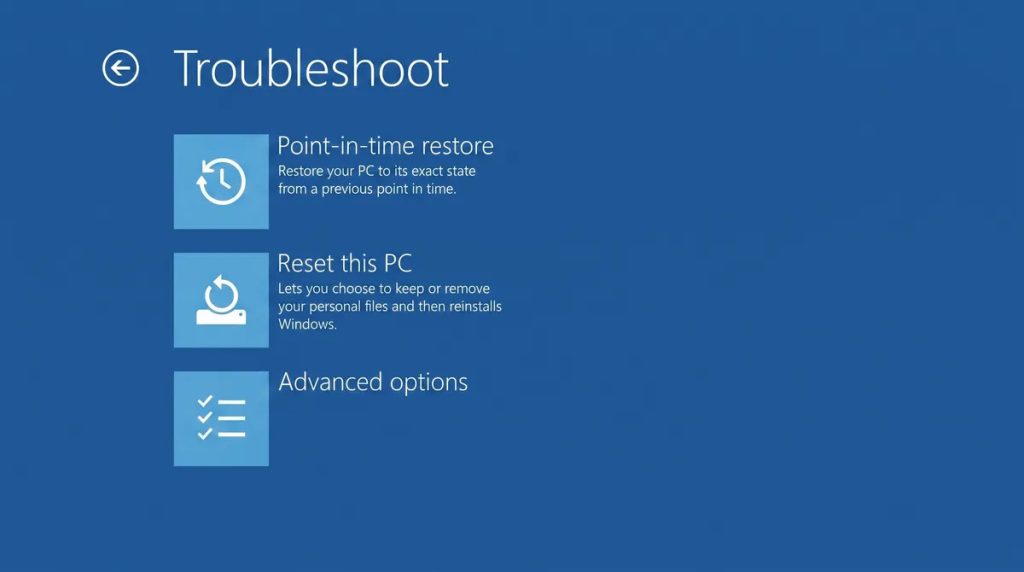
- Select Troubleshoot > Point-in-time restore.
- Enter your BitLocker recovery key, if asked.
- Choose a restore point by its date & time, and click Restore.
When the restore finishes, your PC restarts into Windows exactly as it was at that restore point.
Point-in-Time Restore vs. System Restore
| | Point-in-time Restore | System Restore |
| What it rolls back | Full system, including personal files | System files, settings, apps. Not personal files |
| How restore points are created | Automatically, on a schedule | Automatically before major changes, or manually |
| How long they’re kept | Up to 72 hours | Until disk space runs out |
| Where you manage it | Settings app | Control Panel |
Can Point-in-Time Restore Recover Deleted Files?
Yes, but only by rolling back your entire PC. Point-in-Time Restore can’t restore a single file. It returns your whole system to an earlier restore point, so a deleted file comes back only if it existed at that moment. That works only if:
- The file was captured in a restore point. Files created and deleted between restore points never were.
- The restore point still exists. Restore points last up to 72 hours, or less if disk space runs low.
- The file was on your Windows drive. Other drives and external storage aren’t restored.
The catch is that you lose every change made after the restore point: your files, apps, settings, and saved passwords. For example, if the last restore point was created on Monday night, a file deleted on Tuesday will come back, but so will Monday night’s version of everything else. All your work from Tuesday is gone. A file created and deleted on Tuesday won’t come back at all.
Restore points also can’t be browsed or opened, so there’s no way to copy out just the one file you need.
In short, Point-in-Time Restore can help only if you notice the loss within a day or two and can afford to lose recent work. For files deleted earlier, files stored outside the Windows drive, or PCs where the feature was off, it won’t help.
Check Before You Roll Back
Before rolling back your entire PC, check whether the file can be recovered in a simpler way:
- Recycle Bin. Files you delete normally go here first. Find the file, right-click it, and select Restore.
- OneDrive recycle bin. If the file was in a OneDrive folder, deleting it on your PC also deletes it from OneDrive. Sign in to OneDrive on the web and check its recycle bin.
- File History. If you set up File History, type “Restore your files with File History” in the Start menu search box, browse to the file, and restore it.
If the file isn’t in any of these places, you don’t have to rely on Point-in-Time Restore alone.
When Point-in-Time Restore Can’t Help: Recover Deleted Files with Stellar Data Recovery
Point-in-Time Restore only helps if a recent restore point happens to contain your file. You can’t create one manually, and restore points are stored on the same drive as your data, so if that drive fails, they’re gone too.
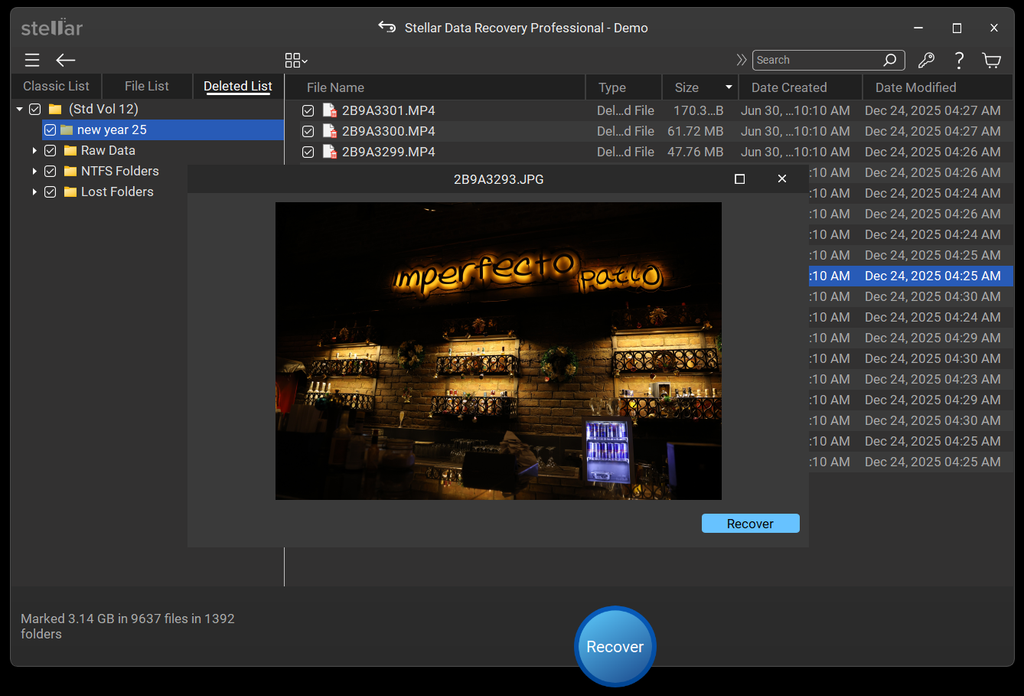
Stellar Data Recovery Professional works differently. It doesn’t rely on restore points at all. It scans your drive directly for deleted data and lets you recover just the files you need, without rolling back your PC. That means it can help where Point-in-Time Restore can’t. Here’s how to recover lost or deleted files using Stellar Data Recovery:
- Download and install Stellar Data Recovery on a different drive from the one with your lost files.
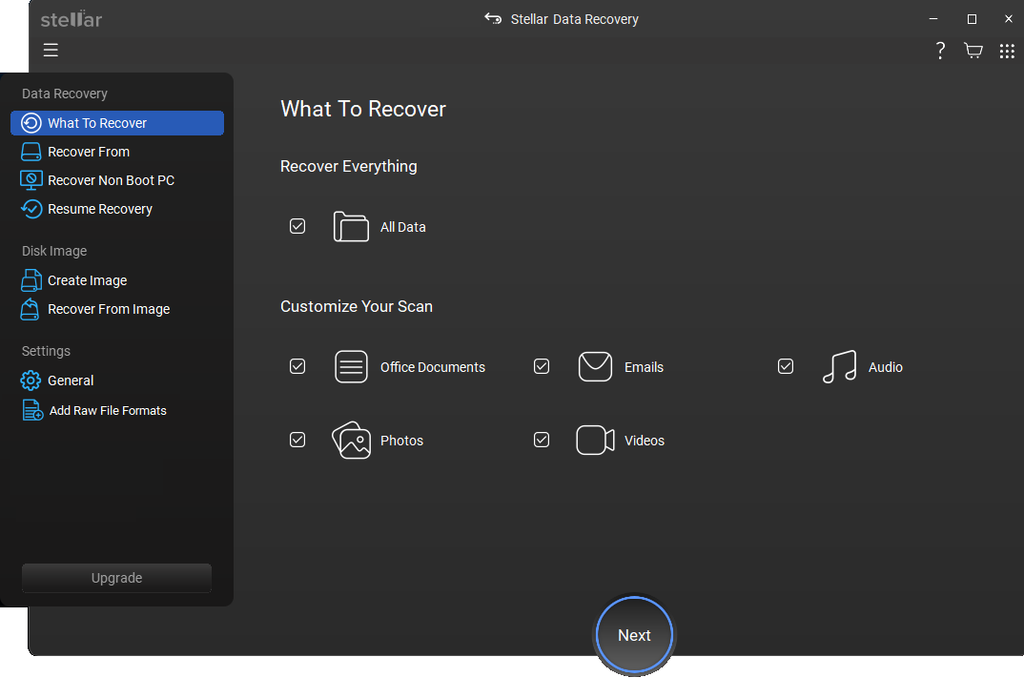
- Select the types of files you want to recover, then click Next.
- Select the drive or folder where the files were saved, then click Scan.
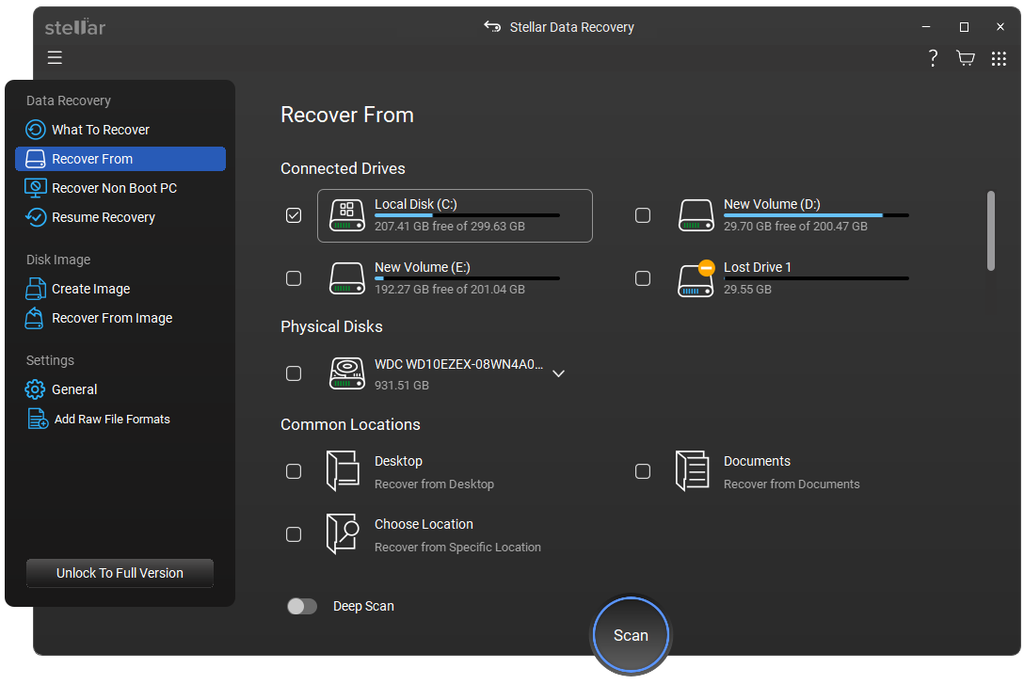
- If your files don’t appear, run a Deep Scan.
- Preview the files, select the ones you need, and click Recover. Save them to a different drive.
Summing UP
Point-in-Time Restore is a useful safety net when Windows breaks, but it was never designed to recover files. It can bring back a deleted file only if a recent restore point captured it, only if the file was on your Windows drive, and only if you’re willing to lose everything you’ve done since that restore point.
For most deleted files, a dedicated recovery tool is the better option. A professional data recovery software scans your drive directly and recovers only the files you need from any drive, with no restore point required and your recent work left untouched. If you also need to roll back your PC, recover your files first.
FAQs
