When you configure an IMAP, Exchange, or Microsoft 365 account in Outlook, it creates an Offline Storage Table (OST) file on your local storage. This file is the copy of all your mailbox data residing on the server, including emails, attachments, notes, contacts, and tasks. The OST file allows you to work with Outlook even when you are offline or not connected to the server.
Sometimes, you face various issues and errors when working with Outlook due to problems with the data file or the application itself. One such error you may encounter is:
“The file C:\users\…xyz.ost is in use and cannot be accessed. Close any application that is using the file, and then try again. You might need to restart the computer.”
When you look at the error message, it seems that the OST file is in use by another application, which is preventing you from accessing the file. However, there might be various other reasons for this error. In this guide, we’ll shed light on the reasons behind this error and discuss methods to fix it.
Why does Outlook say the OST File is in Use?
There are several reasons that can prevent Outlook from opening or accessing the OST file. Some of the most common reasons are:
1. Another Application or Process is Accessing the OST File
Another application or process may access or lock the OST file, preventing Outlook from opening it. These may include Teams or Skype for Business, OneDrive, backup utility or antivirus software.
2. Outlook is Running in the Background
Sometimes, even after closing the Outlook, it may continue running in the background. If you start Outlook again before the previous process is still active, the OST file may still be in use, resulting in the error.
3. Synchronization Issues
Outlook continuously synchronizes the OST file with the mailbox server. If the there are synchronization issues, it may throw such an error.
4. Corrupted or Damaged Outlook Profile
If your Outlook profile is corrupted or damaged, it may fail to access the OST file, causing this error.
5. Faulty or Incompatible Outlook Add-ins
Sometimes, faulty third-party add-ins can interfere with Outlook functionality, preventing it from opening or accessing the OST file.
6. Problems with OST File
Damage or corruption in OST file can prevent Outlook from accessing the mailbox data, resultresulting in the data file-related errors.
Quick Fix: Restart your System and Reopen Outlook
Save all your current work and restart your system. This can terminate any running Outlook or background processes and release file locks that may be preventing the application from accessing the OST file. After restarting the system, open Outlook again and check if the “The file username.ost is in use and cannot be accessed” error is resolved. If not, proceed with the troubleshooting methods below.
Methods to Fix “The File username.ost is in use and cannot be accessed” Error
You can follow the below given methods to resolve theis error.
Method 1: Close MS Outlook and Associated Processes
There are various applications that can access the OST file while Outlook is running or after it has been closed. For example, Microsoft Teams, Skype for Business, OneDrive, backup or antivirus software, and Windows Search may interact with Outlook data file. If one of these processes continues to access the file, the application may be unable to open it and display the “Outlook data file is in use and cannot be accessed” error. You can check and close all the applications and processes that might be using the OST file. Follow the steps mentioned below:
- Close Outlook and open Task Manager (press Ctrl + Shift + Esc keys).
- On the Task Manager window, select the ‘Processes’ tab.
- From the list of processes running on your system, look for processes related to Outlook, LYNC, Communicator, and UCMAPI.
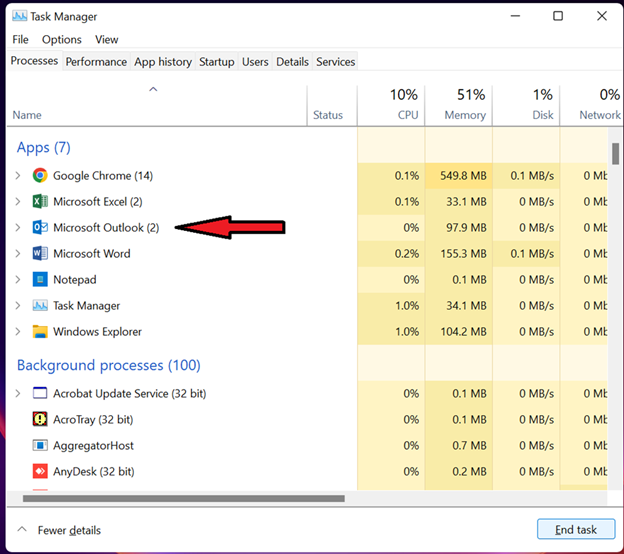
- Click on these processes one at a time and click on the ‘End Task’ button.
- When all the processes are closed, start Outlook.
If the error persists, move to the next method.
Method 2: Temporarily Disable Security Applications
Security applications, such as antivirus or Firewall can sometimes lock the OST file or conflict with Outlook processes, resulting in error. You can disable the Firewall or antivirus application temporarily and start Outlook. This will help you find out if such an application is behind the OST is in use error. If this is the case, you can add Outlook and OST as exceptions in your antivirus application or contact your security application provider.
Method 3: Check and Change Account Settings
You may also face issues and errors in Outlook due to faulty account settings, such as DNS, port numbers, proxy settings, etc. You can check and change the email account settings in Outlook via the Control Panel. You need administrative access to change the account settings.
Method 4: Find and Disable Problematic Outlook Add-ins
Sometimes, third-party add-ins can interfere with the functioning of Outlook, resulting in the error. To check this, start Outlook in Safe Mode. If it starts without any error, this means that any problematic add-in is behind the issue. In such a case, disable the add-ins by following these steps:
- Click File > Options. This will open the Outlook Options window.
- Click Add-Ins.
- Find the Manage option at the bottom of the screen, select COM Add-ins, and click Go. This will open the list of all add-ins.
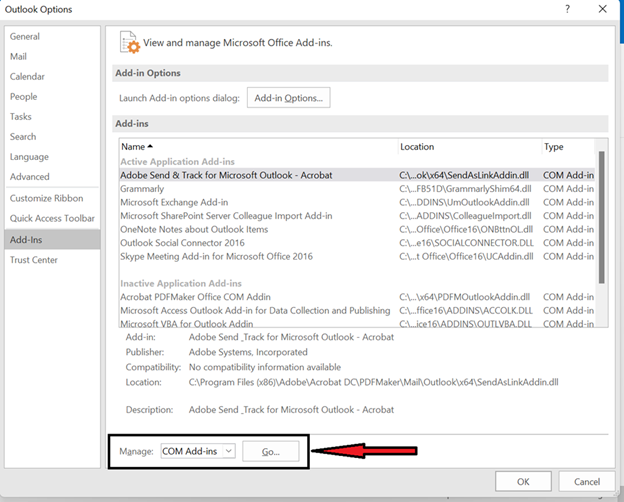
- Uncheck all the add-ins and click OK to disable them.
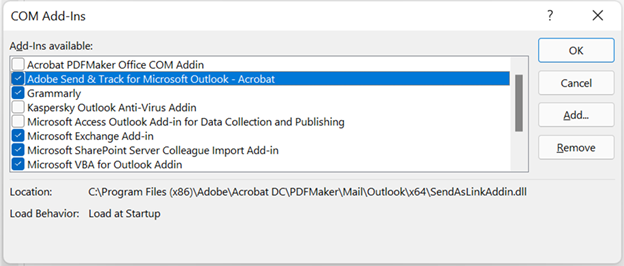
- Now, restart Outlook normally.
To find the problematic add-in, enable one add-in at a time and restart Outlook. This will help you to find out the add-in that is causing the error. After identifying the problematic add-in, remove it permanently.
Method 5: Repair Microsoft Office
Damaged or corrupted Office program files can also prevent Outlook from opening or accessing the data files. In such a case, you can repair your Microsoft Office application. First, use the Quick Repair option. If it didn’tdoesn’t resolve the issue, use Online Repair for more comprehensive repair.
Method 6: Disable Cached Exchange Mode
When Cached Exchange Mode is enabled in Outlook, it creates a local copy (OST) of the mailbox data and synchronizes it to and from the server. If there is any problem with synchronization, you may face issues when accessing the OST file. You can turn off the Cached Exchange Mode temporarily and see if it fixes the error.
If Outlook doesn’t show the error, it indicates there is some problem with the OST file. You can turn on the Cached Exchange Mode again and follow the next method.
Method 7: Repair the OST File with the Inbox Repair Tool
If your local data file is damaged or corrupted, it may prevent Outlook from accessing the file, which can cause issues or errors. Microsoft provides the Inbox Repair Tool (scanpst.exe) to repair corrupted and damaged Outlook data files (.ost and .pst). You can use this tool to repair your OST file and access your mailbox data.
Method 8: Rebuild or Recreate the OST File
If repairing the OST file didn’tdoesn’t fix the issue, you can recreate the OST file. Follow the below-mentioned steps:
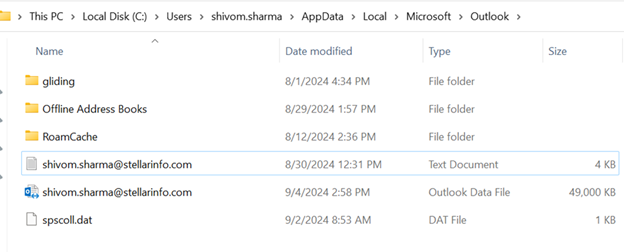
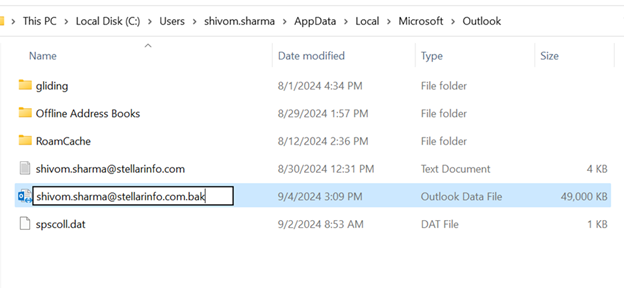
- Start Outlook. It will create a new OST file at the default location and sync all your mailbox data from the mailbox server.
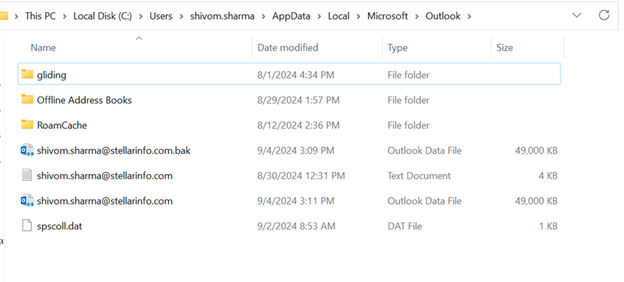
Recover Missing Data after Rebuilding the OST File
After rebuilding the OST file, check your mailbox for any missing items. If you find any missing items, then you can retrieve them from the backup OST file by using a professional OST to PST converter tool, Stellar Converter for OST. This tool can extract all the data from the backup OST file and present it in a preview window. You can search for the missing items, select them, and then save them in PST file. You can import this PST file into your Outlook by using the Import and Export wizard to restore the missing items. This tool can easily and efficiently convert large-sized orphaned or inaccessible OST files to PST file format.
Advanced Fix: Reset the Outlook Profile in Registry
If the Cached Exchange Mode option is greyed out or if you suspect that your Outlook profile is corrupted, you can reset the Outlook profile through the Windows Registry. It allows the application to create a completely fresh profile next time it launches. Follow the steps below:
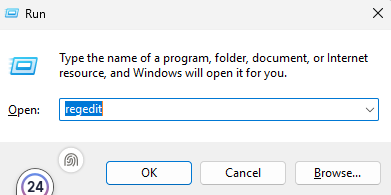
- Press Windows + R to open the Run dialog box.
- Type regedit and press Enter.
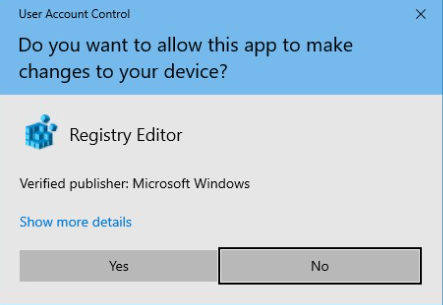
- Click Yes if the User Account Control (UAC) prompt appears.
- In Registry Editor, go to the Outlook profile key: HKEY_CURRENT_USER\Software\Microsoft\Office\<version>\Outlook\Profiles (Replace <version> with your Office version).
- Right-click the Profiles key and select Export to create a backup.
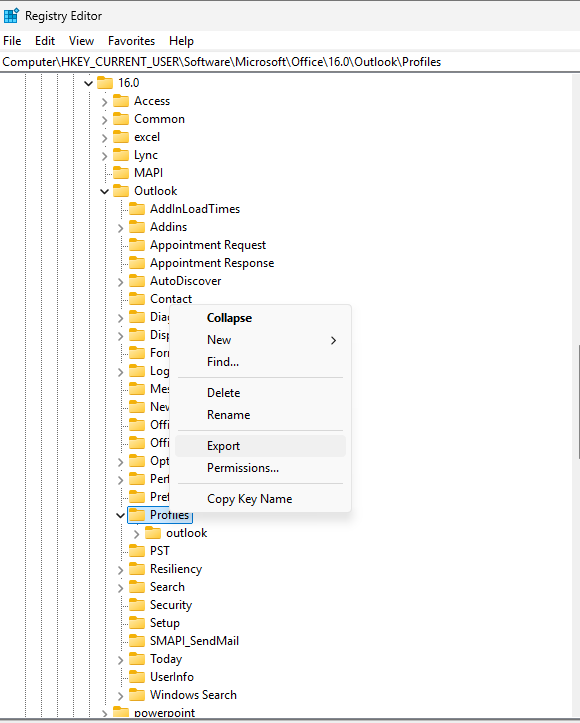
- Expand Profiles and locate your Outlook profile.
- Delete the profile key or delete the entire Profiles key if you want to remove all Outlook profiles.
- Close Registry Editor and open Outlook.
- Now, you will be prompted to create a new profile. Once created, your mailbox data will be synchronized automatically.
Fixing The File username.ost is in Use and cannot be Accessed Error in New Outlook
This error is associated with classic Outlook, which uses OST file for the local cached copy of an Exchange or Microsoft 365 mailbox. However, the New Outlook is a web-based application that manages and stores your mail directly on the cloud and does not use OST file. Therefore, this specific file-locking error doesn’t apply to it.
If you are using New Outlook and experiencing a similar issue, you can troubleshoot it based on the error message displayed rather than applying troubleshooting methods for classic Outlook.
How to Prevent “The File username.ost is in Use and cannot be Accessed” Error?
Follow the best practices mentioned below to prevent this error in future:
- Install Microsoft Office and Windows updates regularly.
- Make sure to close your Outlook completely before shutting down Windows or restarting your computer.
- Maintain adequate free storage on the drive where Outlook stores its data files.
- Install only trusted Outlook add-ins and periodically review those you no longer use.
Keep your antivirus software updated.
Maintain regular backups of your mailbox data or export important folders periodically.
To Conclude
Factors, such as synchronization problems, conflicting applications, incorrect account settings, etc. can result in the ‘OST is in use and cannot be accessed’ error. You can follow the methods mentioned in this guide to fix this error. If the OST file is damaged or inconsistent, you can create a new file after taking its backup. If there are any missing items in the new OST file, then you can use Stellar Converter for OST to retrieve the missing items from the backup OST file.
FAQs
