DIY Data Recovery Software for Windows, Mac, Android, iPhone & Tape Drives
Desktop Software to Repair Corrupt Files, Emails & Databases.
Convert or migrate emails to Live Exchange/M365 or save as PST
Tools for migrating emails from Exchange Server to Microsoft 365 and vice versa.

Guarantees 100% wiping of sensitive data across storage devices.
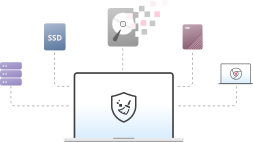
Tools to aid investigation and collect digital evidence by forensic experts.

Online Tools to repair files, convert mailbox data, edit and enchance photos & videos.
Explore our technical resources, industry insights, and step-by-step guides.
Discover our company journey, leadership team, press releases, media coverage, and career opportunities.
Follow these steps to install the software successfully:
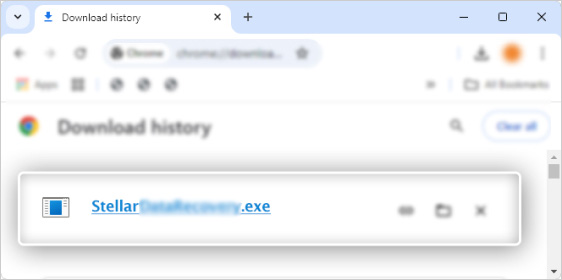
Go to the official website and download the latest version of the software. Once the download is complete, find the file and double-click to open it.
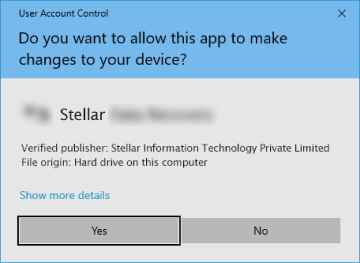
If prompted, allow the installer to make changes to your system.
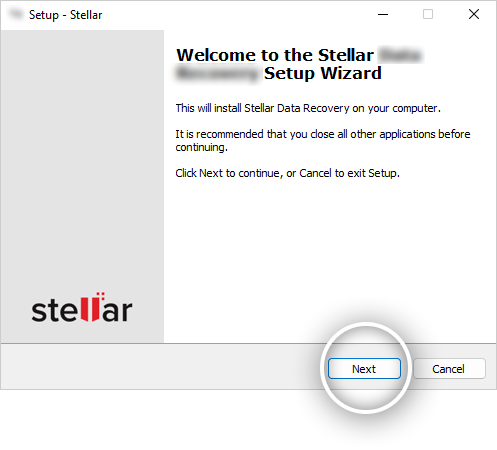
The Software Setup Wizard will appear. Click "Next" to continue.
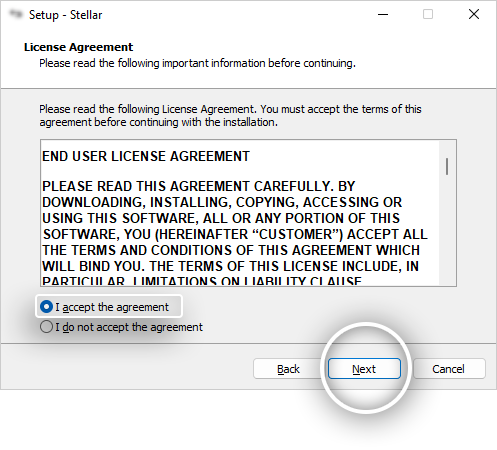
Read the End User License Agreement (EULA) carefully. If you agree to the terms, click "Accept" to proceed.
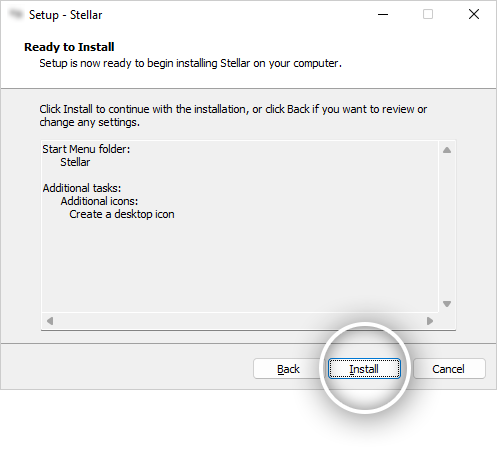
Click the "Install" button to begin the installation.
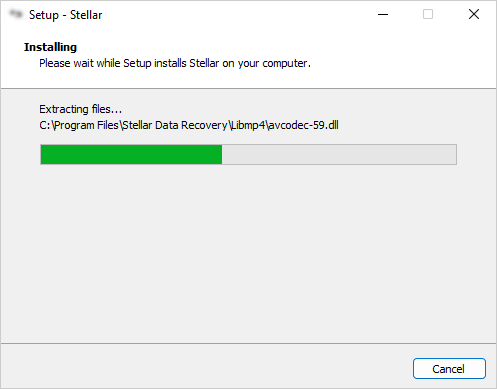
The installation process will take a few minutes. Please wait until it finishes.
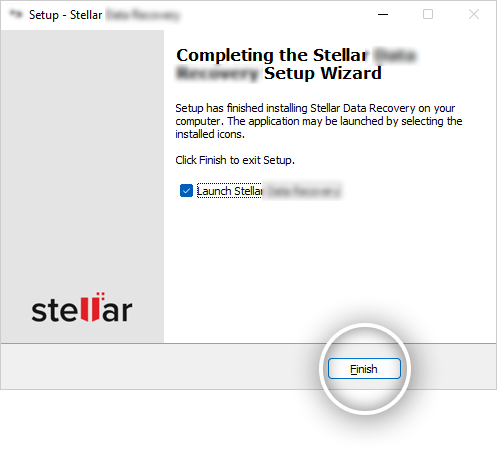
Once the installation is done, click "Finish" and launch the software.
Follow these steps to remove the software from your computer.
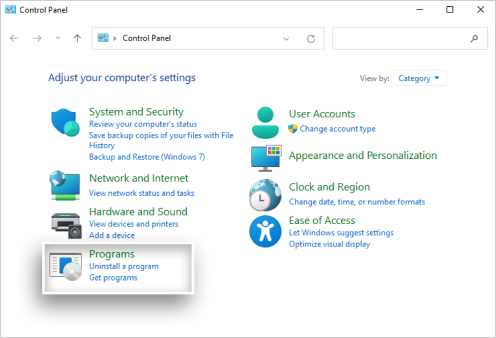
If you are using Windows, click on the Start Menu, type Control Panel, and open it. Then, go to Programs and Features (or Add or Remove Programs, depending on your version).
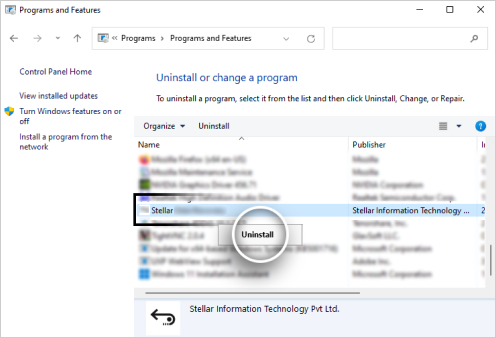
On Windows, find the software in the list, click on it, and select Uninstall. Follow the instructions on the screen to complete the process.