Screenshots - Stellar Converter for OLM to Apple Mail
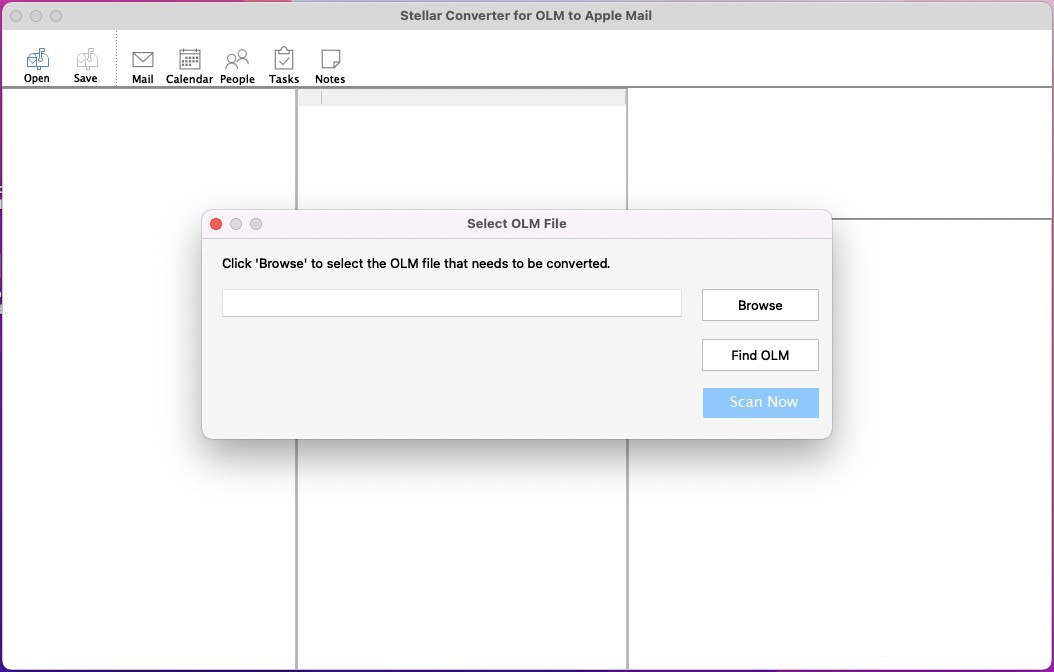
Step 1: When Stellar Converter for OLM to Apple Mail is launched, it offers two options to select the OLM file - 'Browse' and 'Find'. Select ‘Browse’ if you know the OLM file location or click Find if you don’t know the file location.
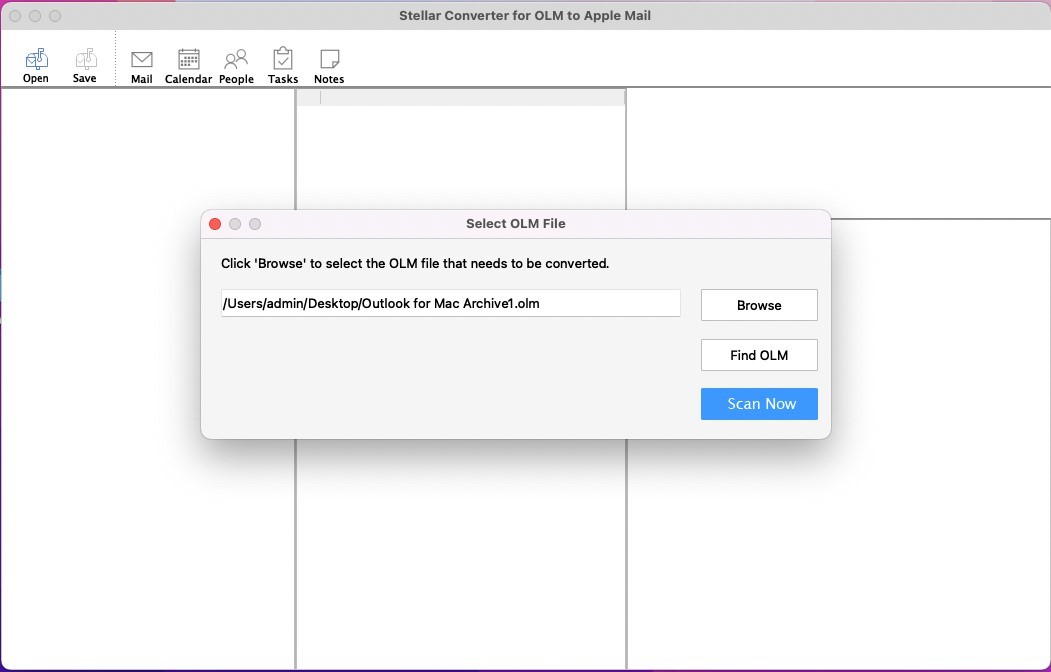
Step 2: After selecting the OLM file, click ‘Scan Now’. The software starts scanning the selected OLM file. It also shows the scanning process progress.
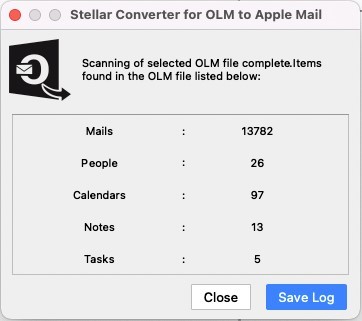
Step 3: After the scanning process is complete, the software displays a summary message box (log report) with details of number of items in each mailbox item. Click the ‘Close’ button to close the summary message box or click ‘Save Log’ to save the log report.
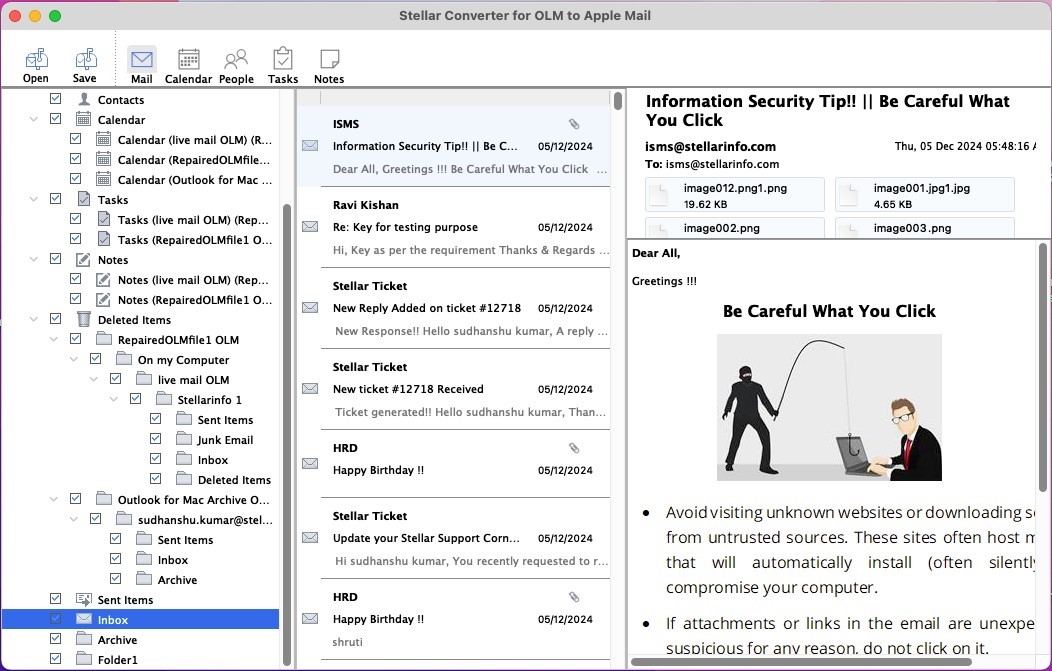
Step 4: After conversion, the software offers a preview of all the OLM file mailbox items, including mails, calendars, tasks, and notes. Click on any item to see its enhanced preview.
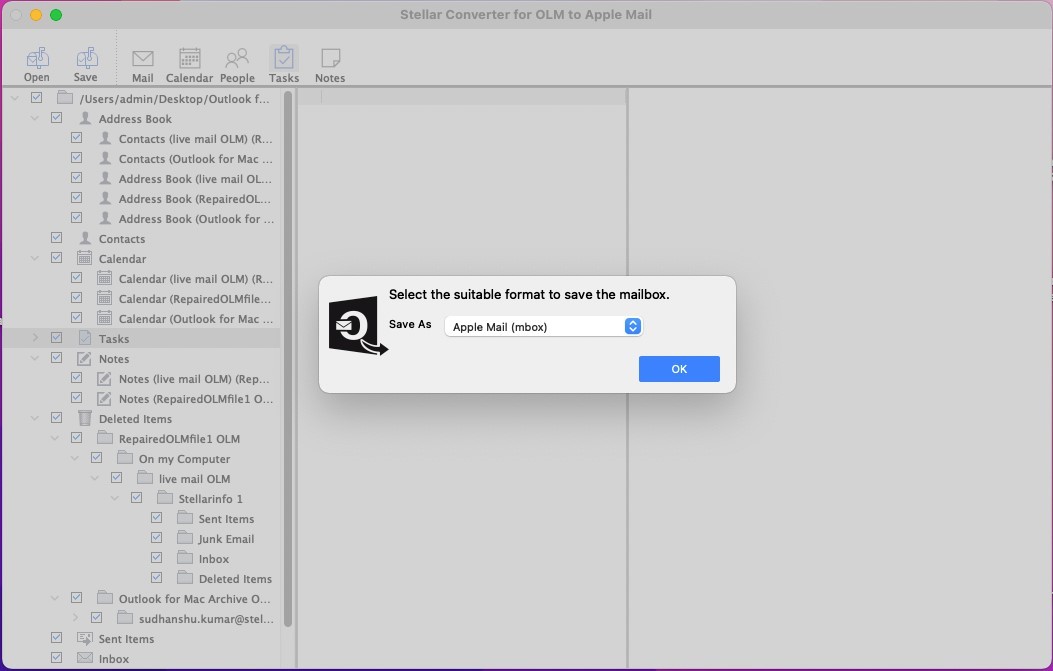
Step 5: To save the converted OLM mailbox items, click ‘Save’ from main menu and then select the suitable format from the given list of formats - MBOX, EMLX, or EML. Click ‘OK’.
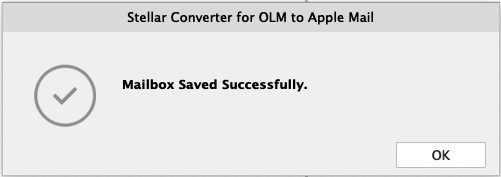
Step 6: The software displays saving progress of the converted file. Once the process is finished, the “Mailbox Saved Successfully” message is displayed. Click ‘OK’ to close the dialog box.
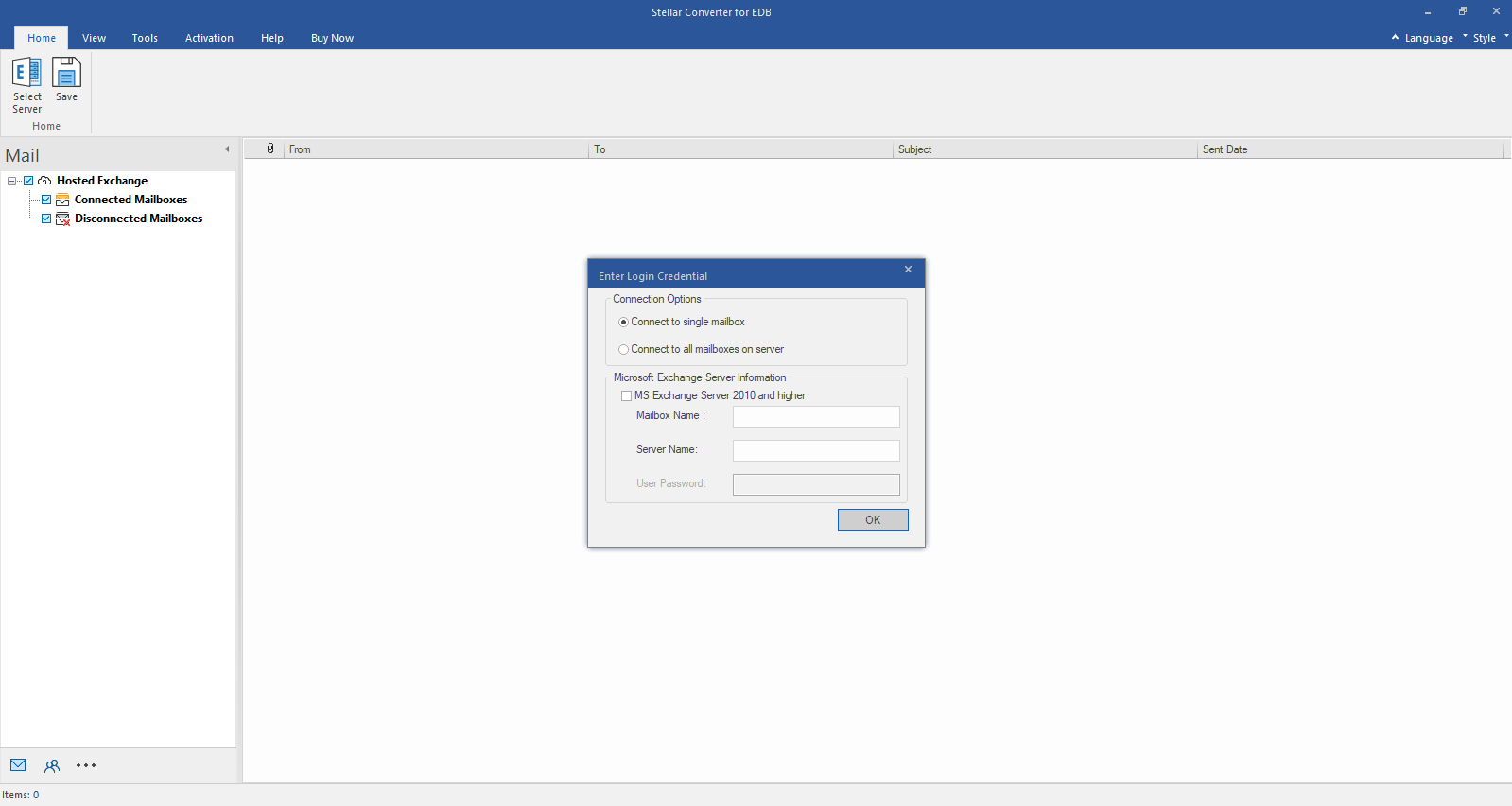
Step 1: Select Hosted Exchange to export mailboxes from an online EDB file. Select Connect to Single Mailbox or Connect to Single Mailbox from Connection Options
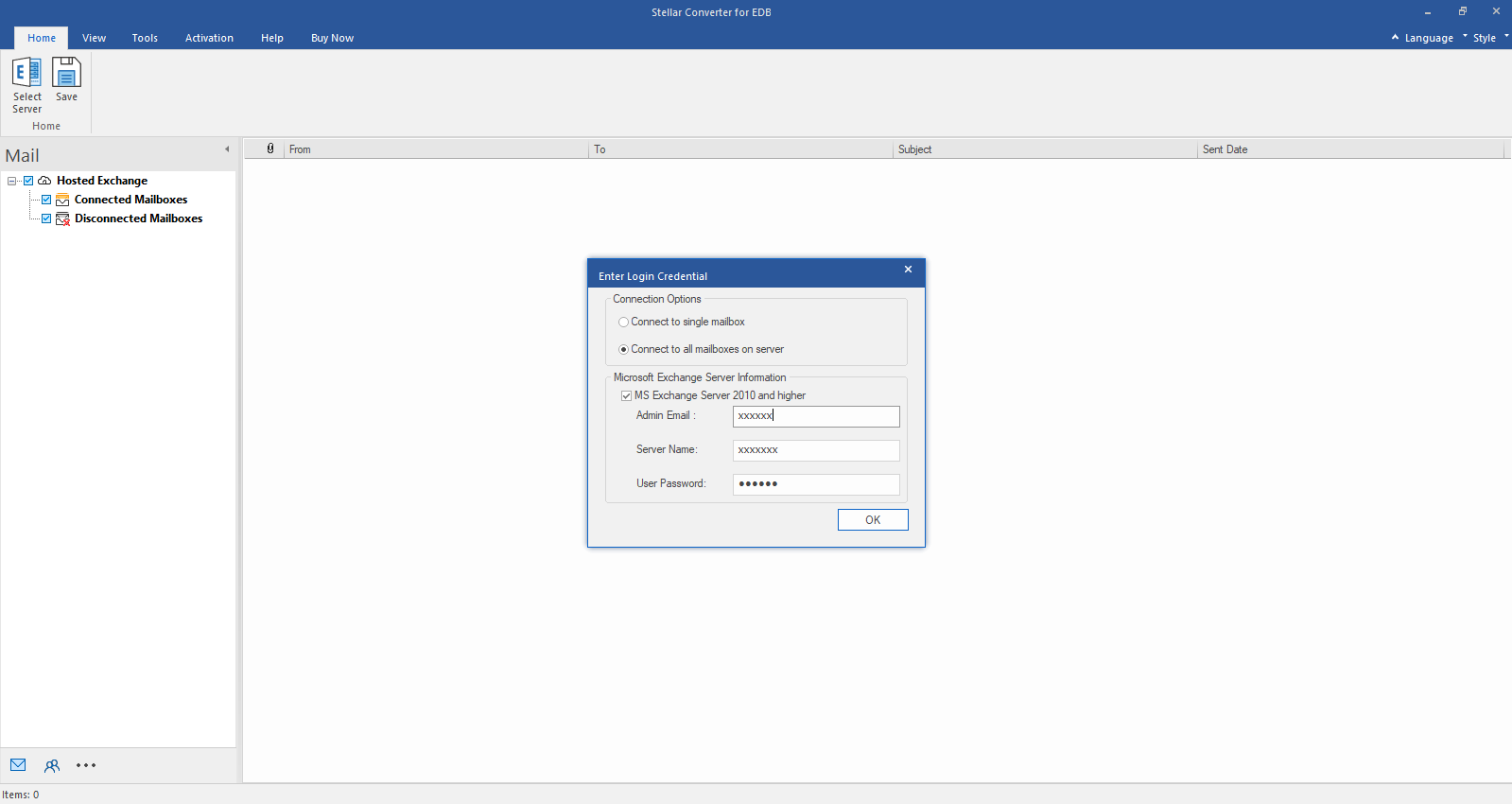
Step 2: Enter Admin and Server Name (for Exchange 5.5, 2000, 2003, 2007) or tick "Exchange Server 2010 and higher" checkbox to enter Admin Email, Server Name and Password (for MS Exchange 2010, 2013, 2016, and 2019). Click OK.
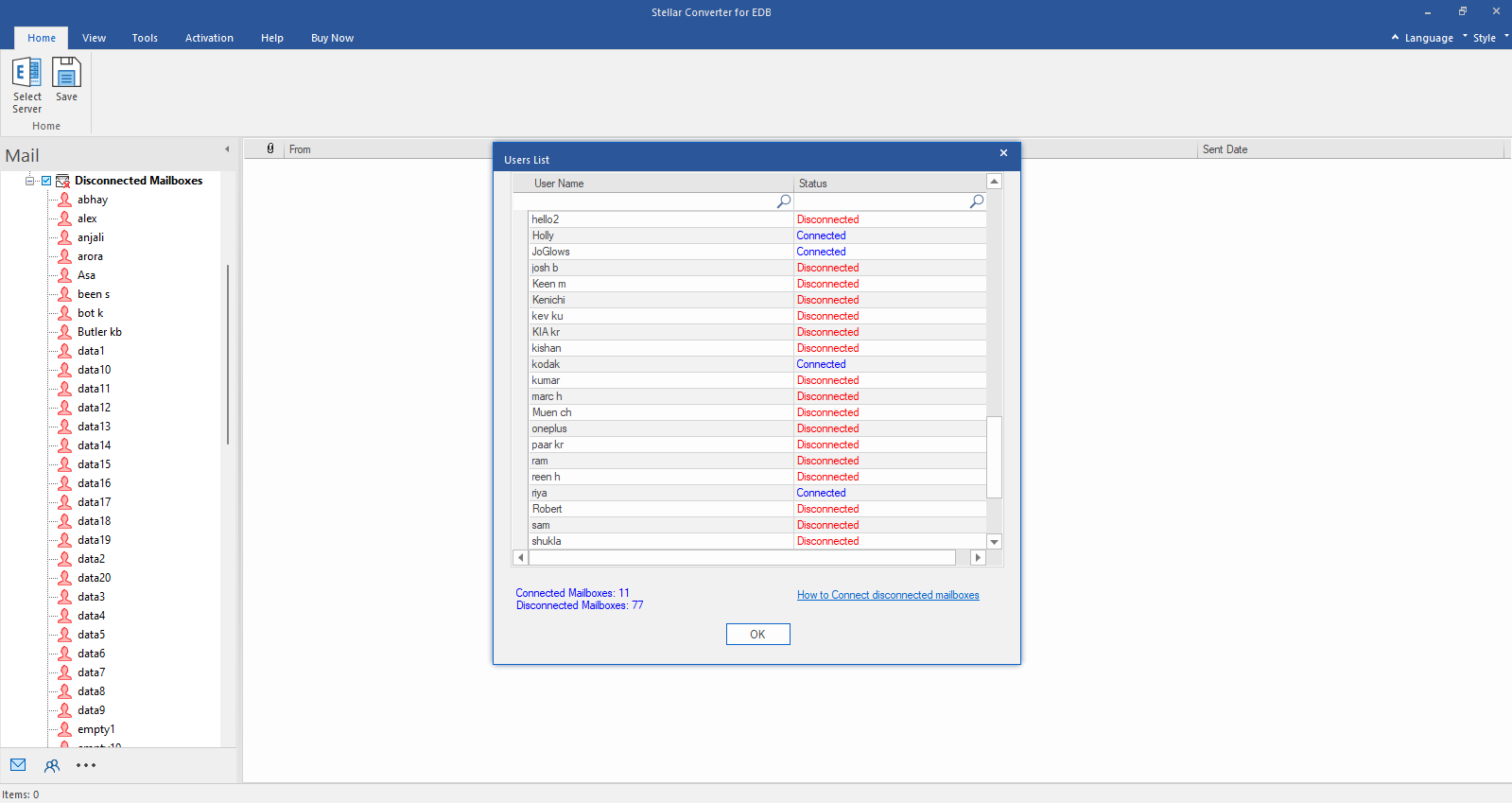
Step 3: After establishing the connection with Exchange Server, Next window displays list of connected and disconnected mailboxes. Click "OK" to proceed.
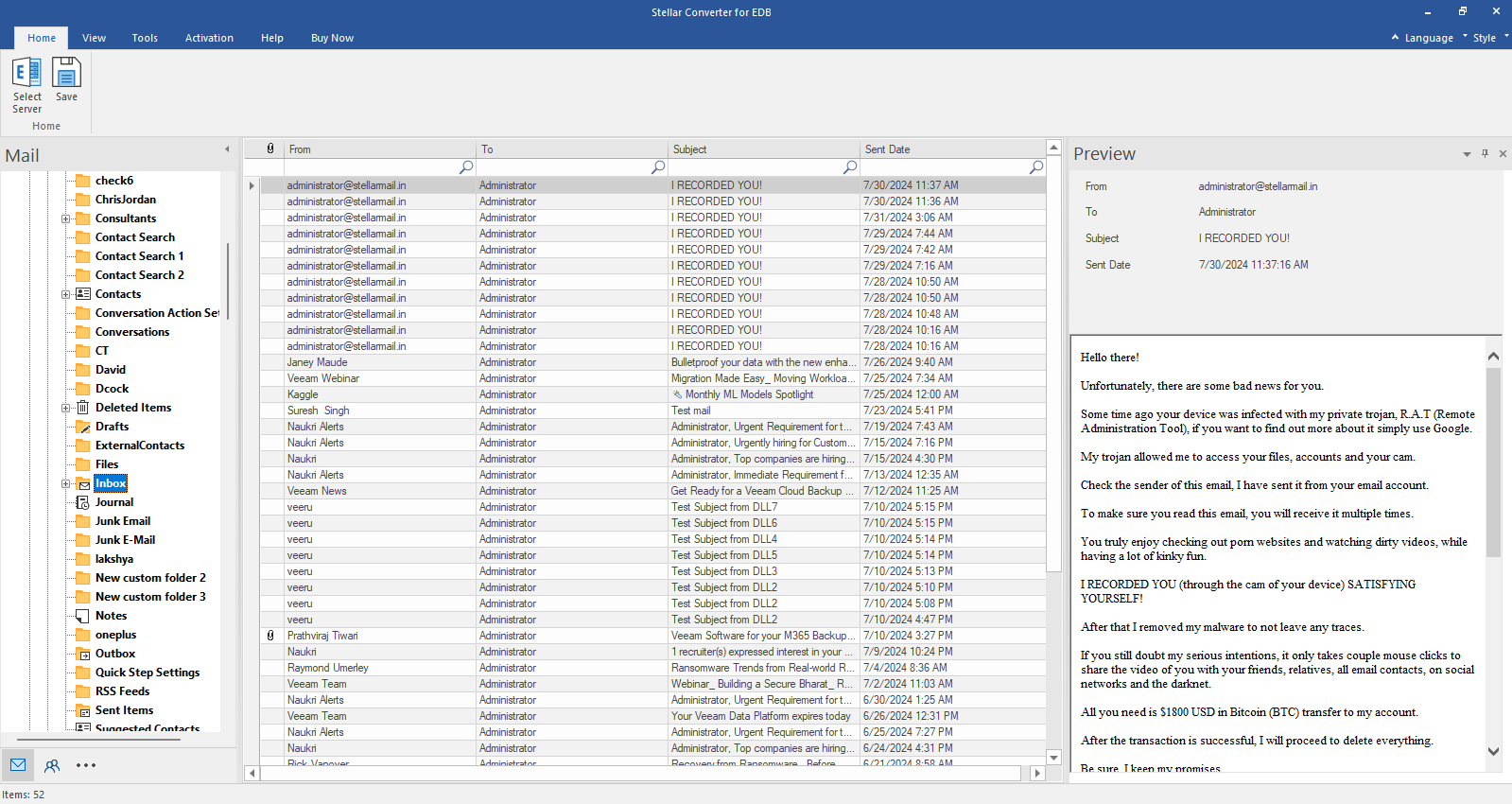
Step 4: Check the preview of all mailbox items- Emails, Calendars, Contacts etc.
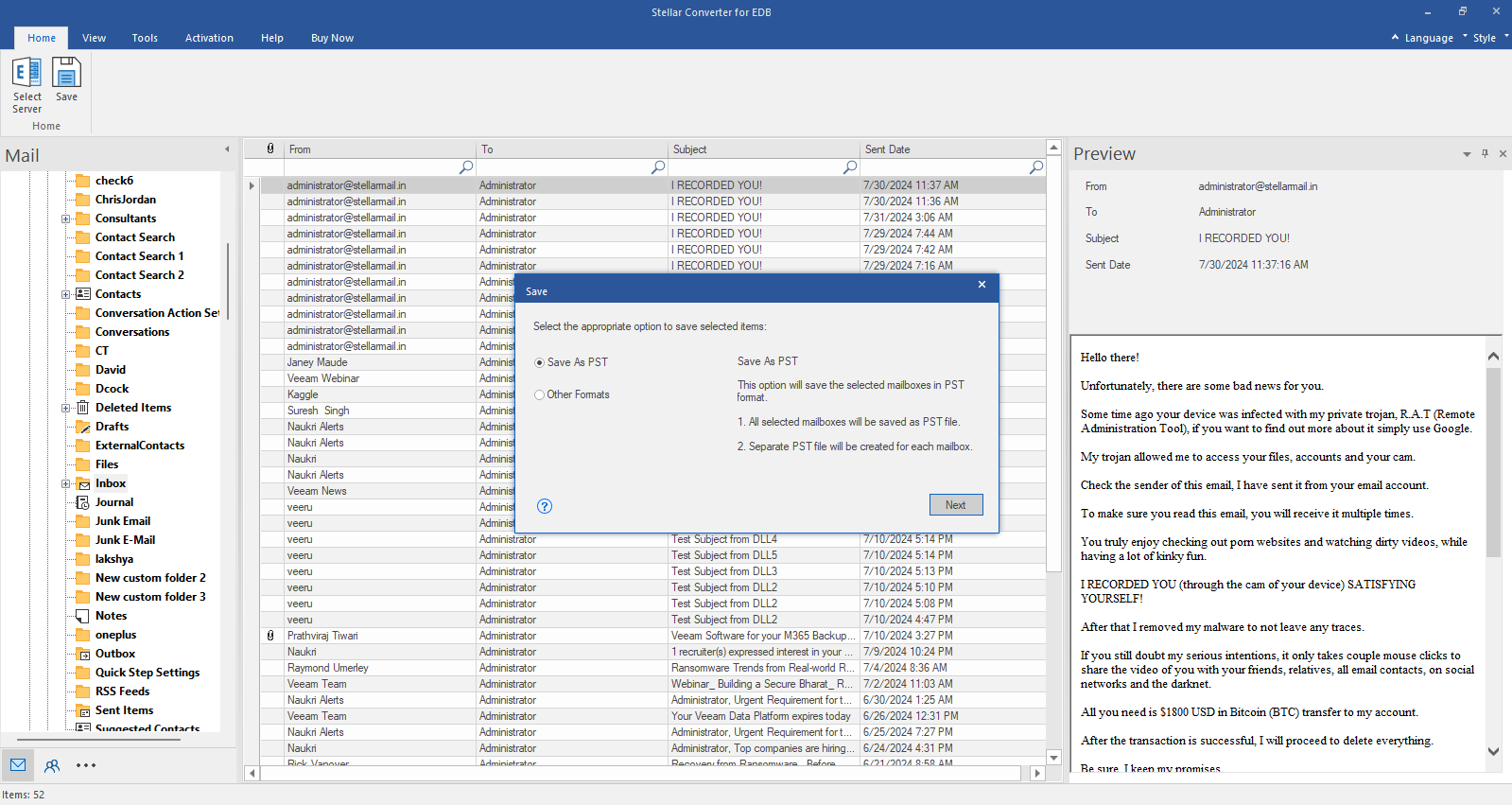
Step 5: Click Save from Home Ribbon and Select Save as PST option. Click "Next" to proceed.