Stellar Phoenix PST File Splitter v.2.0
Split PST
A PST File Splitter is a highly reliable enterprise solution that is used to split single or multiple PST file(s) on the basis of different criteria, like Date, Size, Mail ID, Folders, and Time. The unique option to create 'Batch File' also allows you to specify your split preferences, which is used as an input by the application to Split PST File. The software is competent enough to Split PST of any size, while keeping the original file intact at the root location.
Note: Stellar Phoenix PST File Splitter v2.0 offers advance PST file split options like spliting of multiple files by 'size' or 'date', split by batch etc.; for Corporate users.
- Edition Compare
- Overview
- Spec
- FAQs
- Support
- Testimonials
|
Key Features of PST Splitter software :
|
|||||||||||||||||||||||||||||||||||||
Split PST Software Features : |
|
|
PST File Splitter is helpful in situations such as :
Stellar Phoenix PST File Splitter v2.0 is a solution to split one or more PST files in a single click during such situations. |
|
Stellar Phoenix PST File Splitter Software Details
Stellar Phoenix PST File Splitter v2.0 includes a range of options that can be used to Split PST File as per requirement. With this PST File Splitter, you can split a single or multiple PST file(s) on the basis of e-mails exchanged (sent and received) within specific time range or on the basis of PST file size. Using single file split options, you can also extract e-mails by folders or by e-mail ID. This is a special tool that even allows you to split a single file on the basis of date range.
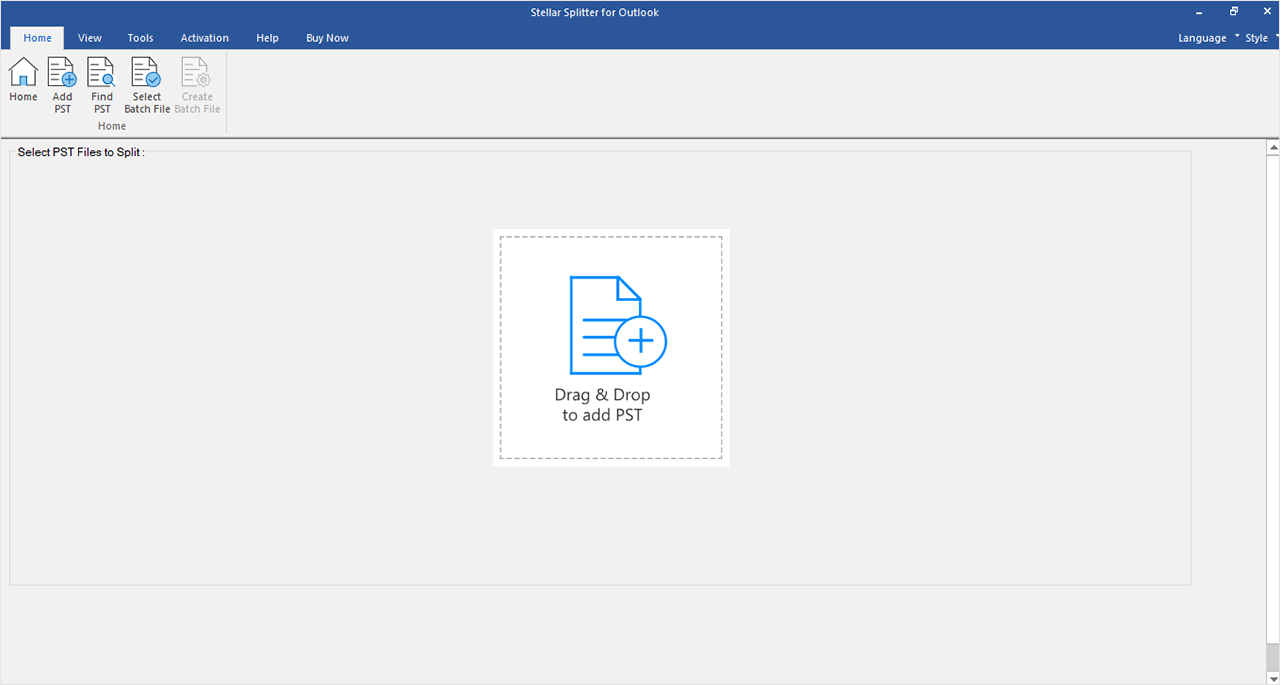
The main interface of the Split PST software comprises of two main tabs: 'Split Single File' and 'Split Multiple Files'. These tabs are further sub-divided and include various options, as mentioned underneath :
Split Single File Once you click this tab, a new 'Single File Splitter' window opens that has four main options :
Select PST File: The 'Select PST File' option allows you to navigate and select the required PST file from a known location.
Find PST File: If you don't know the exact location of your PST file, 'Find PST File' option lets you search different drives and folders on your computer for files with PST extension.
Change Destination: The PST File Splitter takes the original file location as default to restore the split files. However, with the use of 'Change Destination' option, you can change the destination to the one you require.
Split PST File: When you click 'Split PST File', its displays another window where you can specify the criteria to split the file. The options to Split PST are mentioned under 'Select Splitting option', which are:
Split Multiple Files
You can split multiple PST files located at different locations (even at networked disk) or at a single location (in a single folder) in a single operation. This feature further offers two main options to split the PST file by 'Time' or 'Size'.
Note: In case of 'split by size’, the file size should not be less than 200 MB.
Split by Time and Split by Size follow a common approach to select the PST file - 'Select Folder', 'Select File', and 'Select Batch Files'.
NOTE: For more information regarding how to split the PST file by 'Time' or 'Size', Steps to recover the PST file, and how to create a Batch file, refer to the FAQ section. |
|
|
|
FAQs – Stellar Phoenix PST Splitter
What are the various options available to split multiple PST files ?
Stellar Phoenix PST File Splitter v2.0 offers an advanced feature to split multiple PST files by two parameters, such as 'Time' and 'Size'. Both of them follow a common set of approach to select the PST file.
Go through the table below:
The PST File Splitter creates a new folder with name same as of original Outlook profile at the destination location. If the folder name for two different files is same, the application fails and opens a 'Pending PST Files' window and allows you to define a different folder name to restore the file.
Points to be noted:
What are the steps to split a single PST file ?
Steps to Split Single PST File:
You need to follow the below mentioned steps to split a single PST file:
What steps do I have to follow to split multiple PST files ? Steps to Split Multiple PST Files:
You need to follow the below mentioned steps to split multiple PST files:
You need to follow the below steps to create a batch file:
|
|||||||||||||||||
|
|
My PST file has been totally damaged by Outlook 2000 as the file has been grown over 2 GB to 2.013.000 MB! I was naturally deeply said and shocked... Then I have installed Office 2003, and after it your software “Stellar Phoenix Outlook Pst Repair (v3.0) S” . After running your program (about 90 Minutes) the PST file has been not only totally reconstructed but all deleted messages of earlier time periods, too !!! It is very splendid, and I’ll publish that everywhere in my in-ternational magazines, of course! Very great was for me to see the absolutely professional running and nice information displaying (menus) to the user! Congratulations to this high-sophisticated product, and I wish your whole team a Happy and Successful New Year!
Pal Poth
|