OST files are created when you add an IMAP, Exchange, or Microsoft 365 account in Outlook. OST file stores the synchronized copy of your mailbox data on the mailbox server and allows offline access to the mailbox data. Sometimes, Outlook OST files get damaged, corrupted, or turn inaccessible due to various reasons, preventing you from accessing the emails and other items. When you try to access the damaged OST file, Outlook displays the following error message:
“Cannot start Microsoft Outlook. Cannot open the Outlook Window. The set of folders cannot be opened. The file c:\Users\USERNAME\Local\Microsoft\Outlook\abc@xyz.com.ost is not an Outlook Data File (.ost).”
Below we will mention the reasons that may trigger the OST is not an Outlook data file error and the solutions to effectively troubleshoot and resolve it.
Why the ‘OST File is not an Outlook Data File’ Error Occurs?
This error can occur for several reasons – from corruption in the OST file to issues with the system or Outlook installation. Below we will mention the most common causes, categorized for better understanding.
File-Level Causes
These causes are related directly to the Outlook data file and can occur due to sudden system shutdown, power failure, and hardware or software issues. Common causes include:
- Corruption in OST File
- Oversized/Large OST File
- Orphaned/Inaccessible OST File
System-Level Causes
Outlook relies on system resources, such as RAM, CPU, storage, and network connectivity. If these resources are insufficient or the system is unstable, the application may not function properly. Common system-level causes include:
- Low RAM or high CPU usage
- Insufficient disk space
- Bad sectors or other issues on the hard drive
- Unstable network connectivity
- Corrupted Windows system files
- Incomplete or faulty Windows updates
- Malware or virus infections
Software-Level Causes
These issues are related to Outlook, Microsoft Office, or conflicts with other applications. Common software-level causes include:
- Corrupted Outlook profile
- Faulty or incompatible Outlook add-ins
- Outdated Outlook or Microsoft Office version
- Improper or incomplete Outlook installation
- Conflicts with antivirus or other third-party applications
- Incorrect email account or Outlook configuration settings
Methods to Resolve the OST is not an Outlook Data File Error
You can follow the methods discussed below to troubleshoot and fix this error.
Note: Before proceeding, it is suggested to back up your OST file.
Method 1: Update Outlook (MS Office) and Windows
If your Outlook (MS Office program) or Windows lacks the latest updates, then it can lead to compatibility issues that may trigger such errors. Thus, you can check and install the latest updates for MS Office and Windows.
The steps to update MS Office are as follows:
- Open any MS Office program (Word or Excel)
- Go to File > Office Account > Update Options.
- From the available options, choose Update Now.
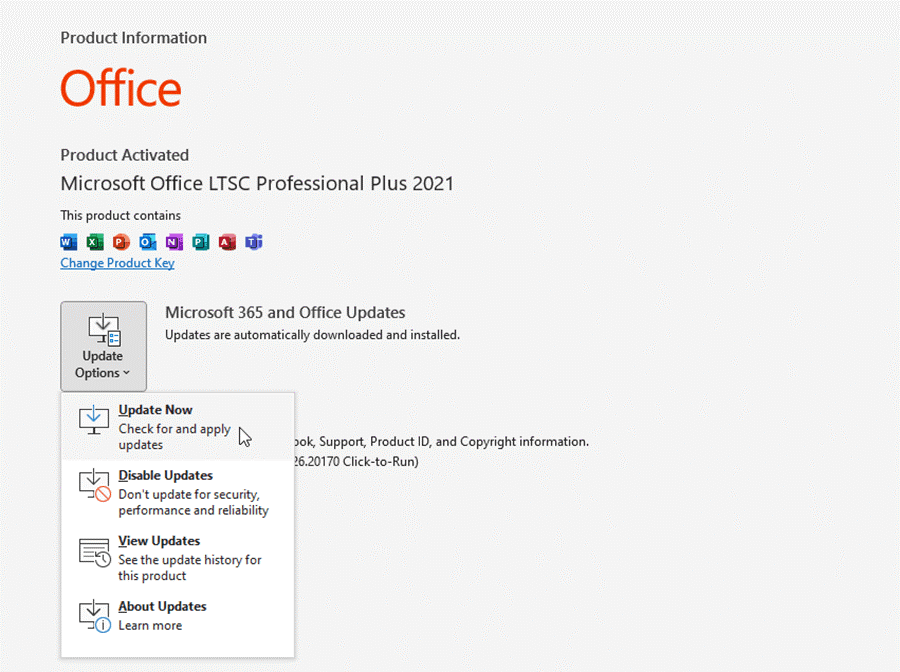
- If a new updates are available, it will start a wizard and download them.
To update Windows, follow these steps:
- Go to Settings > Update & Security > Windows Update.
- Check for the updates.
- If new updates are available, download and install them.
- Then, restart the system.
After this, start Outlook and check if the OST file is not an Outlook data file error is resolved. If not, move to the next method.
Method 2: Remove Faulty Add-Ins
Incompatible, outdated, or faulty third-party add-ins can interfere with the Outlook’s normal functioning and may cause it to crash or display errors such as OST is not an Outlook data file. To check if this error is caused by any add-ins, launch Outlook in safe mode. If it opens without the error, this confirms that any faulty add-in has caused the issue. You can remove the incompatible or faulty add-in to resolve the error. Here’s how:
- In Outlook 2007 and 2010, go to Outlook Options > Add-ins > Go. In Outlook 2013 and later, go to File > Options > Manage COM Add-Ins. This opens up a dialog box listing all installed add-ins.
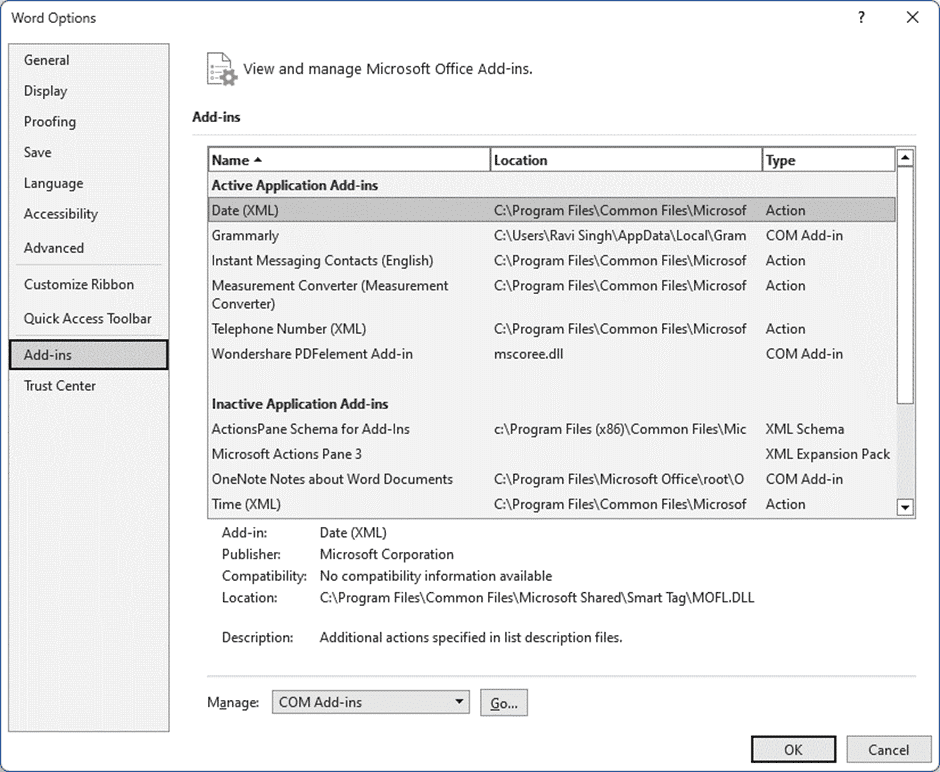
- Uncheck all Add-Insand click OK to disable them.
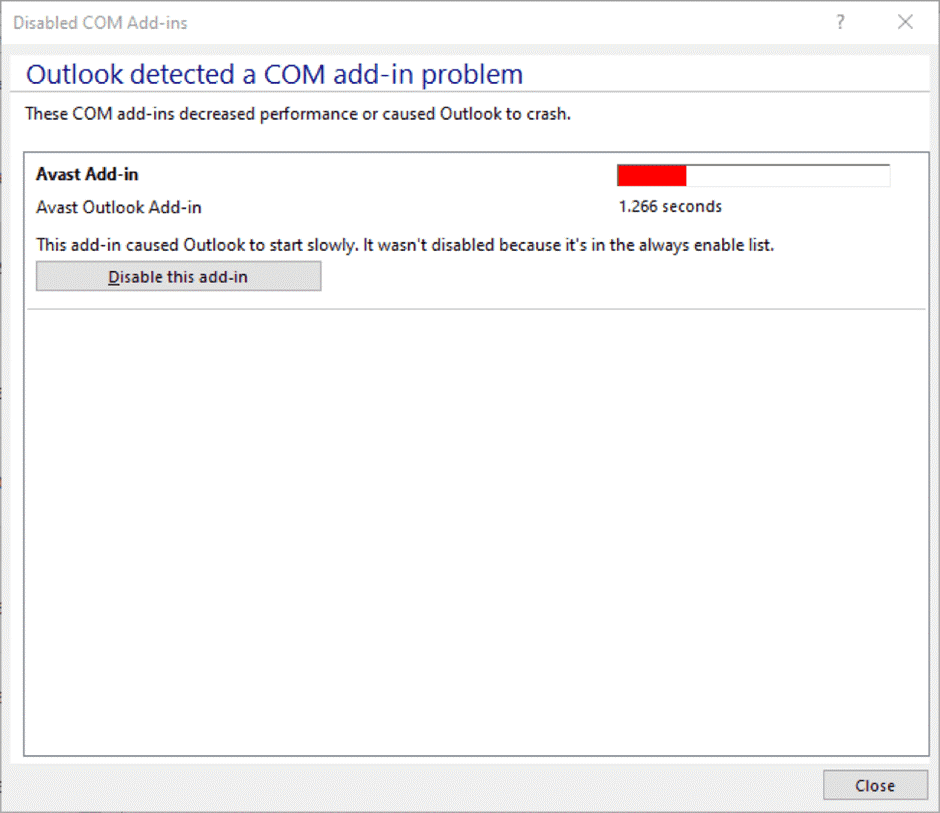
- Restart Outlook normally.
Now, go to the Add-ins window, enable an add-in and then restart Outlook. Repeat the process until you find the faulty one. Once found, uninstall or remove it from the Outlook.
Method 3: Disable Cached Exchange Mode
Disabling the Cached Exchange Mode also disables Offline access mode and directly connects Outlook with the mailbox server instead of saving changes in the OST file. This can help you overcome the error. However, you can enable the Cached Exchange Mode later. To disable Cached Exchange Mode, follow these steps:
- Check and ensure the Outlook is not running in the background.
- In the Windows Search box, type Control Panel, and press Enter.
- On the Control Panel window, click User Accounts > Mail.
- Click on the E-mail Accounts button.
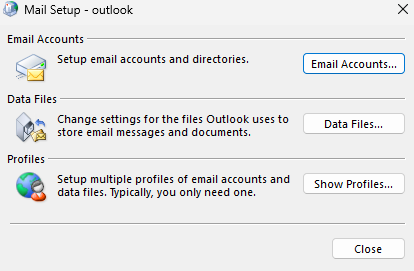
- Under the Email tab, select your account and click Change.
- Under Offline Settings, uncheck the box for Use Cached Exchange Mode click Next.
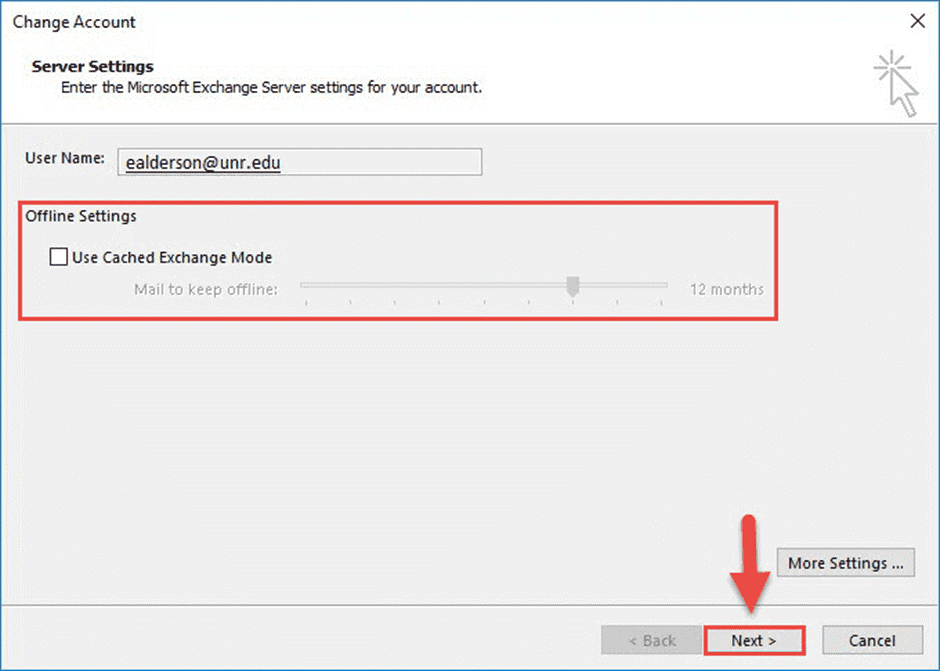
- Click OK when a pop-up appears and then click Finish.
- Start Outlook.
Method 4: Repair or Create a New Outlook Profile
Corrupted Outlook profile can prevent the application from accessing the associated OST file, resulting in this error. To resolve the issue, you can repair your Outlook profile. Once done, restart the application and check if the error is resolved. If not, you can create a new profile. The steps are as follows:
- Open Control Panel and click on Mail.
- Click Show Profiles.
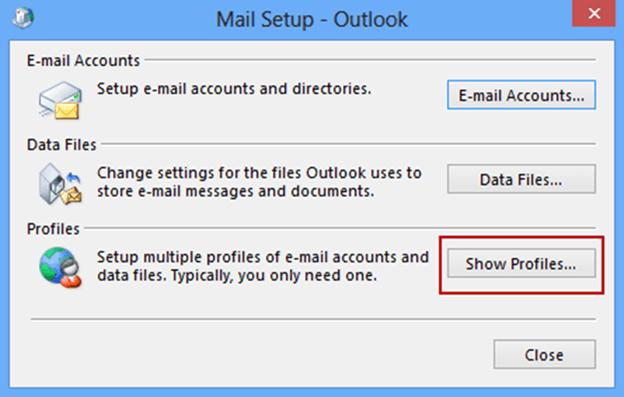
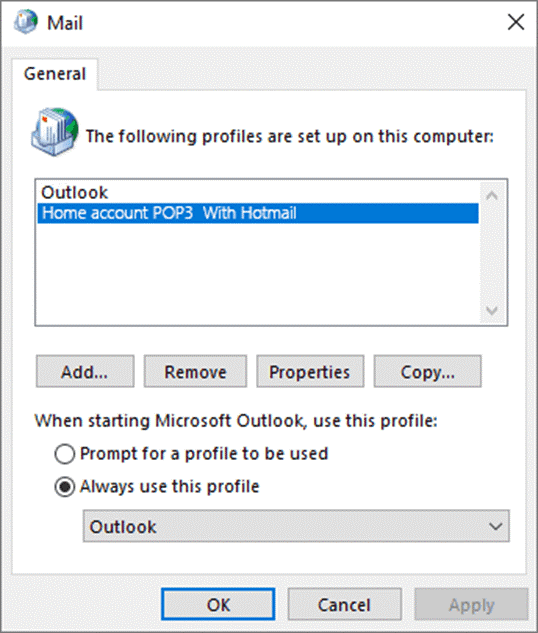
- Click Add and then enter the new profile name. Click OK.
- In the Add Account wizard, enter the email ID and password. Click Next.
- Choose the new profile from the options and enable ‘Always use this profile’ or choose the ‘Prompt for a profile to be used’ option and then click OK.
Method 5: Recreate Outlook OST File
Inconsistencies, damage, or corruption in the OST file is one of the primary causes for the OST is not the Outlook data file error. In such a case, you can recreate the file. For this,
- Close Outlook (if it is open). Go to the OST file location.
- Move the file to another location or rename it to create its backup.
- Now open Outlook. This will automatically create a new OST file and download all your mailbox data from the server.
For more details, read How to Recreate OST File in Microsoft Outlook 2010, 2013, 2016, or 2019.
Recover Missing Items after Recreating the OST File
When you recreate the OST file, Outlook downloads all the mail items available on the server mailbox. If there are any unsynchronized items, these will not be downloaded in the new OST file. So, check for any missing mail items in the new file. If there are any, you can use Stellar Converter for OST to extract the items from your backup OST file and save them to PST format. Then, you can import this PST into your Outlook via the Import/Export wizard. You can also use the software to directly import the mail items from the OST file into an existing Outlook profile, Office 365, or live Exchange Server.
To see how this software works, watch this video tutorial:
To Wrap Up
There are several reasons for the error – OST is not an Outlook data file. You can resolve this error by following the methods discussed in this guide. If the OST file is inaccessible or becomes orphaned, you can use Stellar Converter for OST – a reliable OST to PST converter software – to extract all the mailbox items from such a file and save them to PST format. You can then import this PST file into any profile to restore your emails, contacts, calendars, and other mailbox items.
