Error code 0xc0000005 is a common Windows error related to memory access violation. It may occur while launching a program, while an application is running, when installing a Windows update, or during a Windows installation. When a program tries to access memory that isn’t allocated to it or is in use by another process, the system throws the Access Violation Exception error. A corrupted system file, damaged hardware, such as RAM or hard drive, incompatible software, or even a failed Windows update can all lead to the 0xc0000005 error.
The error can cause your system to freeze, boot, or shut down frequently, or applications to crash, etc. Users sometimes also experience a blue screen with the error code 0xc0000005. These issues eventually put your system and its data at risk. Although it is possible to recover data using professional data recovery software, taking prompt action to fix the error should be your priority.
We’ve shared the proven troubleshooting methods to help you fix error code 0xc0000005. However, understanding the relevant stop codes and their possible reasons will help you move in the right direction and apply appropriate methods to fix this error at once.
4 Ways Error Code 0xc0000005 Appears
Identifying which version of the error you are seeing makes it far easier to choose the right fix. There are four confirmed variants of this error.
- Access Violation Error 0xc0000005: This pops up when a program tries to access a restricted or unallocated region of memory. It usually appears as the message “Exception: access violation (0xC0000005)” or as a blue screen (bugcheck), such as SYSTEM_SERVICE_EXCEPTION (0x3B) or KMODE_EXCEPTION_NOT_HANDLED (0x1E), with 0xc0000005 listed as a parameter.
- Application Error 0xc0000005: You may see this error the moment you launch a program, which closes with: “The application was unable to start correctly (0xc0000005). Click OK to close the application.” It is usually caused by corrupted application files, bad or missing DLLs, or a Data Execution Prevention (DEP) conflict.
- Windows Update Error 0xc0000005: It usually occurs when your system fails to configure the Windows update during installation. The reason could be system memory or errors with the update installation. It could also appear while installing a buggy update.
- Windows Installation Error 0xc0000005: This appears while installing or upgrading Windows itself, when Setup cannot read from or write to the target disk. It usually traces back to bad sectors on the destination drive or a corrupted installation USB.
What Causes Error Code 0xc0000005?
Several hardware or software issues can trigger this error. The table below maps each common cause to the variants it tends to produce.
| Cause | What It Affects |
| Faulty or incompatible RAM | All three variants |
| Corrupted Windows system files | Access violation, app crash |
| Malware or virus infection | Access violation, app crash |
| Outdated or corrupt device drivers | App crash, installation error |
| Corrupted Windows Registry | App crash |
| DEP (Data Execution Prevention) conflict | Application unable to start only |
| Bad sectors on HDD/SSD | Windows installation error |
| Incompatible or corrupted application files | Application unable to start |
11 Methods to fix Windows Error Code 0xc0000005
You can try the given methods to resolve error code 0xc0000005 on your system. All these methods are DIY (do-it-yourself) and can be performed easily. Before you begin, restart your computer. If you can bypass the error screen, start fixing the Windows error code 0xc0000005 by following the given troubleshooting methods.
1. Repair or Reinstall the Problematic App
If error 0xc0000005 appears with only one specific program, especially if you see “The application was unable to start correctly (0xc0000005),” the program’s own files are the likely cause, not Windows itself. Repairing or reinstalling it is the fastest fix in this case.
- Open Settings.
- Go to Apps > Installed apps.
- Find the affected app, click the three-dot menu, and choose Advanced options.
- Click Repair. If repair isn’t available, go back, choose Uninstall, then download a fresh copy from the official source and reinstall it.
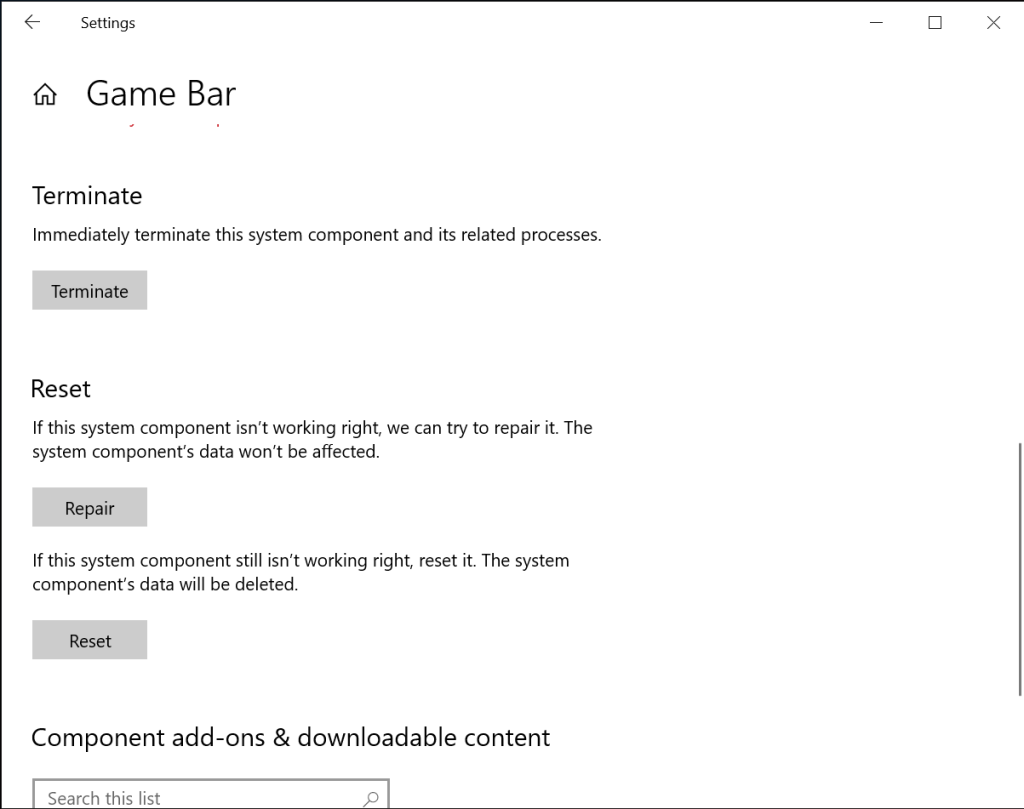
Note: Reinstalling the latest version from the vendor’s website also replaces corrupted program files and outdated dependencies that an in-place repair may miss.
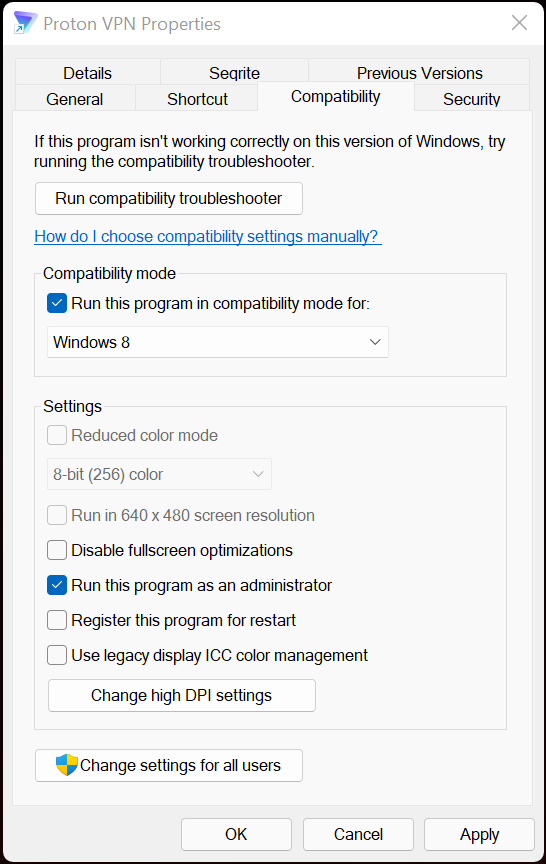
2. Run the App as Administrator or in Compatibility Mode
Sometimes, the error comes from insufficient permissions or an app built for an older version of Windows.
- Right-click the program’s shortcut or .exe file and select Run as administrator to see if the error clears
- To make it permanent, right-click the .exe, choose Properties > Compatibility
- Tick Run this program as an administrator. If the app is older, also tick Run this program in compatibility mode for and choose an earlier version like Windows 8.
- Click Apply > OK and launch the program again.
3. Repair System files (SFC and DISM)
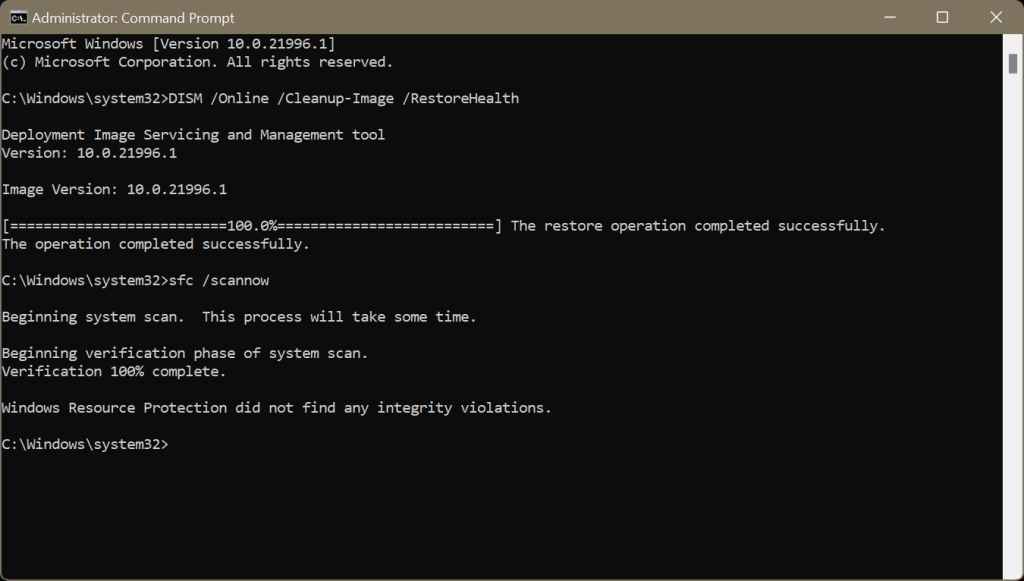
Since missing, outdated, or corrupted system files can trigger the 0xc0000005 error, run DISM first to repair the Windows component store, then run SFC to scan system files and replace the damaged ones. Order matters here: SFC pulls its replacement files from the component store that DISM repairs.
- Open Command Prompt as administrator.
- Execute the following command:
DISM /Online /Cleanup-Image /CheckHealth
- If that flags a problem, run the following commands, one after another:
DISM /Online /Cleanup-Image /ScanHealth
DISM /Online /Cleanup-Image /RestoreHealth
- Then execute the following command:
sfc /scannow
- Wait for the scan to finish.
4. Scan Your PC for Malware
If your PC is malware-infected, you may receive the error code 0xc0000005. Use Windows Defender Antivirus software to scan your system for malware or viruses. You can run this tool to check for viruses on your system and remove them with the recommended instructions.
- Press Win + S and open Windows Security.
- Click Virus & threat protection > Scan options.
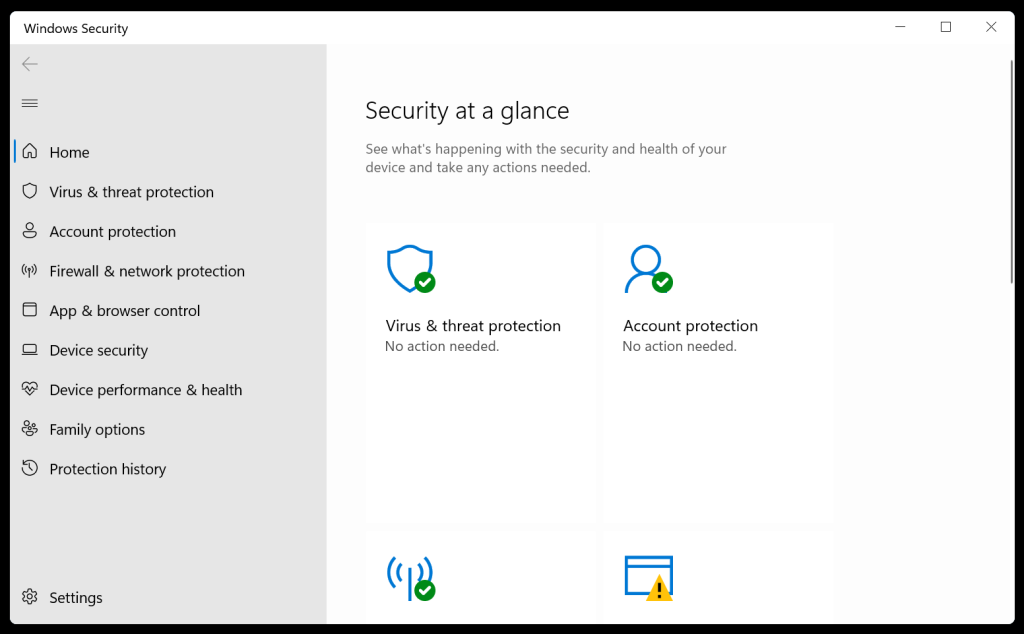
- Click Windows Defender Offline Scan > Scan Now.
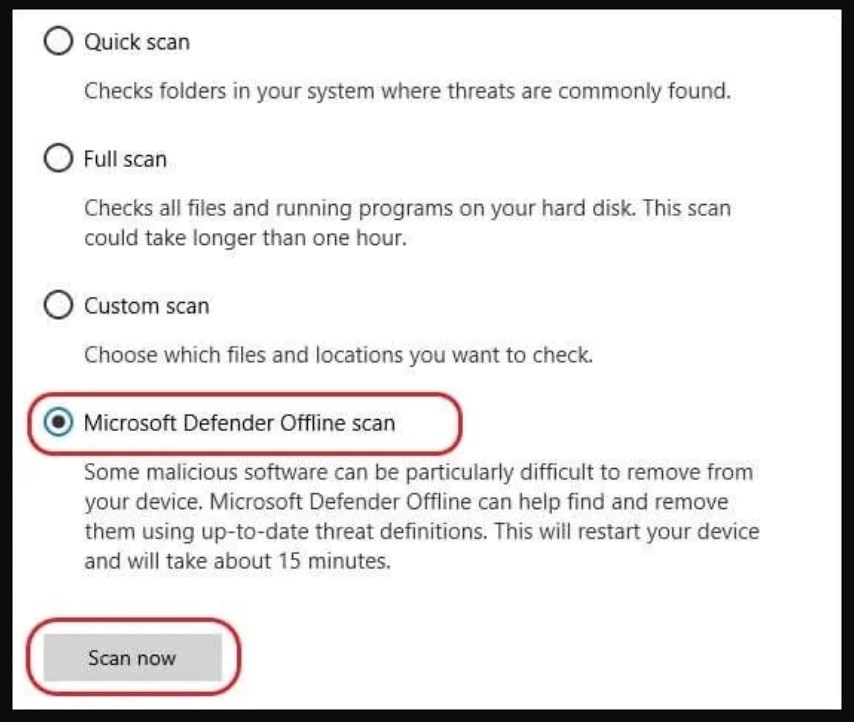
Let the process complete. The Windows Defender will scan your computer for existing threats.
5. Add a Data Execution Prevention (DEP) Exception
Data Execution Prevention (DEP) is a memory-protection feature that blocks code from running in protected regions. Occasionally, it flags a legitimate but poorly written program and produces error 0xc0000005. The safest approach is to add an exception for that one program rather than disabling DEP everywhere.
- Press Win + R to launch Run.
- Type sysdm.cpl and press Enter to open System Properties.
- Click the Advanced tab.
- Click Settings under Performance.
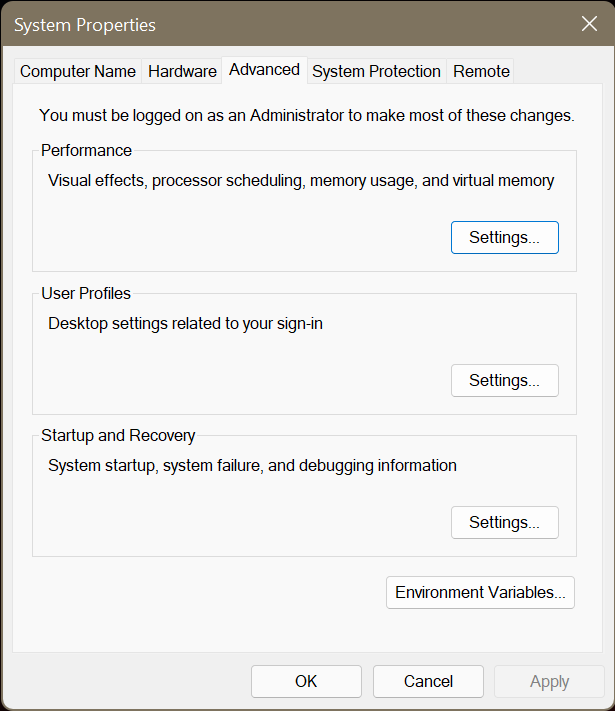
- Click on the Data Execution Prevention tab.
- Select Turn on DEP for all programs and services except those I select.
- Click Add, browse to the program’s .exe and add it.
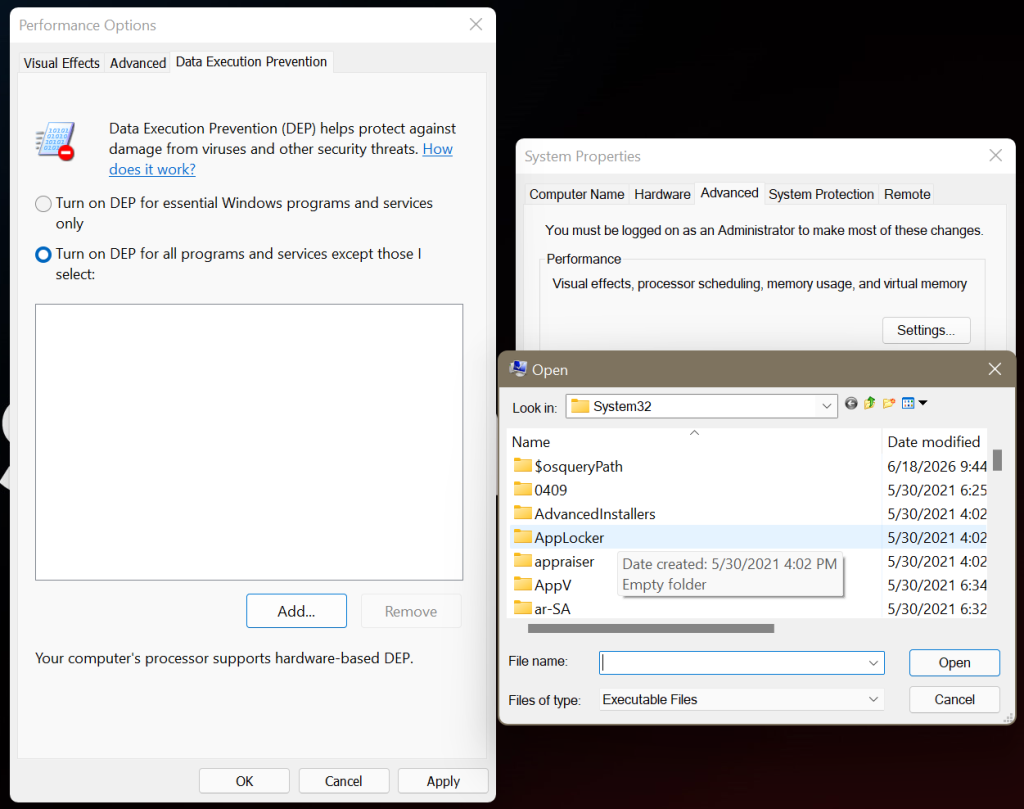
- Click Apply > OK.
- Restart your PC.
6. Update Device Drivers
You need to check all your device drivers are up to date, as outdated drivers can also be responsible for error code 0xc0000005 (memory access violations). You can update the drivers with the following steps:
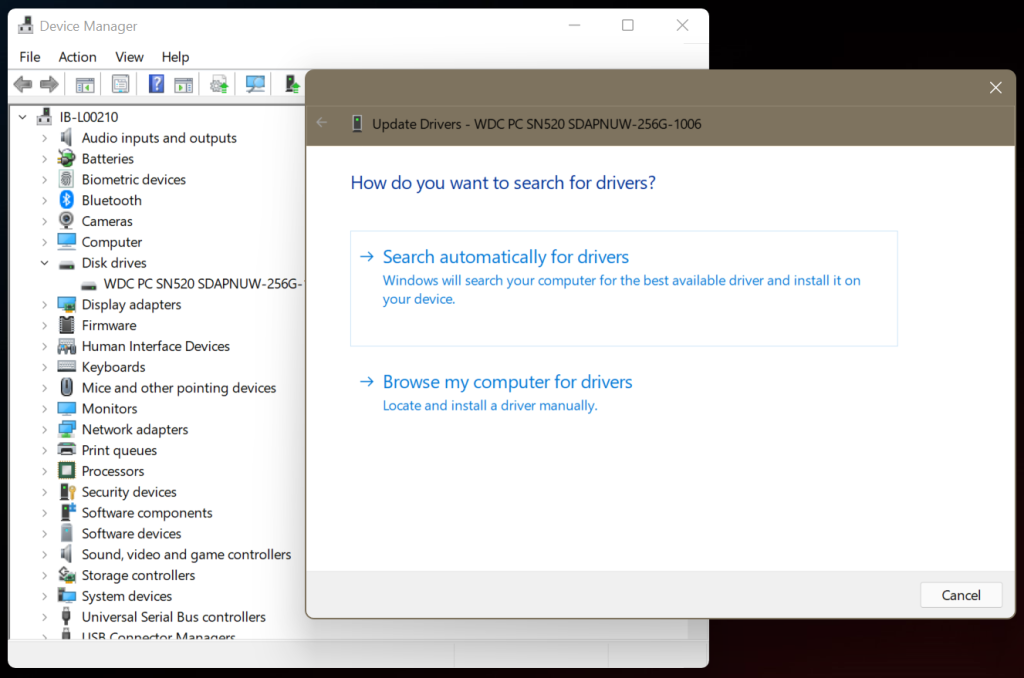
- Press Windows + X and select Device Manager.
- Expand the Disk Drives and right-click on the driver.
- Choose Update driver.
- Select Search automatically for drivers on the following prompt.
- Windows will look for the latest compatible driver for your device. If any driver version is available, download it and reboot your system.
7. Check RAM
Memory corruption is one of the primary reasons behind this error. Run the Windows Memory Diagnostic tool to quickly get past RAM related problems.
- Open Command Prompt as administrator.
- Type mdsched.exe and press Enter.
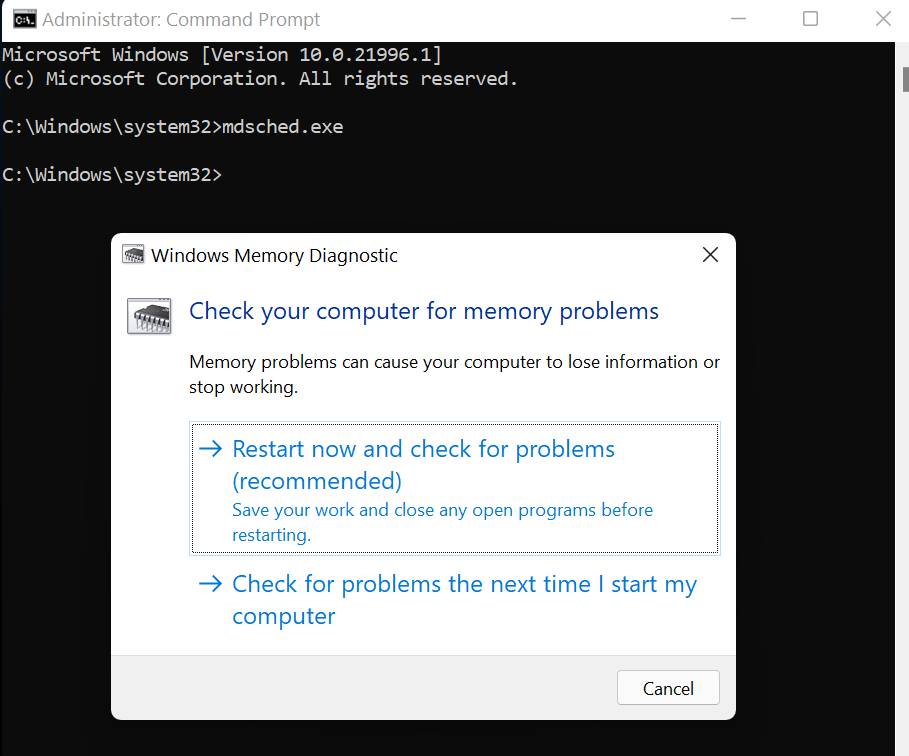
- Click Restart now and check for problems (recommended).
- The PC will restart and automatically check for memory faults.
Once the scan is done, you’ll see the scan results on the screen. If it shows several RAM issues and instructions on how to fix them, follow the instructions. Else, replace your faulty RAM. You can additionally run memtest86 to test the RAM.
8. Run CHKDSK Scan
A corrupted or failing hard drive with bad sectors can also produce this error. Run CHKDSK scan to scan your disk for errors and repair it.
- Open Command Prompt as administrator.
- Type chkdsk E: /f /r and hit Enter. (Replace E: with your hard drive letter).
- Close the window once completed and reboot your system.
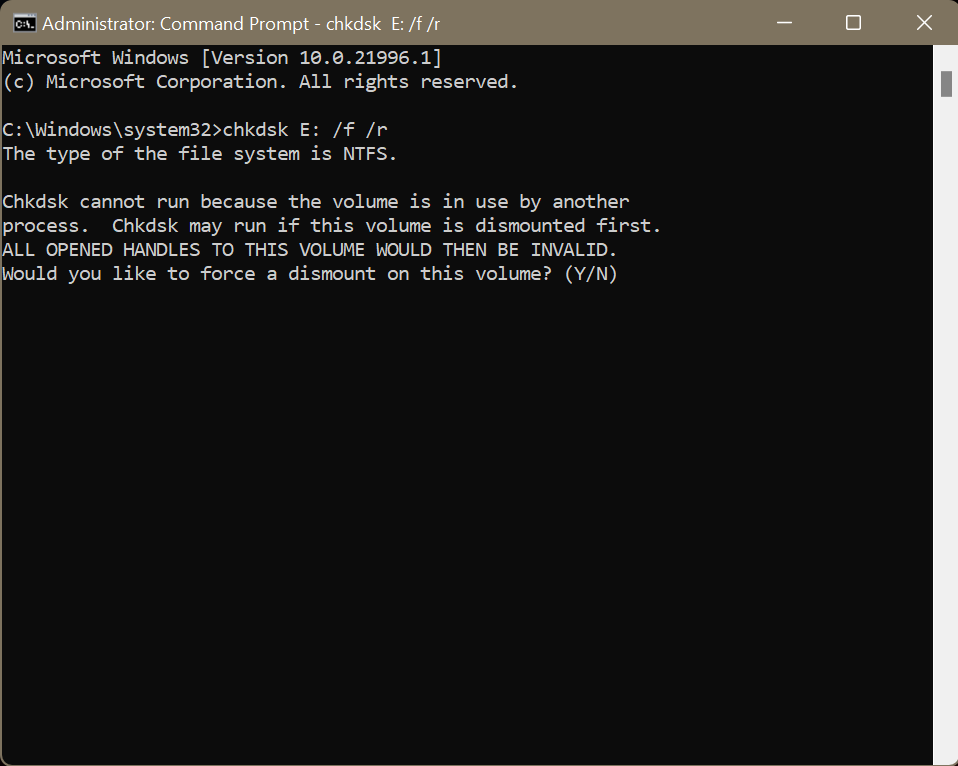
Note: On a drive with bad sectors, CHKDSK marks them so Windows stops using them, which can make data stored there inaccessible. Back up the drive before running CHKDSK. If you’ve already lost data, use reliable professional data recovery software to recover it.
9. Perform a Clean Boot
A clean boot starts Windows with only essential drivers and startup programs, which helps you find whether background software is triggering the error.
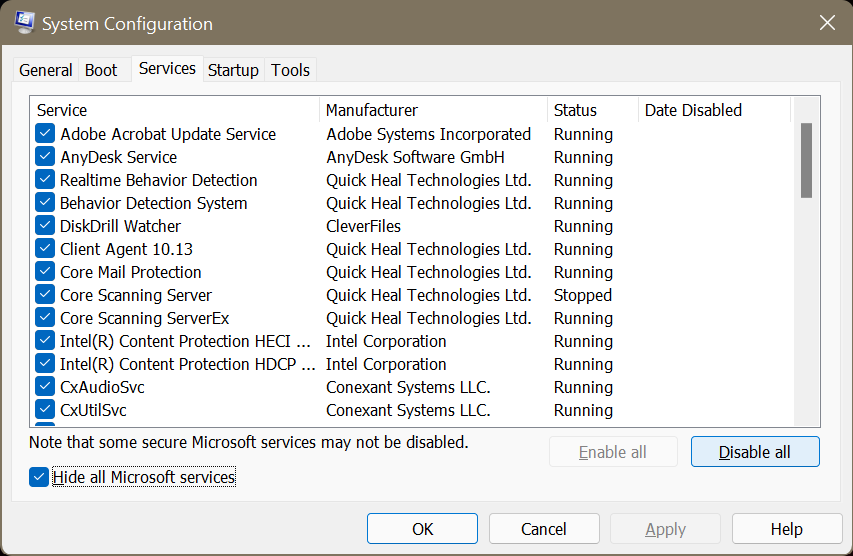
- Press Windows + R, type msconfig and press Enter to open System Configuration.
- On the Services tab, tick Hide all Microsoft services and click Disable all.
- On the Startup tab, click Open Task Manager, select each startup item, and click Disable.
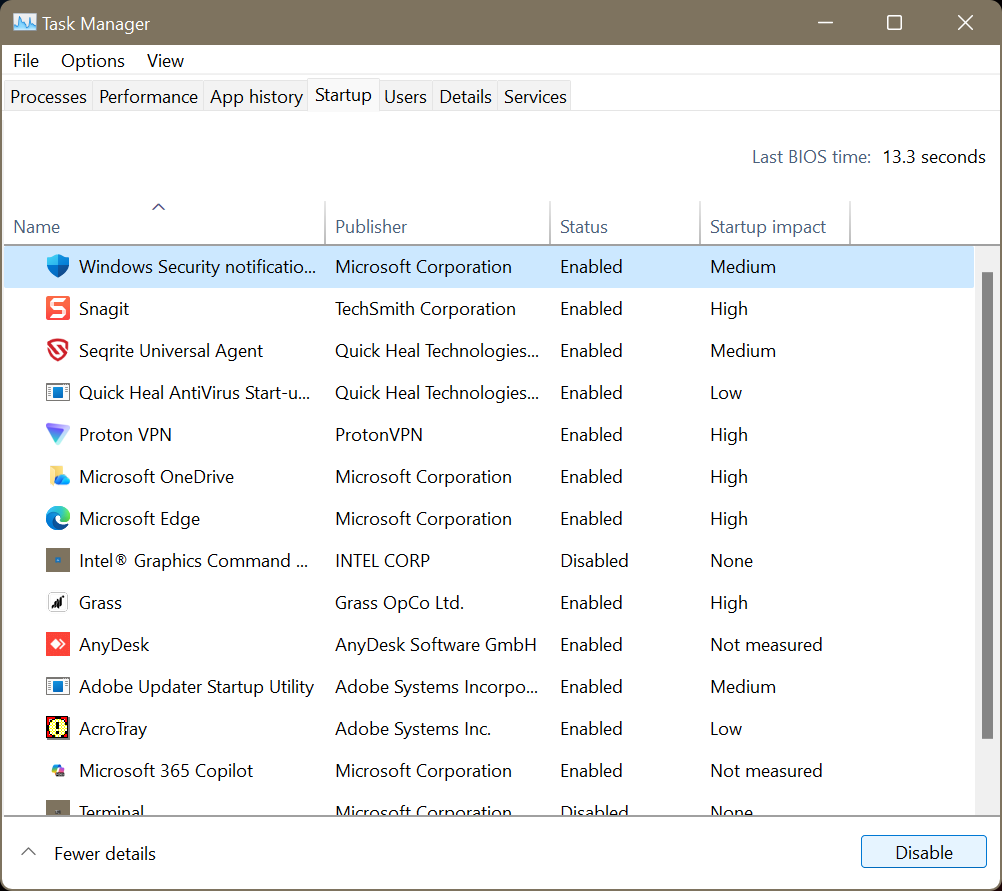
- Close Task Manager, click OK in System Configuration.
- Restart your PC.
If the error disappears in a clean boot, re-enable services and startup items a few at a time to pinpoint the culprit, then update or remove it.
10. Uninstall a Recent Windows Update
If error 0xc0000005 started right after a Windows update or you’re seeing it as a Windows Update error, a buggy update is the likely trigger, and removing it often restores stability.
- Press Windows + I to open Settings. On Windows 11, select Windows Update. On Windows 10, click Update & Security > Windows Update.
- Go to Update history.
- Click Uninstall updates.
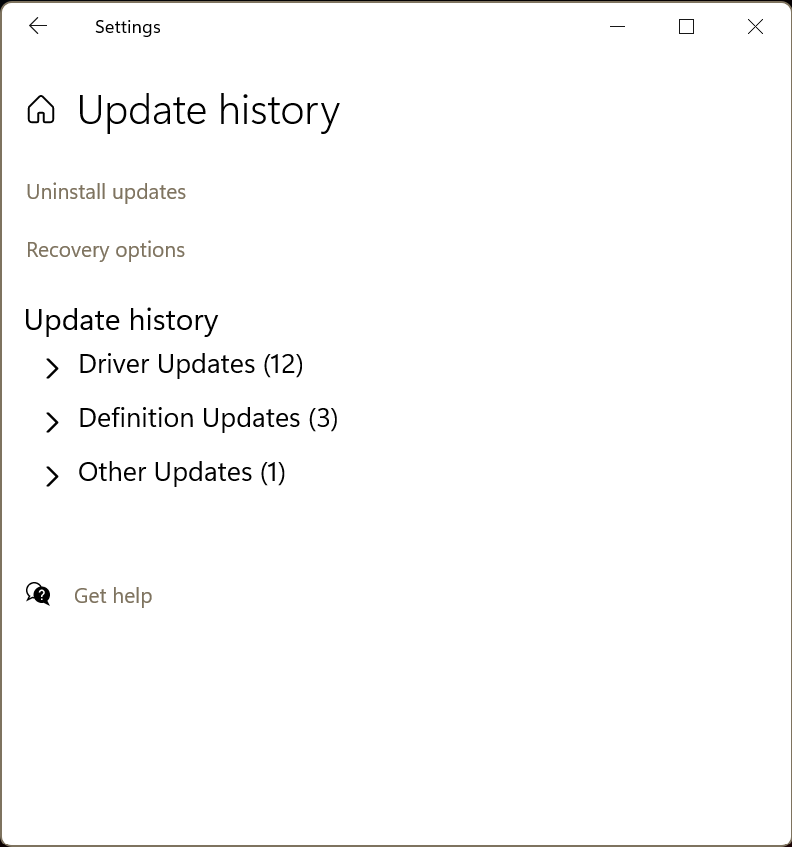
- Find the most recent update (sort by the Installed on date), select it, and click Uninstall.
- Restart your PC and check.
If the error is gone, pause updates briefly so the same patch doesn’t reinstall immediately, and wait for Microsoft to ship a fix.
Tip: For an update that fails to install with this error, run the Windows Update troubleshooter (Settings > System > Troubleshoot > Other troubleshooters > Windows Update) before retrying.
11. Restore Your PC
If you’re not sure about what actually caused the 0xc0000005 error, restore Windows to a previous state before the error first appeared.
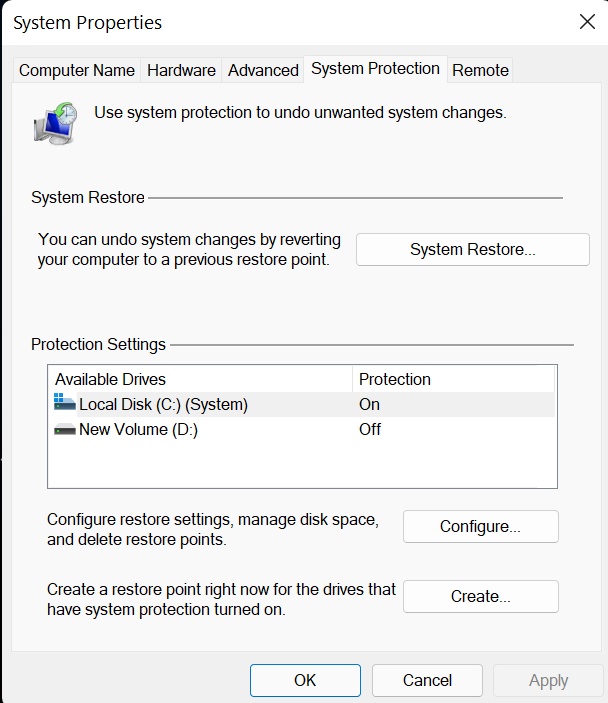
- Search for Create a restore point and open it.
- A System Properties dialog box will appear.
- Under the System Protection tab, click System Restore.
- Choose a restore point before the 0xc0000005 error and click Next.
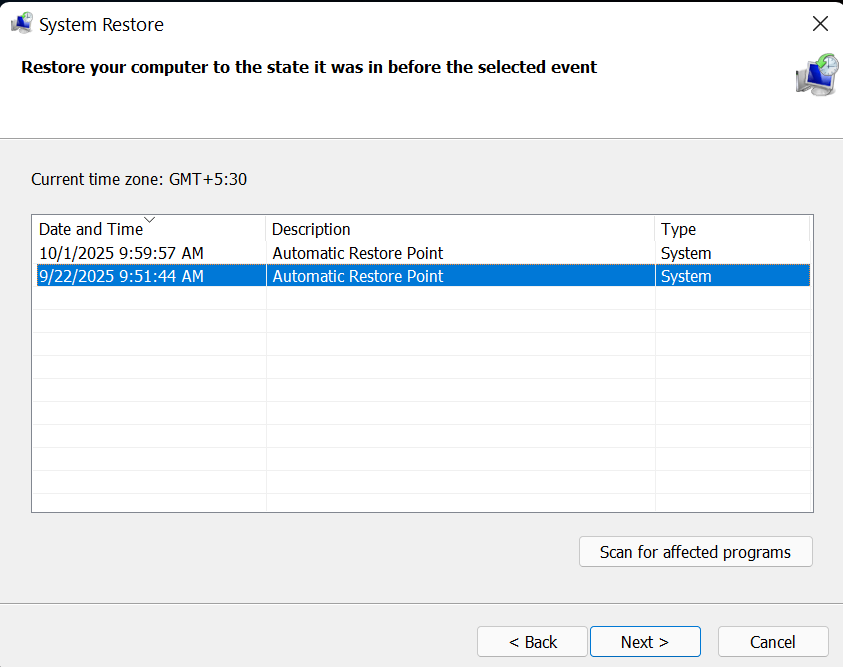
- Confirm the restore point by clicking Finish and you’re good to go.
Tips to Prevent System Errors & Data Loss
- Test your RAM periodically with Windows Memory Diagnostic or MemTest86, since faulty memory is one of the most common causes of 0xc0000005 access violation errors.
- Keep your device drivers updated, especially graphics and storage drivers, and install them from the hardware vendor rather than unstable beta builds, as faulty drivers often trigger this error.
- Install Windows updates, but if the error appears right after a patch, pause updates and uninstall that update before reapplying it once a fix is available.
- Run periodic malware scans, since infections and the system file corruption they cause are a frequent trigger for access violation crashes.
- Enable System Restore to create restore points. This will help you return your system to its original functional state while keeping the data until the last restored point.
- Keep regular backups of your important files, so a crash, a failed repair, or a non-booting PC never costs you data.
How to Recover Files Lost Due to Error 0xc0000005?
If a crash, a failed fix, or a non-booting PC has already cost you files, data recovery software can often get them back. Stellar Data Recovery Professional can scan drives from a crashed or non-booting Windows PC, and it supports recovery from formatted drives, reset systems, and drives with bad sectors. Always save recovered files to a separate drive, not the one you are scanning, so you do not overwrite data that is still waiting to be recovered.
Summing Up
The error 0xc0000005 can be caused by a wide variety of issues, such as corrupted app files or damaged system components, faulty RAM, malfunctioning drivers, malware infections, or a failed Windows update, etc. Start with simpler solutions like fixing the affected app, run SFC/DISM scans to check for corrupted system files, and check your computer for malware.
If the above steps fail to resolve your issues, then you need to troubleshoot in an attempt to identify problems with your hardware. Troubleshooting your hardware includes using ram diagnostic tools to test the health of your ram, performing a chkdsk scan on your hard drive(s), and updating your drivers. If the 0xc0000005 access violation occurs immediately after a new windows update or installation of new software, then rolling back these changes may provide immediate relief.
FAQ
