The QuickBooks File Doctor is an Intuit-recommended tool to check and repair corrupt company files. You can use this tool if your company file won’t open. It helps resolve common errors, like -6150, -6000 -82, -6000 -305, -6000 -301, -6147, or -6130, as well as network issues like H101, H202, or H303. This tool is available in the QuickBooks Tool Hub. When using the tool, you may encounter issues like “the tool does nothing” or “stops working” entirely. The QuickBooks File Doctor can stop working due to various reasons. Let’s see what to do if it fails to work.
User queries on the Intuit community forum:
Query 1- QuickBooks File Doctor Stuck on Idle / Forced Shutdown (QB 2019 Pro)
The tool opens, but the company file fails to open and requires a forced shutdown. It sits idle for hours with no progress or error codes.
Query 2- QuickBooks File Doctor Fails with “Incorrect Password” Error (Enterprise)
The tool fails to log in, stating the username or password is incorrect, even though the same credentials work to log into QuickBooks normally.
Causes of the QuickBooks File Doctor not Working Issue
The file doctor tool usually stops working due to one or more of the following reasons:
- The system does not have the specifications required to run the QuickBooks tool hub
- Lack of admin permissions on the QuickBooks Tool Hub
- Power outage or network connectivity issues
- Issues with the Tool Hub installation files
- The company file that you’re trying to open is too large
- The company file is severely corrupted
- The system on which you’re trying to open the Tool Hub contains malware or viruses
- Outdated version of QuickBooks Tool Hub
- Incorrect admin credentials for the company file
Top Methods to Resolve QuickBooks File Doctor not Working Issue
If your QuickBooks File Doctor has stopped working or fails to respond, then you can try the following methods.
Method 1 – Update Windows
QuickBooks File Doctor may fail to work if the Windows OS is outdated. Installing the latest Windows updates provides required patches and updates dynamic link libraries (DLLs). You can check and install the latest Windows updates and all the available packages. Then, restart your computer, open QuickBooks Tool Hub, and check if the issue is resolved.
Method 2 – Run QuickBooks Tool Hub as Administrator
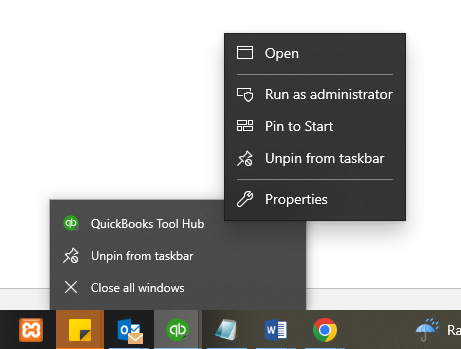
The QuickBooks Tool Hub may crash upon launching if you do not open it with administrator rights as Windows security settings can block the application. To open QuickBooks Tool Hub with admin rights, right-click on its icon and select Run as administrator from the menu.
Method 3 – Temporarily Disable Antivirus Software
Antivirus software scans your system for security threats. It can conflict with QuickBooks Tool Hub and block its processes, causing the application to crash. In this case, temporarily turn off your antivirus software before opening the Tool Hub.
Method 4 – Check and Update QuickBooks Tool Hub
The QuickBooks File Doctor tool can stop working if the Tool Hub is outdated. To check and update the tool, follow these steps:
- From the QuickBooks Tool Hub, go to the option labeled – About/What’s New.
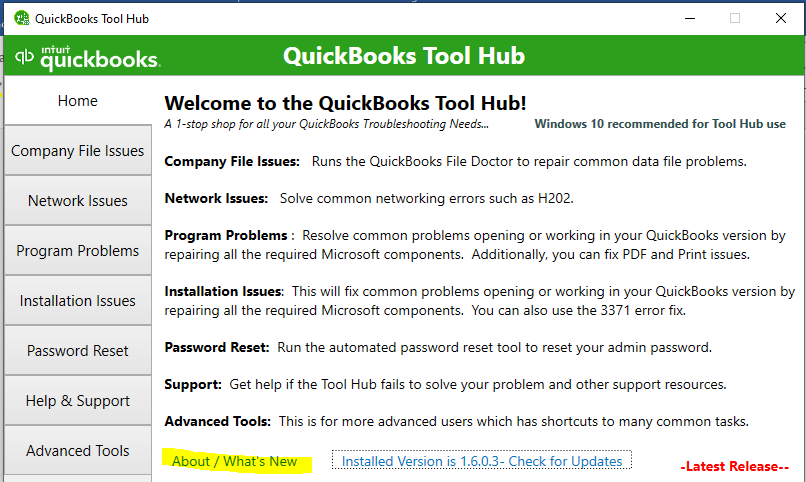
- If the Tool Hub is outdated, then you can download and install its latest release and then try to run the File Doctor tool.
Method 5 – Run the Condense Data Utility
A large-sized company file (exceeding 2GB) can cause the QuickBooks File Doctor tool to fail. You can go to the company file folder and check the file size. If it is large, then use the Condense Data utility to reduce its size. Here are the steps:
- In your QuickBooks application, click File and then click Utilities.
- Click Condense data.
Method 6 – Reinstall QuickBooks Tool Hub
If the installation files of the QuickBooks Tool Hub are corrupted, the File Doctor may stop responding or fail to launch. This usually happens when Windows fails to locate the .msi installer package required to run the tool. To resolve the issue, you can reinstall the latest version of the Tool Hub. Here’s how:
- First, close your QuickBooks application.
- Next, download the latest version of QuickBooks Tool Hub and then save the .exe file.
- Open the .exe file and follow the installation instructions.
- Wait till the installation process is complete and then double-click on the QuickBooks Tool Hub icon to start the tool.
Method 7 – Run the Tool in Compatibility Mode
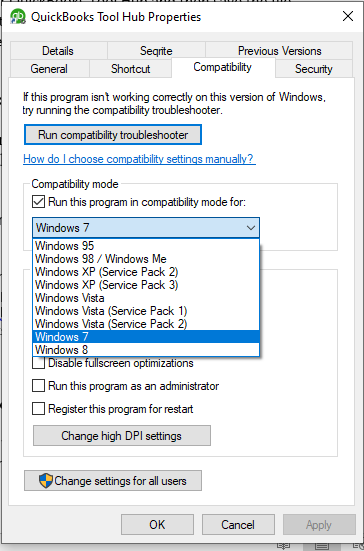
If the QuickBooks Tool hub fails to open after Windows upgrade or updates, then you can try to run the tool in compatibility mode. This mode allows you to open older apps and programs on the latest version of Windows.
To use it, right-click on the QuickBooks Tool Hub icon and select Properties. Under the QuickBooks Tool Hub Properties window, click the Compatibility tab, check the box for “Run this program in compatibility mode for,” and select a suitable older version of Windows.
QuickBooks File Doctor Still Not Working? Alternative Solutions to Repair Company File
If the methods mentioned above fail to resolve the QuickBooks File Doctor not working issue, you can use the following repair solutions to repair the company file.
1. Restore Backup or Use Auto Data Recovery Feature
If you have a backup file (.QBB), you can use it to restore your company file. According to Intuit QuickBooks documentation, you can restore your file directly from a local backup using the “Open or Restore Company” option.
Alternatively, you can use the Auto Data Recovery feature to restore corrupted file data. To use this option, ensure that:
- Your backup file is not larger than 1.5 GB.
- You are using QuickBooks Pro, Premier, or Enterprise Solutions.
2. Use Verify and Rebuild Data Utility
If the QuickBooks File Doctor tool fails to work, you can use the Verify and Rebuild Data utility. Available within QuickBooks Desktop application, this utility identifies data integrity issues and automatically repairs minor file corruption. In fact, Intuit recommends running the Verify and Rebuild utility prior to using the QuickBooks File Doctor. To rebuild QuickBooks data file and resolve company file issues, open QuickBooks, go to File > Utilities > Rebuild Data.
Note:This built-in tool can help you resolve basic corruption in QBW files. However, if your file has severe corruption, the tool may crash or freeze (fail to respond).
3. Use Professional QuickBooks Repair Tool to Repair Company Files
If your QuickBooks File Doctor can’t open the corrupt QBW file and instead displays an error message, freezes or stops working, you can use Stellar Repair for QuickBooks as an alternative solution. It can repair severely corrupt or large-sized QBW file. Also, you do not require backup file and admin credentials to use it. It recovers all the data from the QuickBooks company file with complete precision and provides a preview before saving. It supports all Windows versions and QuickBooks versions (Pro, Premier, and Enterprise).
Conclusion
QuickBooks File Doctor tool repairs company files but can sometimes fail or display errors. This blog discusses the effective methods to resolve the File Doctor has stopped working issue. If the troubleshooting methods fail, you can use alternative methods to resolve corruption in the company file. A reliable method is to use Stellar Repair for QuickBooks. It can repair .QBW and .QBB files without any file size restrictions and with complete integrity. It also helps you perform specific object recovery. You can install the free trial version of this tool to repair your QBW file and preview the recoverable data.
FAQs
