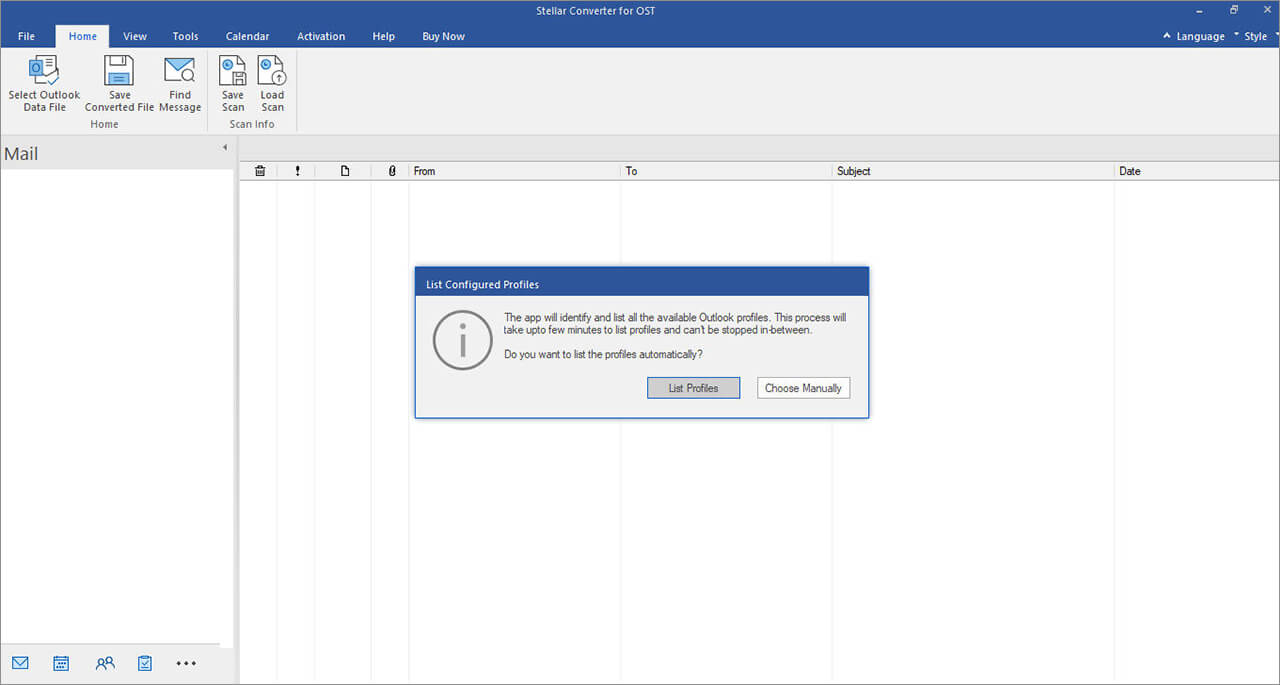
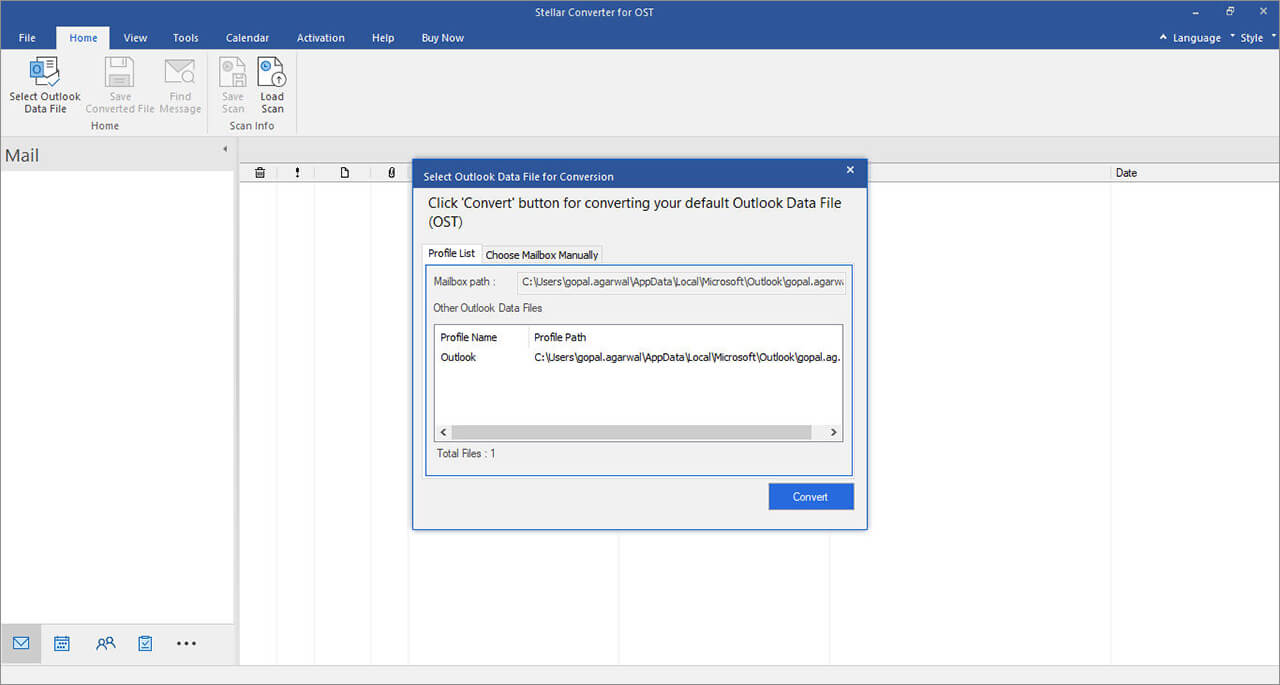
Step 1: The home screen of the software provides two options to initiate the OST to PST conversion process. Click 'Browse' if you know the file location, or click 'Find' if you're not sure where your OST file is located.
Step 2: Once you've selected the OST file for conversion, click 'Convert' to initiate the process.
Step 3: The progress bar shows the current status of file scanning process. The estimated time to scan the OST file depends on the size of the file.
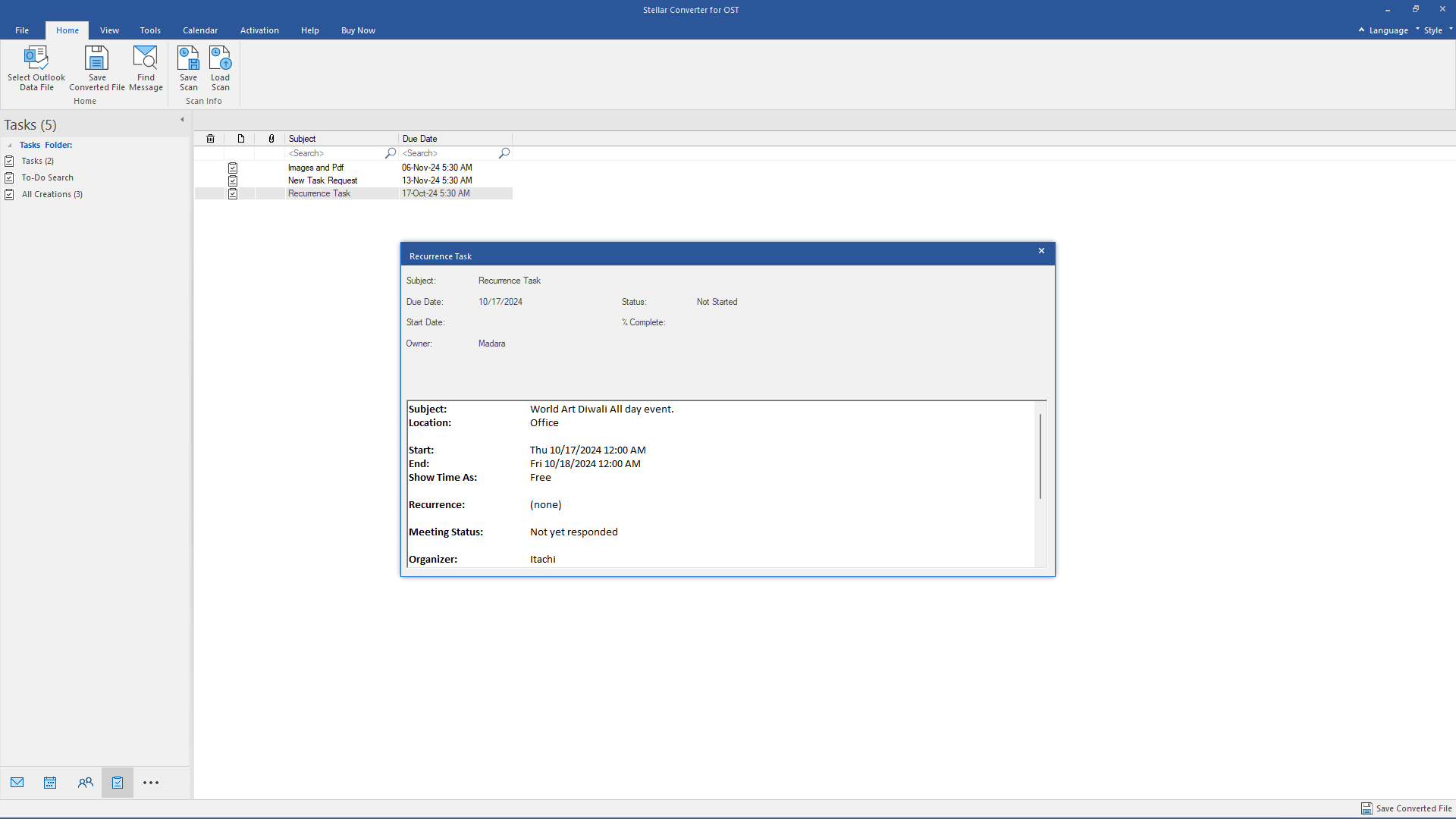
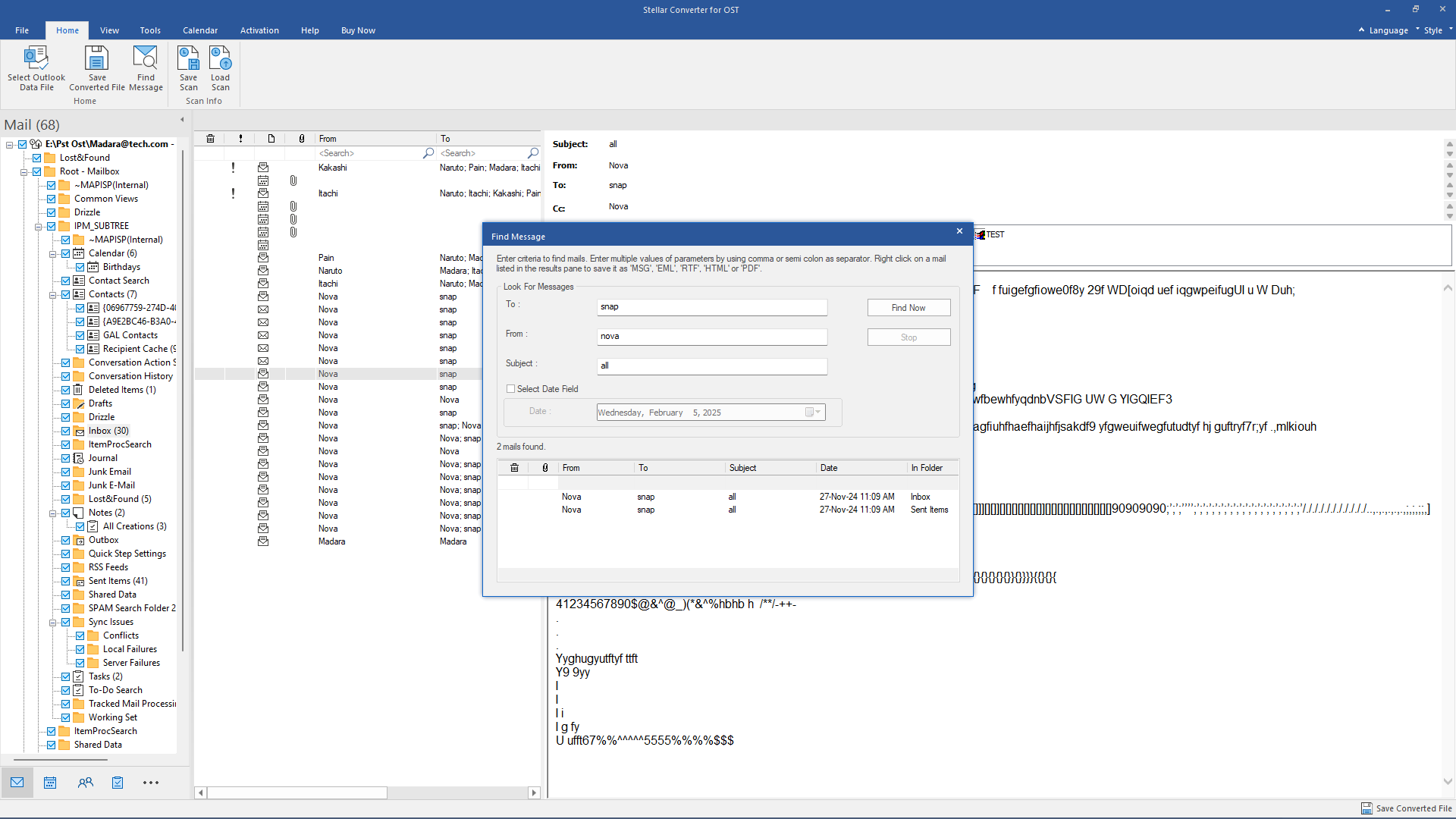
Step 4: In the Outlook mailbox preview window, all the existing Outlook mailbox folders (items) and deleted items (red color) will be displayed in the left side folder hierarchy. You can browse and check every folder and the contained ite
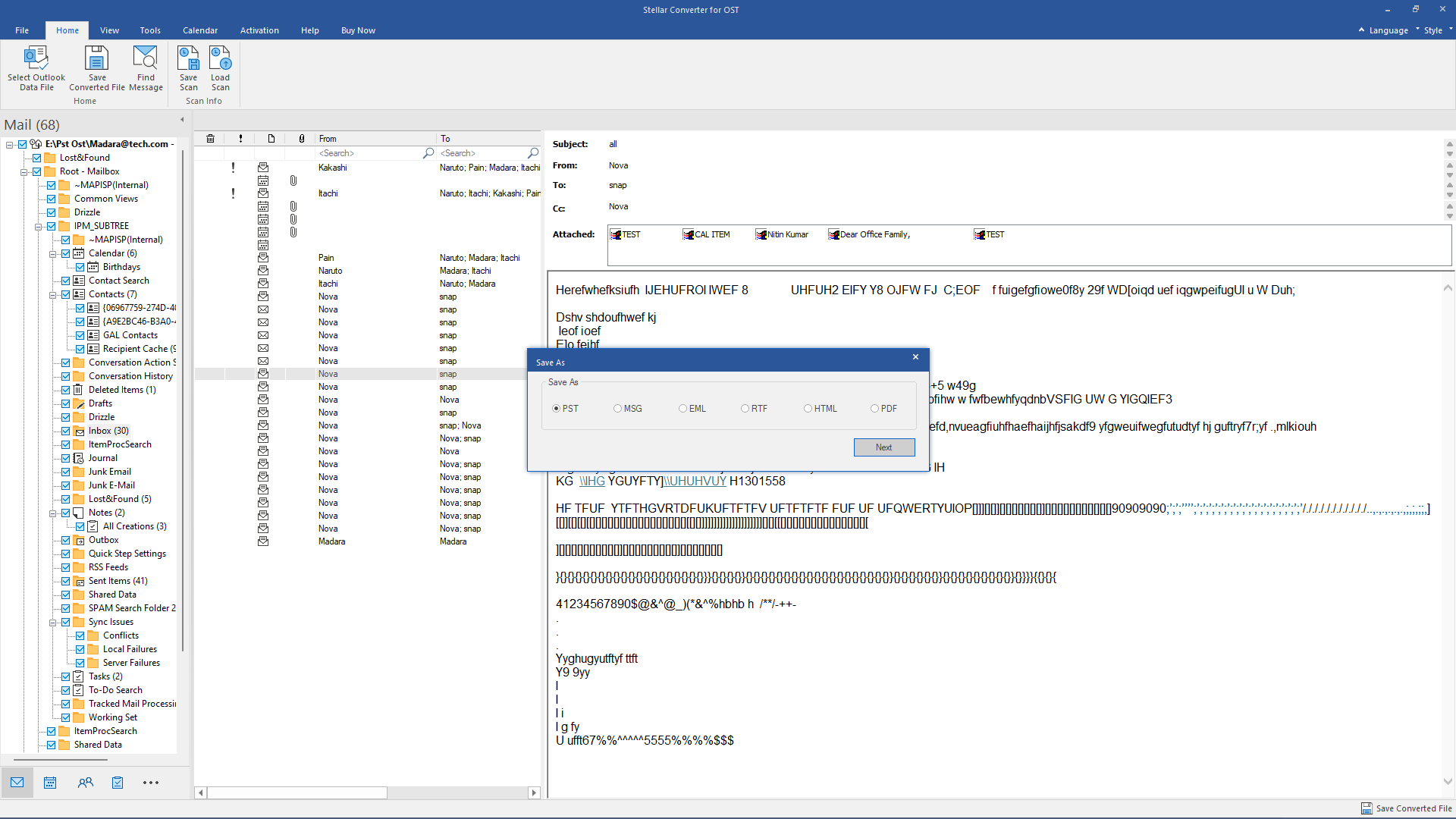
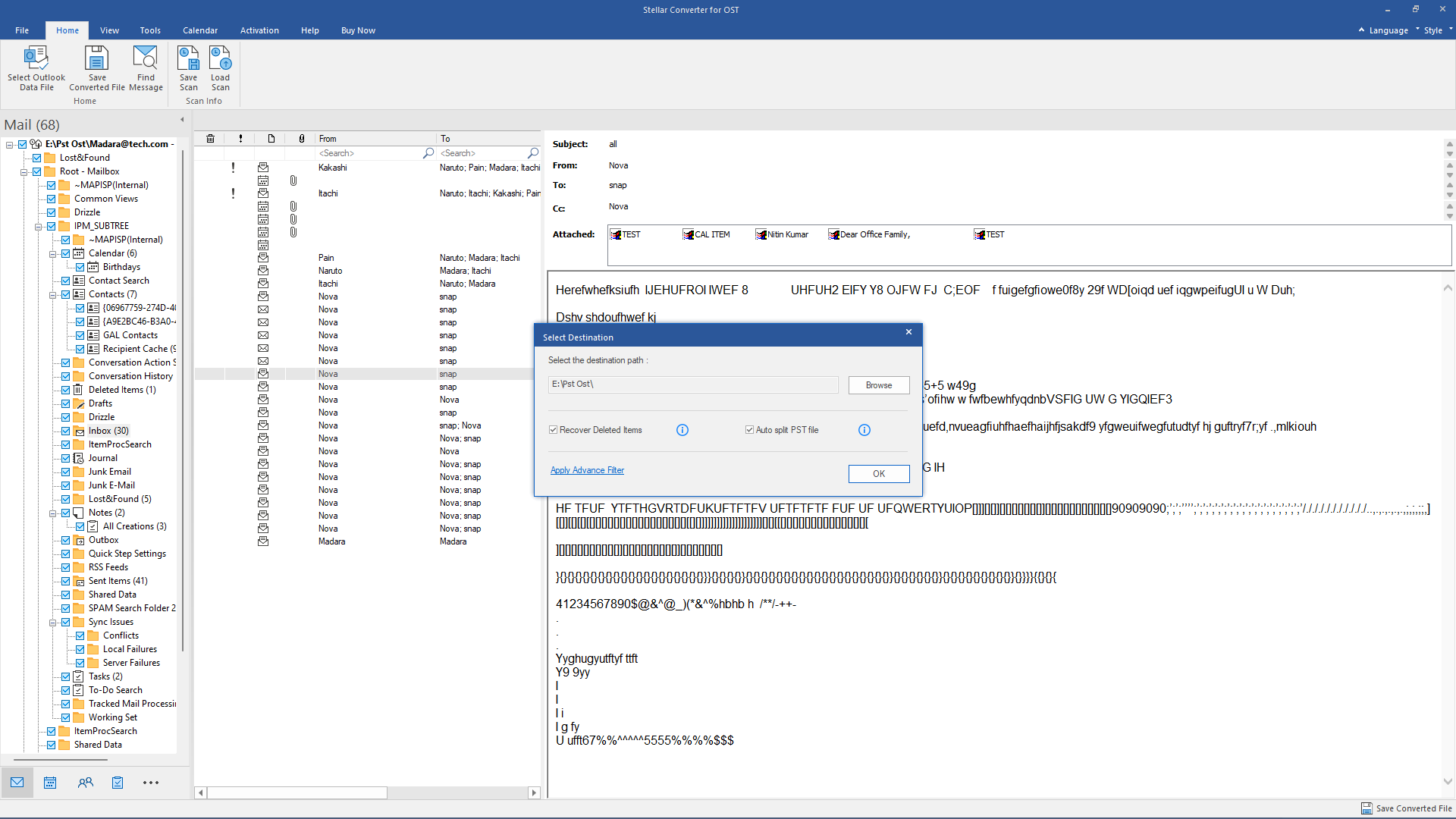
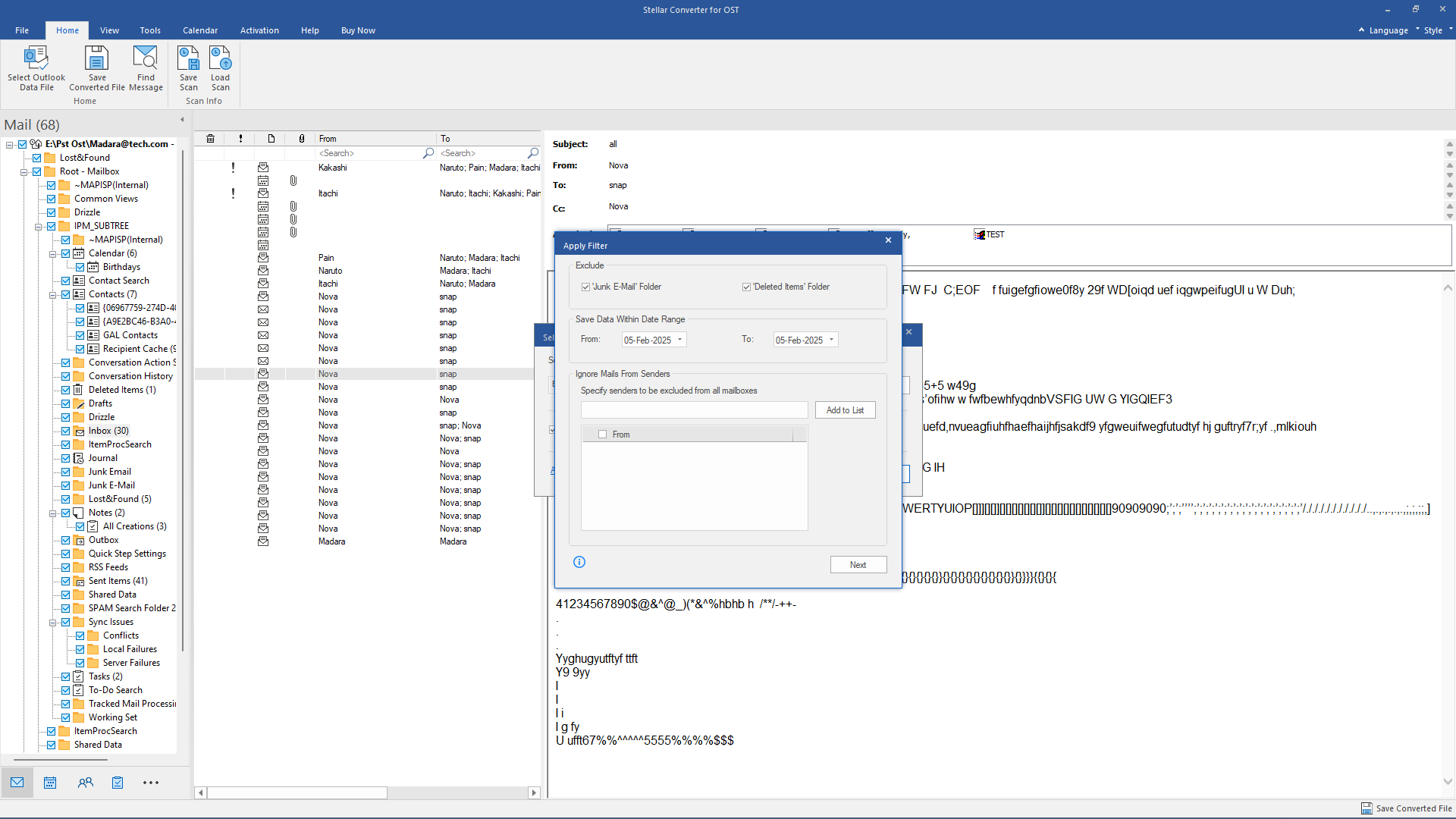
Step 5: Select the folder(s) that you need to convert, and click the 'Save Converted File' button from the 'File' menu. Select the 'PST' from multiple saving options and choose 'Do not recover Deleted Items' option if you don't want to sa
Step 6: The progress bar displays the status of saving PST file.
Step 7: The PST file is saved at your desired location.
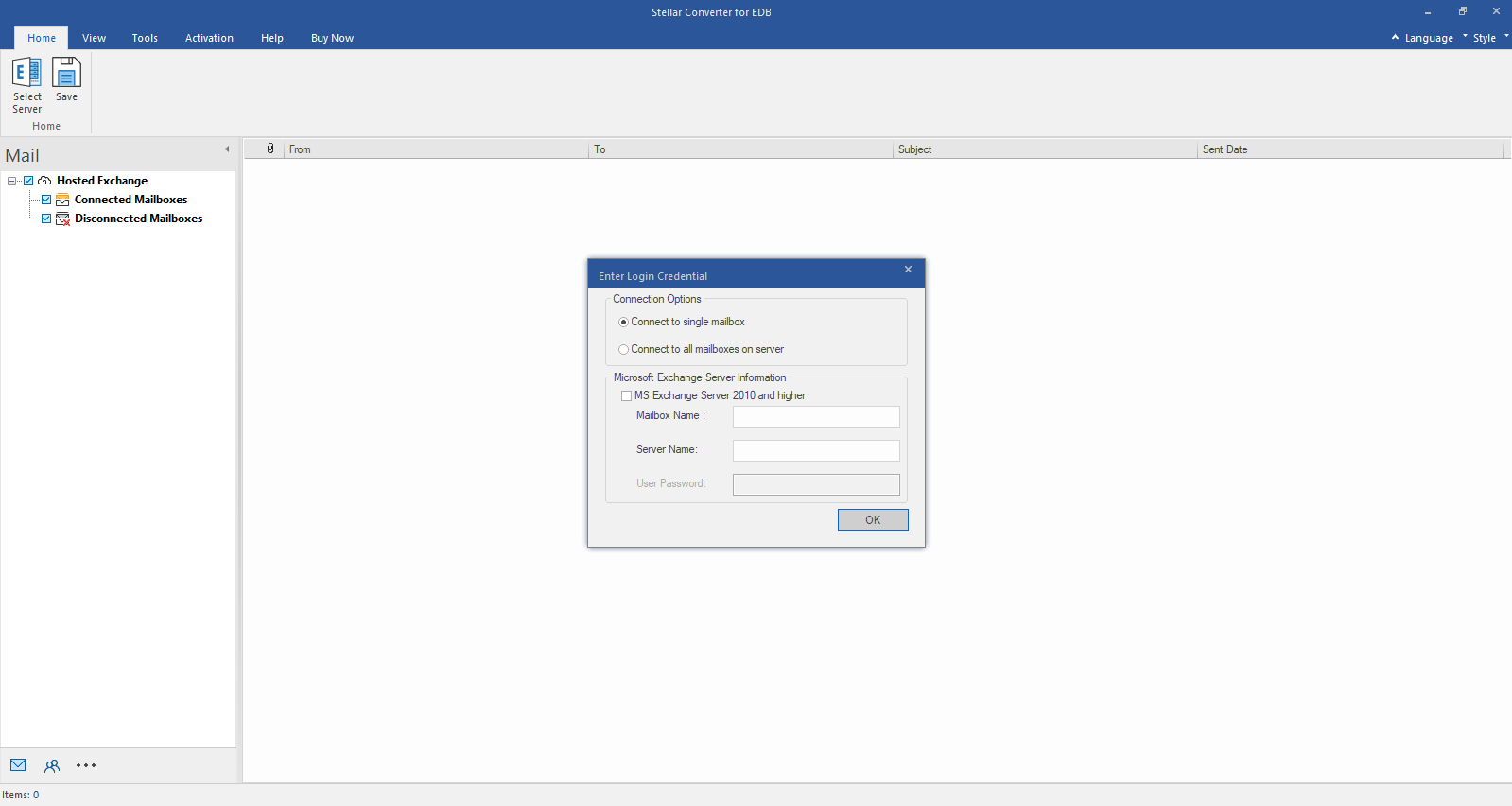
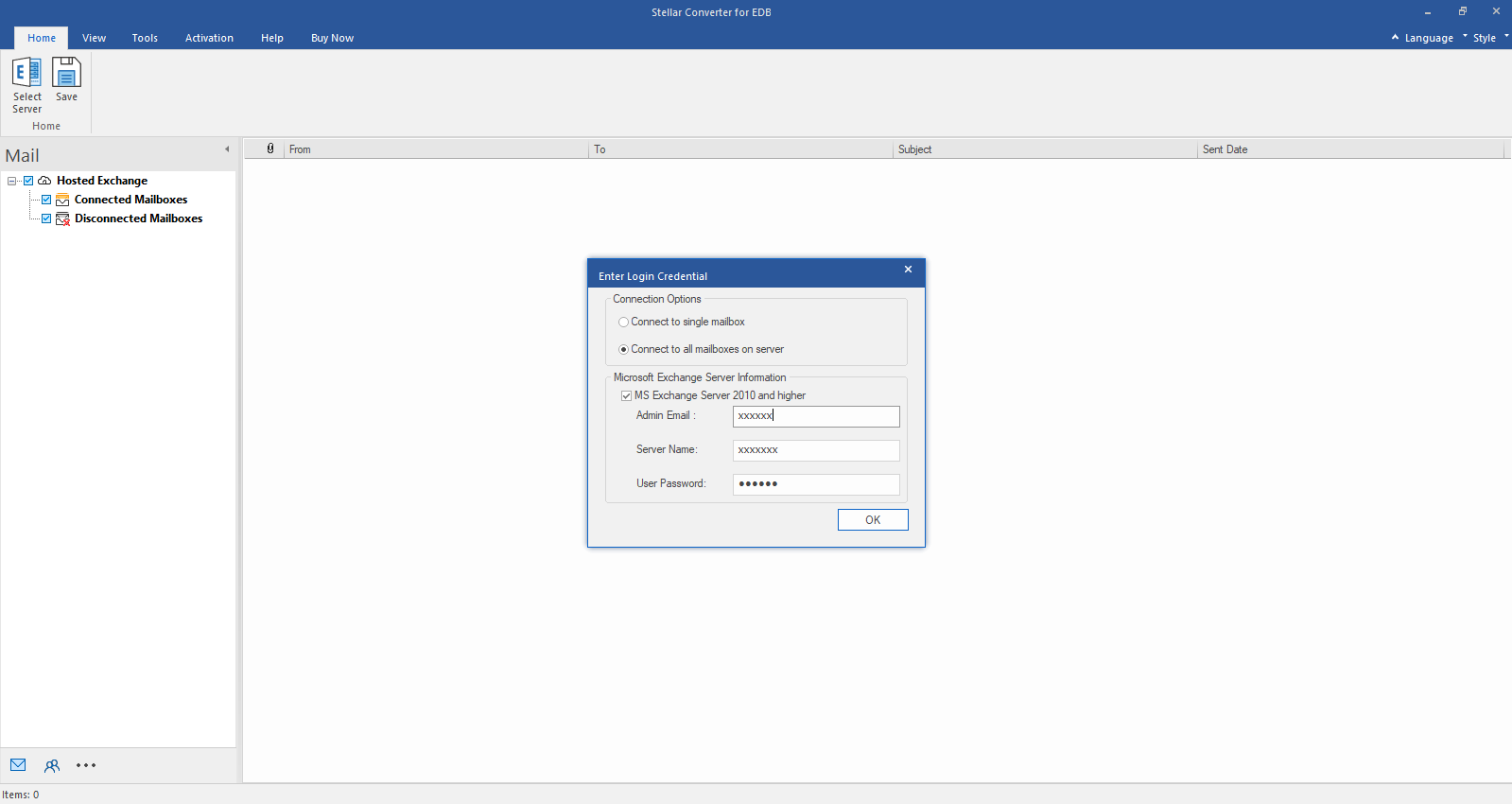
Step 1: Select Hosted Exchange to export mailboxes from an online EDB file. Select Connect to Single Mailbox or Connect to Single Mailbox from Connection Options
Step 2: Enter Admin and Server Name (for Exchange 5.5, 2000, 2003, 2007) or tick "Exchange Server 2010 and higher" checkbox to enter Admin Email, Server Name and Password (for MS Exchange 2010, 2013, 2016, and 2019). Click OK.
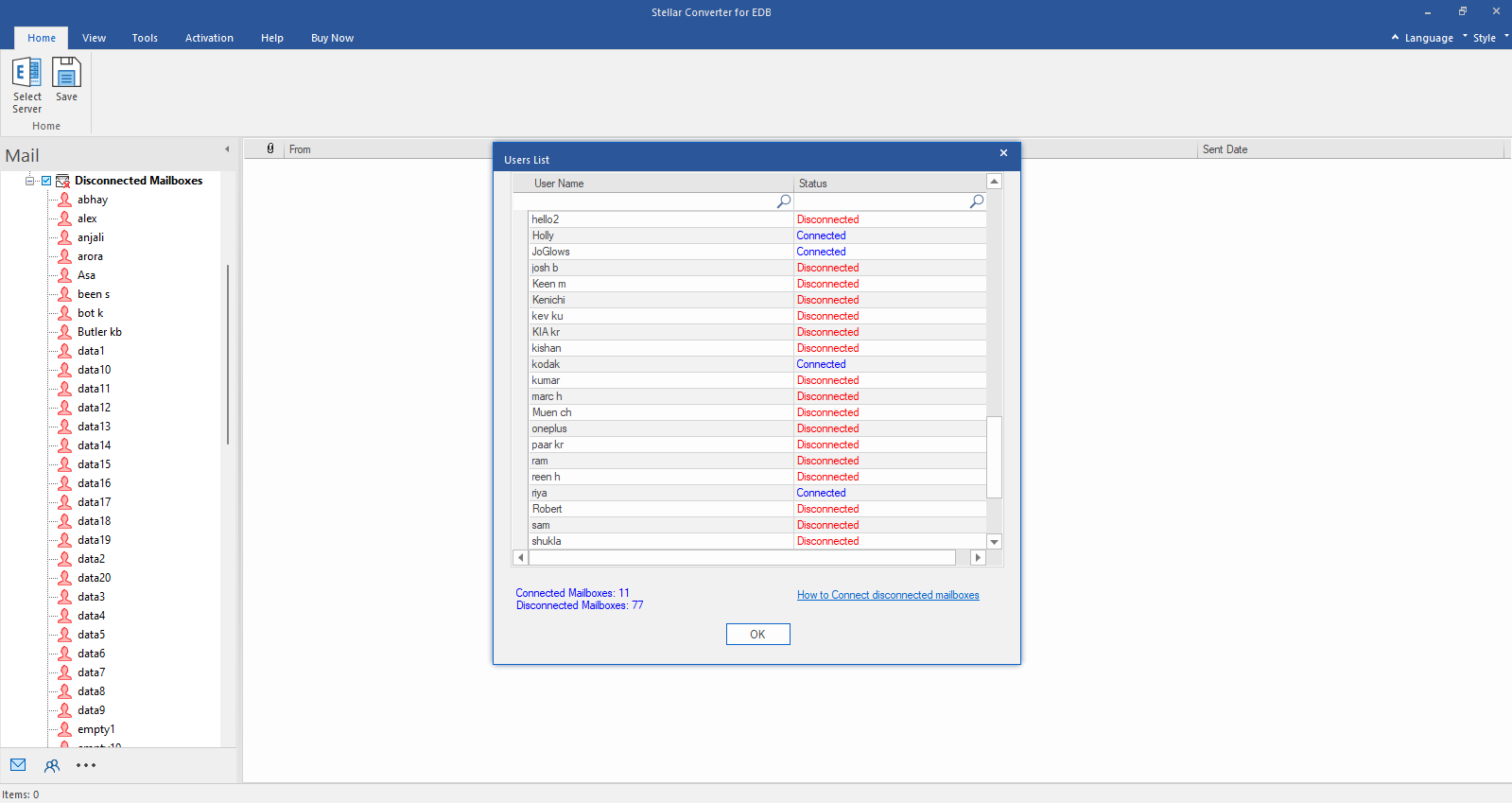
Step 3: After establishing the connection with Exchange Server, Next window displays list of connected and disconnected mailboxes. Click "OK" to proceed.
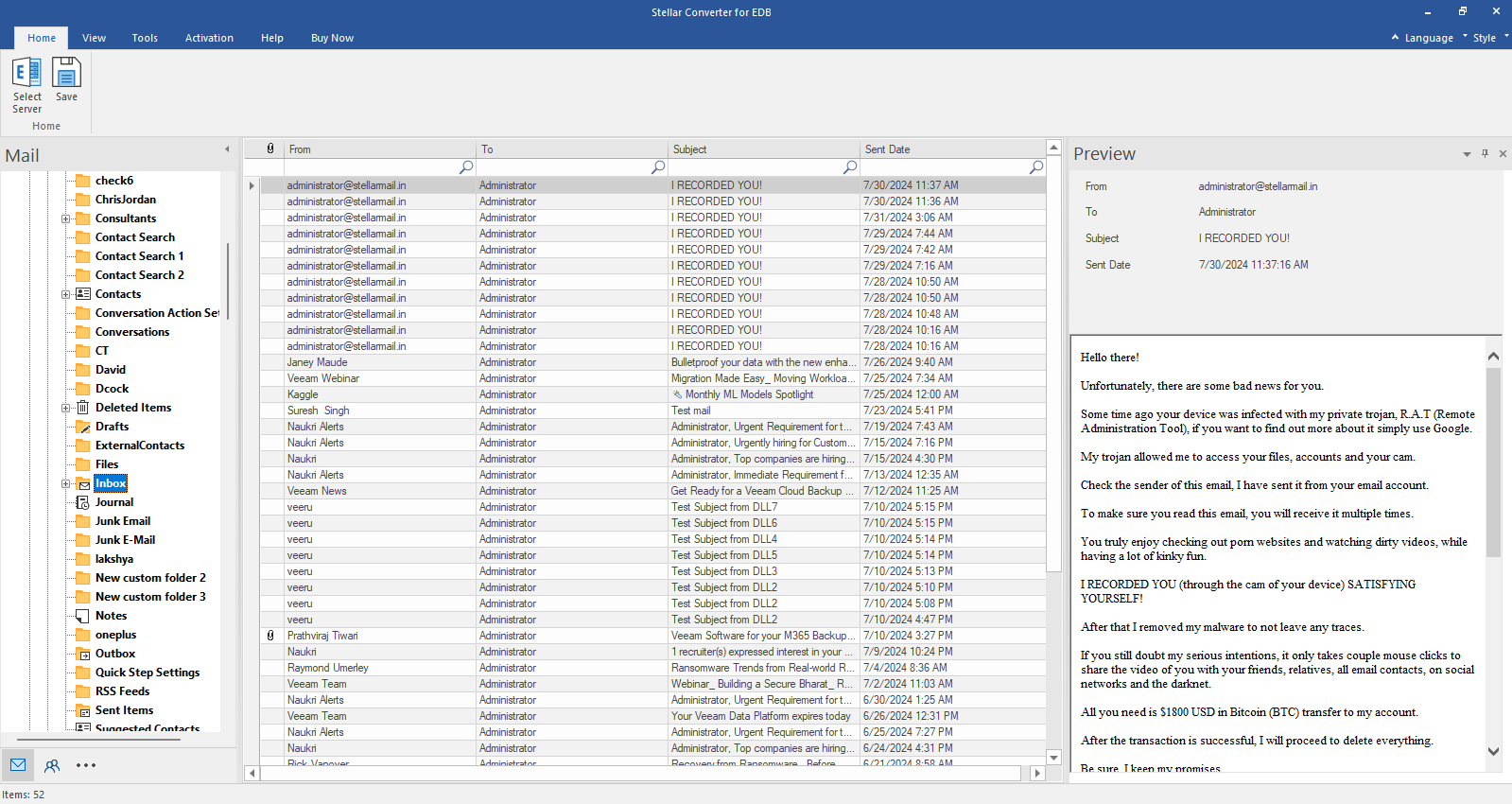
Step 4: Check the preview of all mailbox items- Emails, Calendars, Contacts etc.
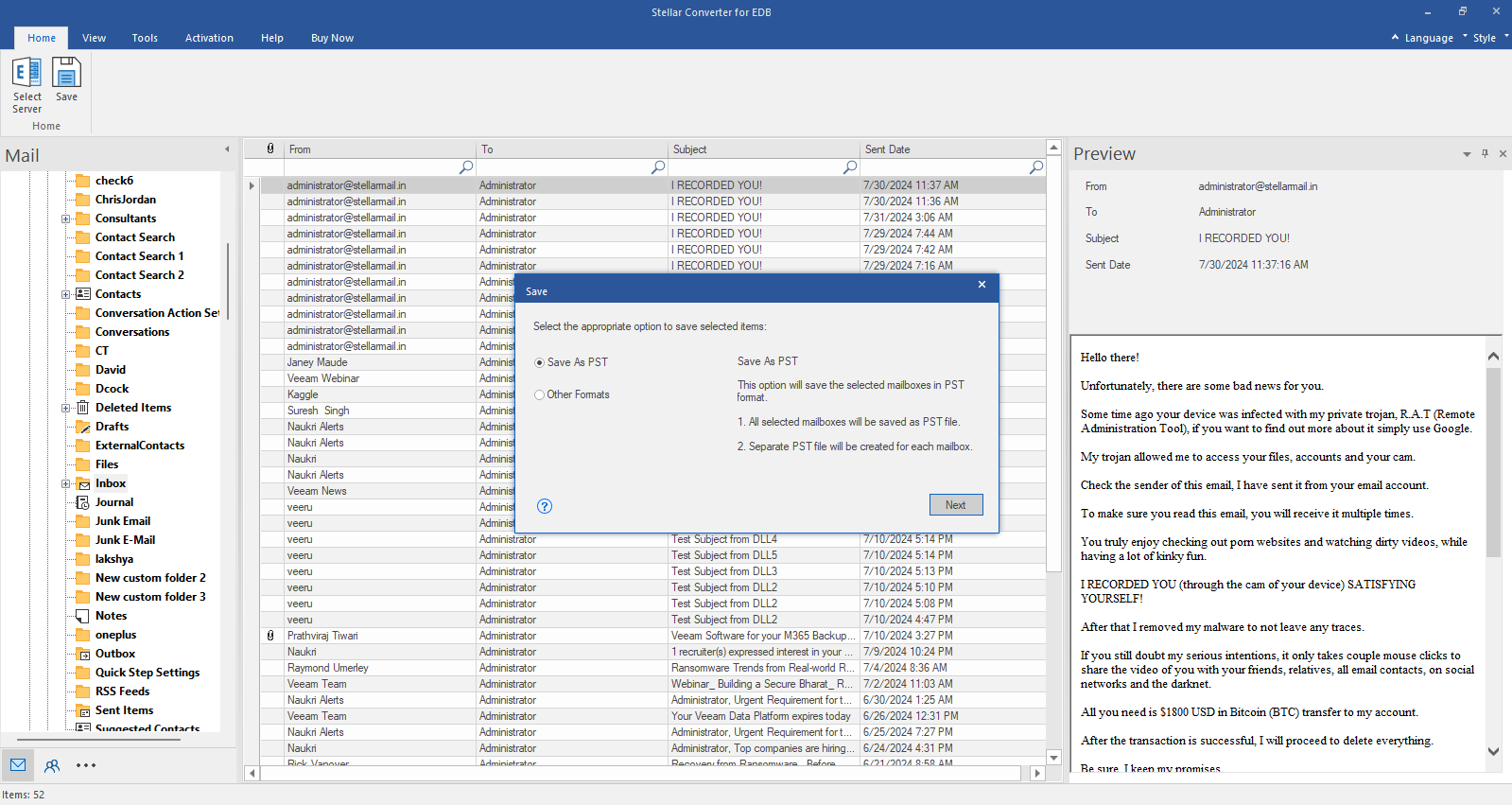
Step 5: Click Save from Home Ribbon and Select Save as PST option. Click "Next" to proceed.