Microsoft Outlook features a search option that helps you find mail items, such as emails or messages based on keywords. You may further add filters to your Outlook search function to locate specific email items from a specific person much more quickly and efficiently.
However, sometimes, you encounter issues with Outlook search, such as the search couldn’t be completed, the search function may not find any matches, the search function won’t work, etc. You may also experience the following problems when the Outlook search stops working or has issues:
- Outlook fails to return any search results
- Outlook search not showing all results
- Outlook search not showing recent emails or can’t find older emails
- The search tab is not working or turns grey (specific to Outlook 2016)
Reasons for Outlook Search Problems
There could be multiple reasons that may lead to the Outlook search problems. These include:
- Indexing issues
- Corrupt or damaged Outlook data file (PST)
- Outdated Outlook version
- Incompatible or faulty add-ins
- Corrupt Outlook profile
- Limited or insufficient system resources, such as low RAM, storage, or processing power
Solutions to Fix ‘Outlook Search not Working’ Issue
Following are some workarounds that you can try to resolve the Outlook search is not working issue:
Note: : In case the Outlook search bar isn’t visible, go to File > Options > Customize. Select All Tabs under the ‘Choose commands from’ section. From the list of tab selections, select ‘Search’, click ‘Add’, and then click ‘OK’.
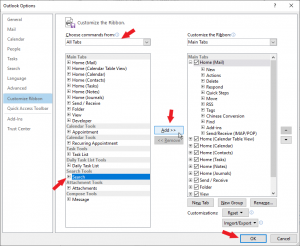 Fig 1: Add Search bar to Outlook
Method 1. Restart Outlook
First, restart Outlook and then check if the search is working. If not, it is recommended to restart the system. These problems can be temporarily caused by some glitches in the system or software. Restarting the system may fix these glitches and resolve search-related problems in Outlook.
Method 2. Check the Outlook Indexing Status
You may encounter problems with Outlook search if the indexing is incomplete or in pending status. You can check the indexing status in Outlook 2016. Follow these steps:
- Open Outlook 2016 and click on ‘Search’ bar.
- Click ‘Search Tools’ drop-down and choose ‘Indexing Status…’
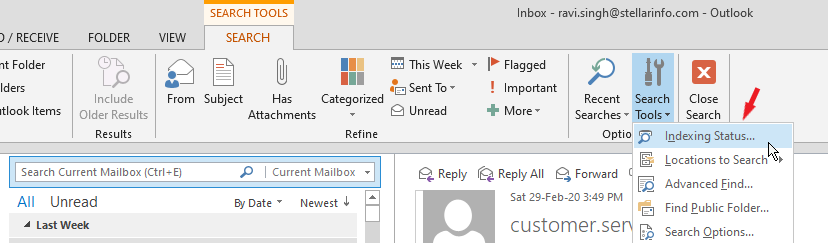 Fig 2: Search Tools
 Fig 3: Indexing option
- If the indexing is pending, the Outlook will start indexing. After the indexing is complete, you will see the ‘Outlook has finished indexing all of your items’ message. Click OK.
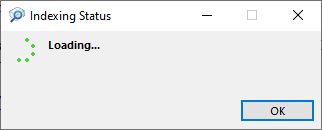 Fig 4: Indexing Status Loading
- Loading Outlook Index Status
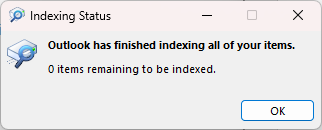 Fig 5: Indexing Final Status
Note: Allow indexing to complete before using search. Although you can use the search function, you may not find the desired mail or get incomplete results due to incomplete indexing status.
Method 3. Rebuild the Outlook Index
If the indexing does not finish or keeps showing a loading status or indexing status pending, try rebuilding the Outlook index. There are two ways to rebuild the Outlook index:
- Repair Outlook (MS Office)
- Manually rebuild using Outlook options
a. Rebuild Outlook Index by Repairing MS Office
If the indexing does not finish or keeps showing a loading status or indexing status pending, try rebuilding the Outlook index. There are two ways to rebuild the Outlook index:
- Go to Control Panel>Programs>Programs and Features.
- Click on Outlook 2016 or Microsoft Office and then click on the ‘Change’ button at the top.
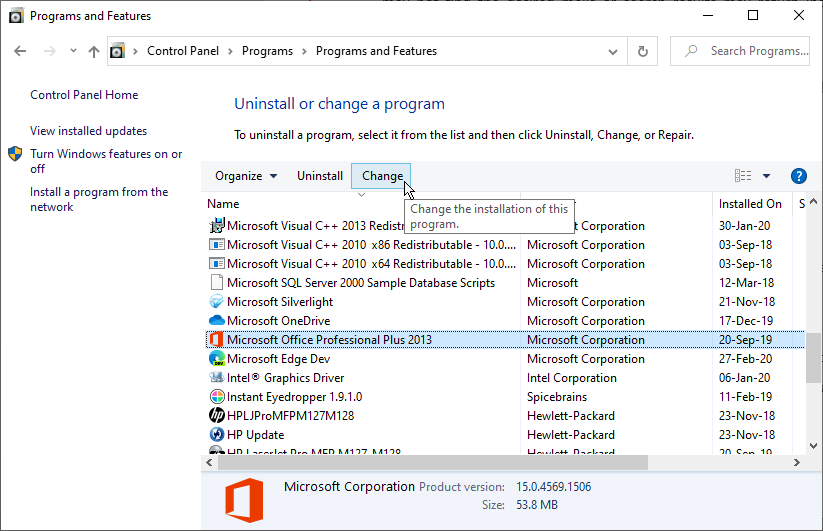 Fig 6: Repair Outlook or MS Office Installation
- From the available options, choose ‘Repair’ and then click ‘Continue’.
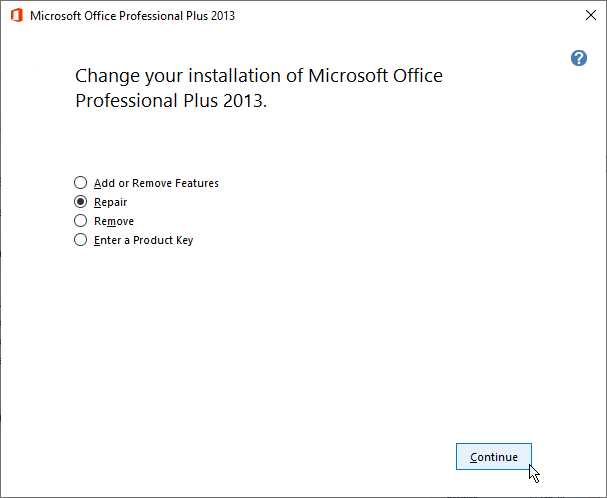 Fig 7: Repair Outlook Installation
- This will begin repairing MS Office or Outlook 2016 installation.
b. Using Outlook Index Repair Option
Follow these steps to rebuild the Outlook Index using the Indexing Options:
- In Outlook 2016, go to File > Options > Search.
- Click on the ‘Indexing Options…’ button.
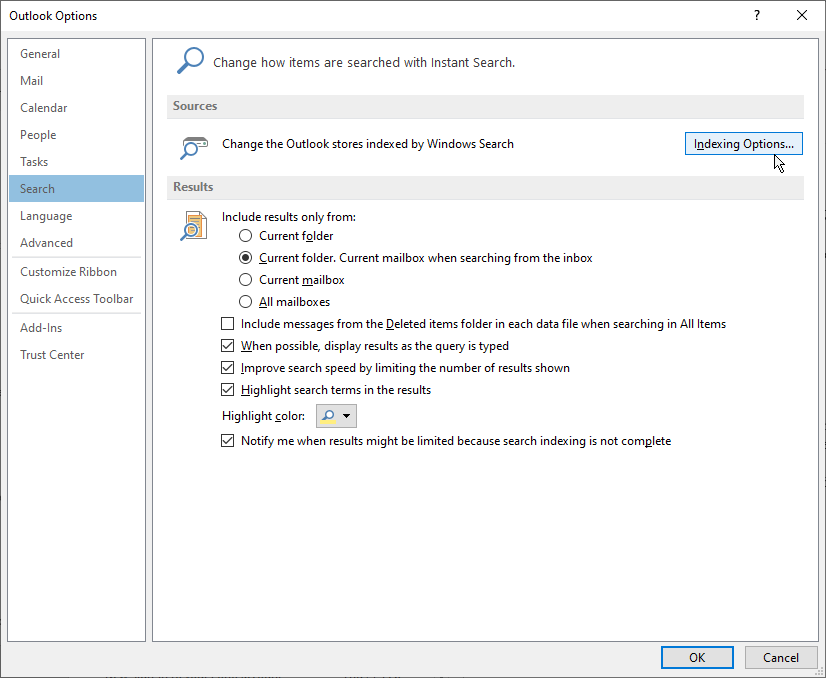 Fig 8: Rebuilding Outlook Index
- Click ‘Microsoft Outlook’ and then click the ‘Advanced’ button.
 Fig 8: MS Outlook Index status
- Click ‘Rebuild’ and then click ‘OK’.
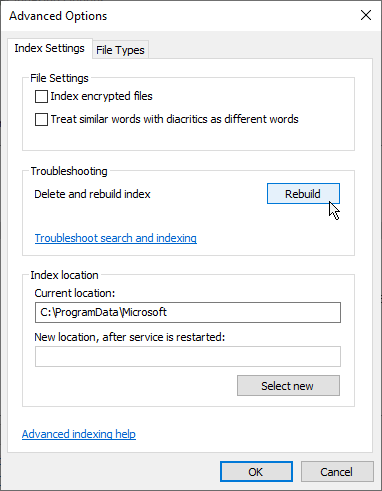 Fig 9: Rebuild MS Outlook 2016 Index
- Click ‘OK’ to continue with Outlook Index Rebuild.
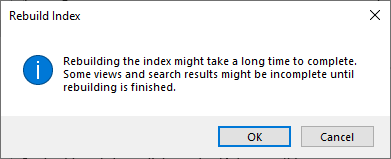 Fig 10: Confirm Outlook Index Rebuild
- Wait for the Indexing process to complete.
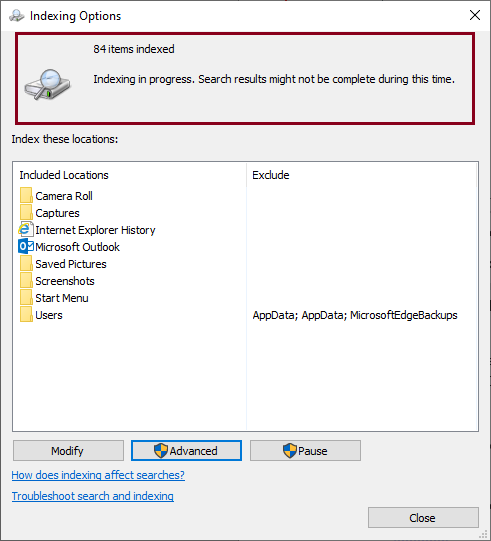 Fig 11: Indexing in progress
Once the Indexing process is complete, check if the ‘Microsoft Outlook search not working’ issue is resolved.
TIP: You may also search and open ‘Indexing Options’ from the Control Panel.
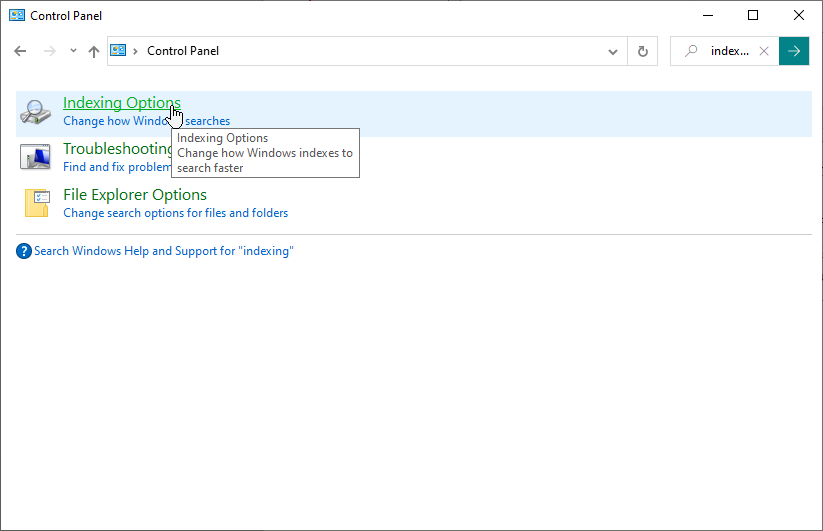 Fig 12: Access Indexing Options
Method 4. Fix Incomplete Outlook Search Results Problem
If the search results are incomplete or missing older email items, apply the following methods:
a. Increase Email Sync Slider
This will enable Outlook to sync and index the older emails that may be missing in the Outlook search results. Follow these steps:
- Open Outlook and go to File > Account Settings > Account Settings.
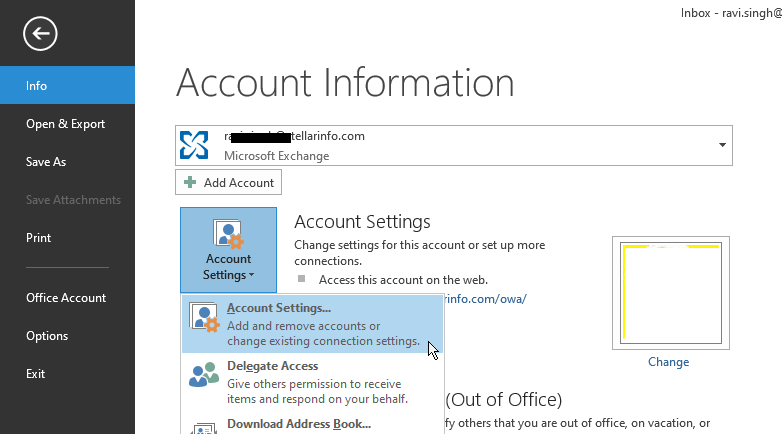 Fig 13: Access Outlook Account settings
- Select your email account and then click ‘Change’.
- Drag the slider to ‘All’ and then click ‘Next’.
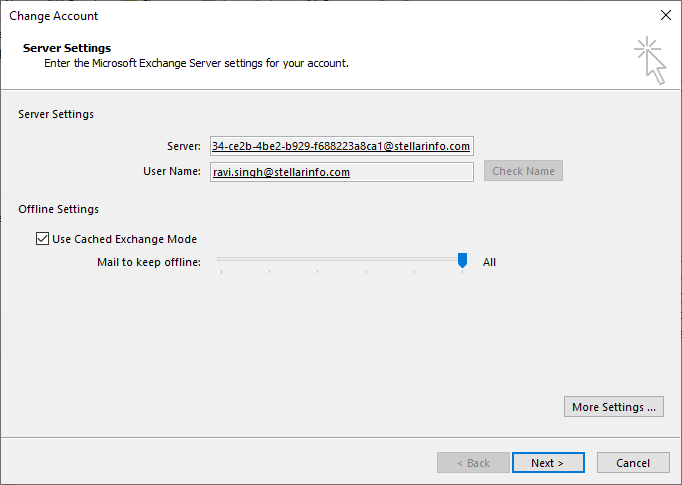 Fig 14: Drag the slider to ‘All’ and then click ‘Next’
- Click ‘OK’ when a prompt appears.
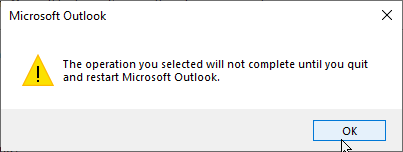 Fig 15: Confirmation message
- Click ‘Finish’ to close the window and then
restart Outlook.
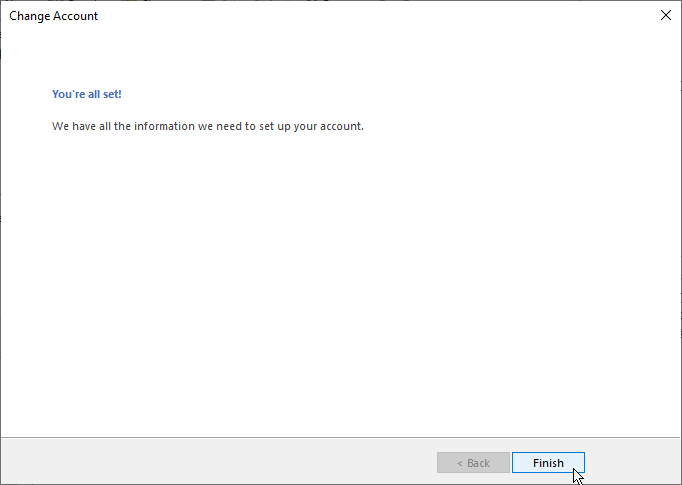 Fig 16: Finishing Offline setting wizard
- After restarting, Outlook will index all the mail items. Once done, you can search for the desired emails.
 Fig 17: Outlook syncing older emails
b. Allow Search to Display All Results
When you enter a search query in Outlook, it displays 250 search results by default. To show all the results, follow these steps:
NOTE: This will show you all results but the search will be slower.
- Open Outlook and go to File>Options>Search.
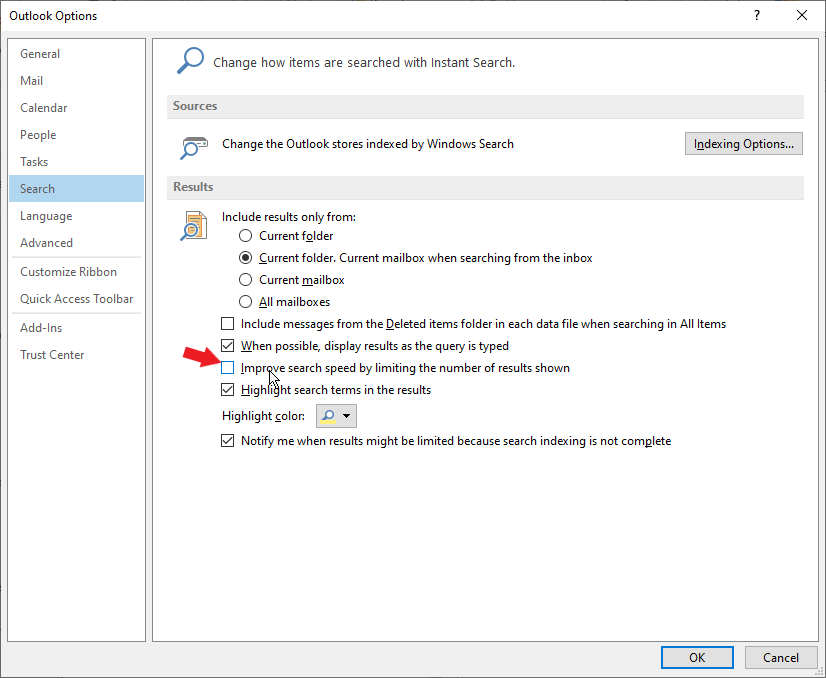 Fig 18: Clear Improve search speed … checkbox
- Unselect the ‘Improve search speed by limiting
the number of results shown’ checkbox.
- Click ‘OK’ and restart the Outlook.
TIP: You may click the ‘Include messages from Deleted items folder’ checkbox to improve search results.
Method 5. Fix the Greyed Out Outlook Search Bar
To fix the greyed-out search bar, you need to repair the MS Office or Outlook 2016 installation. To do so, follow these steps:
- In Windows 10 PC, go to Settings > Apps.
- Search and click on Microsoft Office.
- Click ‘Modify’ and then select ‘Repair’ option.
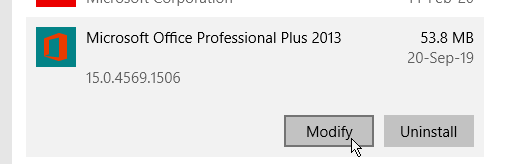 Fig 19: Modify MS Office Installation
- Click ‘Continue’ to repair the MS Office installation.
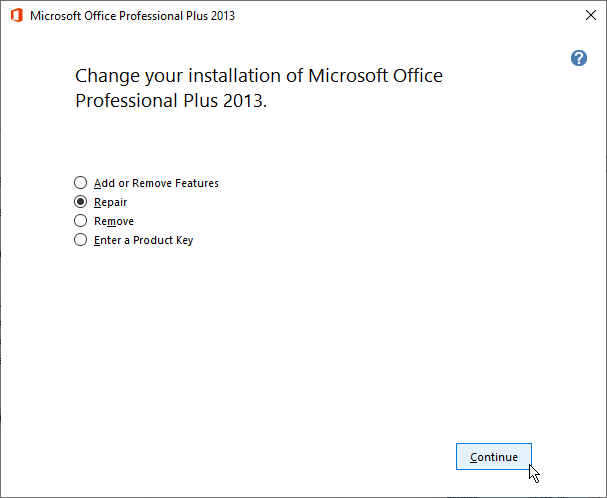 Fig 20: Repair MS Office Installation
Method 6. Repair Personal Folder Outlook Data File (.PST)
A corrupt Outlook data file (.pst) can cause severe issues, including Outlook search problems. However, Outlook provides an Inbox Repair Tool or SCANPST.EXE to analyze and repair corrupt or damaged PST files. The tool comes integrated with all the versions of Microsoft Outlook.
To access and use the SCANPST.EXE tool, follow these steps:
- Open File Explorer and go to C:\Program Files\Microsoft Office\Office16\ or C:\Program Files (x86)\Microsoft Office\Office16\.
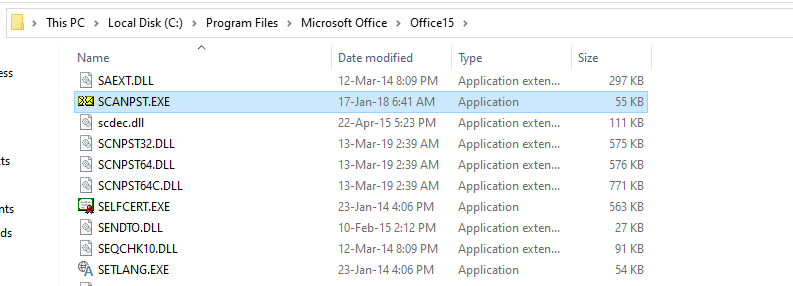 Fig 21: Access SCANPST.EXE tool
- Find and double-click on SCANPST.EXE
- Click ‘Browse’ to choose the corrupt Outlook PST file. The default PST file location in Windows is: C:\Users\YOURUSERNAME\AppData\Local\Microsoft\Outlook.
NOTE: Note: SCANPST.EXE supports the PST file of size up to 2 GB. It doesn’t support an encrypted PST file.
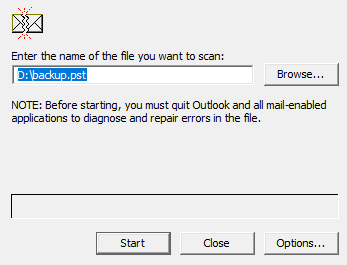 Fig 22: Browse Outlook Data File (PST)
- Click on the ‘Start’ button to begin the Outlook data file scan process.
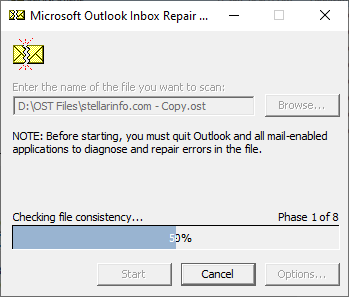 Fig 23: SCANPST.EXE scanning the PST file
- After the scan, if the Inbox Repair Tool detects
any error, it displays the following screen. Click ‘Repair.’
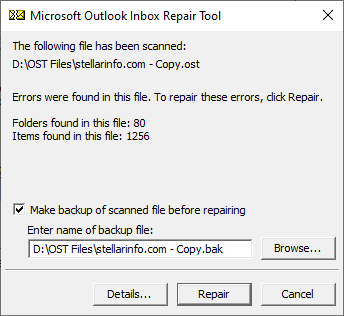 Fig 24: Scan result displays errors in PST
- After the repair, the following message is
displayed. Click ‘OK’ to close it.
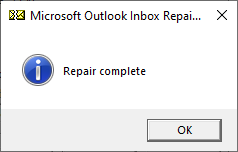 Fig 25: PST repair complete
Now, restart Outlook and check if the search not working in Outlook. The problem is resolved.
Alternatively, you can use a PST repair tool, such as Stellar Repair for Outlook to repair the corrupt PST file. The software can also fix oversized, encrypted, or severely corrupt PST Outlook data files. It lets you save the repaired PST mail items to various file formats, such as MSG, PDF, HTML, RTF, and EML.
Method 7. Disable Add-ins
Outlook add-ins help add features and improve productivity. However, sometimes, incompatible or outdated Outlook add-ins can lead to issues, such as Outlook crash, Outlook not responding, Outlook search problems, etc. Follow these steps to disable Outlook add-ins and fix the Outlook search issue:
- In Outlook, go to File > Options > Add-ins.
- In the Manage list, select COM Add-ins and click ‘Go’.
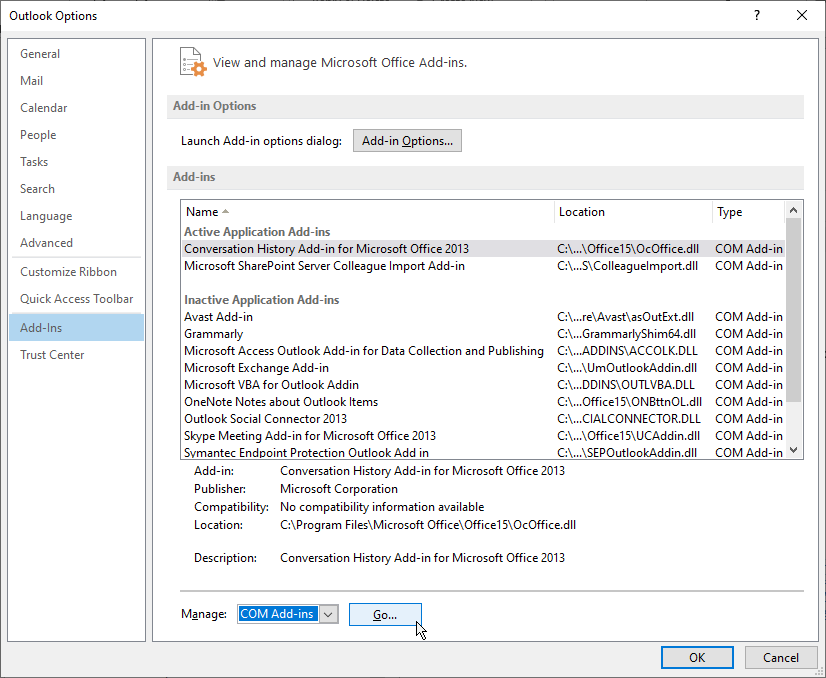 Fig 26: Disable Add-ins in Outlook
- Clear the checkbox of the add-ins that you want to remove, and then click ‘OK’.
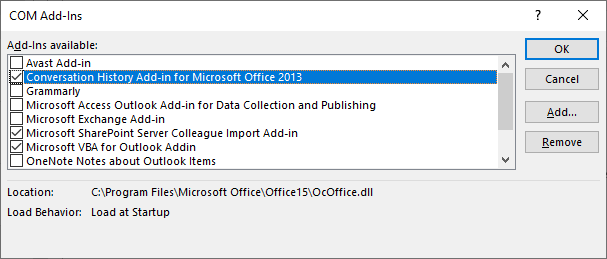 Fig 27: Clear checkbox of add-ins
- Restart the Microsoft Outlook.
Method 8. Check System Resources
Make sure your system has enough or sufficient resources to run Outlook and allow it to function properly. To check this,
- Open the Task Manager. For this, right-click on the Task Bar and choose Open Task Manager. Alternatively, press CTRL+ALT+DEL key and then click Task Manager option to launch Task Manager.
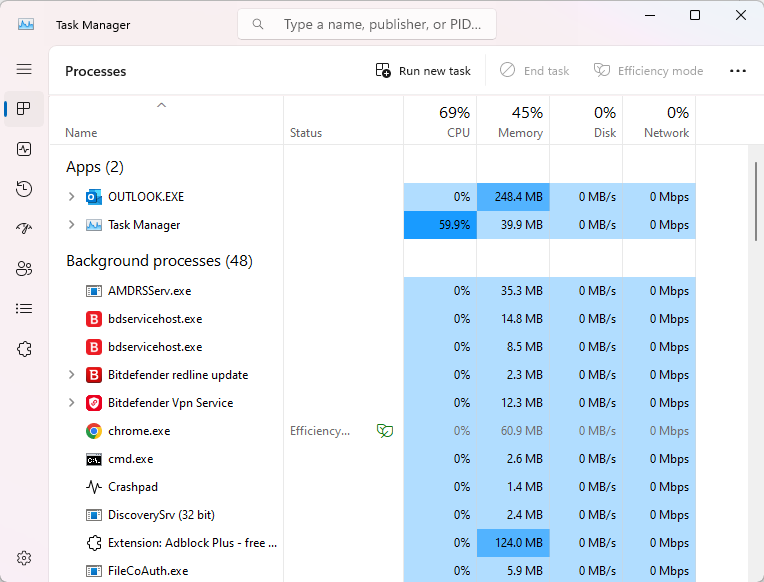 Fig 28: Task Manager
- Here, check the CPU and Memory usage while Outlook is running.
- If you see high CPU usage and low RAM in the Task Manager, close the other apps to free up resources.
- You may also add more RAM or upgrade to a better system.
Method 9. Update Outlook and Windows
Outdated Outlook or Windows may have bugs or glitches that may lead to search-related issues in Outlook or indexing problems. To resolve this, you can check and apply latest updates to Outlook and Windows OS. Below are the steps to update Outlook:
- Open Outlook.
- Go to File > Office Account (or Account in some versions).
- Under Product Information, select Update Options and then click Update Now.
If the Update Now option is not available in your Outlook client, you can download and install Windows Updates to get the latest bug fixes and updates for MS Office, including Outlook.
To update Windows OS,
- Open Settings > Windows Updates or Settings > System and click Windows Updates.
- Then, click the Check for Updates button.
- If new updates are available, download and install them.
- Then, restart the system and see if the search problem is resolved in Outlook.
Method 10. Inspect Windows Search Service Status
To inspect Windows Search Service status, follow the given steps:
- Press Windows + R, type services.msc, and click ‘OK’.
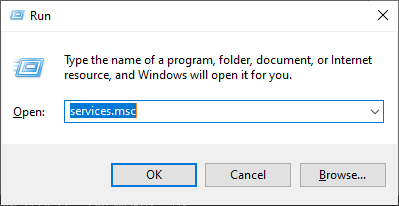 Fig 29: Access Services.msc
- Scroll down and find ‘Windows Search’.
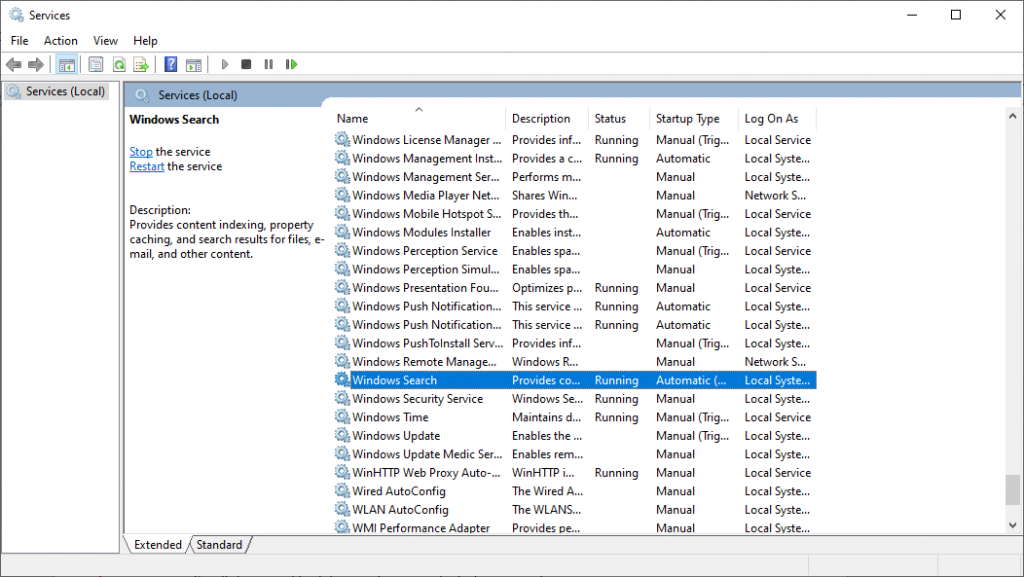 Fig 30: Check Windows Search status
- Check if its ‘Status’ is ‘Running’.
If not, right-click on ‘Windows Search’
and select ‘Start’.
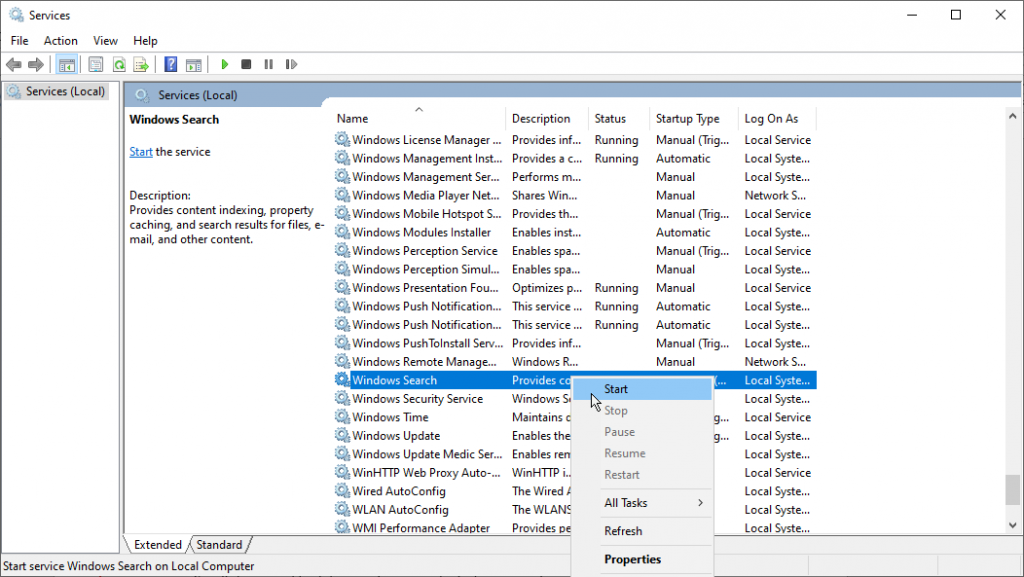 Fig 31: Starting Windows Search service
- Then double click on ‘Windows Search’ and select ‘Automatic (Delayed Start)’
in ‘Startup
Type’ drop-down.
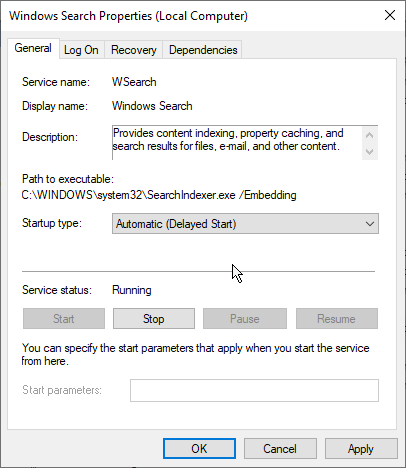 Fig 32: Startup Type of Windows Search
- Click ‘OK’ and close all windows.
- Restart Windows PC and Outlook to check if the Outlook
search problem is resolved.
Method 11. Fix Outlook Search Issue via Windows Registry
You can also try to resolve the Outlook search issue via Registry Editor in Windows. Here are the steps:
- Press Windows+R, type Regedit and click ‘OK’. This opens the Registry Editor.
- Paste the following registry key location in the
address bar and press ‘Enter’.
Computer\HKEY_LOCAL_MACHINE\SOFTWARE\Microsoft\Windows Search
- Right-click on ‘Windows Search’ and
select New>Dword (32-bit) Value.
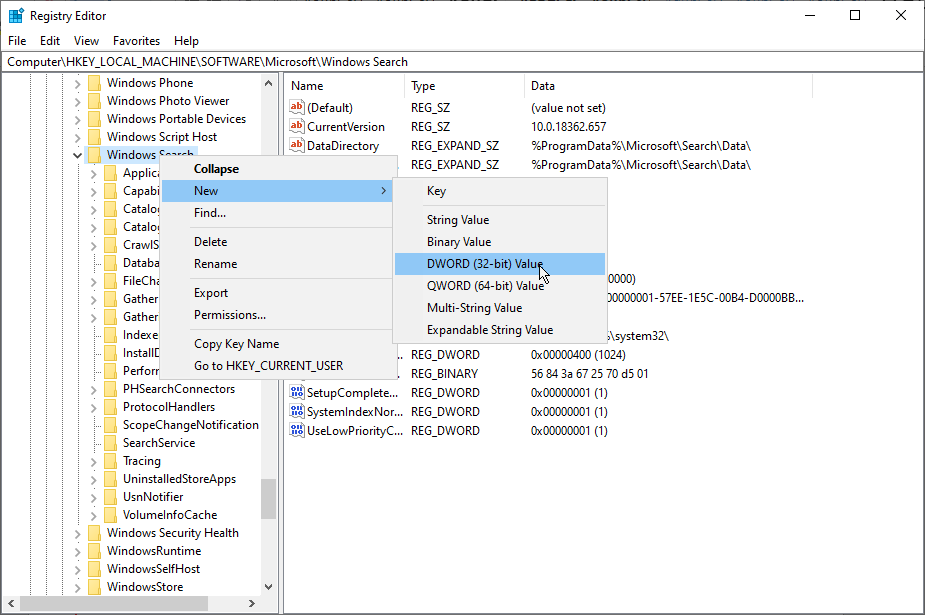 Fig 33: Adding new registry- Outlook Search
- Name the Dword
as ‘PreventIndexingOutlook’.
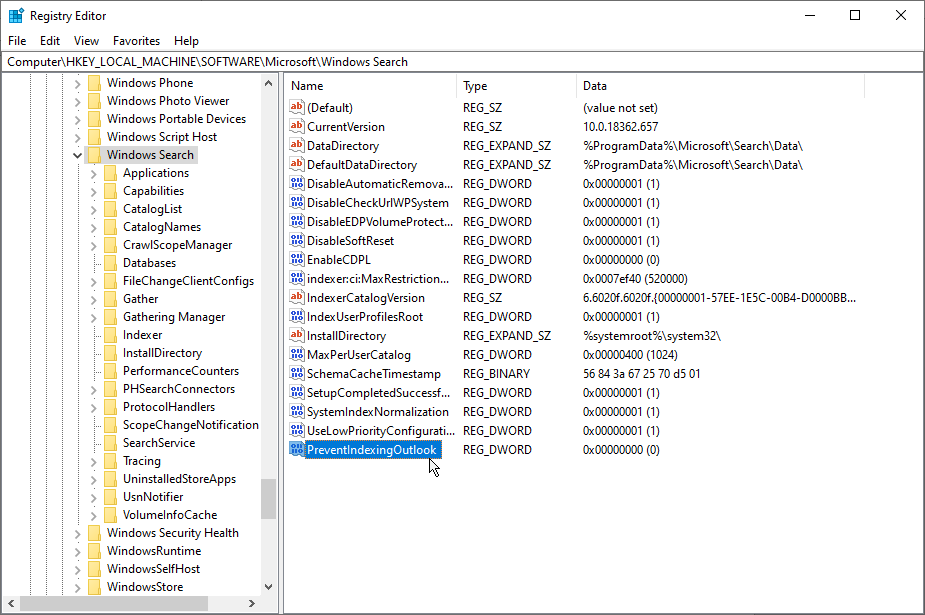 Fig 34: PreventIndexingOutlook registry entry
- Double-click on PreventIndexingOutlook. Enter 0 in Value data: field
and click ‘OK’.
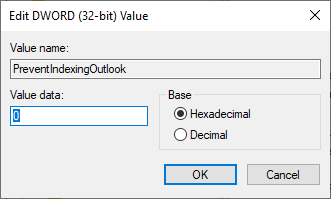 Fig 35: Changing Registry value
For Troubleshooting Outlook search issues here is the Manual Guide
Conclusion
You may face the ‘Outlook search not working’ issue due to incomplete Outlook indexing or corrupt PST file. You can follow the solutions mentioned above to resolve the issue. If the cause of the Outlook search problem is corrupt PST file, you can repair the file by using Stellar Repair for Outlook or Inbox Repair Tool (SCANPST.EXE). These utilities can repair PST file and recover the entire mailbox data. After the damaged PST file is repaired, the ‘Search’ feature in Outlook should work properly.
Stellar Repair for Outlook is a recommended solution for repairing corrupt PST files as it provides several advantages over the SCANPST.EXE tool. The software supports encrypted Outlook data files, shows a preview of recovered mailbox data before saving, saves the recovered Outlook data file in multiple file formats, and more. It works in almost all situations when the Inbox repair tool fails to resolve the issue.
Check what the other MVPs and other experts have to say about this software: Click Here.
Check What MVP says about our software:

 Click to See all Recommendations
