Corruption in QuickBooks company files (QBW) is not uncommon. When the QBW file gets corrupted, you may encounter error messages while opening the file or fail to access it entirely. Therefore, you need to resolve the issues to get back access to the file.
In case of corruption, a simple solution is to rebuild the file. For this, QuickBooks Desktop application offers a built-in Rebuild Data tool. In this guide, we will explain how to rebuild the company using the Rebuild Data tool and alternative options if this tool fails to resolve the issue.
How to Rebuild a QuickBooks Data (QBW) File?
You can use the Rebuild data tool in QuickBooks Desktop to rebuild company file data. It automatically fixes minor corruption issues. Before using it, you can run Verify Data tool to identify and confirm the integrity errors or structure issues. To rebuild the file, follow these instructions:
- Open your QuickBooks application and go to File.
- Select Utilities and then click on the Verify Data option.
- The Verify Data tool will begin verifying the file for any data damage.
If the Verify tool test fails, it will show the error messages like “Data damage was found in the file. Rebuild your data to fix it” or “Your data has lost integrity: Data damage was found in the file. Proceed to Rebuild your company file data to fix it.”
If the data damage is confirmed, then you can use the Rebuild Data utility to rebuild the company file. Here’s how to use it:
- In your QuickBooks application, go to Utilities and then click Rebuild Data.
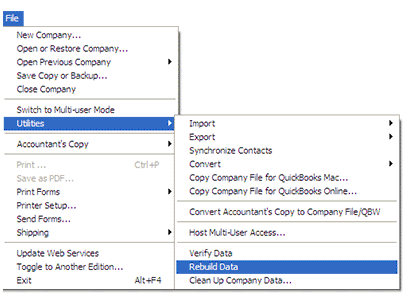
- The QuickBooks Information window opens up on the screen. Click OK.
- A prompt is displayed to create and save a company file backup, before you rebuild your data. For this:
- Go to the File menu and select Switch to Single-user Mode.
- Go to the File menu again and hover over Back up Company. Then, select Create Local Backup.
- In the window that opens, select Local Backup > Next.
- In the Local Backup Only section, click Browse and select the location where you want to save your backup company file.
- When you’re ready, select OK.
- Select Save it now and then Next.
- It will start creating the backup. When the process is completed, the tool will automatically start rebuilding the file.
- Wait till the rebuilding process is complete. Then, select OK.
After completing the data rebuilding process, again run the Verify Data tool to check if there are any remaining issues in the file. If it doesn’t detect any issues, click OK.
While the Rebuild Data utility can resolve minor corruption issues within QuickBooks company files, it does not always work. On the Intuit Community forum, users have reported errors during a rebuild or instances where the utility crashes with several years of data. The tool can crash, stop responding, or get stuck. Users have also reported that it simply fails to fix certain errors. This usually happens due to severe corruption or damage to the QBWUSER.INI file.
What to do if QuickBooks Verify and Rebuild Utility Fails?
If the Verify Data tool detects additional issues in the QBW file or the Rebuild Data tool fails, you can use alternative company file repair methods.
Method 1: Use QuickBooks Tool Hub
QuickBooks Tool Hub, provided by Intuit, can help you resolve common issues in the company file. It contains various utilities, such as Quick Fix My File and QuickBooks File Doctor, to repair the QBW file. You can download and install the latest version (1.6.0.8) of QuickBooks Tool Hub and then follow the below steps to fix the issues with company file:
- In the QuickBooks Tool hub, click Company File Issues.
- Select Quick Fix My File.
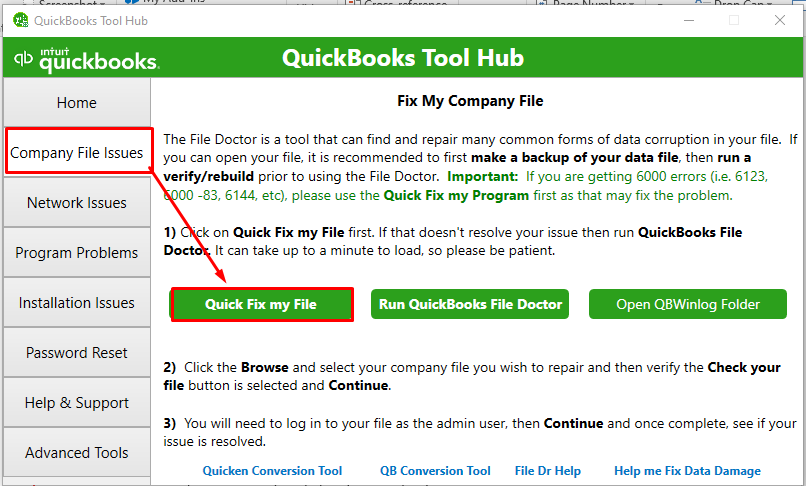
- Click OK once the process is complete.
If the issue persists, then open the tool hub again and follow the given steps:
- In the tool hub, select Company File Issues.
- Select Run QuickBooks File Doctor.
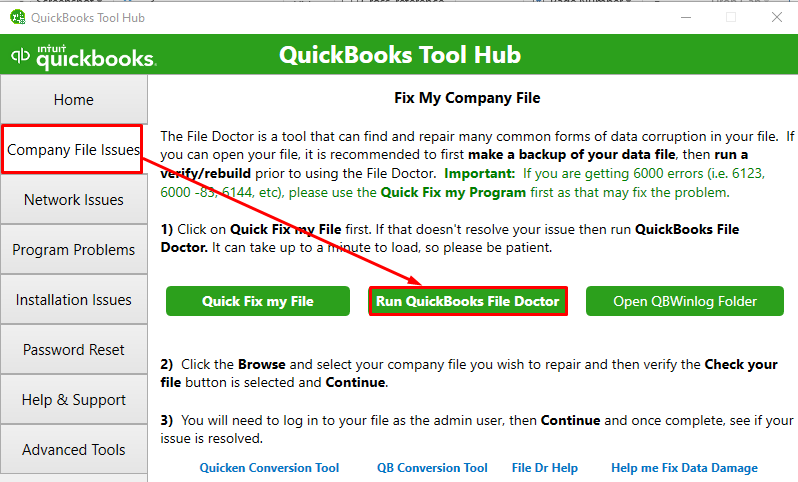
- In the QuickBooks File Doctor wizard, choose the desired company file.
- The tool prompts you to enter the QuickBooks® Admin password. Enter the password and then select Next.
- It may take some time, depending on the QBW file size.
- After the process is complete, open your company file.
Note: The QuickBooks file doctor tool can repair QBW file but it has file size restrictions. If your file goes beyond 2 GB, it may stop responding or stop working. It is also only meant for basic fixes.
Method 2: Use a Professional QuickBooks Repair Tool
If the above QuickBooks repair methods fail, you can use Stellar Repair for QuickBooks. It can repair the corrupt company file and restore the data to a new QBW file without impacting data integrity. The tool has no file size restrictions. It can recover all the data including employees, vendors, services, and customers. It can also repair corrupt backup (QBB) file. It is compatible with all QuickBooks editions, including Pro, Premier, and Enterprise. It also helps fix all the corruption-related errors in the QuickBooks data file.
The tool comes in two subscription plans: standalone software or software with services. The services plan gives you access to professional support for repairing corrupted QuickBooks company files.
Conclusion
You can rebuild a company file in QuickBooks if it is corrupted or damaged. If the built-in tool – Rebuild Data – fails to repair the file, you can try other methods to repair and rebuild the corrupted QuickBooks company file. If the size of the affected file is more than 2 GB, then you can opt for a professional QuickBooks repair tool, such as Stellar Repair for QuickBooks. It can repair the company file with complete integrity and precision, without any file size restrictions. You can download the free trial version of the tool to evaluate its functionality and efficiency.
FAQs
