Exchange Server database (EDB) file contains all the important mailbox data, including emails, contacts, calendar items, and notes. Sometimes, you need to extract mailboxes from Exchange database (EDB) file and save it in PST file due to various reasons. Some common reasons include creating archive or backup old user mailboxes and migrating mailboxes to another Exchange Server or Office 365. You can extract mailboxes from EDB file by using native tools in Exchange Server, such as Exchange Admin Center (EAC) or Exchange Management Shell (EMS) and a specialized EDB to PST converter tool. Below, we will discuss how to extract mailboxes from EDB file using these tools.
Here are the methods that you can use to extract mailboxes from EDB file.
Method 1: Extract Mailboxes using the ExMerge Utility
If you’re using Exchange Server 2003 or older version, then you can use the ExMerge utility to extract mailboxes from EDB file. It is a free utility that allows to copy data (mailboxes) from the source Exchange Server database file (EDB) to PST file. However, it can only export mailboxes of 2 GB size or less and doesn’t support public folders. Follow the below steps to extract Exchange mailboxes from EDB file by using ExMerge utility:
- Download the ExMerge utility from the Microsoft support page and launch the ExMerge.exe locally.
- On the ExMerge.exe wizard, click on Next.
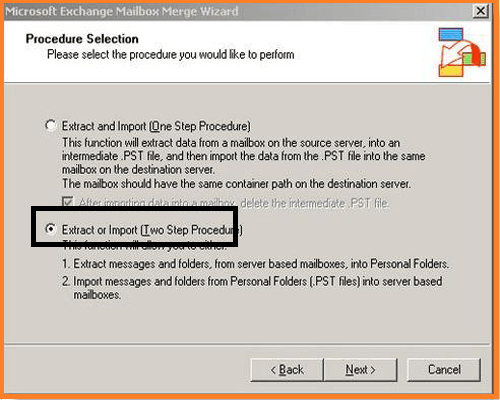
- Select the Extract or Import (Two Step Procedure) option and click on Next.
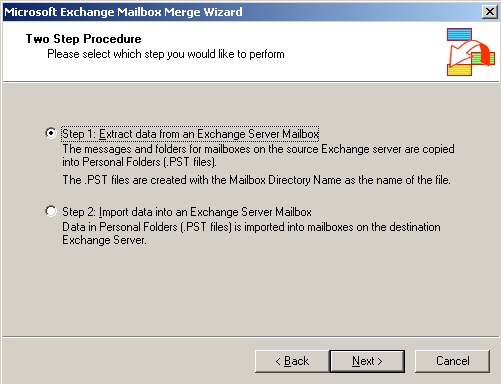
- Select Step 1: Extract data from an Exchange Server Mailbox and click on Next.
- In the Microsoft Exchange Server Name field, type the name of the Microsoft Exchange Server from which you want to extract the mailbox.
- From the Available Databases dropdown menu, select the database from which you want to extract the data and click on Next.
- Select the mailboxes you want to extract.
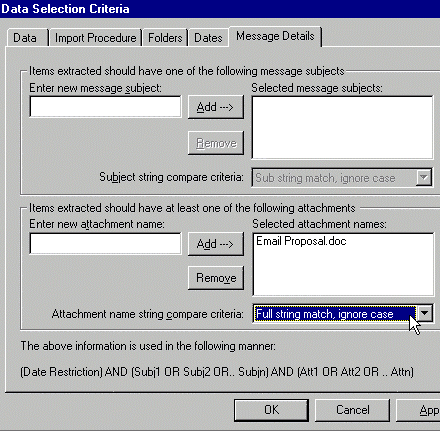
- In the Folder Name field, click Change Folder and select the location where you want to save the PST file. Click Next.
- When the Process Status window displays the Operating completed successfully message, click Finish.
Method 2: Extract Mailboxes using Exchange Admin Center (EAC)
If you’re using Exchange Server 2013 or higher version, then you can use the Exchange Admin Center (EAC) to extract mailboxes from EDB file and save them in PST format. It is a GUI-based tool that helps manage Exchange Server and allows to perform various tasks. The steps to extract mailboxes using the EAC are as follows:
Note: To export the mailboxes using the EAC, you must be assigned with the Mailbox Import Export Role. Additionally, to save the PST files, create a UNC file path or shared folder location.
- Login to the EAC and click on Recipients.
- Right-click on the mailbox that you want to export and choose Export to a PST file.
- Choose the desired option from Export to a .pst file dialog box and click Next.
- Now choose the location to save the mailbox and click Next.
Finally, choose the user account where the confirmation email will be sent once the mailbox extraction is complete. Then, click Finish.
Method 3: Extract Mailboxes using Exchange Management Shell (EMS)
In Exchange Server 2010 or higher version, you can use the New-MailboxExportRequest PowerShell cmdlet in Exchange Management Shell (EMS) to extract mailboxes from the EDB file and save them in PST. To use this cmdlet, ensure that your user account has the Mailbox Import Export role assigned to it. To export a single mailbox to PST, open the EMS and run the following PowerShell command:
New-MailboxExportRequest -Mailbox -FilePath
To extract multiple mailboxes, you can use the command with a foreach loop (see the below example).
$Export = Get-Mailbox
foreach ($Mailbox in (Get-Mailbox)) { New-MailboxExportRequest -Mailbox $Mailbox -FilePath "\\\\$($Mailbox.Alias).PST" }
You can check the progress of export requests by using the Get-MailboxExportRequest cmdlet. When the export request is completed successfully, it will display the status as Succeeded.
Method 4: Extract Exchange Mailboxes from Free Online EDB to PST Converter
If you want to extract mailbox data from an offline EDB file without installing Exchange Server or Outlook, you can use Online EDB to PST Converter by Stellar. It is a browser-based solution that allows you to upload an EDB file, analyze the mailbox data, preview the available folders, and download the extracted mailboxes as individual PST files.
Benefits of Extracting Mailboxes from EDB Online
- No Exchange Server installation or running Exchange environment is required.
- Outlook installation is not required.
- Works directly through a web browser.
- Supports offline and legacy Exchange EDB files.
- Allows you to preview mailbox folders and data before downloading.
- Converts extracted mailbox data into individual PST files.
- The original EDB file is not modified during the conversion.
- Free conversion is available for EDB files up to 500 MB.
For larger databases, multiple EDB files, or organizations that prefer to process data locally, the desktop Stellar Converter for EDB provides an alternative with no EDB file-size limit and supports exporting mailbox data to PST, Live Exchange, and Microsoft 365.
Method 5: Extract Mailboxes using a Specialized EDB to PST Converter Tool
The methods mentioned above can only work if the Exchange Server is online and the database is mounted on the server. Additionally, you cannot track the progress of the export process. As an alternative, you can use an EDB to PST converter tool, to export mailboxes from an EDB file. This tool can easily scan online or offline EDB files of any size and from any Exchange Server version. It displays all the mailboxes and other EDB file items in a three-view structure, allowing you to selectively save mailboxes to PST and other file formats, such as EML, MSG, RTF, PDF, and HTML. Apart from user mailboxes, the tool supports conversion of archive mailboxes and public folders. It can also export the EDB data to a live Exchange Server or Office 365 account. The tool also shows the real-time progress status of the export process. The tool supports all the Exchange Server versions – 2019, 2016, 2013, 2010, 2007, 2003, 2000, and 5.5.
Conclusion
There are several ways to extract mailboxes from an EDB file. Native Exchange tools such as EAC and EMS are useful when the Exchange Server is available and the database is mounted. However, these methods are not suitable when you only have an offline EDB file or the original Exchange environment is unavailable.
In such situations, you can use Free Online EDB to PST Converter to extract mailbox data from a supported EDB file directly through a web browser. It does not require Exchange Server or Outlook and allows you to preview mailbox data before downloading the extracted mailboxes as PST files. The online service supports EDB files up to 500 MB for free and up to 5 GB with the Premium plan.
For larger EDB files, multiple databases, or when you need to keep the conversion process offline, Stellar Converter for EDB is a suitable desktop option. It supports EDB files without a size limitation and can export mailbox data to PST, Live Exchange, and Microsoft 365.
