Data Recovery Software

How to Recover Files from a Corrupted or Unresponsive USB Drive

Summary:

A corrupted or unresponsive USB drive can often be recovered if Windows still detects it. Check the drive in Disk Management, recover your important files first, and only then attempt repairs. For logically corrupted drives, tools such as data recovery software, CHKDSK, and ATTRIB can help restore access. Once your files are safe, you can try assigning a drive letter, updating USB drivers, or formatting the drive, if necessary.

Table of Contents

A USB drive may become inaccessible due to a damaged file system, a missing drive letter or an unstable connection. You may see a “You need to format the disk before you can use it” message, find the drive listed as RAW in Disk Management, or notice that some files have gone missing.

The important thing is not to rush into formatting or repair. If the drive is still detected and shows its correct capacity, the problem may be logical corruption, and your files may still be recoverable. If the drive isn’t detected at all or shows signs of physical failure like repeated disconnections or excessive heat, continuing to use it can make things worse.

In this guide, we’ll cover the common signs of a corrupted or unresponsive USB drive, explain how to distinguish logical corruption from physical damage, and show you how to recover your files before attempting to repair the drive.

Signs Your USB Drive Is Corrupted or Unresponsive

Signs of USB Drive CorruptionExtent of DamageType of DamageWhat to Do First
Drive doesn’t respond at all.Could be a dead port, bad cable, or a drive with no power getting to itUnclear. Test another port/PC firstTry a different USB port or a different computer before assuming the drive is dead
“You need to format the disk before you can use it”Windows can see the hardware but can’t read the file system on itLogicalRecover your files first, then try chkdsk or TestDisk
Drive shows as RAW in Disk ManagementPartition table or file system metadata is damagedLogicalRecover your files first, then repair the partition or format
Files or folders are missing, or show as 0 bytesFile table corruption, or attributes changedLogicalTry the ATTRIB command, or scan with recovery software
Files open but show garbled or broken contentDamage at the individual file levelLogicalRecovery software may pull an earlier readable version; not always fixable
Copying files freezes, errors out, or drive disconnects mid-transferDrive is unstable. Could be logical or early hardware failureDepends. Stop repeating the attempt either wayBack up what you can immediately, then stop forcing transfers
Shows up in Disk Management, but not in File ExplorerNo drive letter is assignedLogicalAssign a new drive letter in Disk Management
“The disk is write-protected”Drive is locked to read-only.LogicalCheck for a lock switch, or clear read-only with DiskPart
Works fine in one port or PC, not anotherPort, hub, or power delivery issue.Not the driveUse a port wired directly to the motherboard; skip hubs
Runs hot, disconnects repeatedly, or makes a clicking soundFailing hardware, controller, connector, or memory chipPhysicalStop using it. Don’t run scans or repairs. Go straight to a data recovery professional
Shows a huge capacity, but files corrupt after large transfersPossibly a fake or modified flash drive misreporting its real sizeLogical (drive issue, not corruption)Verify capacity with a dedicated tool, then stop trusting the drive with important data

Check whether your USB drive is logically corrupted or physically damaged:

  • Press Win + X and open Disk Management.
  • Check if the drive appears with its correct capacity.

If the drive shows its right capacity, even if it’s unallocated, RAW, or missing a drive letter, you’re dealing with logical corruption, and the below fixes apply to your case. If the drive doesn’t show up at all, then the problem is physical and you need to take it to a professional data recovery service.

Recover Data from a Corrupted or Unresponsive USB Drive

When dealing with a damaged or unresponsive USB flash drive, a dedicated USB data recovery software is the most effective way to reclaim your lost files. Stellar Data Recovery Professional can recover files from flash drives that are inaccessible through File Explorer, including corrupted USB drives and those that have become RAW and require formatting.

For most logically corrupted or RAW drives, a direct scan is enough. Simply launch the software, select your USB drive, run a scan, and recover the files it finds. Use Disk Imaging for drives that are failing, disconnecting, or otherwise unstable, since it avoids repeatedly stressing the drive itself.

  • Launch Stellar Data Recovery Professional on your PC.
  • Click the Create Image option in the left sidebar.
  • Select your USB drive and click Create.
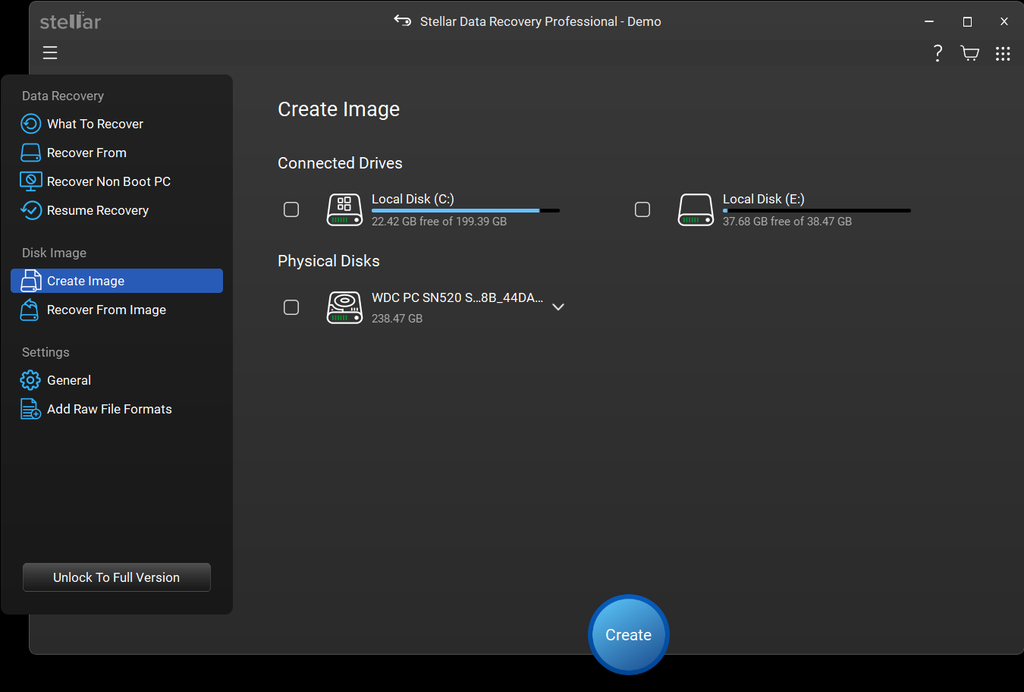
Create disk image
  • A Creating Image screen will appear showing the progress of image creation.
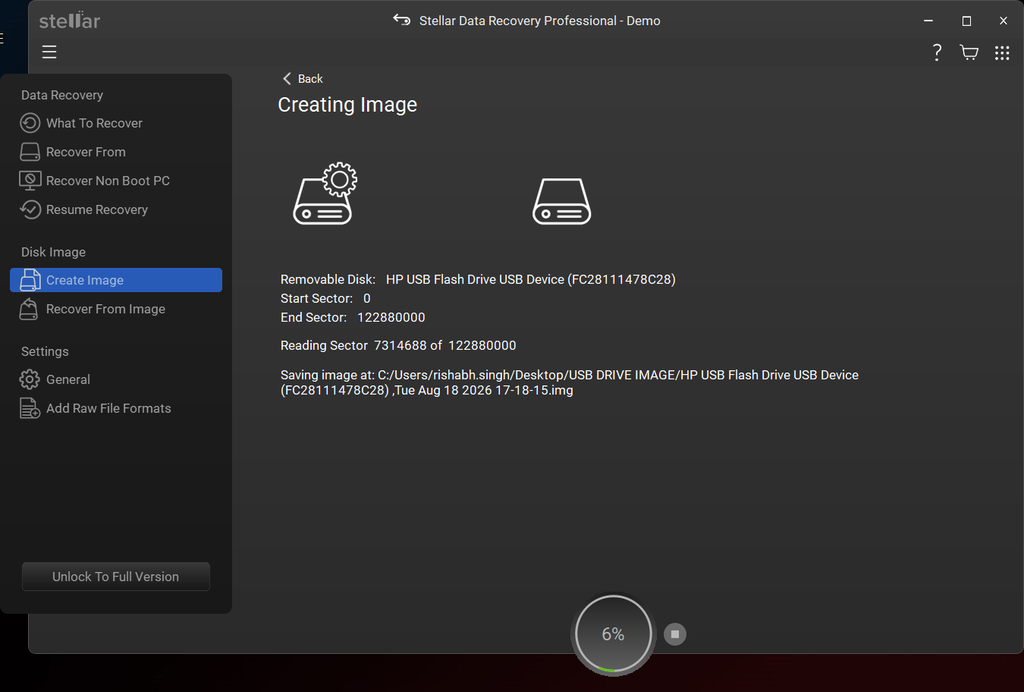
image showing image creation process
  • Once the process is completed, the app will display the newly created disk image. Click Scan to start the recovery process.
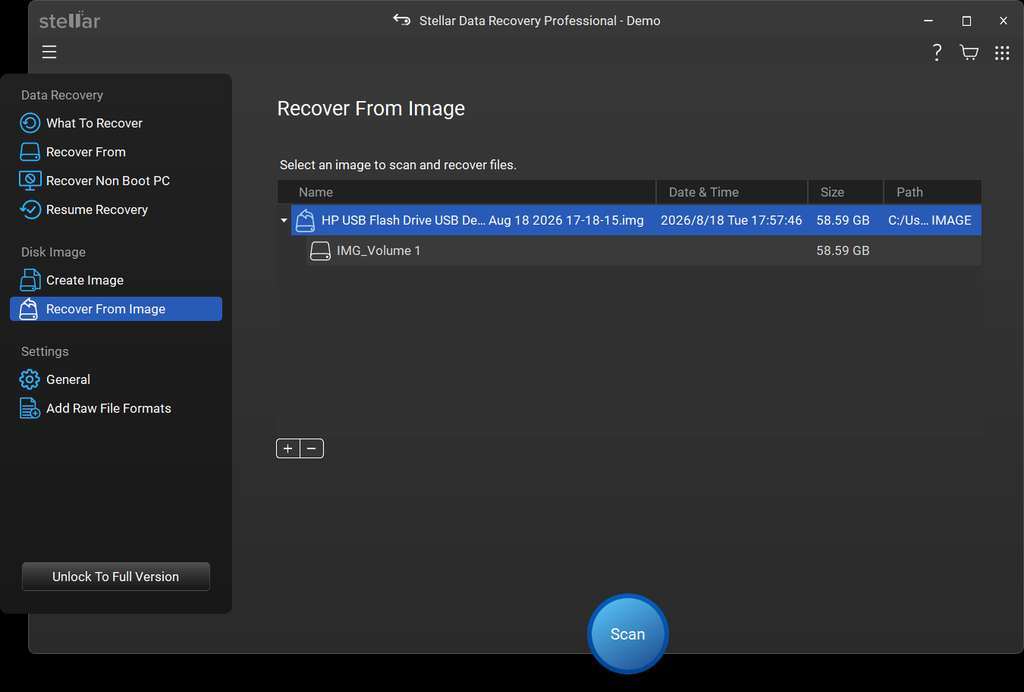
select the image to recover from
  • A screen displaying the scanning process will appear.
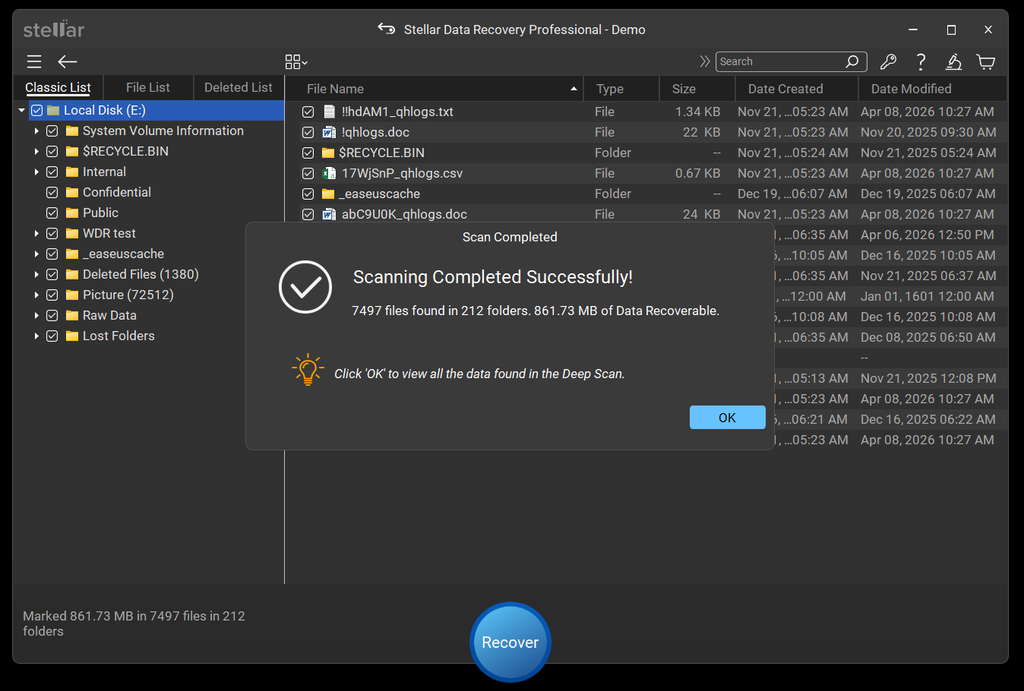
scan results displayed
  • Recovered files will be displayed for you to Preview.
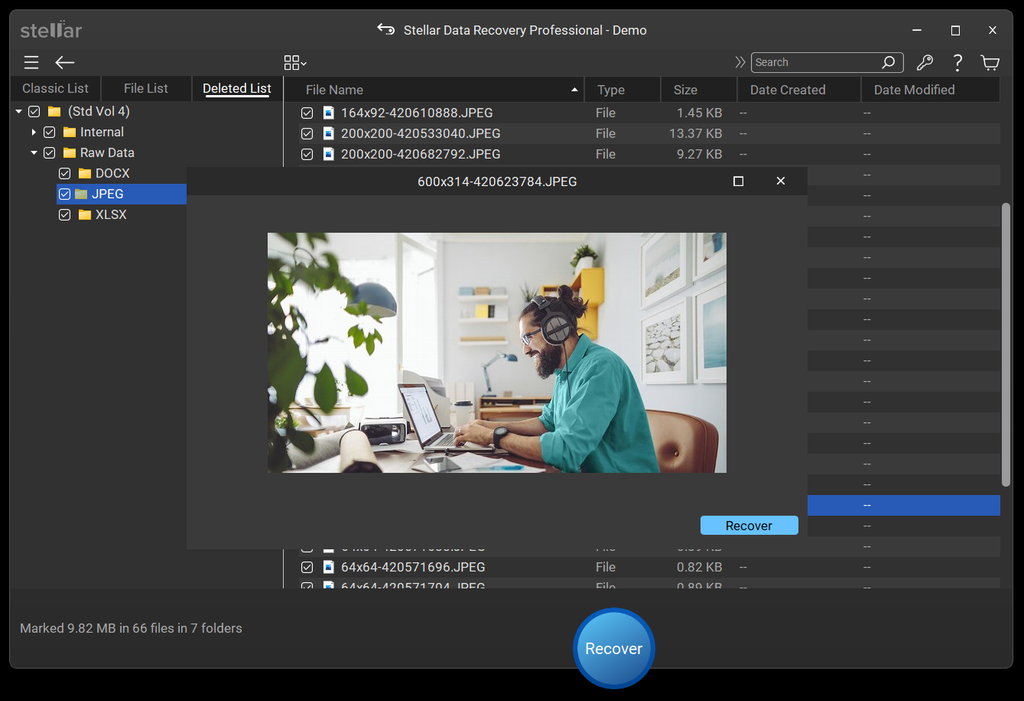
preview the recovered files
  • Select the files you want to retrieve and click Recover to save them to a different location than the original USB.

How to Access Files on a Corrupted USB Flash Drive?

If your drive is corrupted and that’s preventing you from accessing the files stored on it, there are Windows built-in tools that may help. The CHKDSK and ATTRIB commands can scan your drive for file system errors, repair underlying issues, and restore access to hidden or inaccessible files.

Use CHKDSK

CHKDSK is a command-line tool for detecting and repairing file system corruption. It can repair file system errors and restore access to files that seem missing due to file system errors (not actually deleted). 

Note: Recover your files before running this command. Chkdsk /f can move orphaned data into FOUND.000/ .CHK files or otherwise alter the drive. CHKDSK also doesn’t work on RAW drives so if Drive Management shows your drive as RAW skip ahead to repairing the partition or formatting instead.

  • Open Command Prompt as administrator.
  • Type CHKDSK D: /f and press Enter (replace “D” with the drive letter of your USB flash drive).
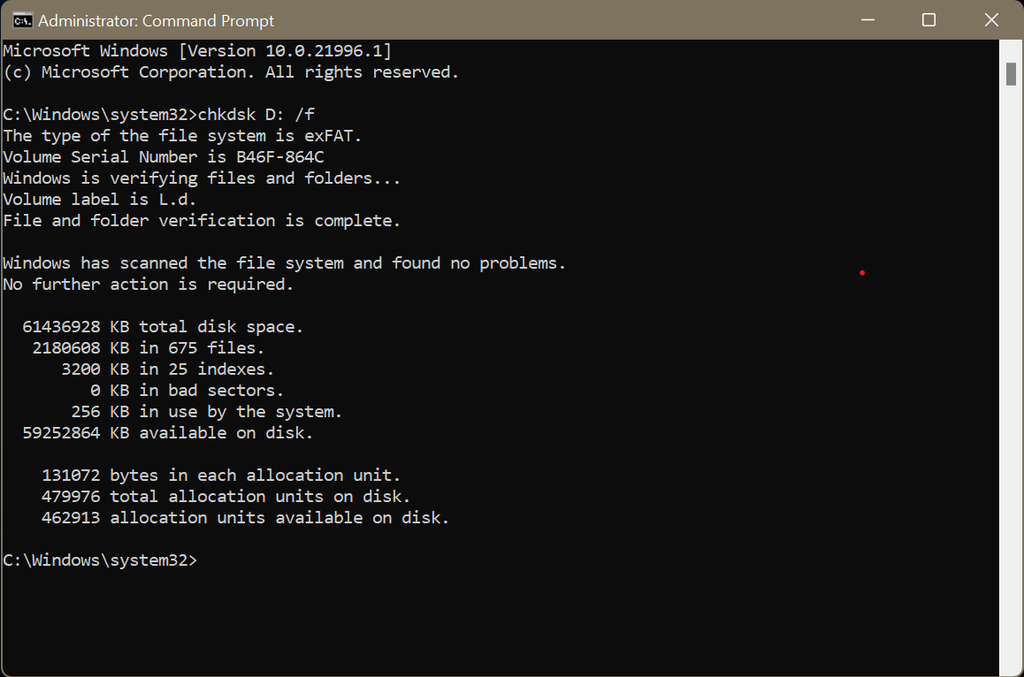
run chkdsk

For the full list of switches, see Microsoft’s CHKDSK documentation.

Use ATTRIB

Apart from CHKDSK, Windows includes another tool called ATTRIB which allows you to change file & folder attributes. It can help you access files hidden (not deleted) due to malware or system changes.

  • Open Command Prompt as administrator.
  • Type attrib -h -r -s /s /d D:\*.* (replace “D” with your drive letter) and press Enter.
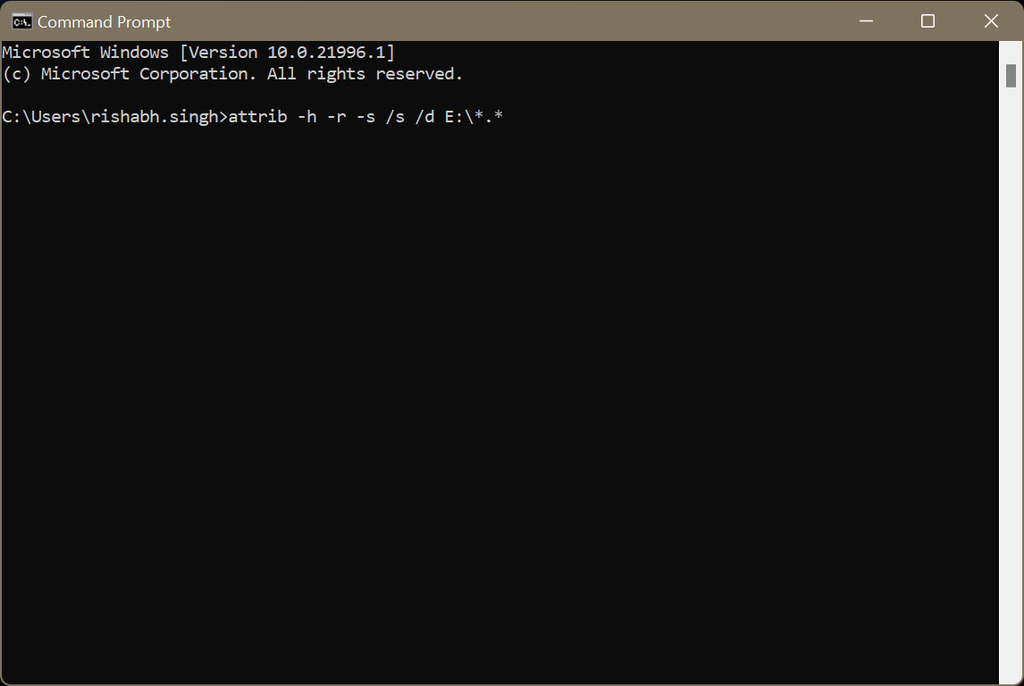
run attrib

How to Fix the USB Drive After Restoring Your Files?

Once you’ve successfully recovered the data from the corrupted USB drive, you can move on to repairing the drive itself. But make sure your important files are backed up first, as some repair methods can erase the data stored on the drive.

1.      Assign the Missing Drive Letter

When the USB drive shows up in Disk Management and but not in File explorer, it usually means that the drive has no letter assigned to it. This is the reason why you are not able to access it. To fix this, you can assign a drive letter yourself or change the existing drive letter.

  • Press Win + X and open Disk Management.
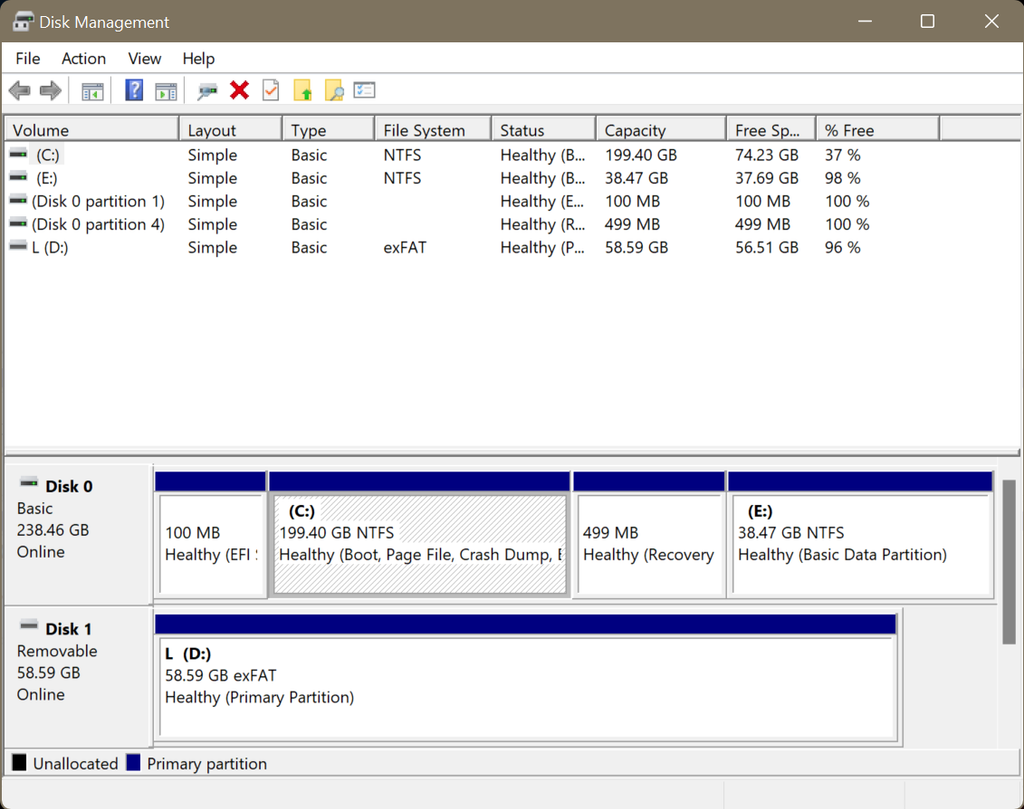
open disk management
  • Right-click on the disk number for your USB and click Change Drive Letter and Paths.
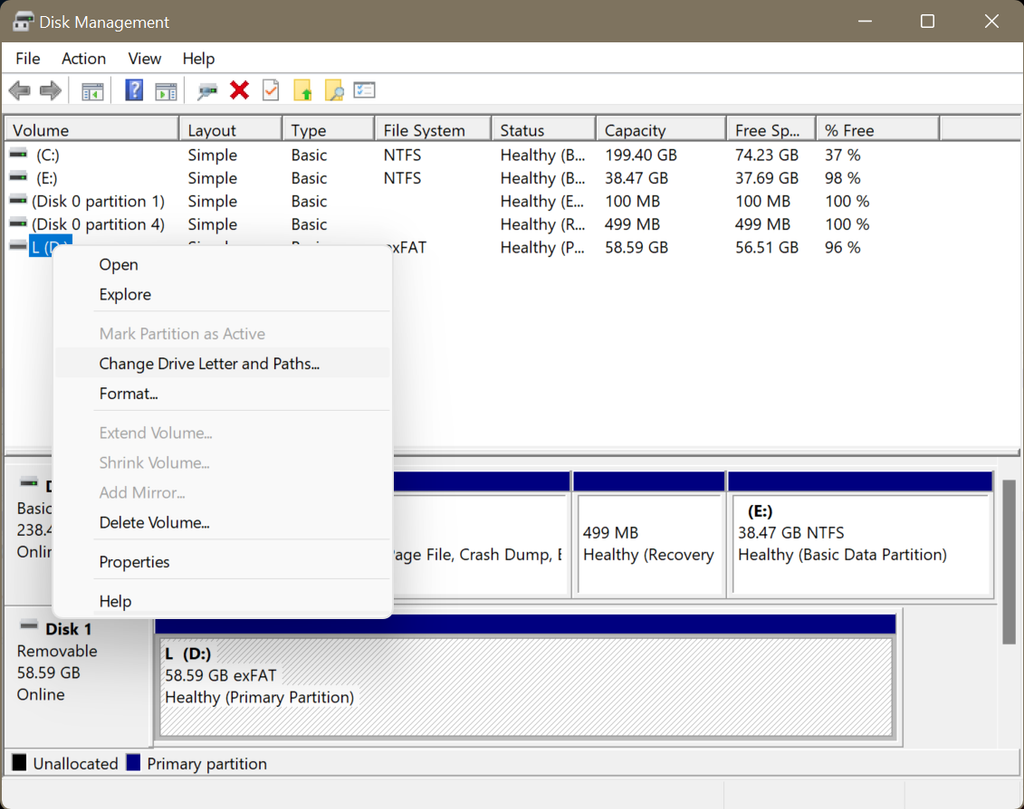
click change drive letter and paths
  • Click Add.
  • Choose a new drive letter using the drop-down list and click OK to confirm.
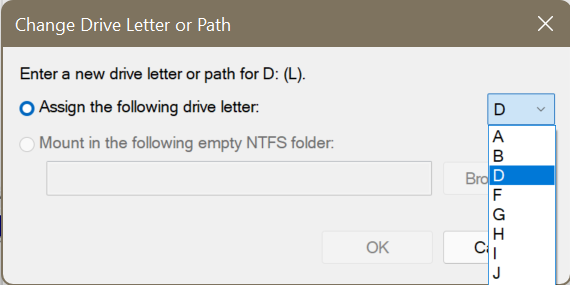
assign a drive letter

Once you’re done, try to access the drive via Windows Explorer and see if it works.

2.      Reinstall or Update Drivers

You may be experiencing issues with your USB flash drive because the Disk or USB drivers on your PC are outdated or corrupted. To fix this, go to the Device Manager and update the USB drivers. If Windows fails to find the latest version locally, download it from the OEMs official site.

  • Press Win + X and open Device Manager.
  • Scroll down to Disk drives and expand the entry.
  • Right-click on the driver and click Update driver.
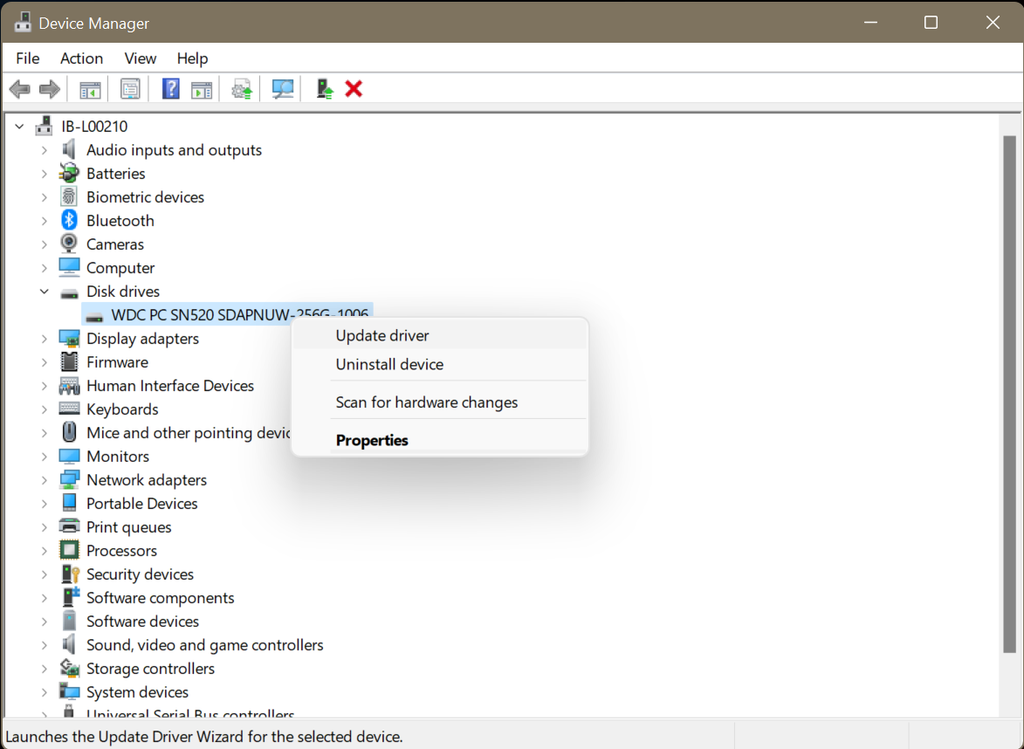
click update driver
  • Click Search automatically for drivers and let Windows install it on your computer.
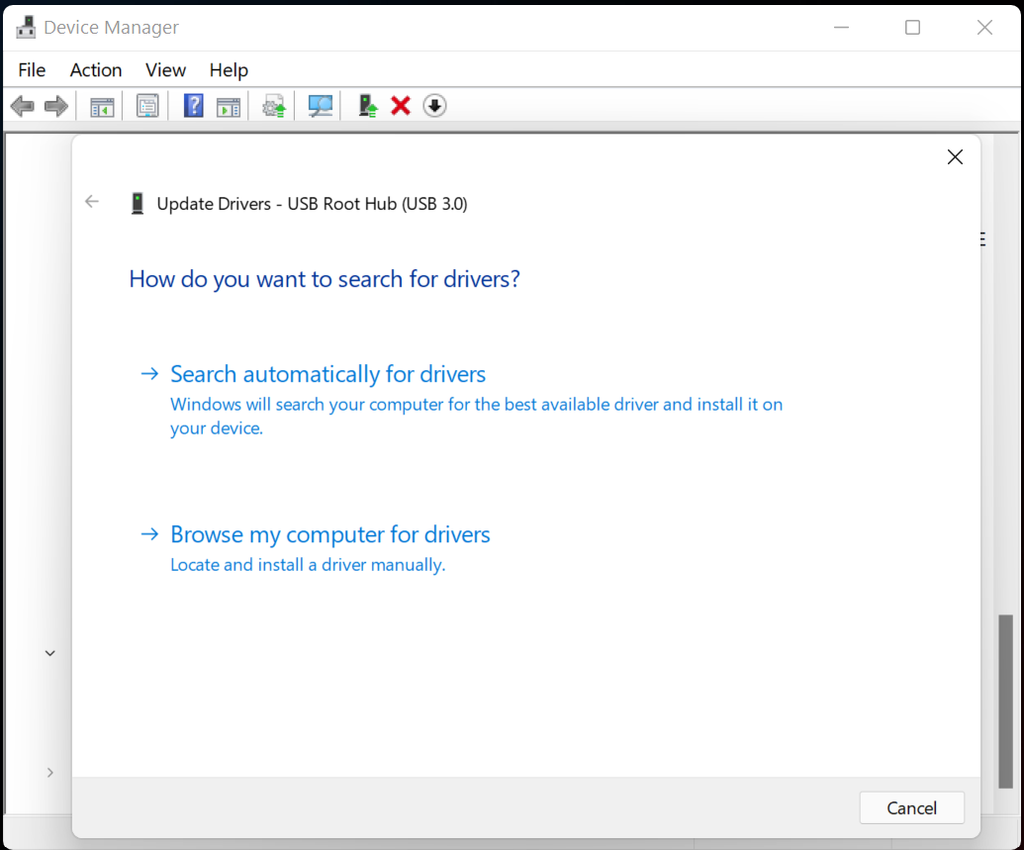
click search automatically for drivers
  • Repeat the same process for each of the Universal Serial Bus Controllers and USB Connector Managers.

3.      Format the Corrupted USB Flash Drive

When all else fails, formatting the drive is a reliable fix for any corruption-related issue. Just keep in mind that it will wipe the drive completely clean. If you have already saved your files elsewhere, you are good to go.

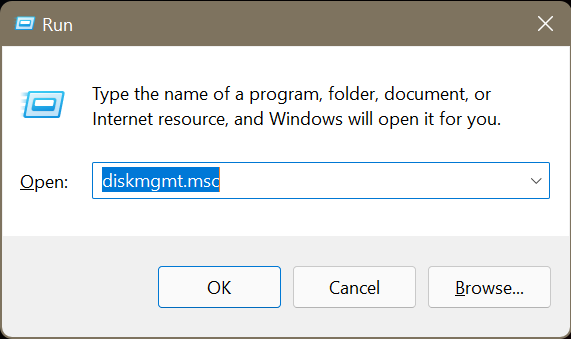
  • Press Win + R to launch the Run dialog box.
  • Type diskmgmt.msc and press Enter.
open disk management
  • Right-click on the USB drive and select Format.
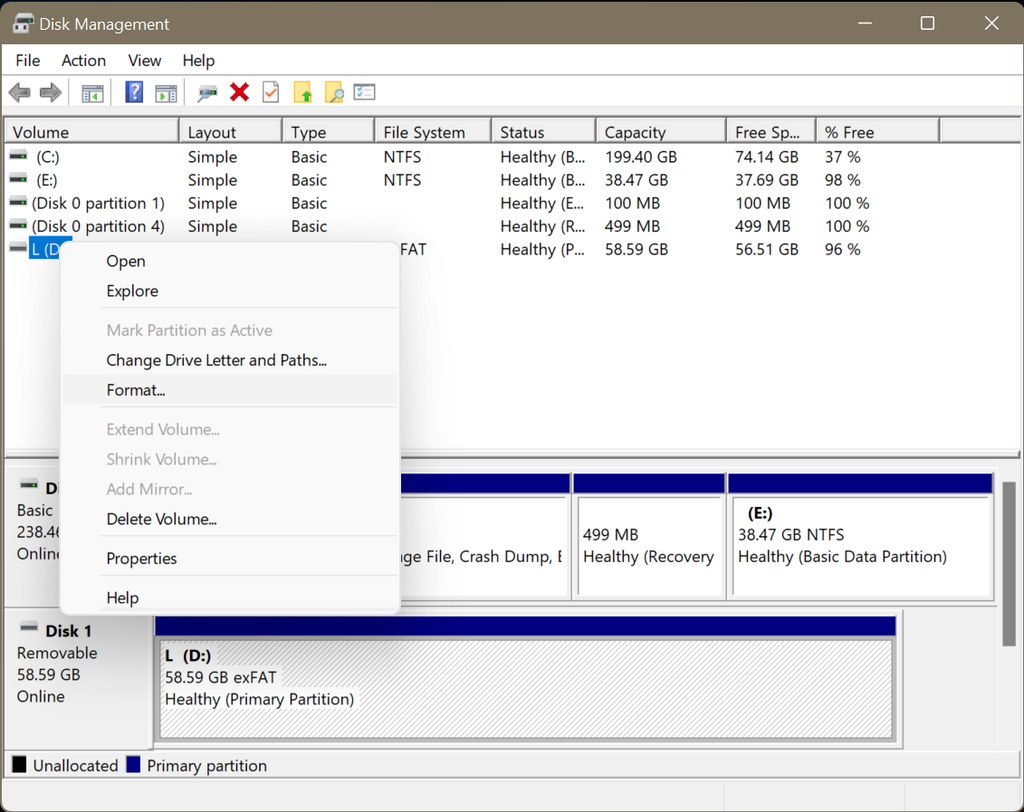
select format
  • Select the file system, check the box next to Perform a quick format, and click OK.
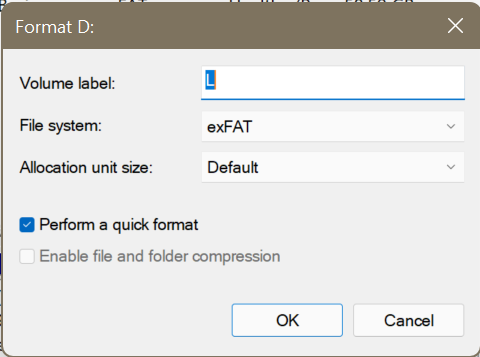
perform a quick format

Wrapping Up

A corrupted or unresponsive drive may not always mean that your files are lost. The first thing to find out is whether the issue is logical or physical and recover your important data before attempting any repairs. After your data is safely backed up, you can try fixes such as assigning a new drive letter, updating drivers, or formatting the drive if necessary. However, if the drive shows sign of physical failure, stop using it immediately and consider professional data recovery services instead.

Yes, files may still be recoverable if the USB drive is detected by Windows. The error can indicate a permissions or file-system access issue rather than complete data loss. Avoid formatting the drive and try accessing the data with dedicated recovery software first.
Windows typically displays the formatting prompt when it can detect the USB hardware but cannot properly read its file system. This can happen when the file system or its metadata is corrupted. If the drive contains important files, recover them before accepting the format prompt.
Sometimes. If the problem is limited to logical corruption, certain repairs may restore access without intentionally deleting your files. However, there is no guarantee that a repair operation will preserve all data, so recovering important files first is the safer approach.
A small difference between advertised and usable capacity is normal because manufacturers and operating systems calculate storage differently. However, a significantly incorrect capacity can indicate partition or drive-related problems. If the difference is unusually large, verify the drive's actual capacity before trusting it with important data.
Yes. If a file transfer repeatedly fails, freezes, or causes the USB drive to disconnect, the drive may be unstable. Continuing to repeat the transfer can place additional stress on the drive, so it is better to prioritize recovering the data you can still access.
ABOUT Expert
Santosh Kumar

Santosh Kumar

Senior Software Architect, Cross-Platform Data Recovery & Digital Forensics Expert

Santosh Kumar is a senior software architect and cross-platform data recovery expert with over 21 years of experience in software development, holding a B.Tech. in Computer Science & Engineering. Across a career spanning three organizations — Stellar Information Technology Pvt. Ltd. (Gurugram), SRA Systems Ltd. (Chennai), and Fortune Informatics Limited (Hyderabad) — he has built deep technical expertise in Qt, C, C++, and Objective-C across Windows, macOS, and Linux environments.

About The Author

Rishabh Singh

Assistant Content Manager

Rishabh is a data recovery expert with a hands-on approach to creating practical DIY guides and in-depth articles. His work focuses on data recovery, data erasure, file repair, and troubleshooting errors across Windows and macOS systems. He is also a strong advocate for decentralization and open-source technology. Outside of work,...

Curious about our content creation process? Take a look at our Editor Guidelines.

247 comments

  1. Hi,
    I was able to recover files using the steps you provided for logical issues. But all the file formats are “CHK” files. How can I convert these files back to JPEG? Thanks!

    1. Hello Kim,
      We would suggest you perform a deep scan, there if you have performed the quick scan and check the file type list for the JPEG files.

  2. Hi, their!
    My USB Sandisk Cruze blade 16gb one says to insert a disk into drive whenever I try to open it. I tried to change the drive letter it didn’t work and ii even tried various recovery software none of them helped they didn’t even detect the USB and I think the condition of my USB from the form post is (2 b. Error: “Please Insert Disk into Removable Disk”:) help me revive my USB!

    1. Hello Ken,
      We would like to inform you that in order to recover the data using the Stellar application the drive needs to be detected in the system. If the drive is not detecting in the system then recovery is not possible using the Stellar application.

    1. Hello William,
      Sure, you can use Stellar Free Data Recovery Software and if you see your files and data in preview so you will be able to recover and access those data

  3. Hi,
    As soon as I insert my USB flash drive, my computer hangs up:
    * The removable drive icon in the task tray does not respond
    * Diskpart command just ‘hangs
    * Disk Management will not start
    * Right-clicking the icon of the drive-in Windows Explorer just hangs
    (Flash drive is detected and shows in device manger and in Explorer).

    1. Hello Ancient,
      Computer Hang Up after inserting USB drive is a very common issue. There might be two most common reason behind this is the Corrupt USB disk and Corrupt USB port drive. Sometimes USB drive issues occur after improper ejection of USB drives. In the case of USB port drivers, you will get most of the device drivers automatically without any intervention.

      However, if you think USB drivers are corrupt, you can try updating drivers in Device Manager. You try your USB drive in another pc. You will get idea what you can do for that. One more option is to take data backup or in case of data loss recover your data via Stellar Data Recovery software and format it. It may work for you. Thanks

  4. Hello Author,
    I have an Apple desktop and my problem with the Lexar flash drive is that the computer does not see the flash drive and there is no icon of the drive on the desktop disk. I contacted Lexar and they told me the life of the drive has expired. How can I recover the data?

    1. Hi Les,
      If the drive is not detecting in the system then recovery would not be possible from it. Thanks

  5. I have another issue, I have a memory card and its working and I can read files and access it but I can’t take a copy of it and if I played a video which is stored on it always be laggy and stop and resume after a while so help me to solve this issue. thanks

  6. I did all the steps described here above but my WD external hard drive wasn’t working. In device manager, I can see the drive but I can’t click it at all.
    Is there any chances to recover my data in a structured way (files & directory)? I had really important and uniqe data, gathered in time.
    It was detected in a USB port & scanned by Win 10 Pro and “repaired” at a boot time, but it took several hours and still in 0%. Can you help?

    1. Hello Julie ,
      Stellar Data Recovery professional for windows will help you to recover your data from the corrupted drive when you select [can’t find window] option to locate deleted or last formatted partition of the storage device. When partitions are located data can be recovered. Thanks.

  7. Hi Sir,
    I am unable to restore my data from the USB by following the above instruction .Its showing the box “”your file is write protected “”.

    1. Hello Aamer,
      If your files are write protected then you can follow these steps
      1. Open window explorer by pressing the Windows Key + E on your keyboard
      2. Navigate to the location of the file(s) or folder(s) you would like to unprotect.
      3. Select and right click the file, folder and then select properties from the drop down manu that appear.
      4. In the file properties window, under the general tab uncheck the box for Read –Only near the bottom
      5. Click the OK button save the new changes.
      Still you don’t able to restore your file so you can use Stellar Windows Data Recovery Software to recover your files
      Thanks

  8. Hi Admin,
    I am not able to access my data in my USB drive. But yesterday it was fine. Today I insert my USB drive into the USB port and all file are shown but all are corrupt. Help me to fix it!

    1. Hello Jayino,
      May be shortcut virus is created in your USB drive. First you can scan the drive and then you can use shortcut virus remover still your files are not access you can use Stellar data recovery software to recover your files. Thanks

  9. I have done all the above steps and no luck. Then, downloaded your software and still it is unable to find my USB drive. There is nothing wrong with the port, any ideas???

    1. Hello Serge,
      We have Stellar Data Recovery professional for Windows will help to recover the data from the corrupted drive by selecting the can’t find drive option to locate deleted/last formatted partition of the storage device. Once the partitions are located you can recover the data.

Leave a comment

Your email address will not be published. Required fields are marked *

Google Trust
Related Posts

WHY STELLAR® IS GLOBAL LEADER

Why Choose Stellar?

  • 3M+

    Customers

  • 30+

    Years of Excellence

  • 100+

    R&D Engineers

  • 190+

    Countries

  • 8000+

    PARTNERS

  • 120+

    Awards Received

Stellar With 30 Years of Excellence
Technology You Can Trust
Data Care Experts since 1993
×