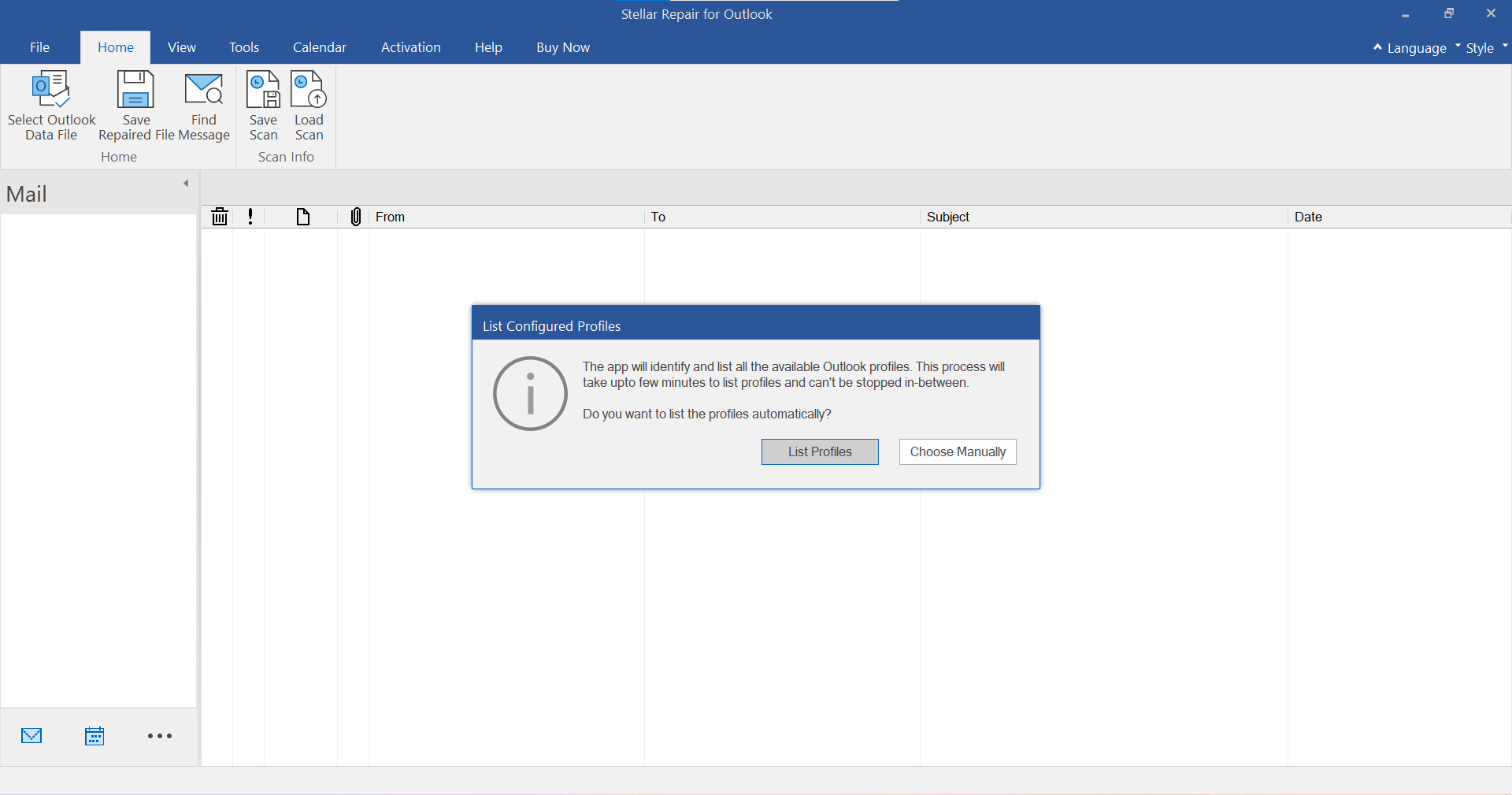
Step 1: Launch Stellar Repair for Outlook and click ‘List Profiles’ or select ‘Choose Manually’.
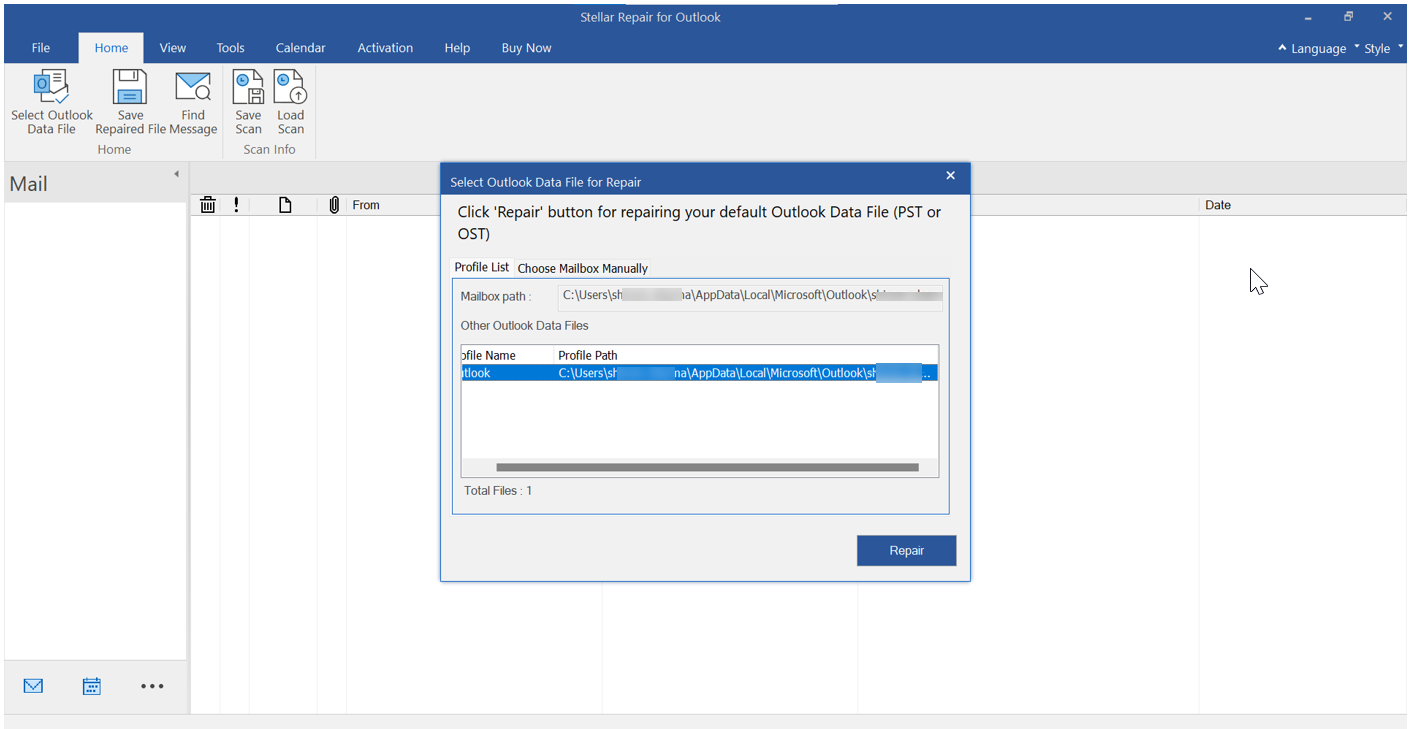
Step 2: ‘List Profiles’ or ‘Profile List’ option auto-scans and lists all Outlook data files associated with your Outlook profiles. Select the Outlook data file from the list and click ‘Repair’.
Step 3: Click ‘Choose Manually’ or ‘Choose Mailbox Manually’ to ‘Browse’ the Outlook data file (OST/PST) for repair if the file is not located at the default location. Use the ‘Find’ option to search and select the OST or PST file.
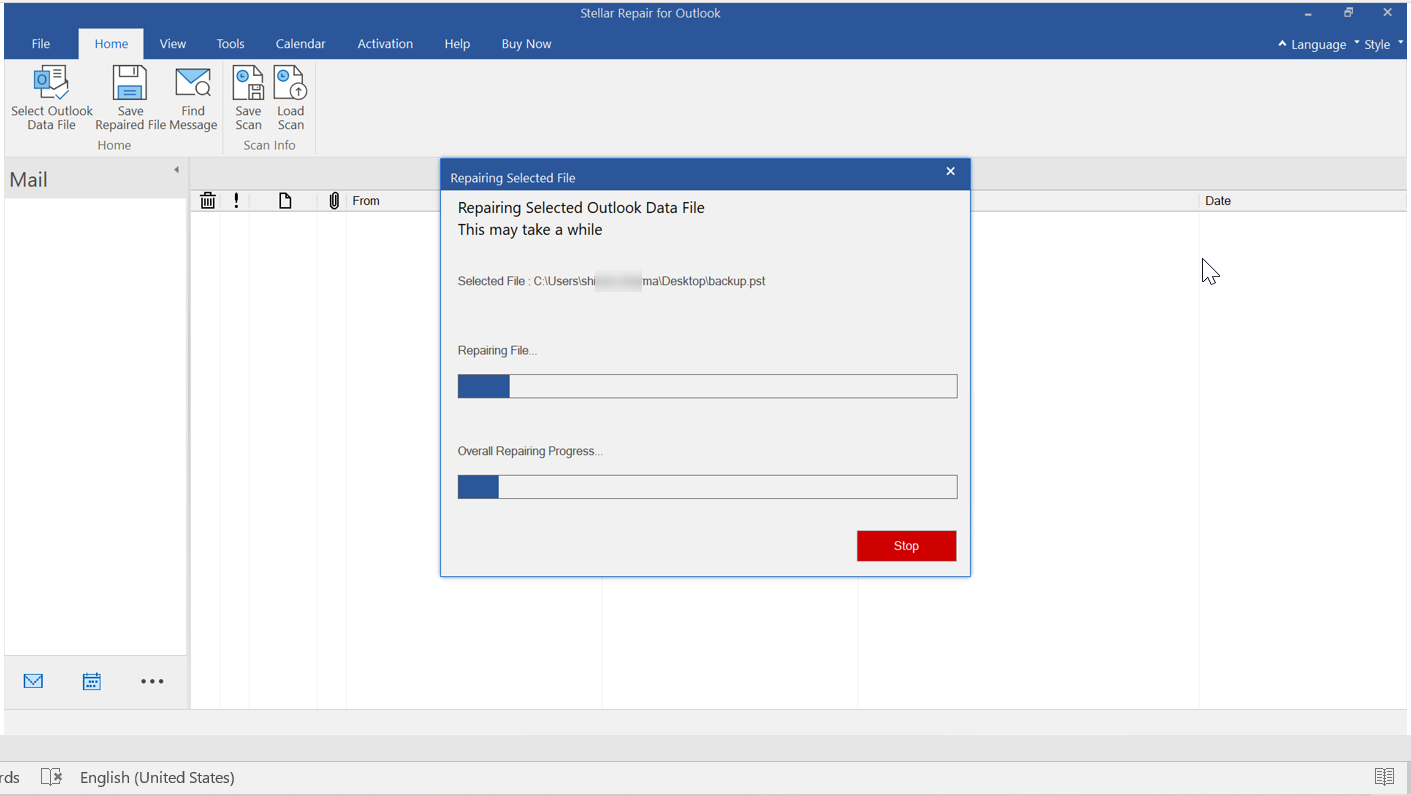
Step 4: The software simultaneously scans and repairs the Outlook data file.
Step 5: A ‘Repair Complete’ message box appears when the repair process completes. Click on ‘OK’.
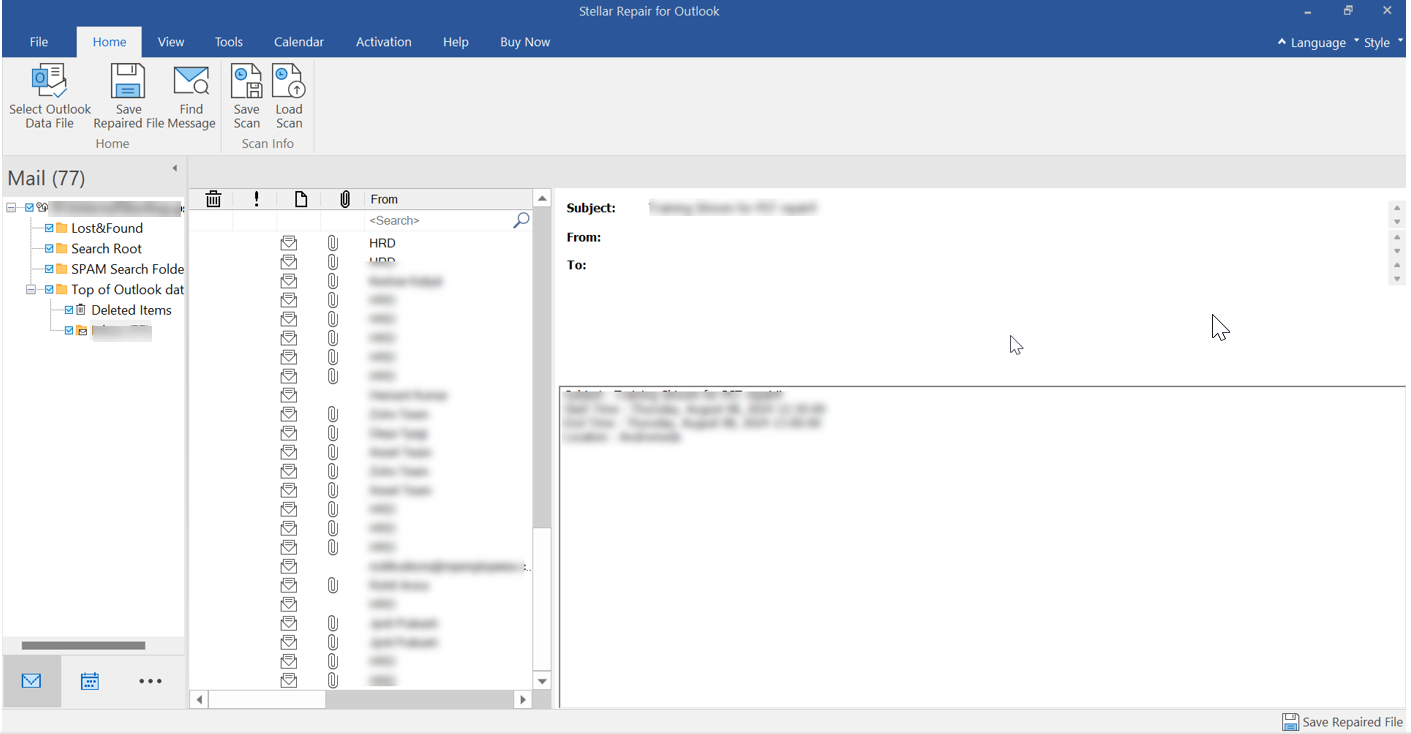
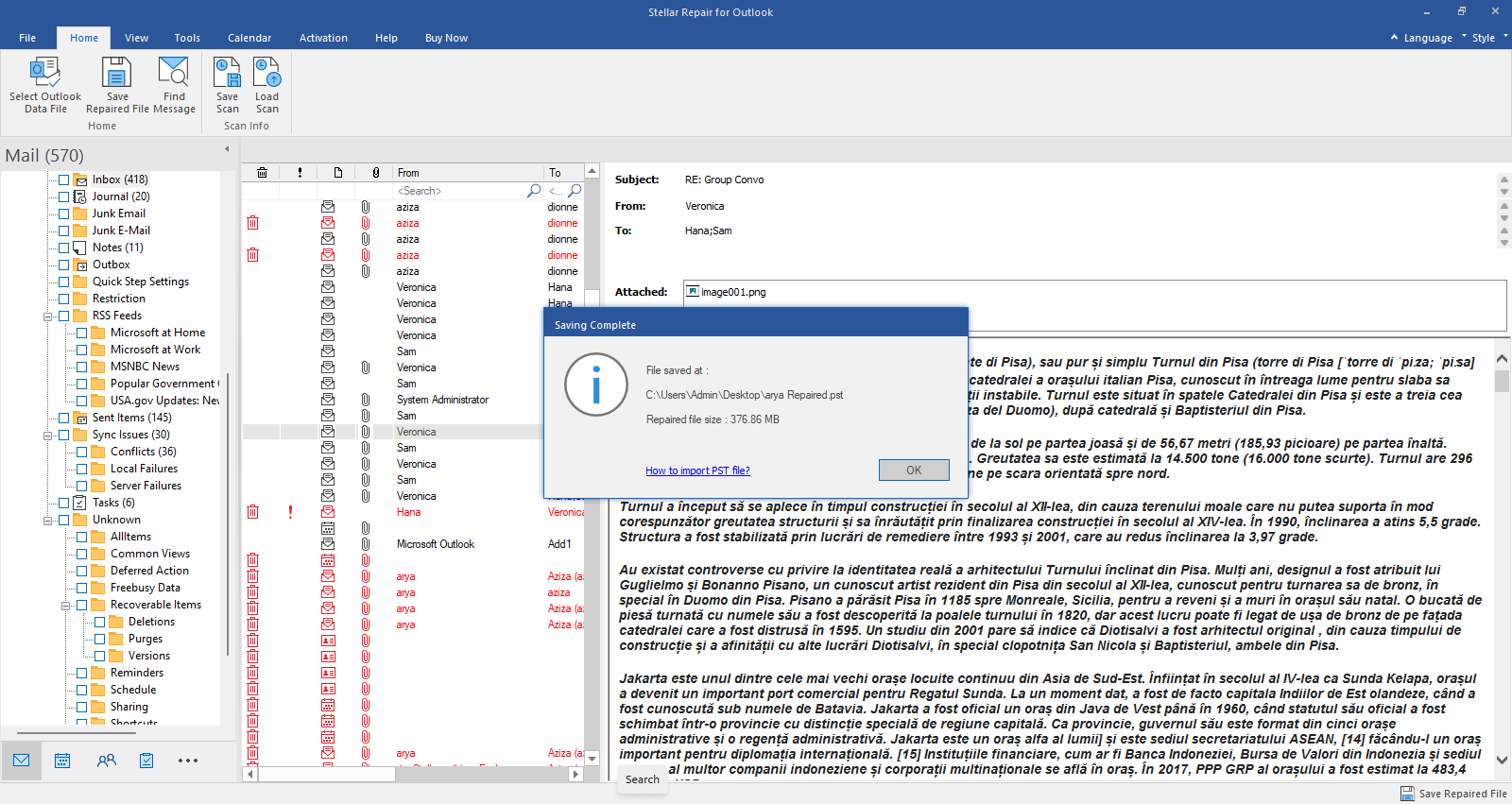
An enhanced preview of recoverable OST or PST file items is displayed to verify the mail items before saving.
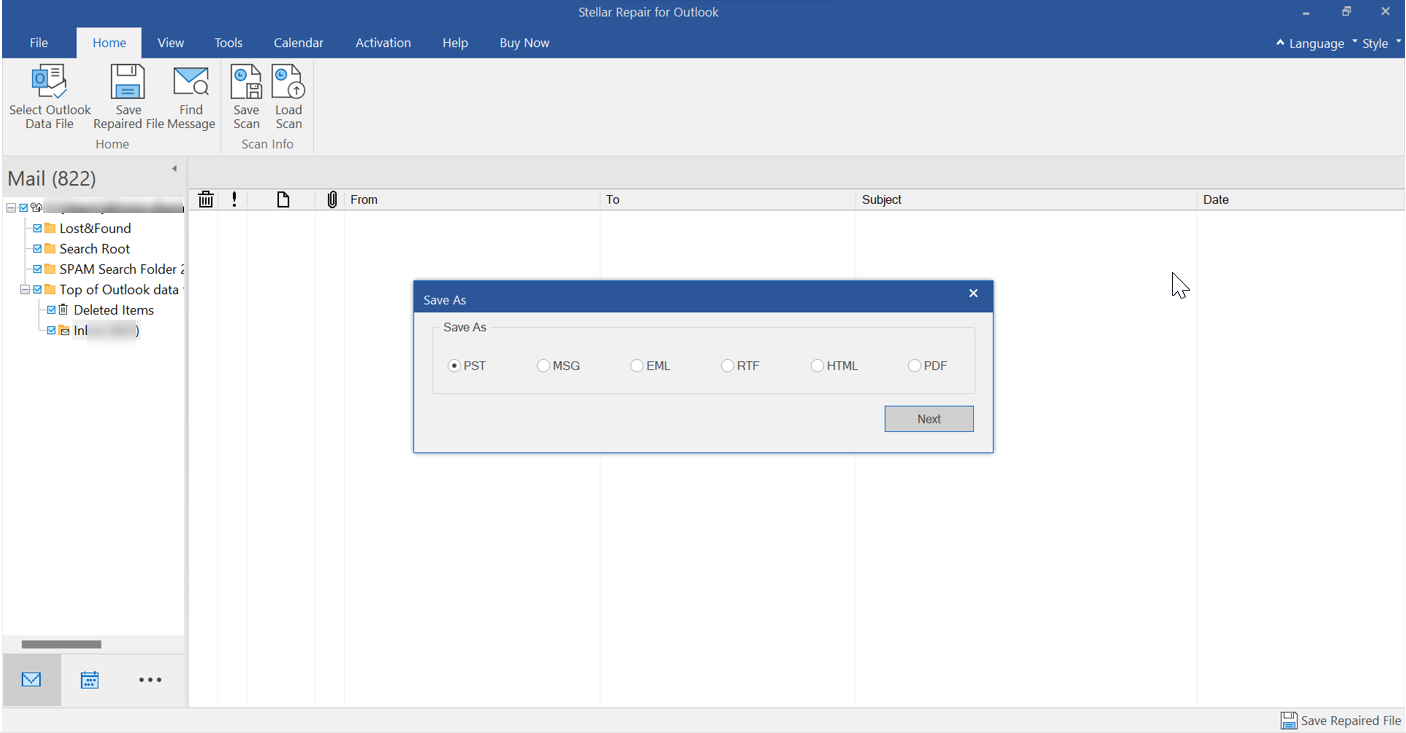
Step 6: Select the mail items to recover and click ‘Save Repaired File’ under the ‘Home’ menu. Select the PST or desired file format from the ‘Save as’ window and click ‘Next’.
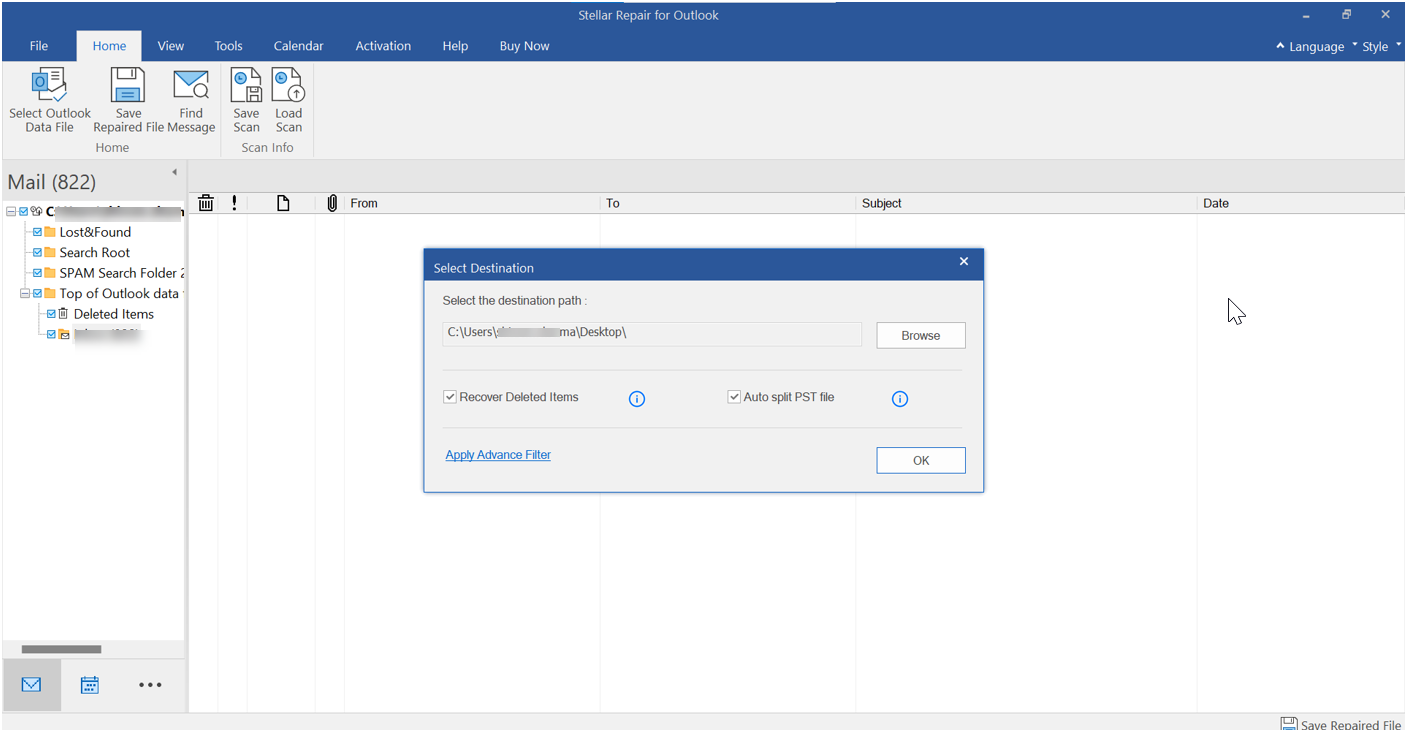
Step 7: Click ‘Browse’ to select the location to save the recovered mail items in the new PST file and click Apply Advance Filter’ to filter out Junk/Deleted items or emails based on address or data range. Click ‘OK’.
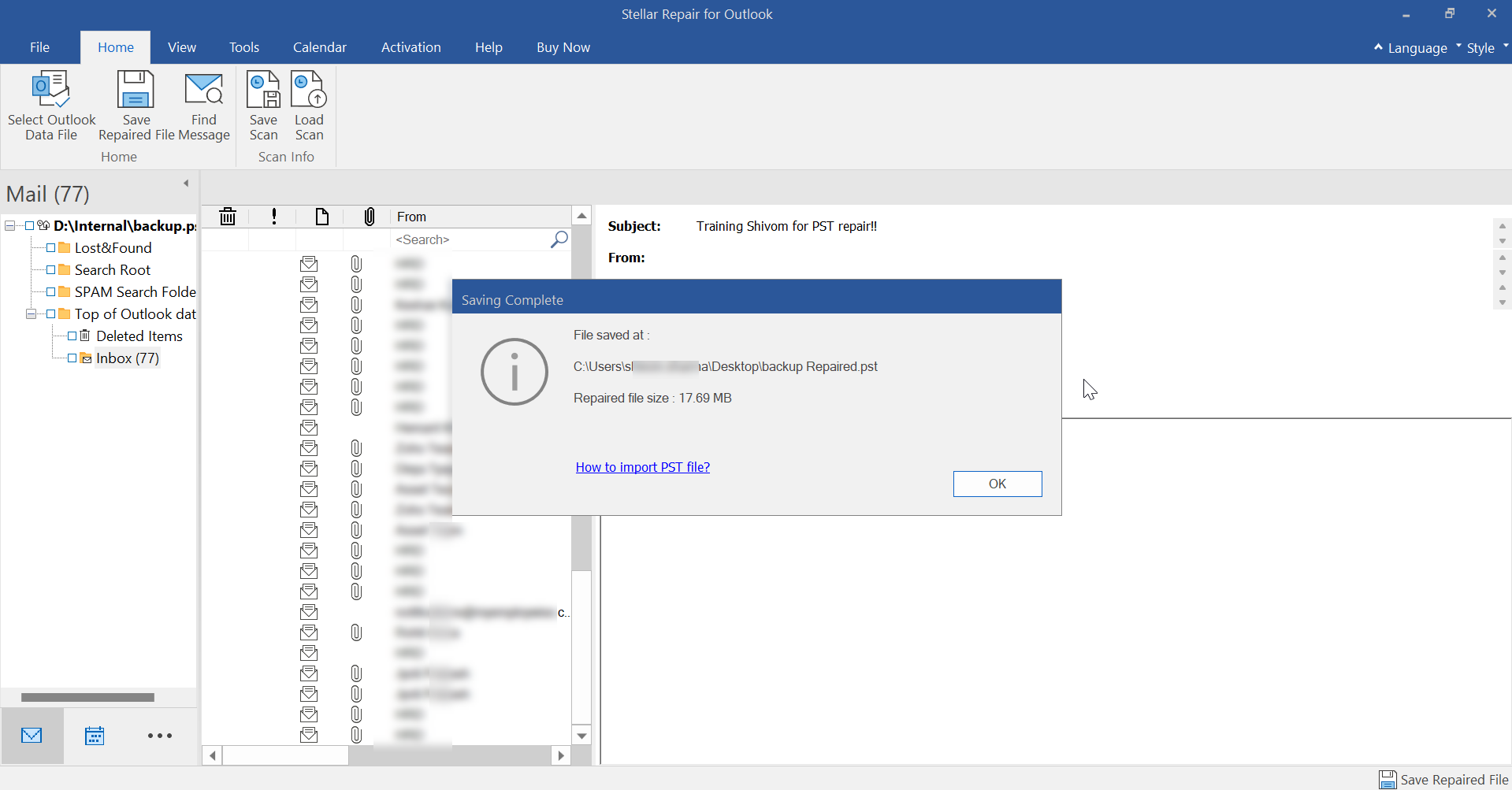
Step 8: The PST file will be saved at the selected location. Click the ‘How to Import PST File’ link to import it into your Outlook profile.
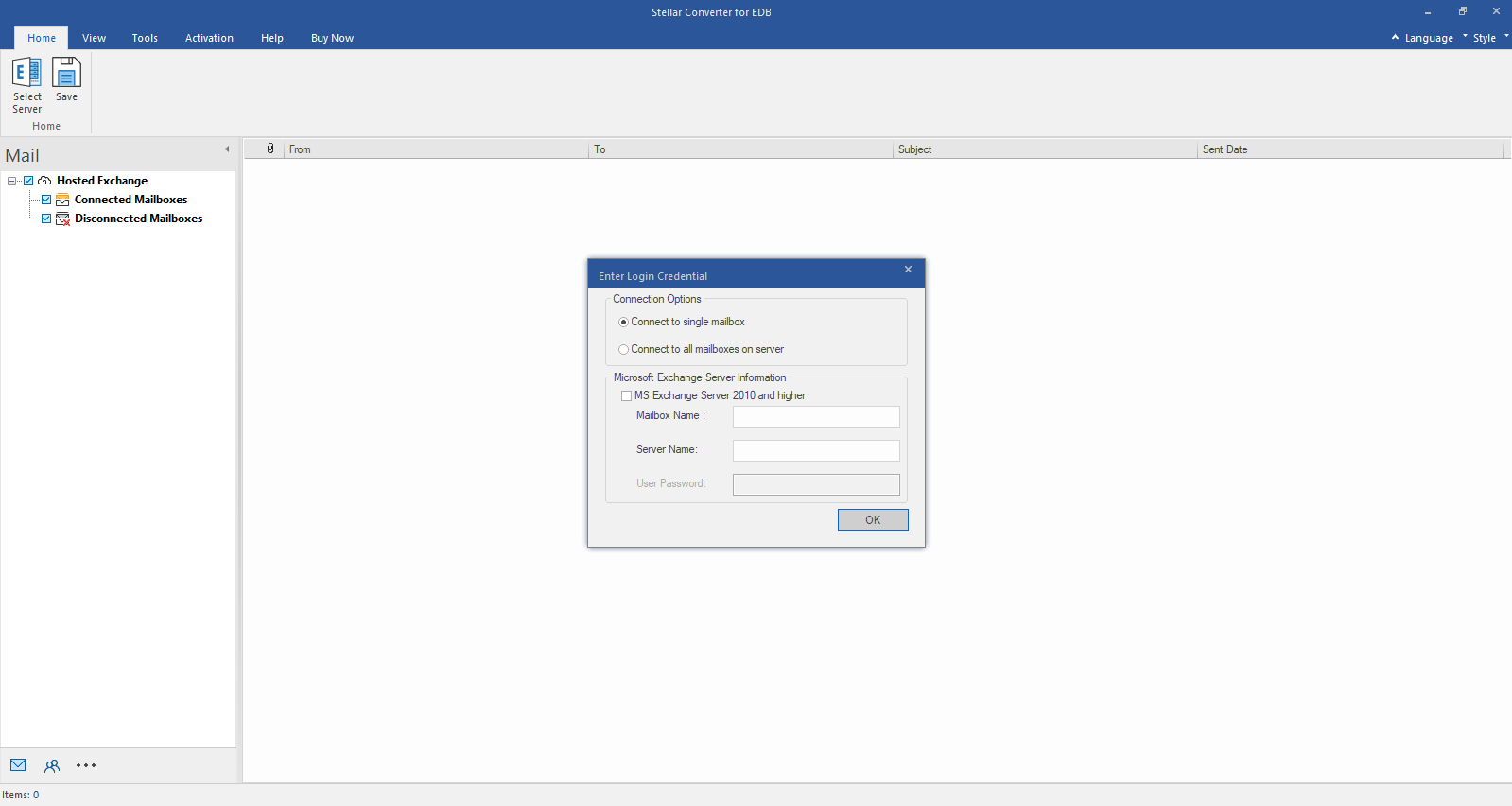
Step 1: Select Hosted Exchange to export mailboxes from an online EDB file. Select Connect to Single Mailbox or Connect to Single Mailbox from Connection Options
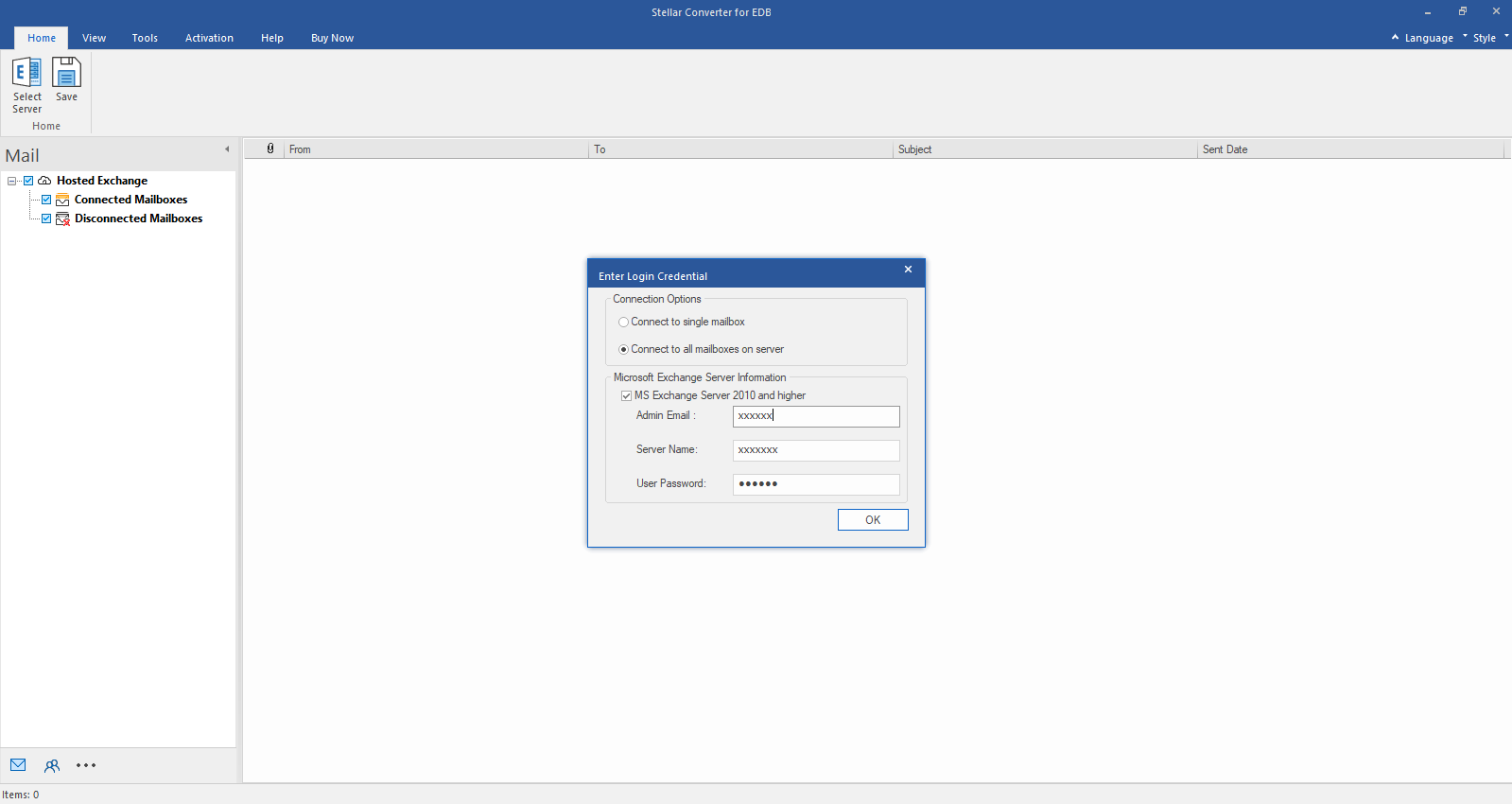
Step 2: Enter Admin and Server Name (for Exchange 5.5, 2000, 2003, 2007) or tick "Exchange Server 2010 and higher" checkbox to enter Admin Email, Server Name and Password (for MS Exchange 2010, 2013, 2016, and 2019). Click OK.
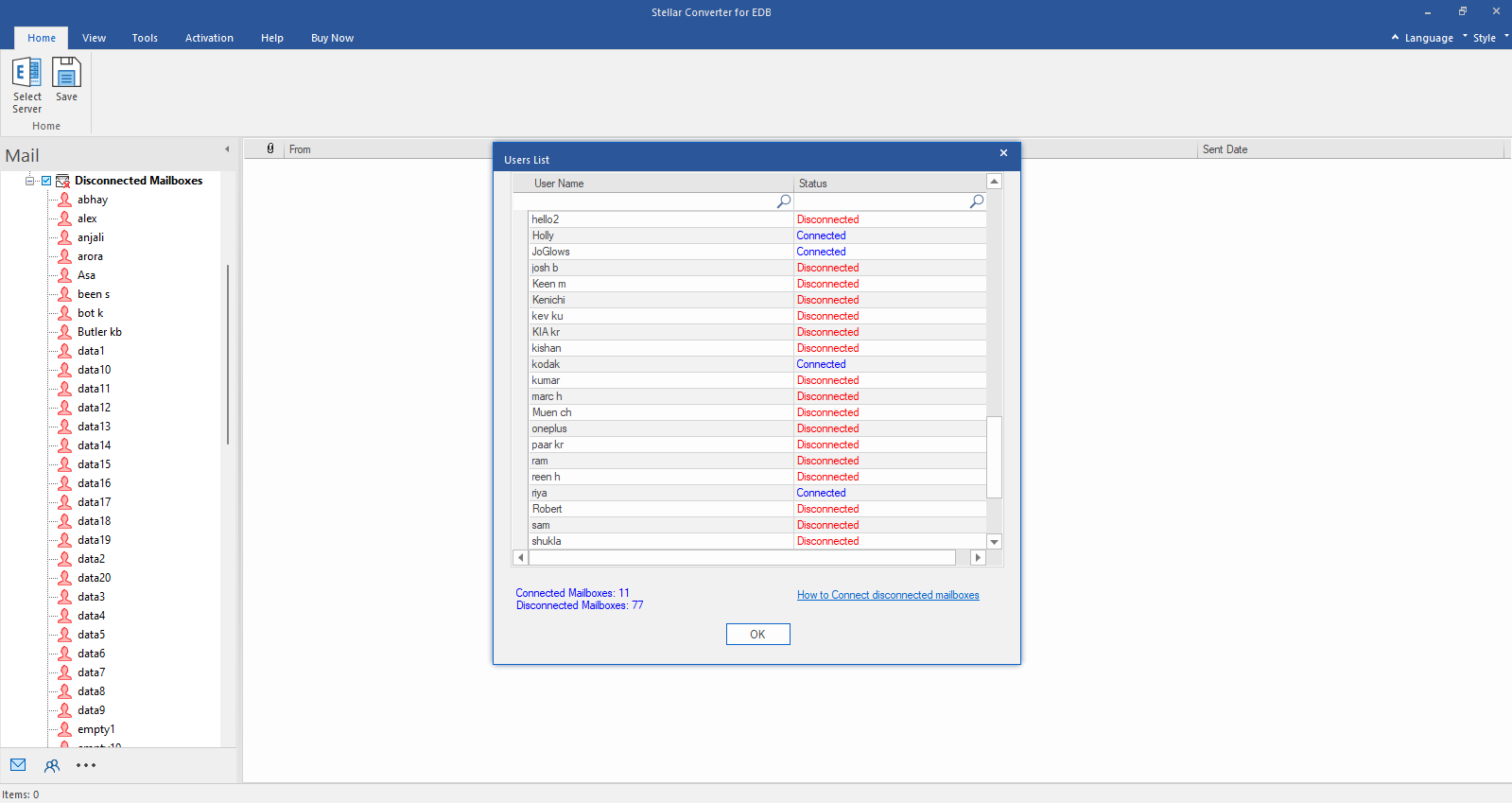
Step 3: After establishing the connection with Exchange Server, Next window displays list of connected and disconnected mailboxes. Click "OK" to proceed.
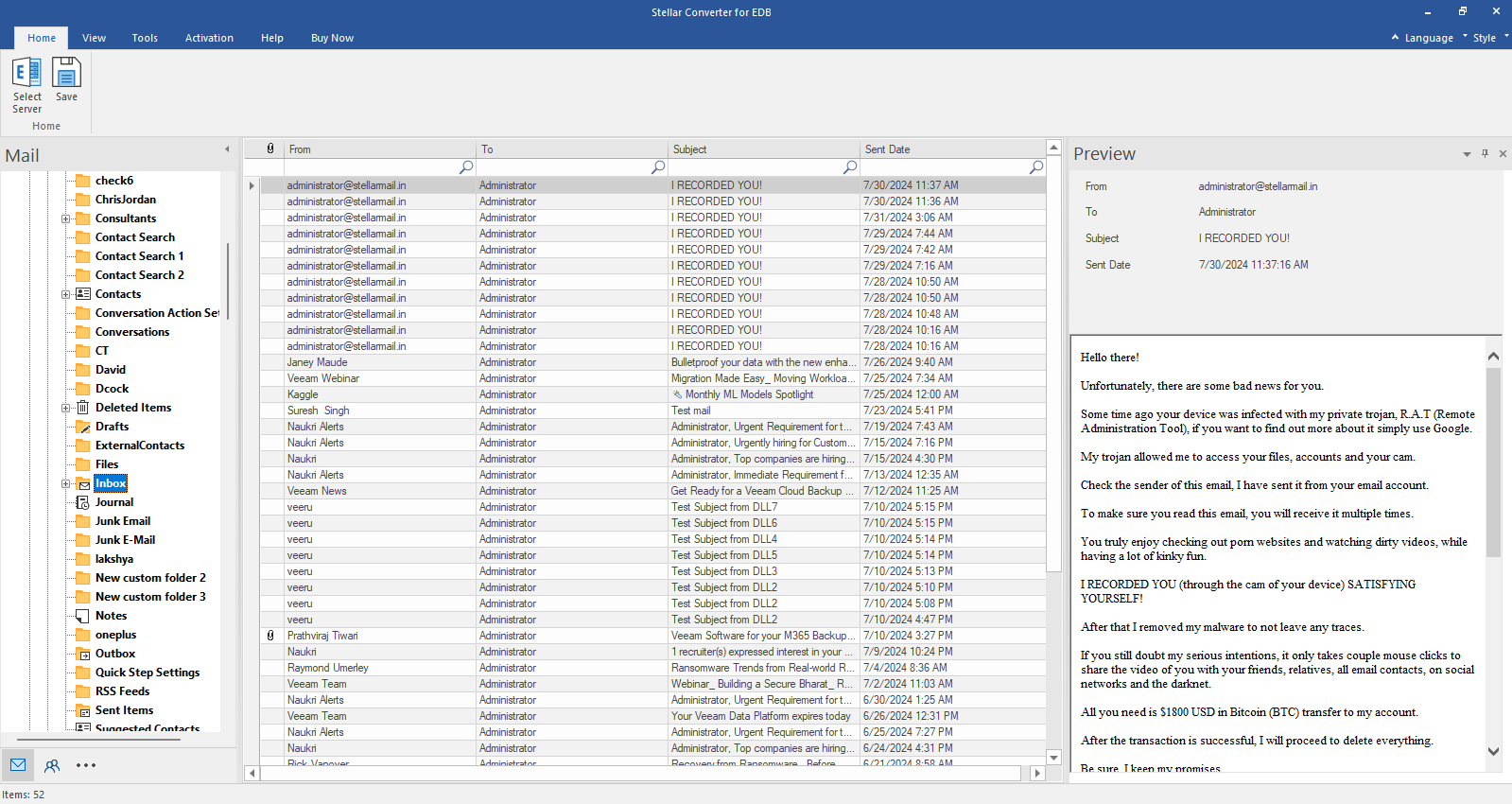
Step 4: Check the preview of all mailbox items- Emails, Calendars, Contacts etc.
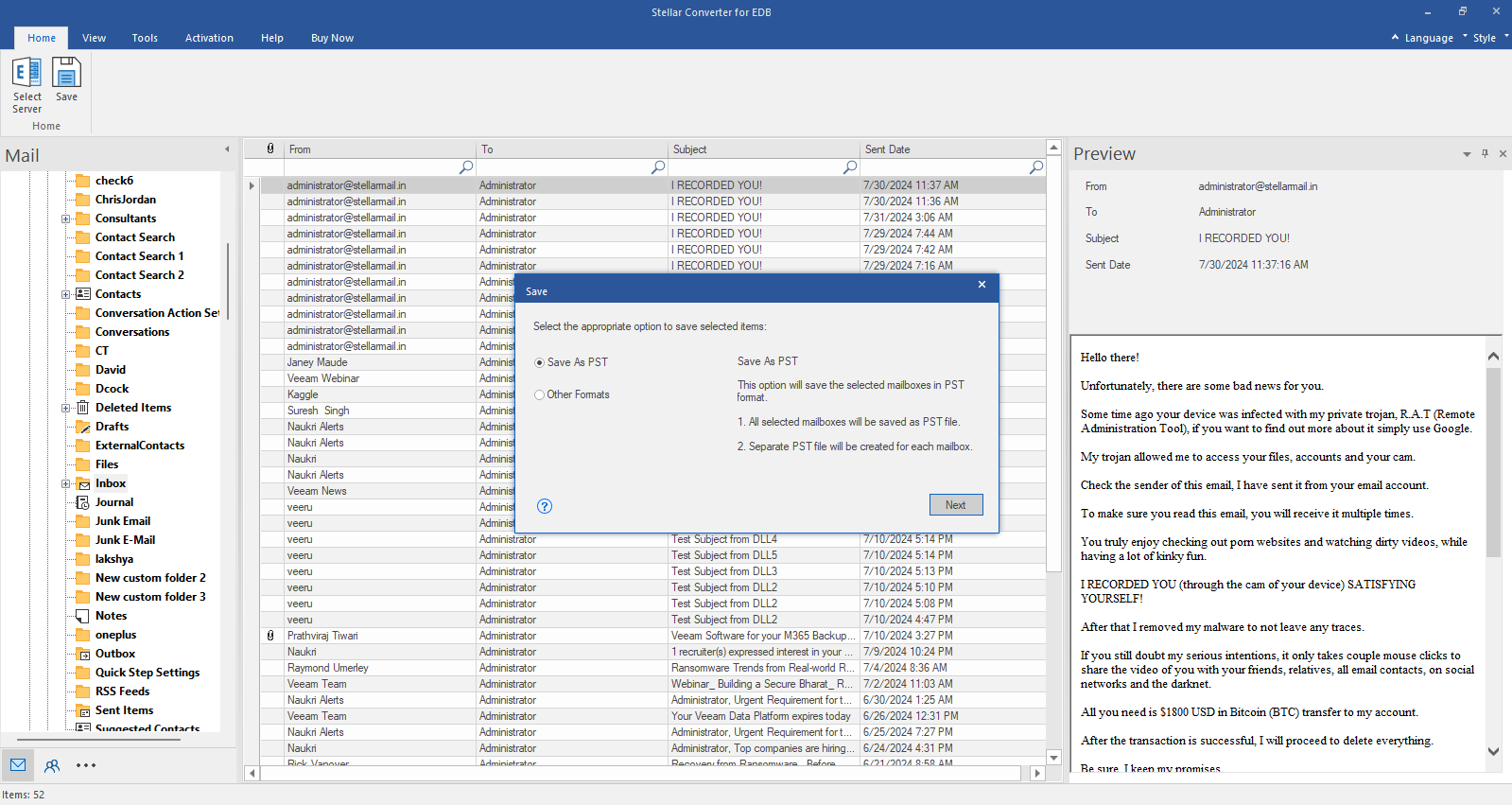
Step 5: Click Save from Home Ribbon and Select Save as PST option. Click "Next" to proceed.