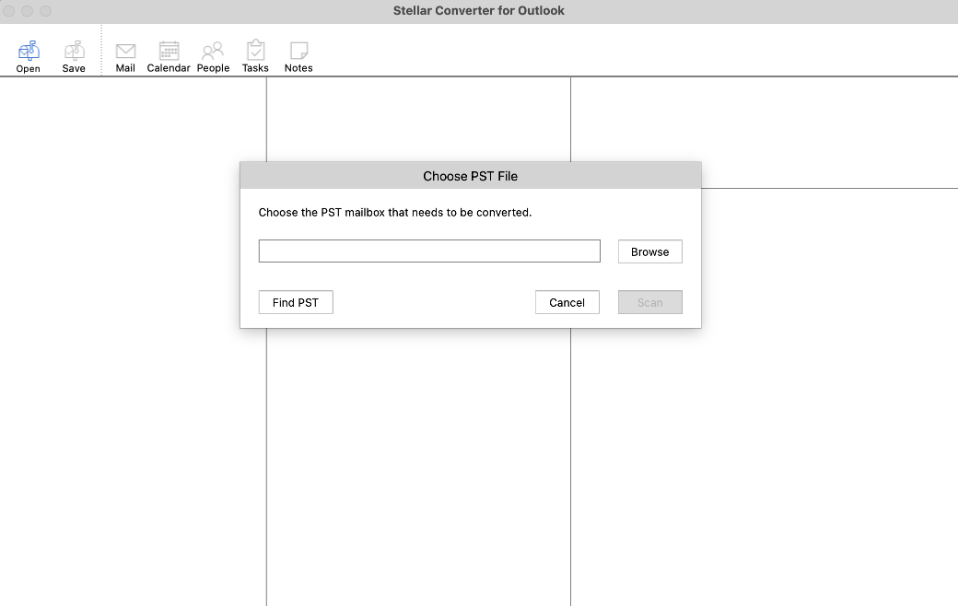
Step 1: Launch the Software Launch Stellar Converter for Outlook – Mac. On the Home screen, you will see the Choose PST
File Window.
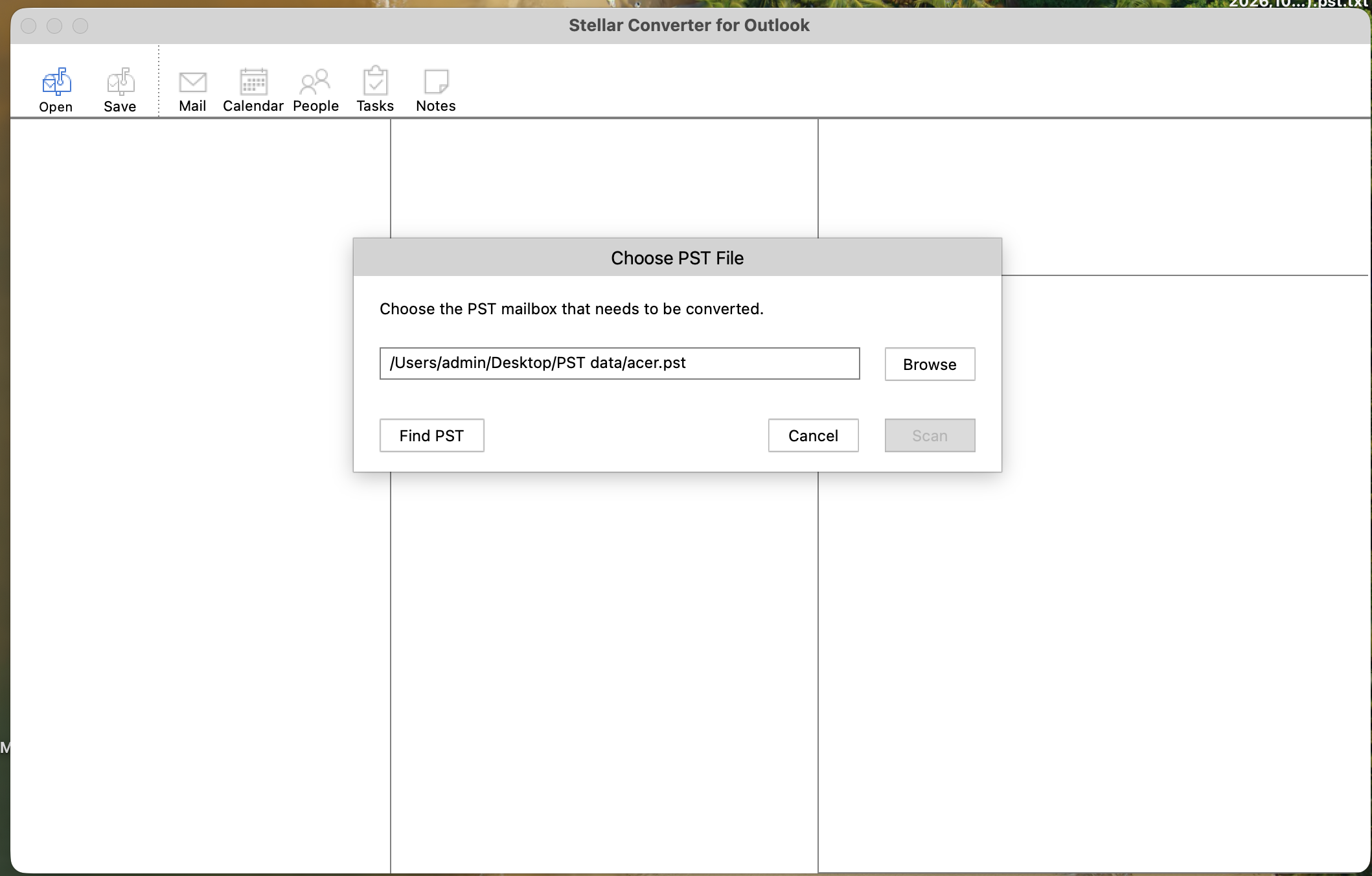
Step 2: Select the PST File Click on Browse to find and select the PST file that you want to convert. If the location of the
PST file is not known, click on Find PST. The software will search for all the PST files present in
the selected directory/volume/folder on the Mac and list them. Then, choose the PST file you
want to convert.
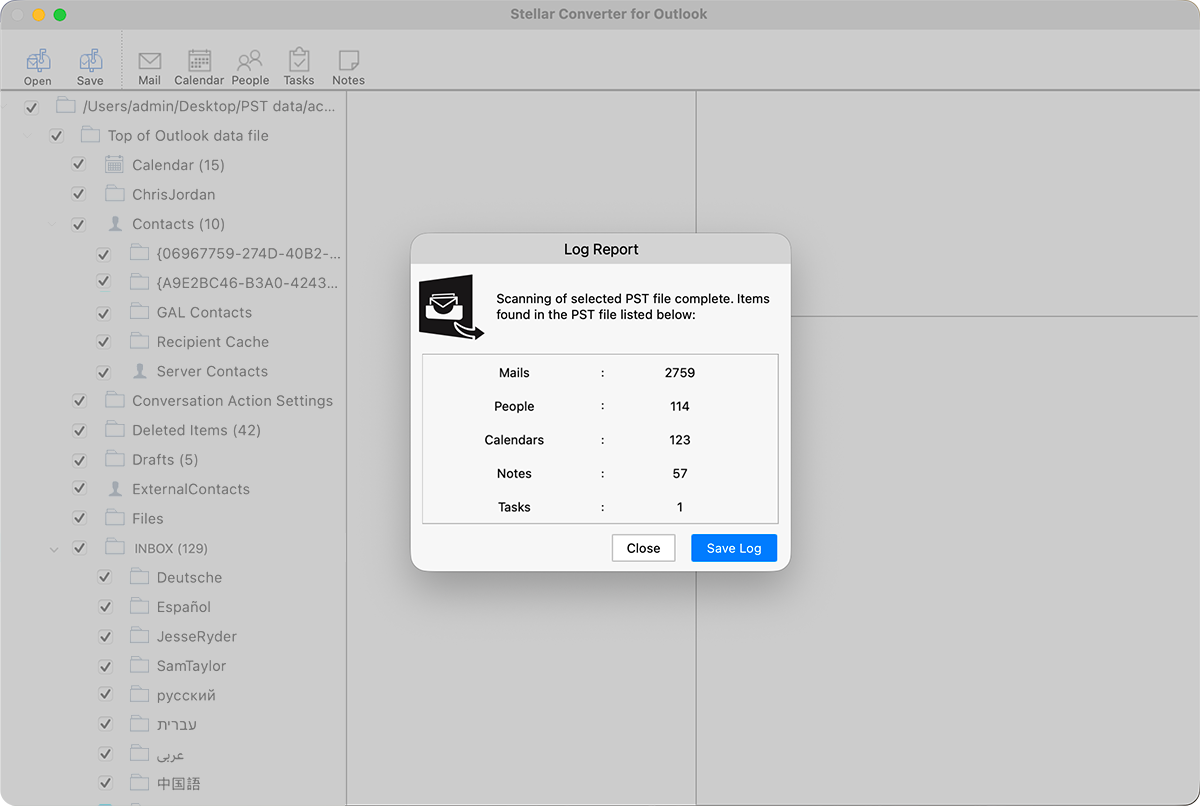
Step 3: Scan the PST File After selecting the required PST file, click on Scan. The software will start scanning the selected
PST file. After the scan is complete, it displays a Log Report showing the number of items found
in the PST file. Click on Close to close it. Click on Save Log to save the details on your system as a
TXT file.
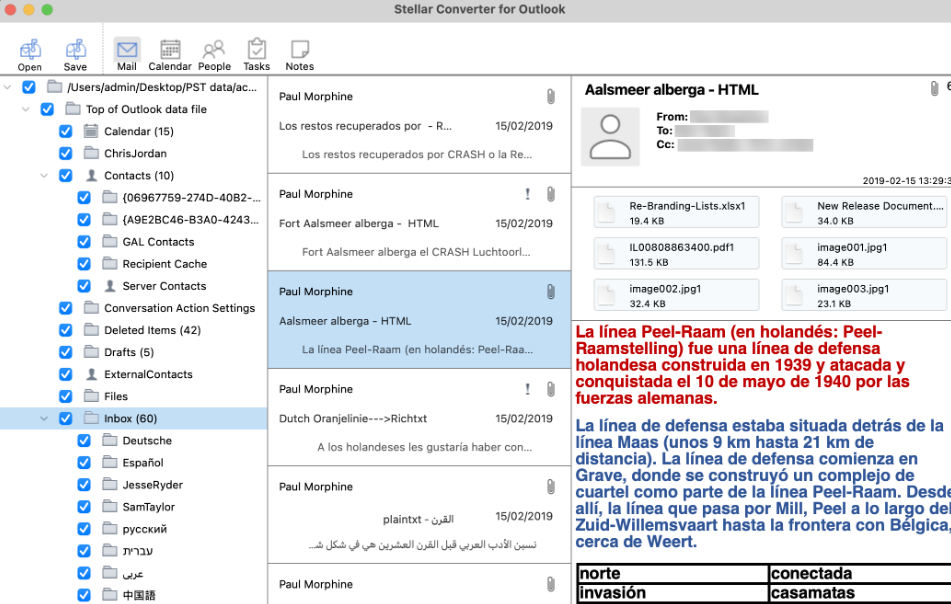
Step 4: Preview Mailbox Items The software displays the mailbox items of the scanned PST file in a three-pane window. In the
first (left) pane, it displays all the folders/subfolders in a tree-view. Click on a folder/subfolder to
display its contents in the middle pane. Finally, select an item from the middle pane to get a
preview of it in the right pane. You can also preview Mail, Calendar, People, Tasks, and Notes
separately.
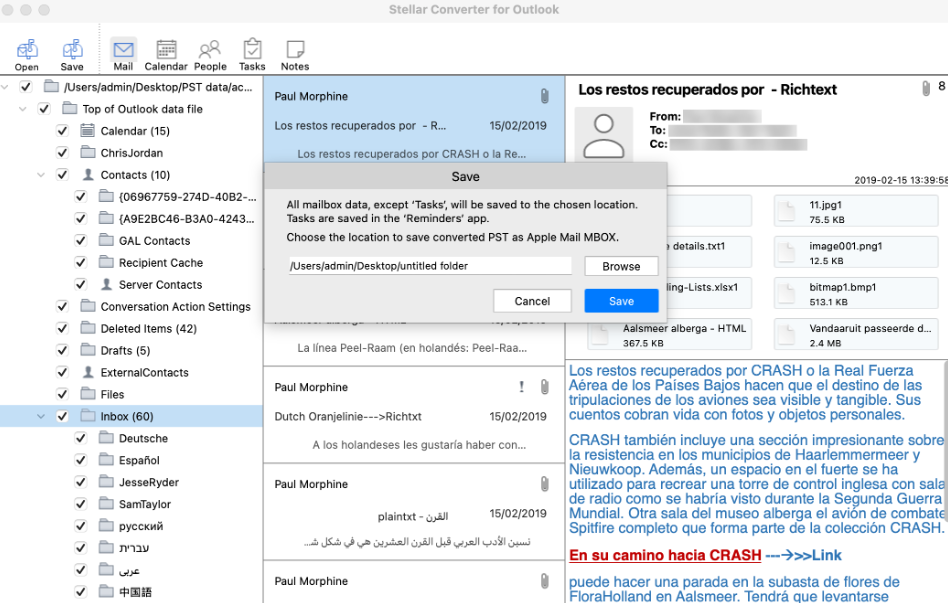
Step 5:- Save the Converted PST File Items Choose the mailbox items that you want to save. After making the selection, click on Save. The
‘Save’ dialog box will appear on the screen. Click on Browse to choose the destination path on
your Mac to save the resulting files. Next, click on Save. The software will save Emails to MBOX;
Contacts to VCF; Calendar to ICS; and Notes to TXT. It also exports the Tasks directly to the
Reminders app. Once completed, you will see the ‘Files Saved Successfully’ message. Click OK to
complete the process.
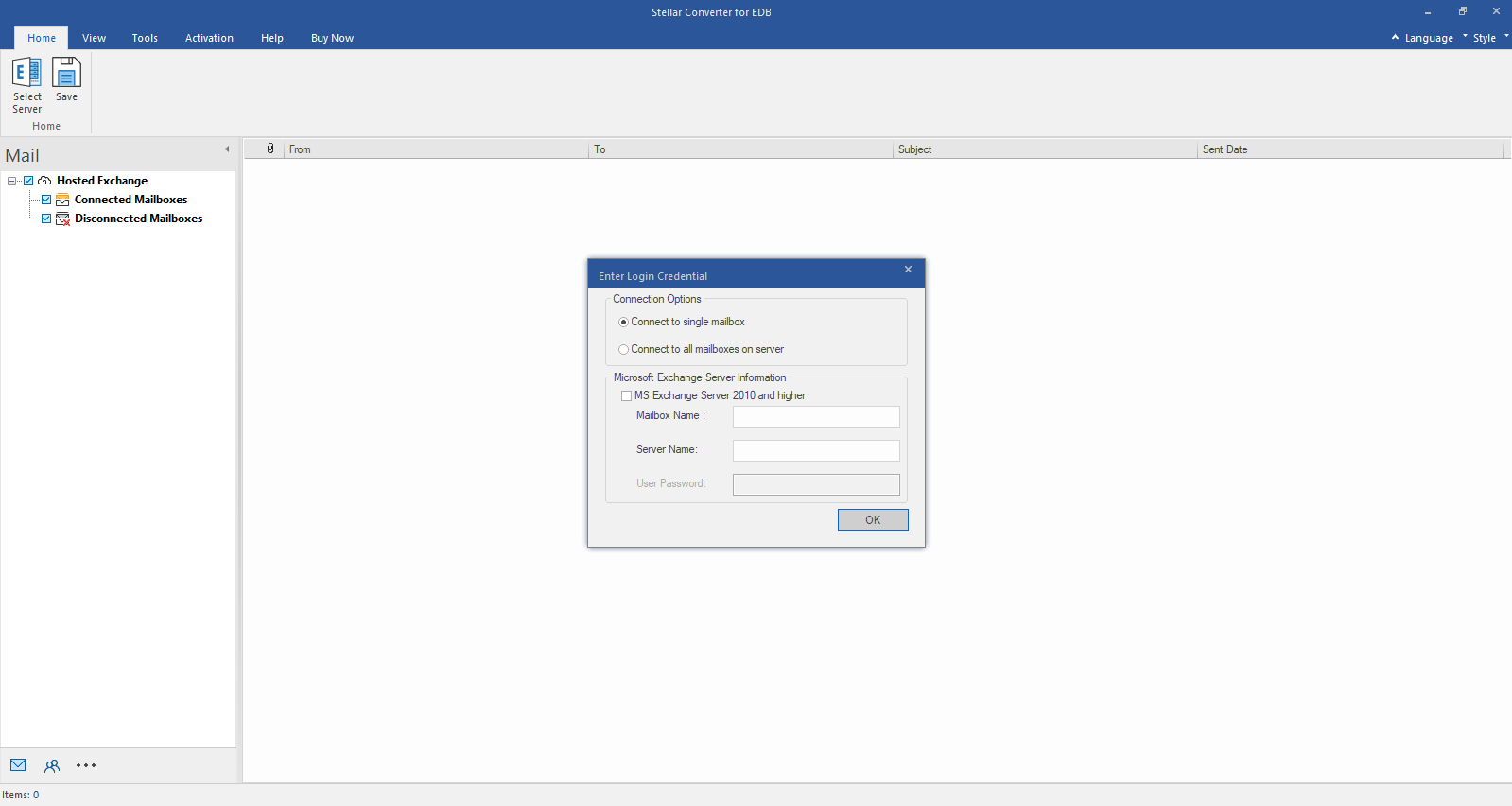
Step 1: Select Hosted Exchange to export mailboxes from an online EDB file. Select Connect to Single Mailbox or Connect to Single Mailbox from Connection Options
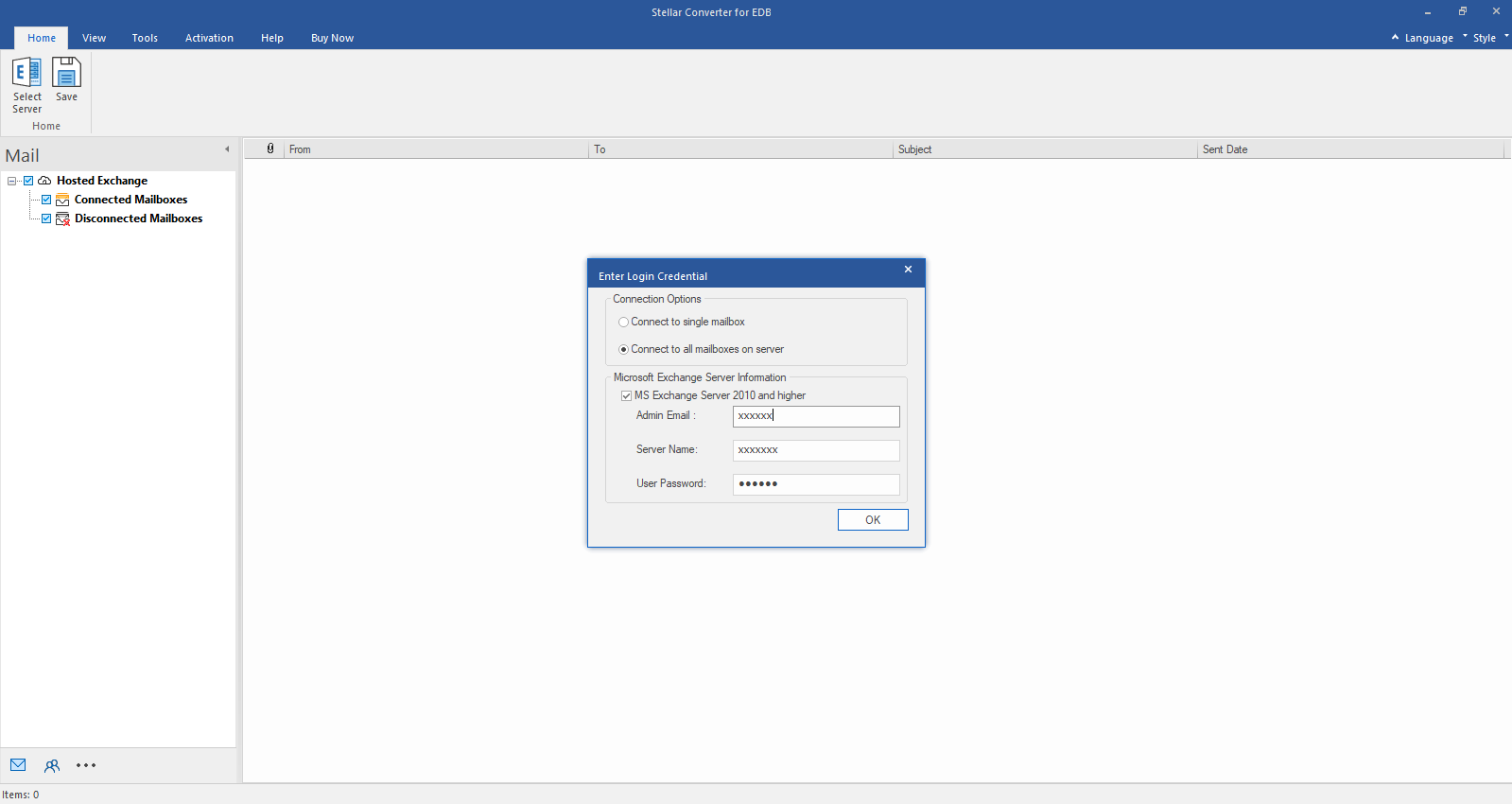
Step 2: Enter Admin and Server Name (for Exchange 5.5, 2000, 2003, 2007) or tick "Exchange Server 2010 and higher" checkbox to enter Admin Email, Server Name and Password (for MS Exchange 2010, 2013, 2016, and 2019). Click OK.
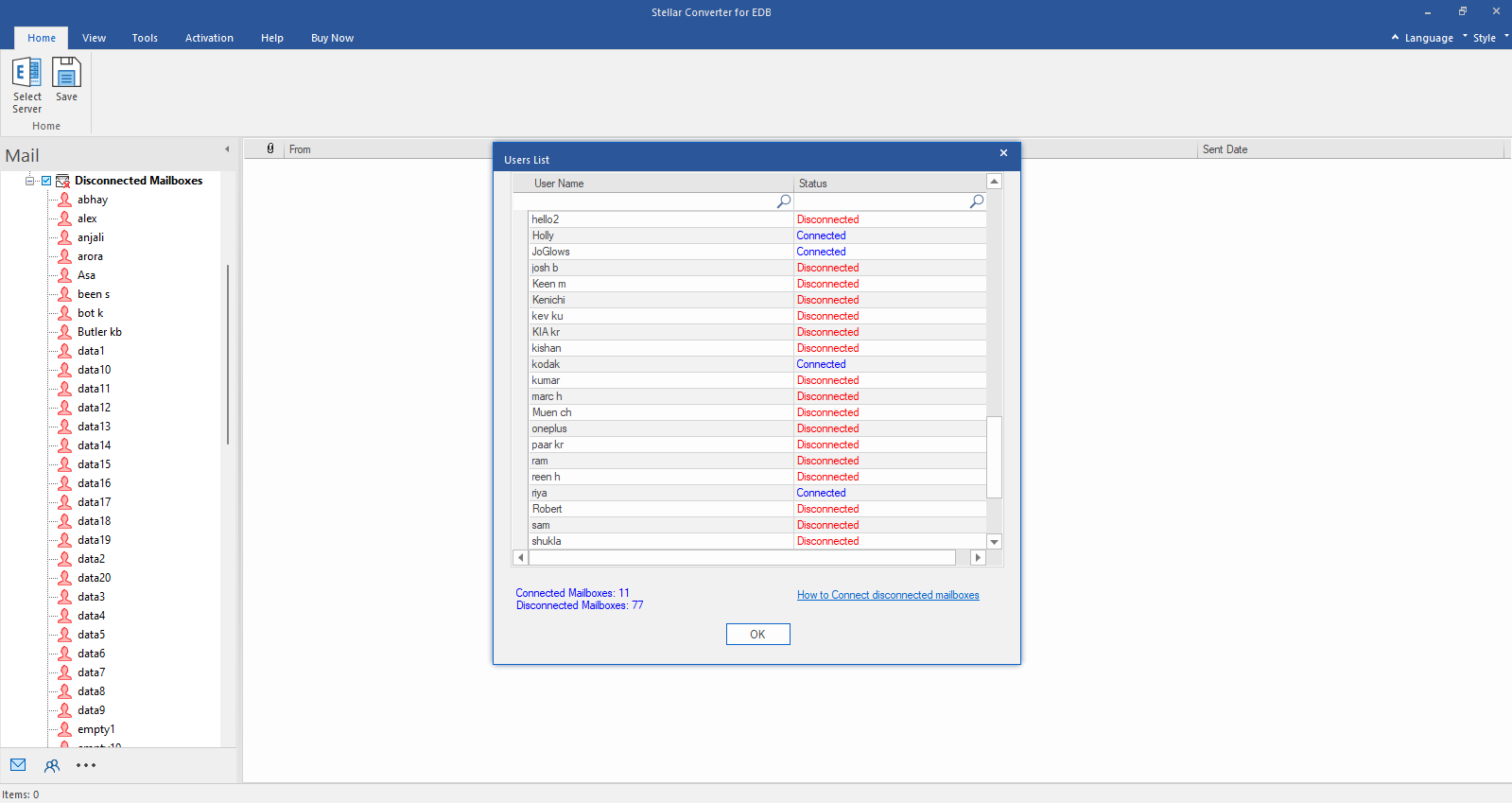
Step 3: After establishing the connection with Exchange Server, Next window displays list of connected and disconnected mailboxes. Click "OK" to proceed.
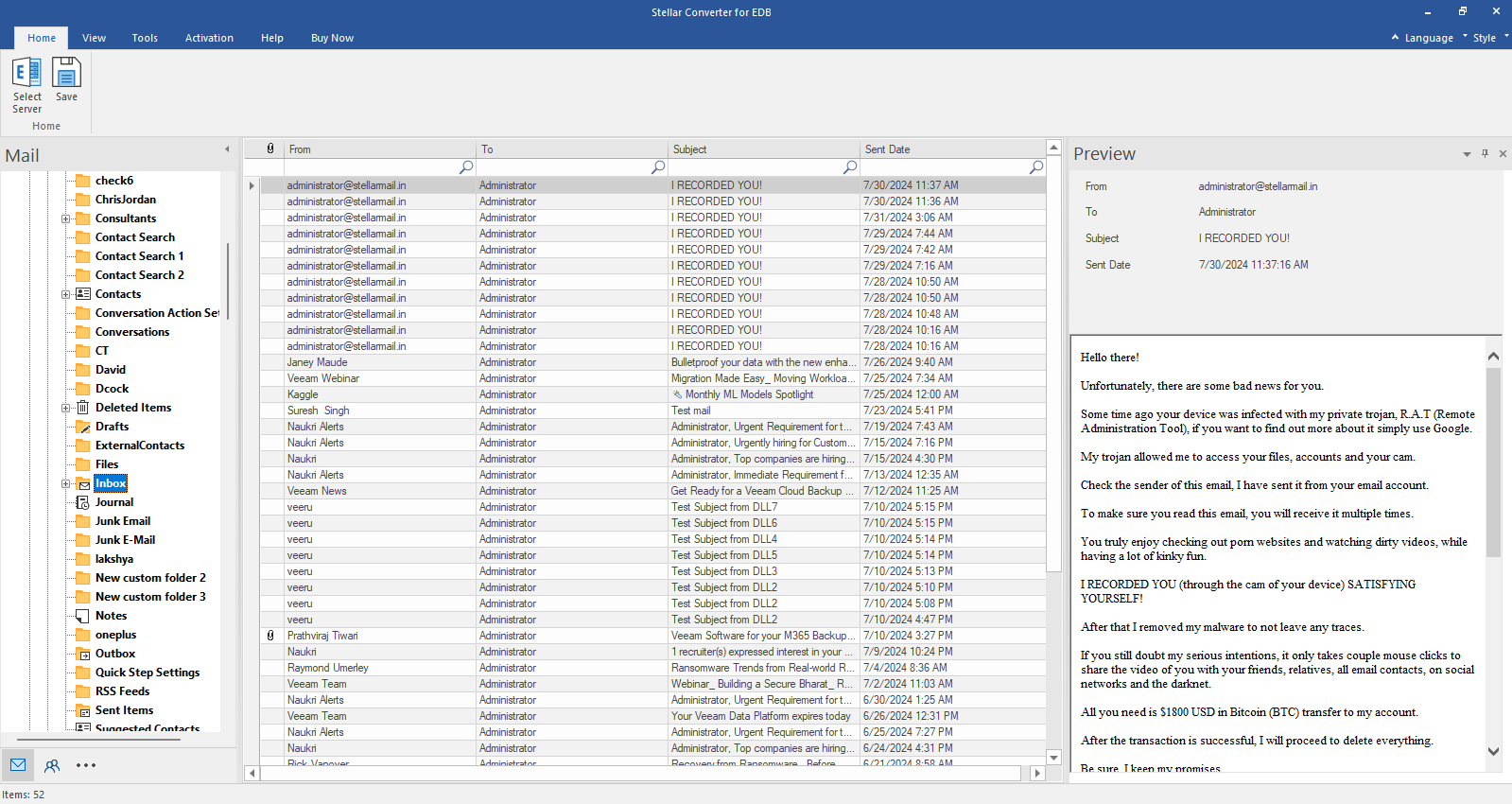
Step 4: Check the preview of all mailbox items- Emails, Calendars, Contacts etc.
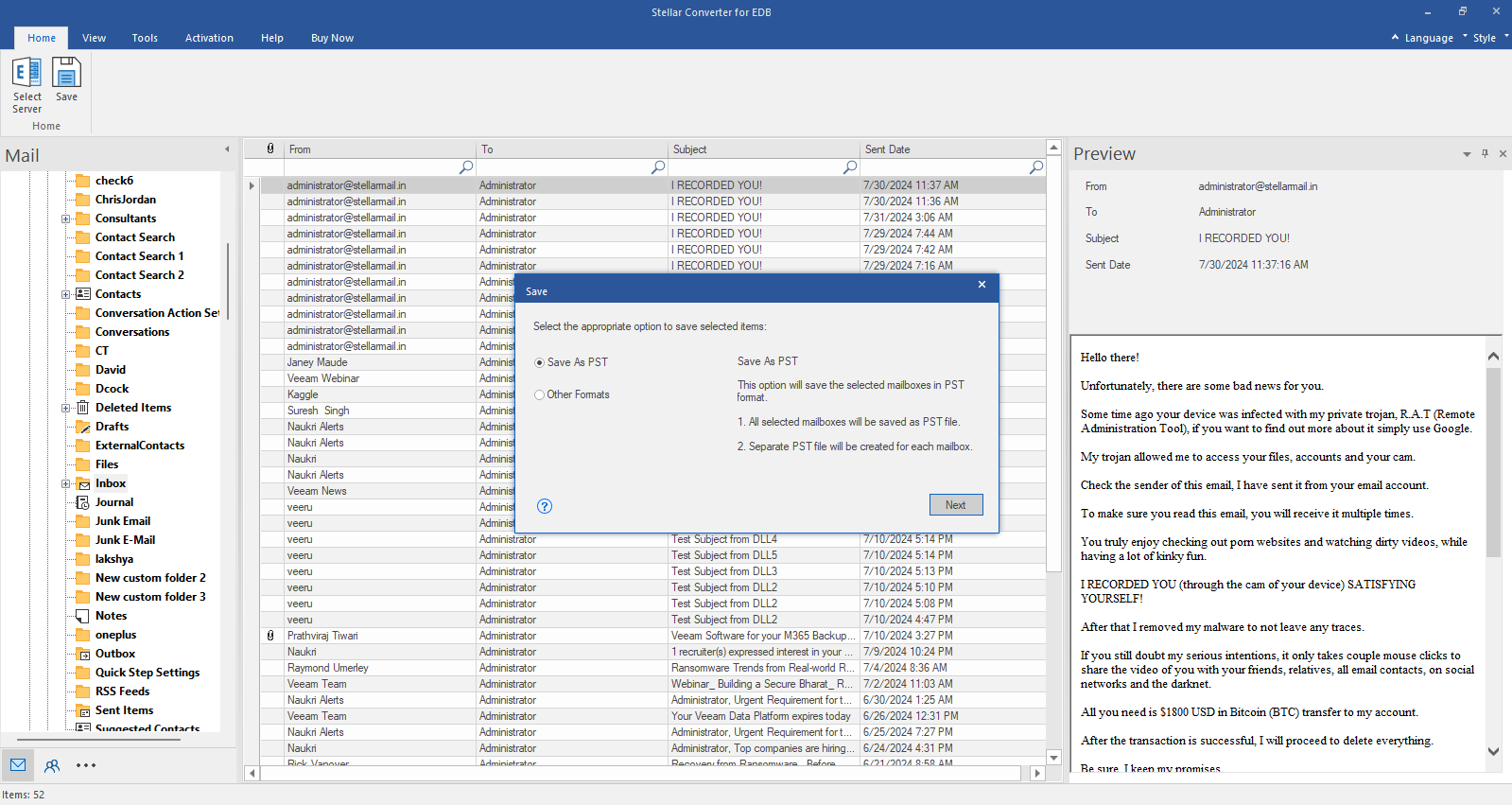
Step 5: Click Save from Home Ribbon and Select Save as PST option. Click "Next" to proceed.